
Design settings overview
AI Overview
The Design section in Tipo Related Products settings controls how widgets look: layout, size, position, visible product details and colors. Changes appear instantly in a live Preview. Tabs at the top switch between widget types such as Related, Frequently Bought Together and Add on.
View moreView less
- Open the app, go to Settings and click Design; choose a widget type tab.
- Pick a Template such as Carousel, List, Table, Vertical, Slider or Bundle.
- Set Maximum width, Number of products and Position.
- Use Elements to show or hide variant select, sale label, price and add to cart button, and Colors for styling.
- Click Save; some widgets, like Thank you offers, may show no preview.
Summary generated by AI. It can make mistakes, so check the full guide below.
The Design section controls how your widgets look on your store (layout, colors, buttons, and what information shows).
Any changes you make here update the Preview on the right, so you can see results instantly.
✅ Before you start
Section titled “✅ Before you start”- Open the app > go to app Settings
- Click Design
- Use the tabs at the top to switch between widget types:
- Related
- Frequently Bought Together
- Add on
- Search Add on
- More views (dropdown)
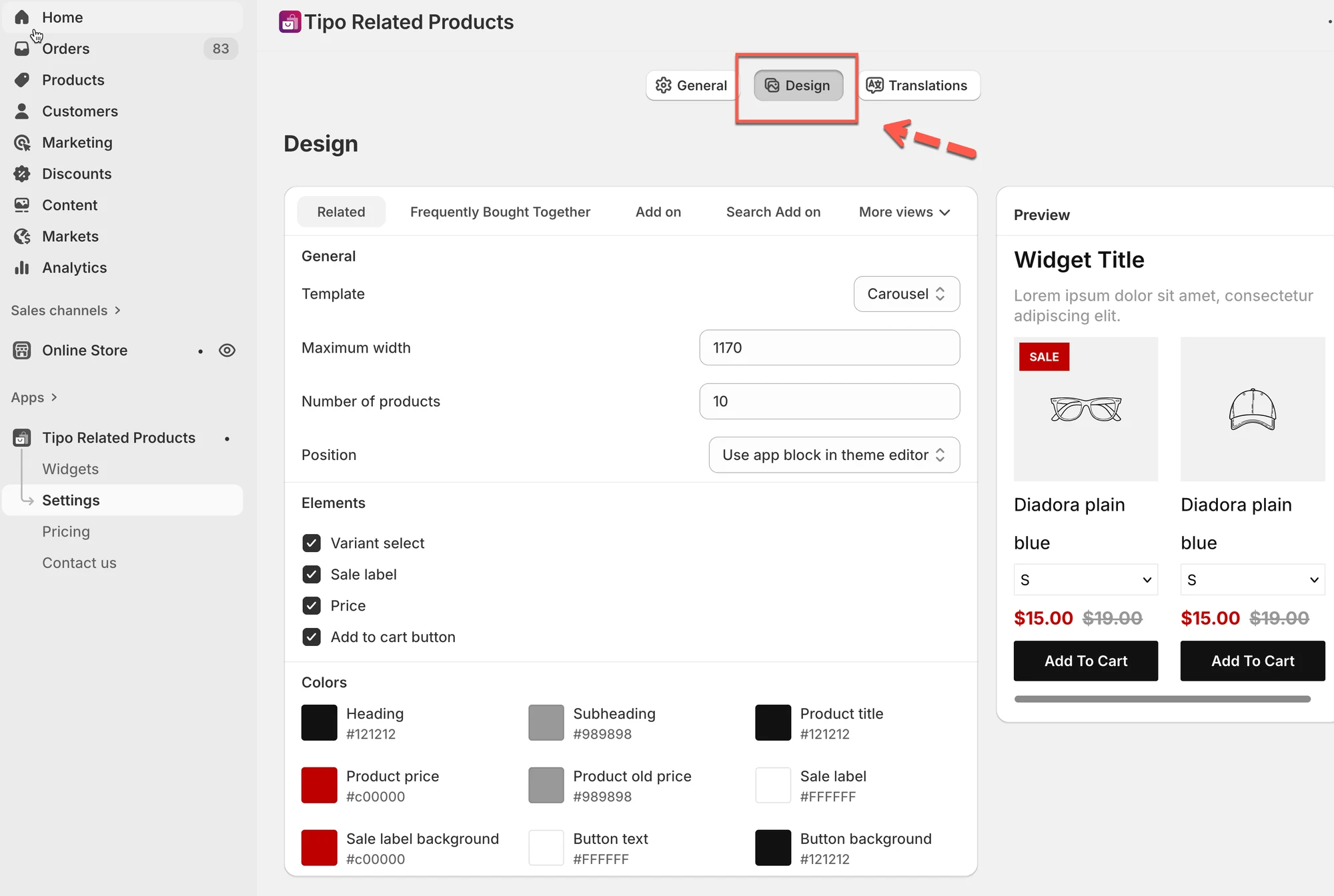
🧩 How the Design page is organized
Section titled “🧩 How the Design page is organized”On the left, you’ll see settings grouped into sections (most widgets share the same structure):
- General → layout + size + placement
- Elements → what product info appears
- Colors → colors for headings, price, buttons, labels
- Preview (right side) → live preview of the widget
1) Choose a layout (Template)
Section titled “1) Choose a layout (Template)”Template controls how products are displayed in the widget.
Common templates you may see:
- Carousel — products slide horizontally (popular for product pages)
- List — simple vertical list
- Table — compact list-style layout
- Vertical — stacked cards (often good for sidebars)
- Slider — large sliding cards
- Bundle — grouped products (used a lot in Frequently Bought Together)
Tip: If you’re not sure, start with Carousel.
2) Set the widget size
Section titled “2) Set the widget size”Maximum width
Section titled “Maximum width”Controls how wide the widget can be.
- Example: 1170 fits most desktop themes.
- Smaller numbers make the widget more compact.
Number of products
Section titled “Number of products”Controls how many products show in the widget.
- Example: 10 = show up to 10 items
- The final number displayed can depend on the layout and screen size.
3) Choose where the widget appears (Position)
Section titled “3) Choose where the widget appears (Position)”Position decides where the widget is placed on the page.
Common options you may see:
- Use app block in theme editor (recommended)
- Below the product form (commonly used for bundles/FBT)
- Before / After a HTML element (advanced)
Tip: Use app block in theme editor when possible, it’s the easiest to manage.
4) Pick what shoppers can see (Elements)
Section titled “4) Pick what shoppers can see (Elements)”The Elements section lets you show/hide parts of each product card.
Common options include:
- Variant select — show variant dropdown
- Sale label — show SALE badge
- Price — show product price
- Add to cart button — show the add-to-cart button
Tip: If your widget is small (sidebar/cart), hide extra elements to keep it clean.
5) Customize colors (Colors)
Section titled “5) Customize colors (Colors)”In Colors, you can adjust styling such as:
- Heading / Subheading
- Product title
- Product price / old price
- Sale label + background
- Button text + background
Tip: Match your theme’s button and text colors so the widget looks native.
6) Use the live Preview
Section titled “6) Use the live Preview”The Preview panel on the right updates as you change settings.
Use it to quickly verify:
- spacing and layout
- readability (text + price)
- button visibility
- sale label appearance
⚠️ Note: Some widgets (like Thank you offers) may show “No preview available” depending on Shopify page limitations.
✅ Save your changes
Section titled “✅ Save your changes”When you’re done, click Save in the top-right corner of Shopify.
🙋 Still need support?
If you still need help, please feel free to contact us at hi@tipo.io. We’ll be happy to assist you further.