
Thank you offers – Design
AI Overview
Explains how to design Thank you offers in Tipo Related Products, which show product recommendations after checkout on the Thank you page. You set the number of products, visible elements and colors. The preview may show No preview available, so test with a real order.
View moreView less
- Open the app Settings, click Design, open More views, then select Thank you offers.
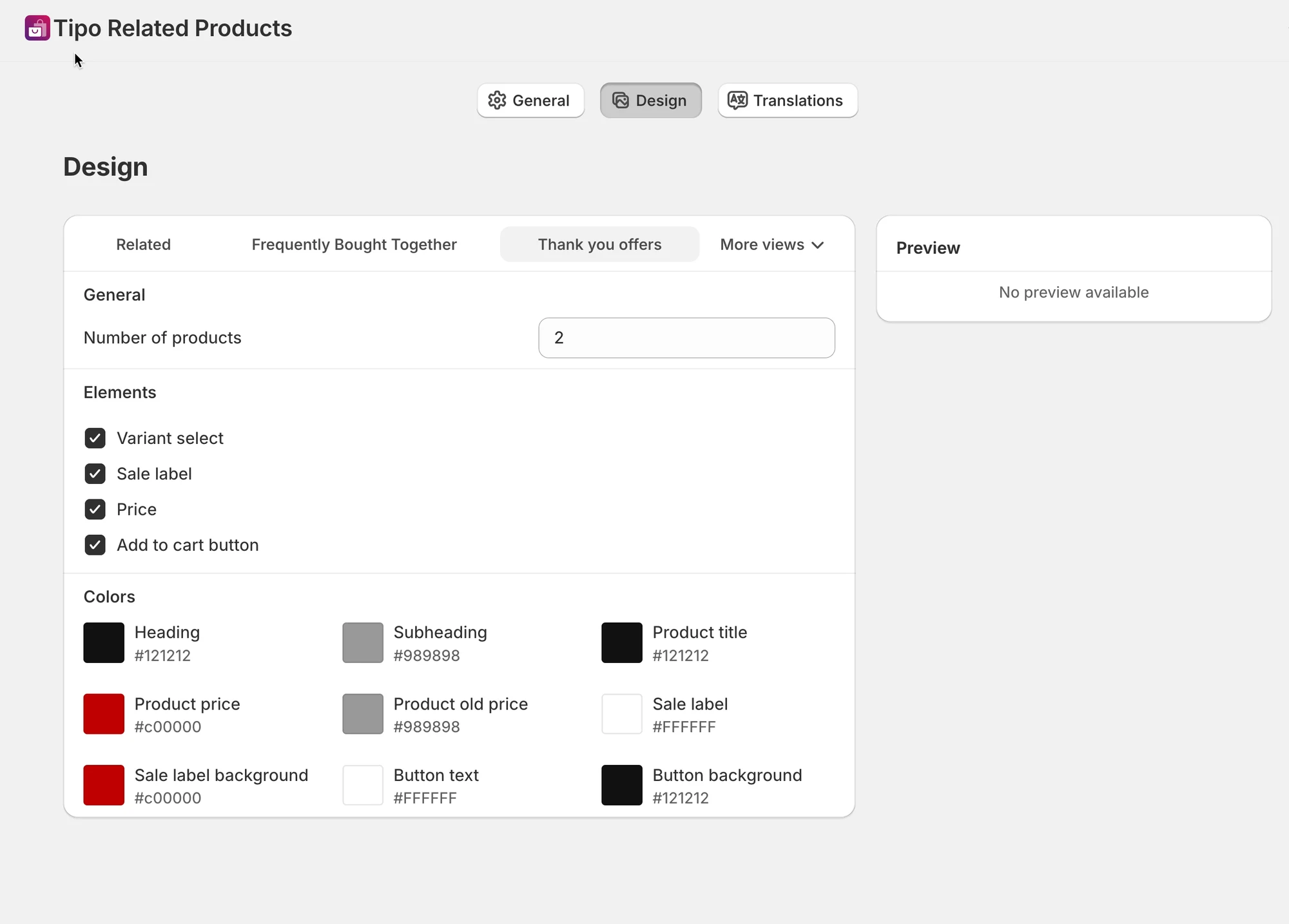
- Set Number of products; 1-2 is recommended.
- Turn elements on or off: Variant select, Sale label, Price, Add to cart button.
- Customize colors to match your store buttons.
- The preview may say No preview available, which is normal; place a real order to see the widget.
Summary generated by AI. It can make mistakes, so check the full guide below.
Thank you offers let you show product recommendations after checkout on the Thank you page.
This is a great place to suggest a small add-on or a related product while the customer is still engaged.
🛠️ Where to find the settings
Section titled “🛠️ Where to find the settings”- Go to the app > open app Settings
- Click Design
- Open More views
- Select Thank you offers
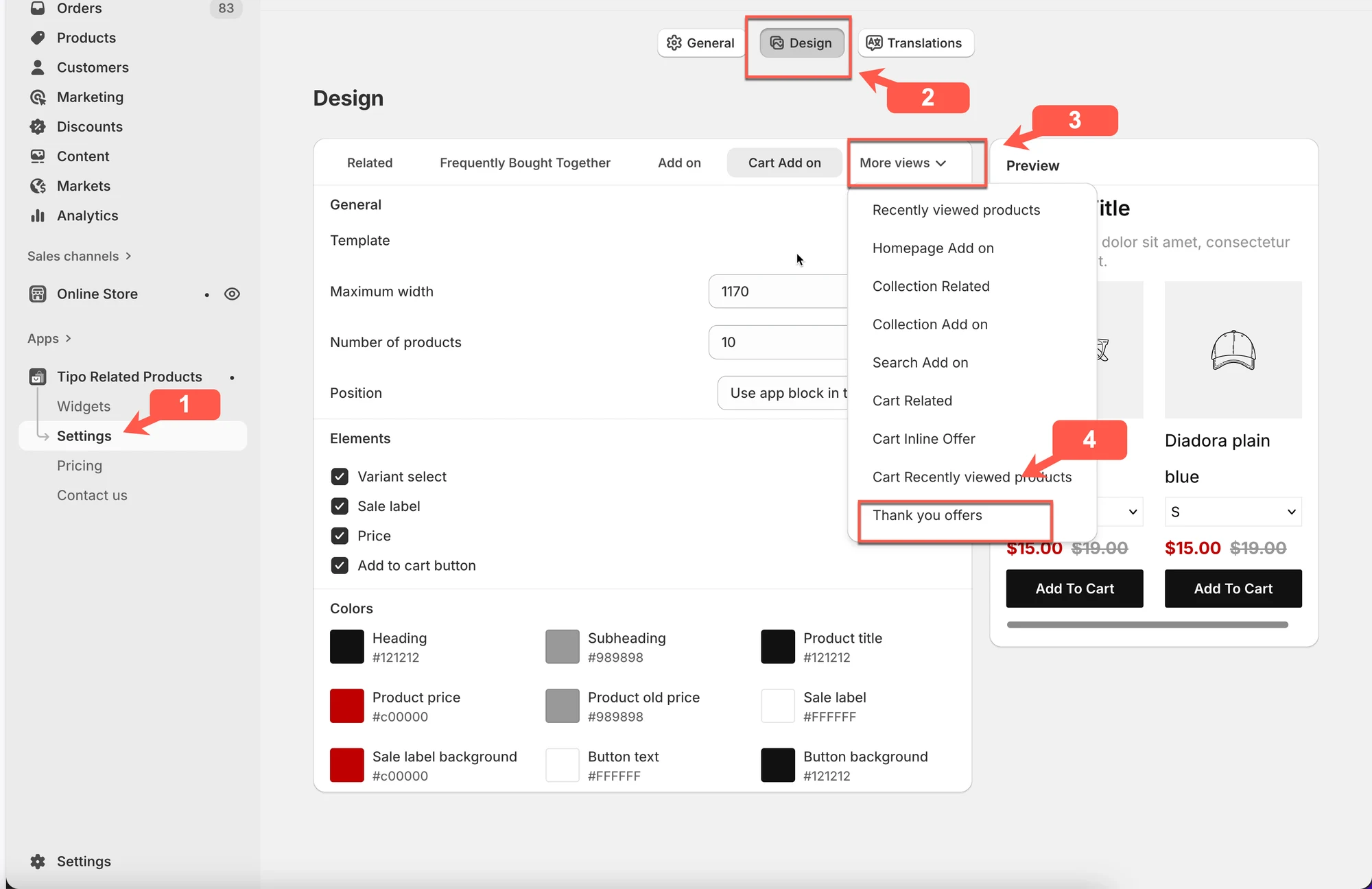
⚠️ Note: The preview may show “No preview available”. This is normal for Thank you page widgets.
⚙️ General settings
Section titled “⚙️ General settings”Number of products
Section titled “Number of products”Choose how many products to show in the Thank you offer.
Example:
2→ Show up to 2 products on the Thank you page
Recommended: 1–2 products
(Keep the Thank you page clean and focused.)
Elements
Section titled “Elements”Control what information appears for each product.
You can enable or disable:
- Variant select – Let customers choose a variant
- Sale label – Show a “Sale” badge
- Price – Display product price
- Add to cart button – Allow customers to add the item directly
Recommended setup:
- Price
- Add to cart button
Colors
Section titled “Colors”Customize the look to match your store design.
You can change:
- Heading & subheading color
- Product title color
- Product price & old price
- Sale label & background
- Button text & button background
Tip: Use the same button colors as your main store buttons for a consistent look.
⚙️ Preview behavior
Section titled “⚙️ Preview behavior”- The Preview panel may display “No preview available”
- This is expected for Thank you page widgets
- Always test by placing a real order to see the widget live
🧪 Example: Thank you offer in action
Section titled “🧪 Example: Thank you offer in action”Customer just bought: Phone
Thank you offer shows:
- Screen protector
- Phone case
Settings used:
- Number of products:
2 - Price: ON
- Add to cart button: ON
- Variant select: OFF
This creates a simple, low-friction post-purchase upsell.
✅ Best practices
Section titled “✅ Best practices”- Show small, easy add-ons
- Limit to 1–2 products
- Avoid complex variant selection
- Keep design minimal and clean
🙋 Still need support?
If you still need help, please feel free to contact us at hi@tipo.io. We’ll be happy to assist you further.