> For the complete documentation index, see [llms.txt](https://docs.tipo.io/llms.txt). Markdown versions of documentation pages are available by appending `.md` to page URLs; this page is available as [Markdown](https://docs.tipo.io/tipo-auction/getting-started.md).
# Getting started
Welcome to **Tipo Product Auction**!
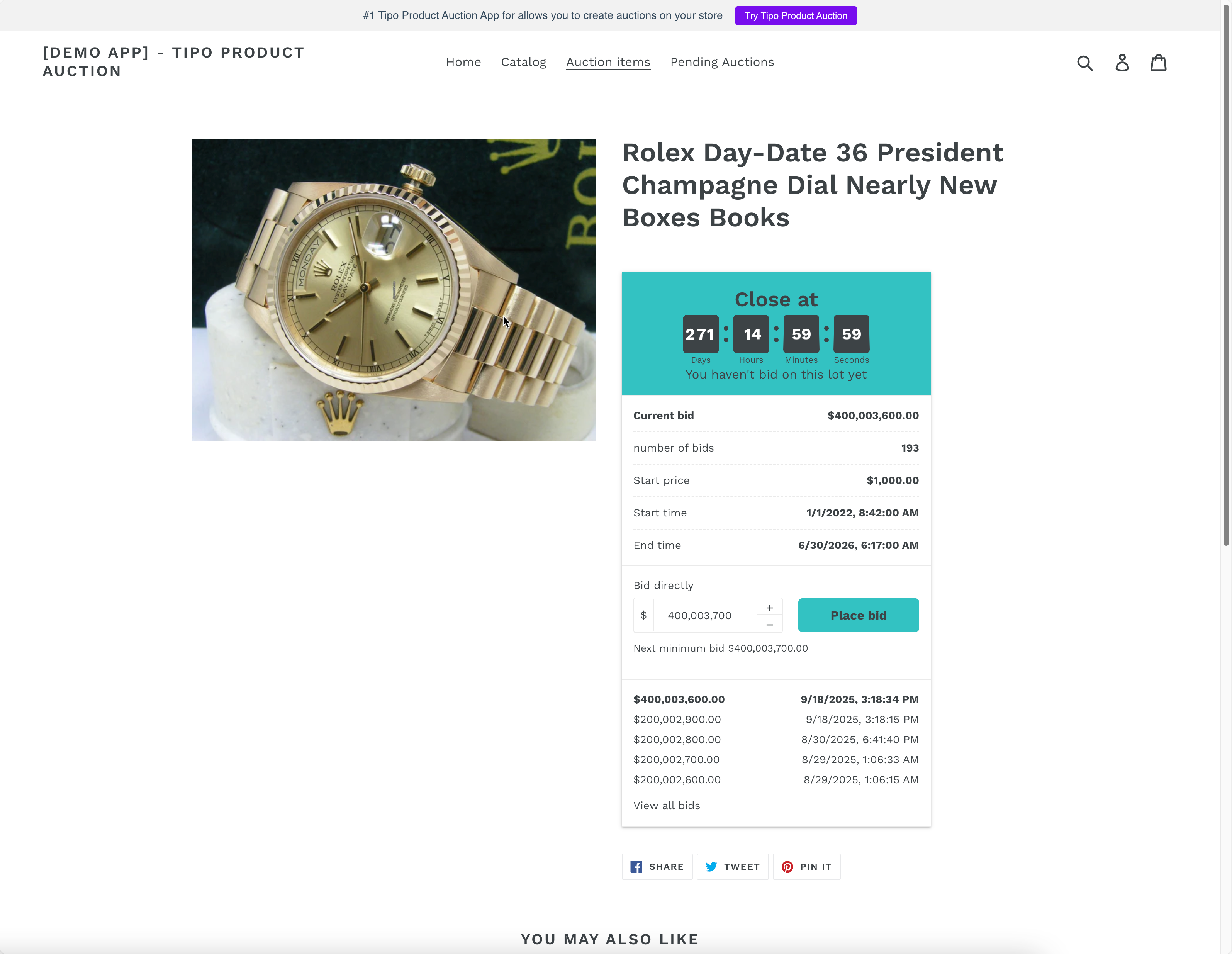
Tipo Auction allows you to turn regular Shopify products into auctions. Customers can place bids directly on the product page, and when the auction ends, the winner can complete their purchase automatically.
You can run different auction types, customize how the auction appears on your store, and control how winners are handled. All from one dashboard.
### 🔑 Key Features
* **Create Auctions in Minutes:** Launch auctions with custom rules, reserve prices, and buyout options.
* **Live Auction Widget:**Display auctions directly on product and collection pages.
* **Real-Time Bidding:** Live bids, automatic updates, and countdown timers.
* **Collection-Based Auctions:** Apply auction settings to entire collections.
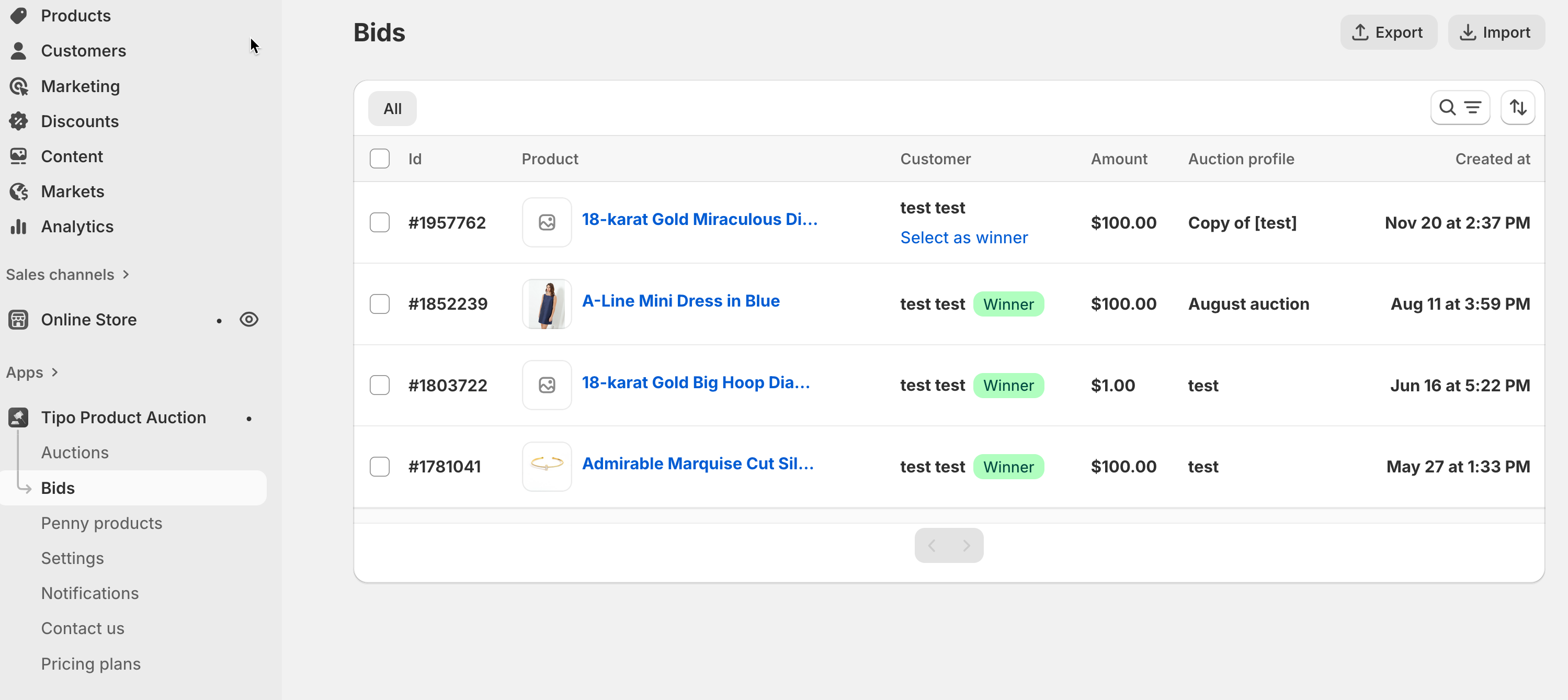
* **Bid Management:** Monitor and manage bids from one dashboard.
* **Checkout Protection:** Prevent customers from purchasing active auction products directly.
* **Archive Ended Auctions:** Automatically hide completed auctions and restore normal purchasing.
* **Import & Export:** Bulk upload or export auction data via CSV.
* **Charge Per Bid:** Run high-engagement penny auction campaigns.
* **Email Notifications:** Keep bidders and admins informed of auction activity.
* **Customizable Widget:** Match the auction experience to your store's design.
***
### 🛠️ Steps for Quick Start
#### Step 1: Install Tipo Product Auction app
1. Install **Tipo Auction** from the Shopify App Store. Install [here](https://apps.shopify.com/tipo-product-auction)
2. Open the app from your Shopify admin
You’ll be taken to the Tipo Auction dashboard.
#### Step 2: Create a New Auction
* Go to the app dashboard and click **Create Auction**.
* Enter an auction name
* Select the product(s) you want to auction
* Set the auction start and end time
* Configure basic auction rules:
* Starting price
* Bid increment
* Buyout price (optional)
* Reserve price (optional)
#### Step 3: Show the Auction on Your Store
By default, the auction widget appears on the product page.
To make sure it’s enabled, please check and enable the app embed on the theme [here](https://docs.tipo.io/tipo-auction/settings/theme-integration#enable-app-embeds-on-your-theme)
#### **Step 4: Monitor & Control Bids**
View all bids in real-time, delete unwanted bids, or manually stop auctions when necessary.
### 📚 Additional Resources
[Create a new auction](https://docs.tipo.io/tipo-auction/auction-management/create-a-new-auction)
[Manage auction products](https://docs.tipo.io/tipo-auction/auction-management/manage-auction-products)
[Enable app embeds on your theme](https://docs.tipo.io/tipo-auction/settings/theme-integration#enable-app-embeds-on-your-theme)
Support**:** Reach out to our team at
***
**🙋 Still need support?**
If you still need help, please feel free to contact us at . We’ll be happy to assist you further.