> For the complete documentation index, see [llms.txt](https://docs.tipo.io/llms.txt). Markdown versions of documentation pages are available by appending `.md` to page URLs; this page is available as [Markdown](https://docs.tipo.io/tipo-auction/auction-rules-and-bidding-features/manage-auction-products.md).
# Manage auction products
This guide explains how to **view, filter, and manage products that are linked to an auction**.\
You’ll learn how to quickly find auction products, check their status, and review bidding activity.
***
### ✅ What you can do on this page
From the Manage auction products page, you can:
* View all products assigned to auctions
* Filter products by auction profile
* Check whether an auction is running or stopped
* Open a product to see auction details and bid history
* Select a winner manually (if needed)
***
### 🛠️ View Auction Products
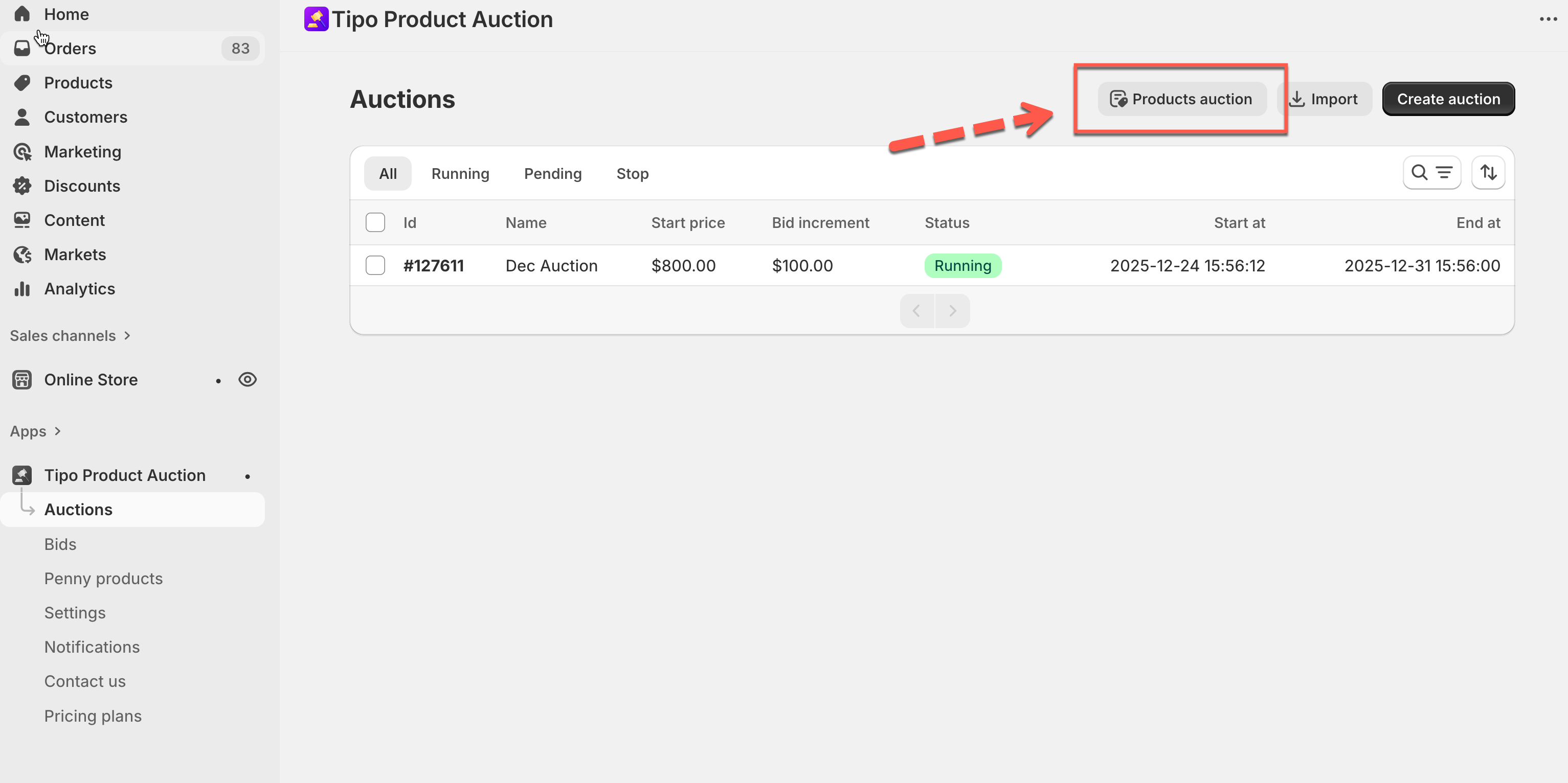
1. Open **Tipo Product Auction** app > go to **Auctions**
2. Click **Products auction** (top-right button)
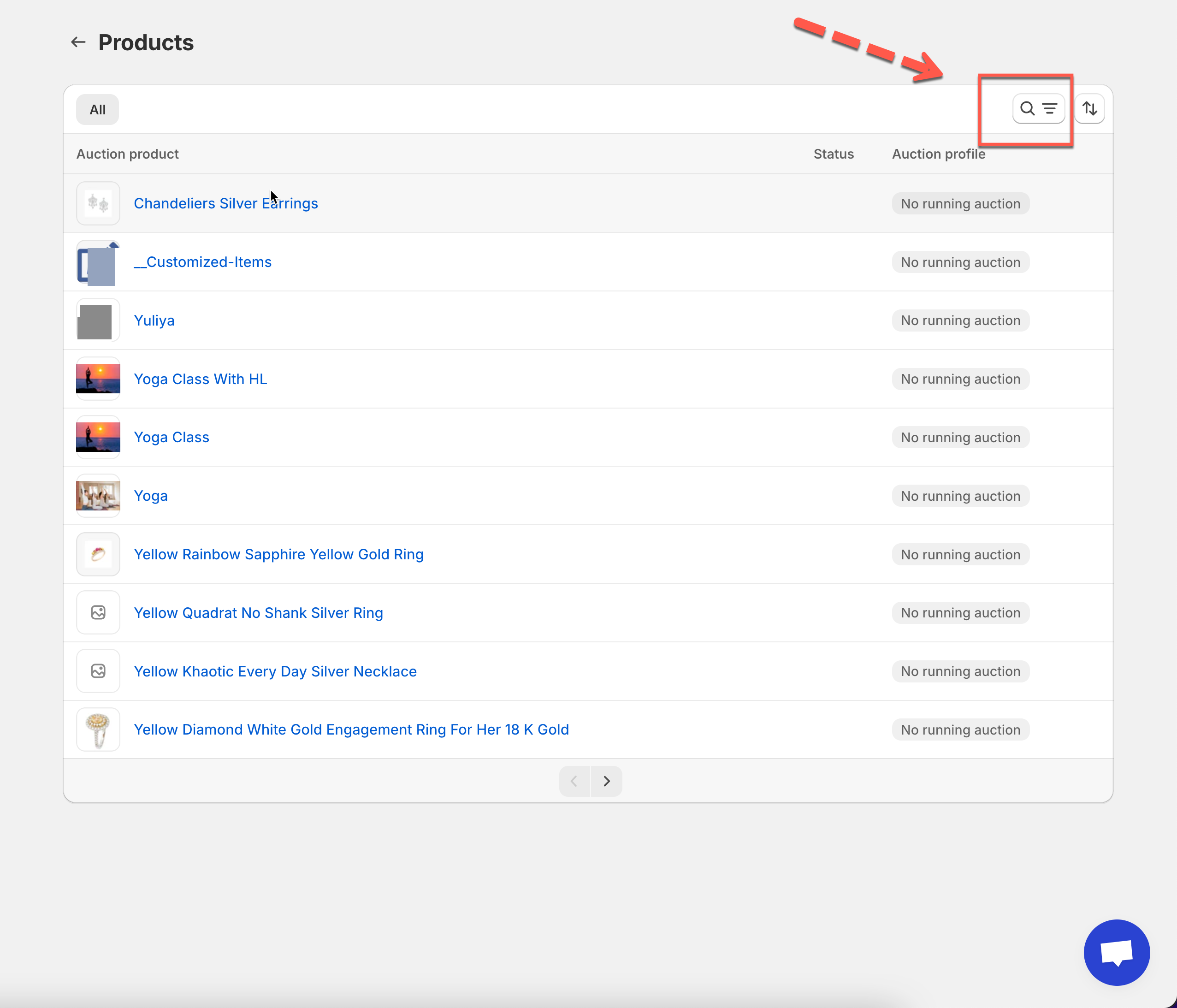
The list of all products of the store will be displayed
***
### 🔍 Filter products by auction profile
If you have multiple auctions, filtering helps you quickly find the right products.
1. On the **Products** page, click filter icon
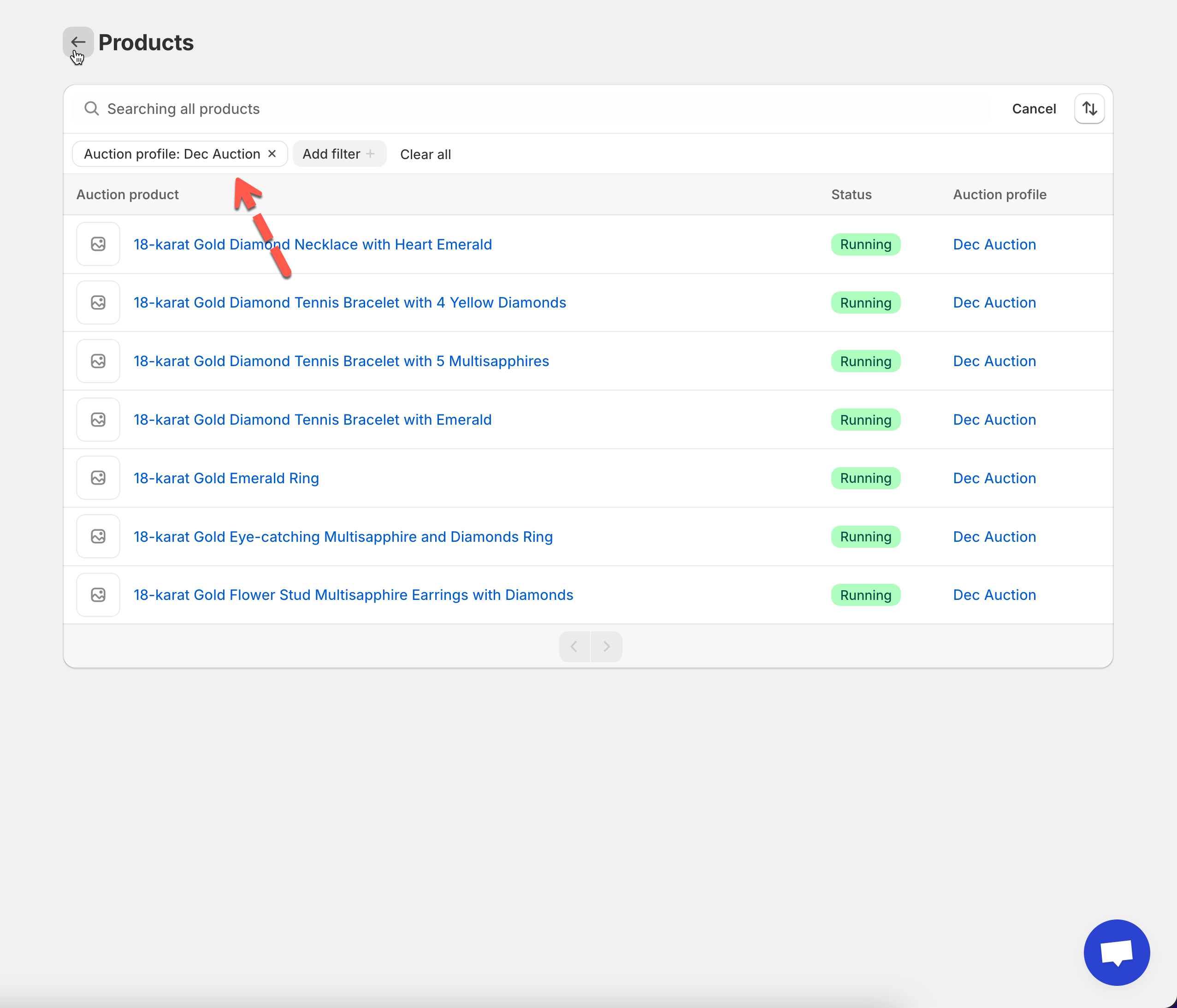
2. Click Add filter > select **Auction profile**
3. Choose the auction you want to view (for example: *Dec Auction*)
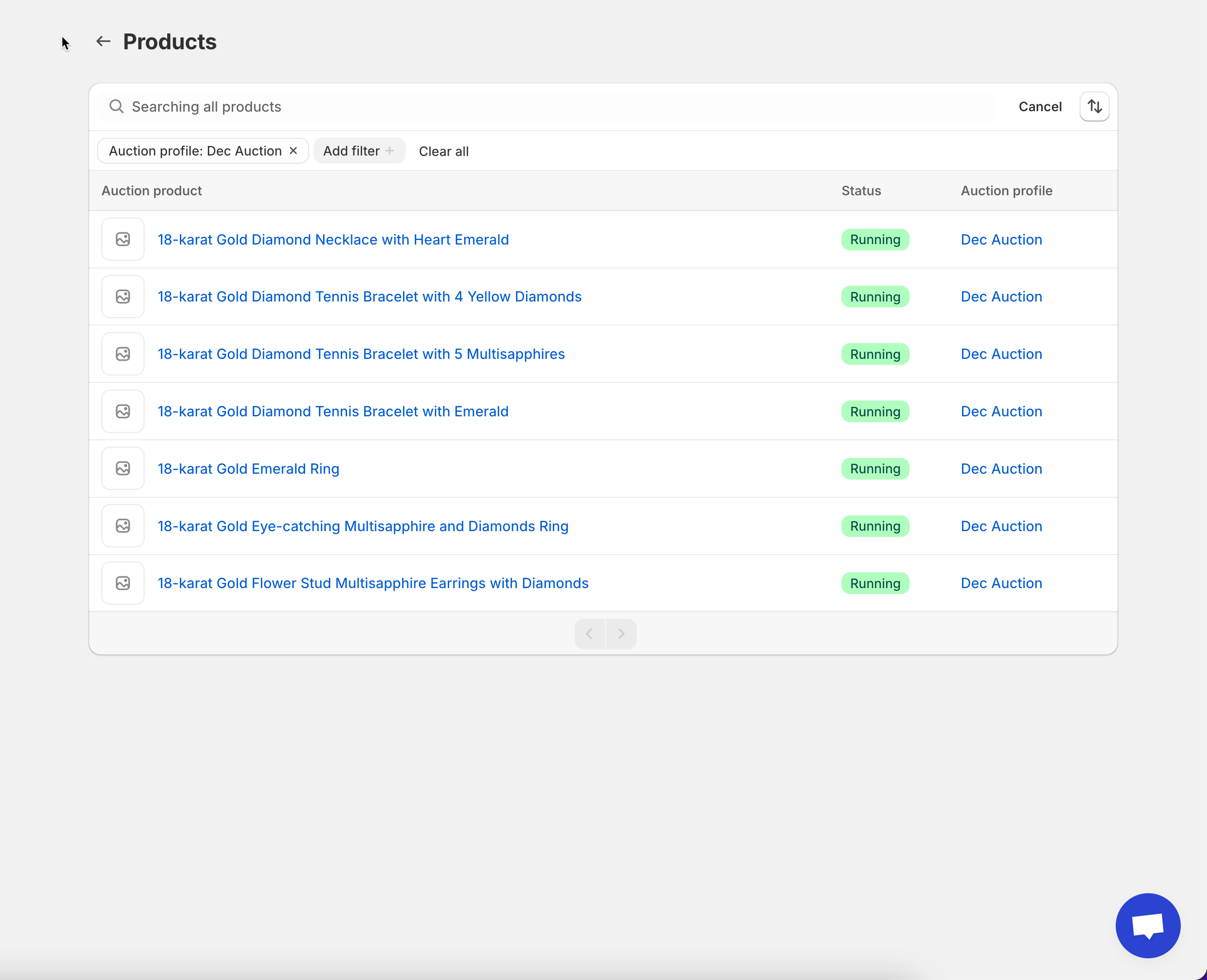
The product list will update automatically.
***
### 📋 Understand the product list
Each product row shows important auction information:
* **Product name** – Click to open auction details
* **Status** – Running or stopped
* **Auction profile** – Which auction the product belongs to
This helps you confirm which products are actively running auctions.
***
### 🔎 View auction details for a product
To see more details about an auction:
1. Click a **product name** from the list
2. The auction detail page opens
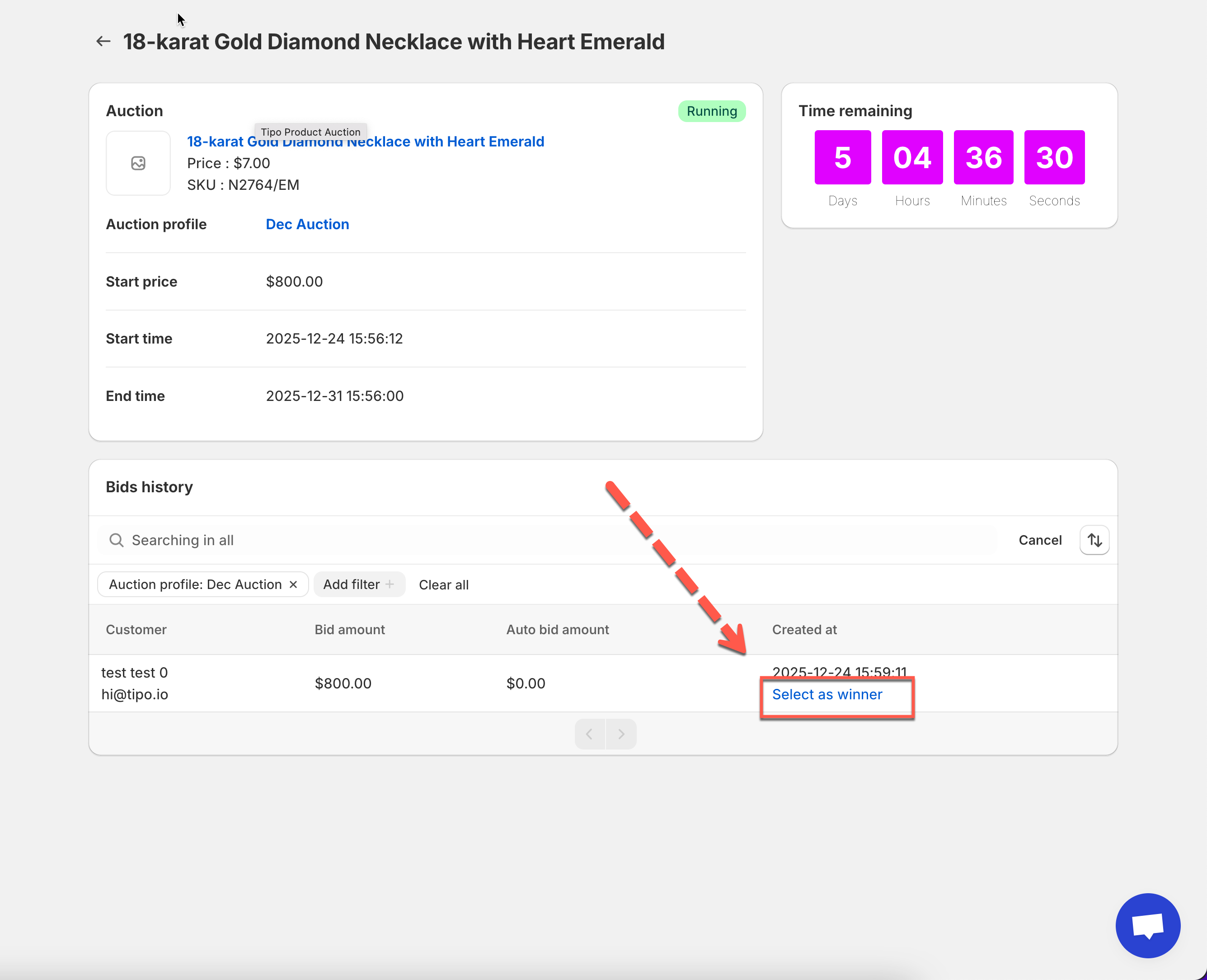
Here you can see:
* Auction status (Running / Stopped)
* Remaining time countdown
* Auction summary
* Bids history
***
### 🕒 Check bidding activity
Scroll down to the **Bids history** section to review all bids placed on the product.
You’ll see:
* Customer name and email
* Bid amount
* Auto-bid amount (if used)
* Time the bid was placed
This is useful for monitoring bidding behavior and resolving disputes.
***
### 🏆 Select a winner manually (optional)
If your auction settings allow manual winner selection:
1. Find the winning bid in **Bids history**
2. Click **Select as winner**
The selected customer becomes the auction winner and can proceed to checkout.
***
**🙋 Still need support?**
If you still need help, please feel free to contact us at . We’ll be happy to assist you further.