
Carousel settings
AI Overview
Explains the carousel settings in Tipo Related Products, which control how products slide in every widget that uses the Carousel layout, including Related products, Add-ons, Recently viewed and Cart upsells. You can set auto scroll, infinite loop, scroll direction and the maximum number of items.
View moreView less
- Open the app, then Settings > General and scroll to Carousel.
- Tick options: auto scroll, infinity loop, or change direction from Right to Left.
- Set the max number of items shown in the carousel.
- Click Save.
- Settings apply to all widgets that use the Carousel layout.
Summary generated by AI. It can make mistakes, so check the full guide below.
Carousel settings control how products slide and behave inside your widgets (Related products, Add-ons, Recently viewed, Cart upsells, etc.).
You can use the same carousel settings across different widgets to create a consistent shopping experience.
⚙️ How to set
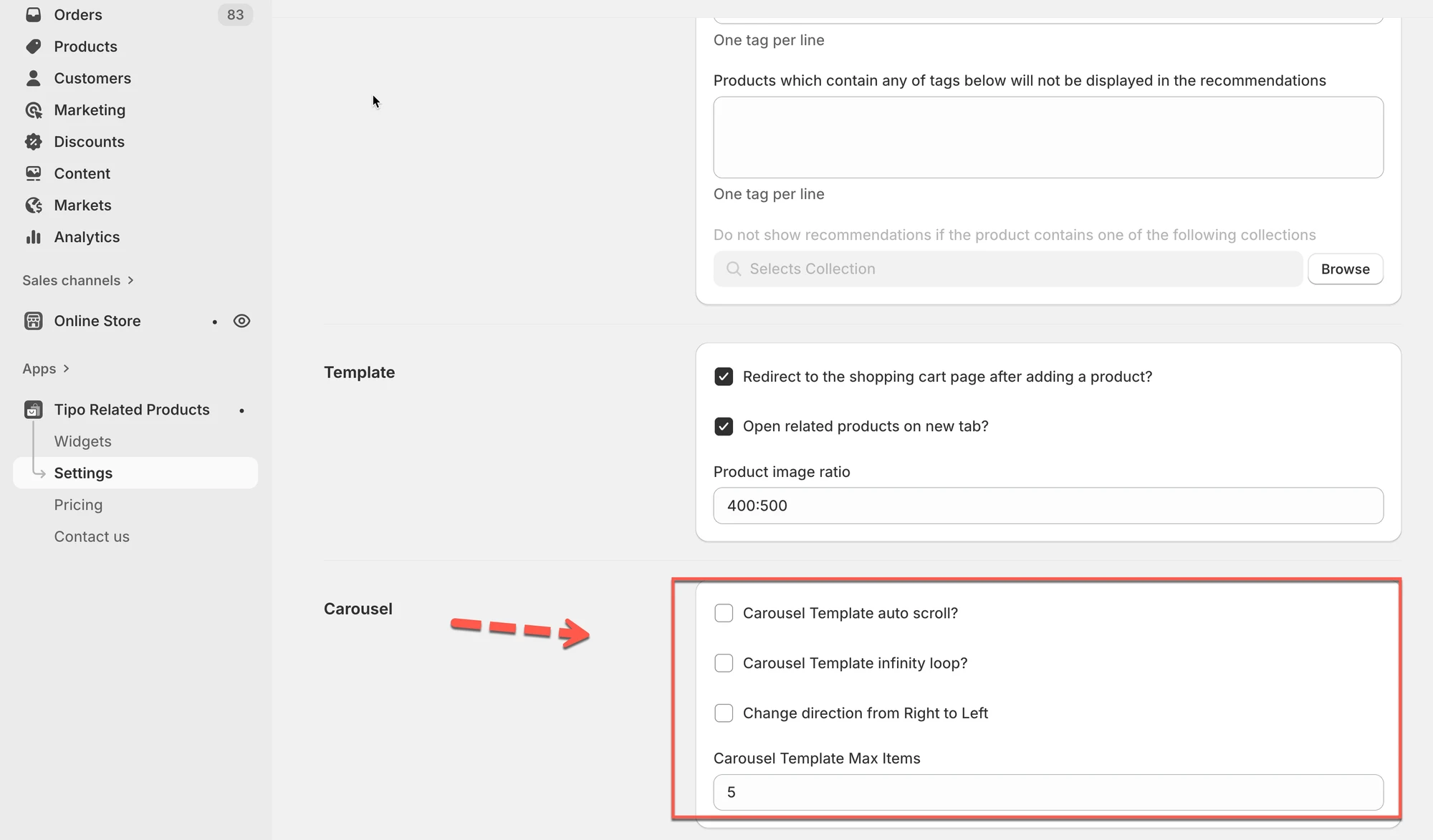
Section titled “⚙️ How to set ”- Open the app >click Settings > General
- Scroll down to Carousel
- Tick on the checkbox of the options you want
- Carousel Template auto scroll?
- Carousel Template infinity loop?
- Change direction from Right to Left
These settings apply to all widgets that use the Carousel layout.
- Set the max number of item
- Click Save
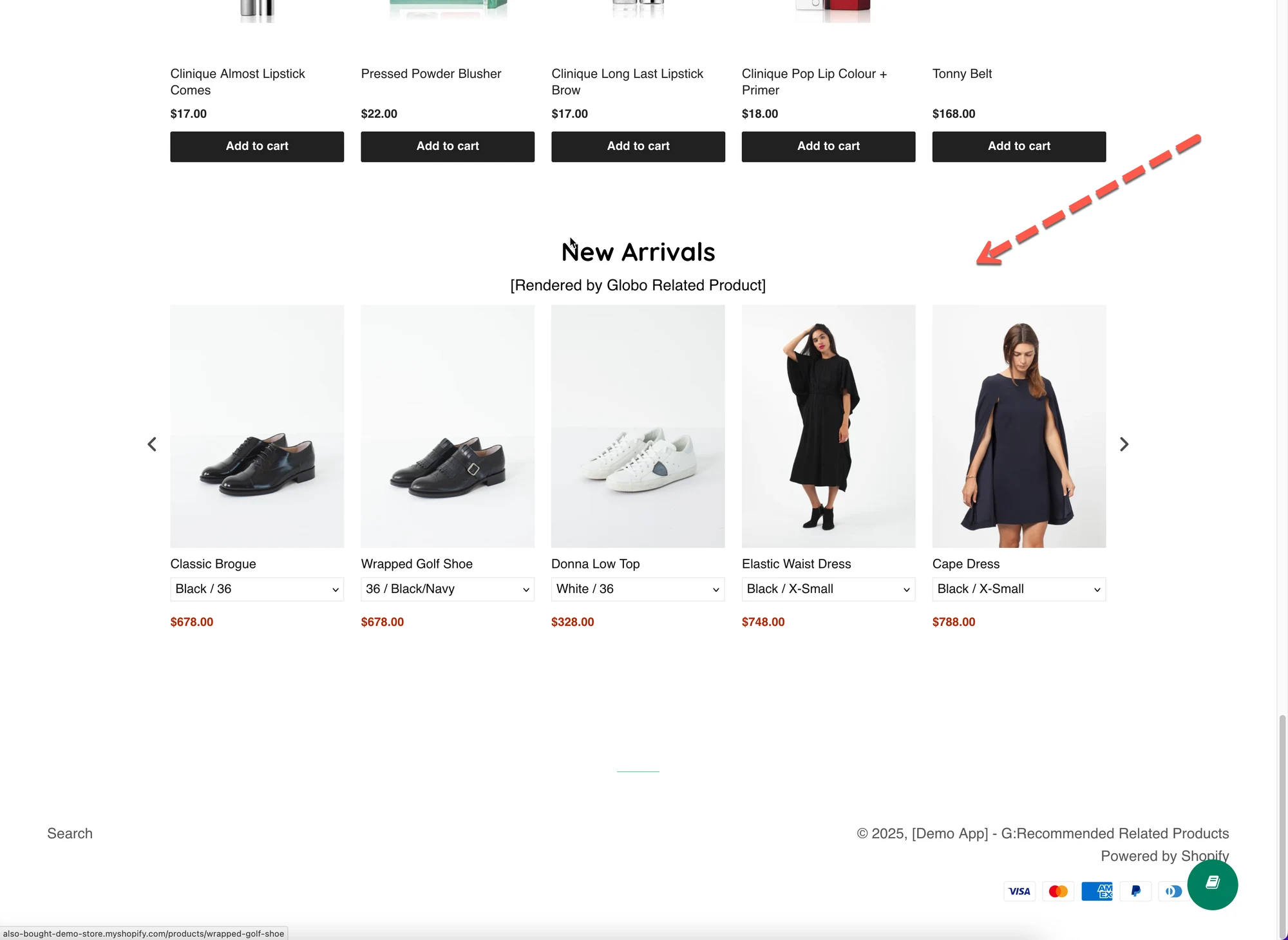
🔁 Carousel Template auto scroll
Section titled “🔁 Carousel Template auto scroll”What it does
Automatically scrolls products without customer interaction.
When enabled
- Products slide on their own
- Great for homepage or promotional sections
When disabled
- Products move only when users swipe or click arrows
- Better for focused shopping (product pages)
📌 Example
- Homepage carousel → ✅ Auto scroll ON
- Product page carousel → ❌ Auto scroll OFF
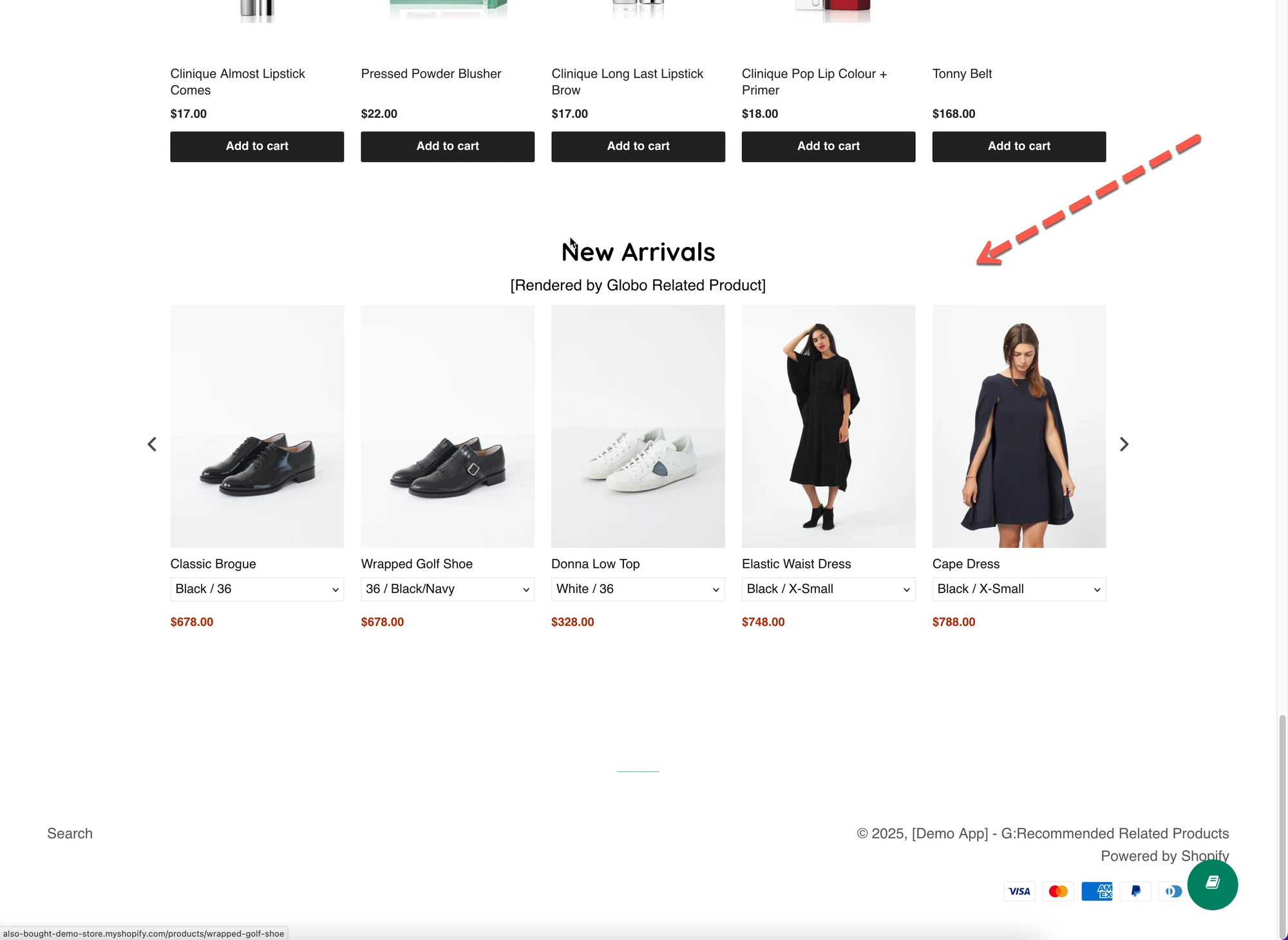
♾️ Infinite loop
Section titled “♾️ Infinite loop”What it does
Makes the carousel loop endlessly instead of stopping at the last product.
ON
- After the last product, it continues from the first
- Feels smooth and continuous
OFF
- Carousel stops at the end
- Clear start and end
📌 Example
- Related products → ✅ Infinite loop ON
- Cart upsell → ❌ Infinite loop OFF (less distracting)
🔄 Scroll direction (Right to Left)
Section titled “🔄 Scroll direction (Right to Left)”What it does
Changes the sliding direction of the carousel.
- Default: Left → Right
- Optional: Right → Left
📌 Use cases
- RTL (right-to-left) languages
- Unique design preference
🔢 Max items in carousel
Section titled “🔢 Max items in carousel”What it does
Limits how many products appear in the carousel at once.
This helps keep the layout clean and prevents overcrowding.
📌 Example
- Max items = 5
- If 10 products are available → only 5 are shown
📌 Best practices
- Product page:
4–6 - Cart or upsell:
2–4 - Homepage:
6–8
🙋 Still need support?
If you still need help, please feel free to contact us at hi@tipo.io. We’ll be happy to assist you further.