
使用 CSV 檔案匯入
AI 概覽
說明如何使用 Tipo Sync 應用程式中的 CSV Import,透過試算表檔案在您的 Shopify 商店建立或更新商品與庫存。由三個步驟的精靈處理上傳、欄位對應與匯入設定。您的 CSV 第一列需要有欄位標題,並包含唯一鍵,最好是 Handle。
查看更多收合
- 準備含有標題與唯一鍵(例如 Handle)的 CSV。
- 在 Apps > Tipo Sync 中,點選 CSV uploads > Add csv file。
- 步驟 1:選擇上傳來源、分隔符號與 CSV Data(Product 或 Inventory)。
- 步驟 2:設定 Primary Key,並將 CSV 欄位對應到 Shopify 欄位;鍵值不一致可能導致重複或無法更新。
- 步驟 3:選擇比對、匯入範圍、篩選、圖片處理、電子郵件與排程,然後點選 Save。
由 AI 產生的摘要,可能有錯誤,請參閱下方的完整指南。
使用 CSV 匯入功能,透過試算表檔案快速在您的 Shopify 商店中建立或更新商品(以及庫存)。
✅ 開始之前(需求)
Section titled “✅ 開始之前(需求)”📌 準備您的 CSV 檔案
Section titled “📌 準備您的 CSV 檔案”請確保您的 CSV 具備:
- 第一列為欄位標題(例如:
Handle、Title、Vendor) - 可用來比對紀錄的唯一鍵(建議使用:Handle)
- 正確的格式(CSV 檔案)
🔑 建議的主鍵
Section titled “🔑 建議的主鍵”- Product Handle(最適合大多數匯入情況)
- 視您的資料而定,您也可能會看到其他鍵值(例如:Product ID、Variant SKU)
🛠️ 上傳檔案的步驟
Section titled “🛠️ 上傳檔案的步驟 ”在 Tipo 應用程式中開啟 CSV Uploads
Section titled “在 Tipo 應用程式中開啟 CSV Uploads”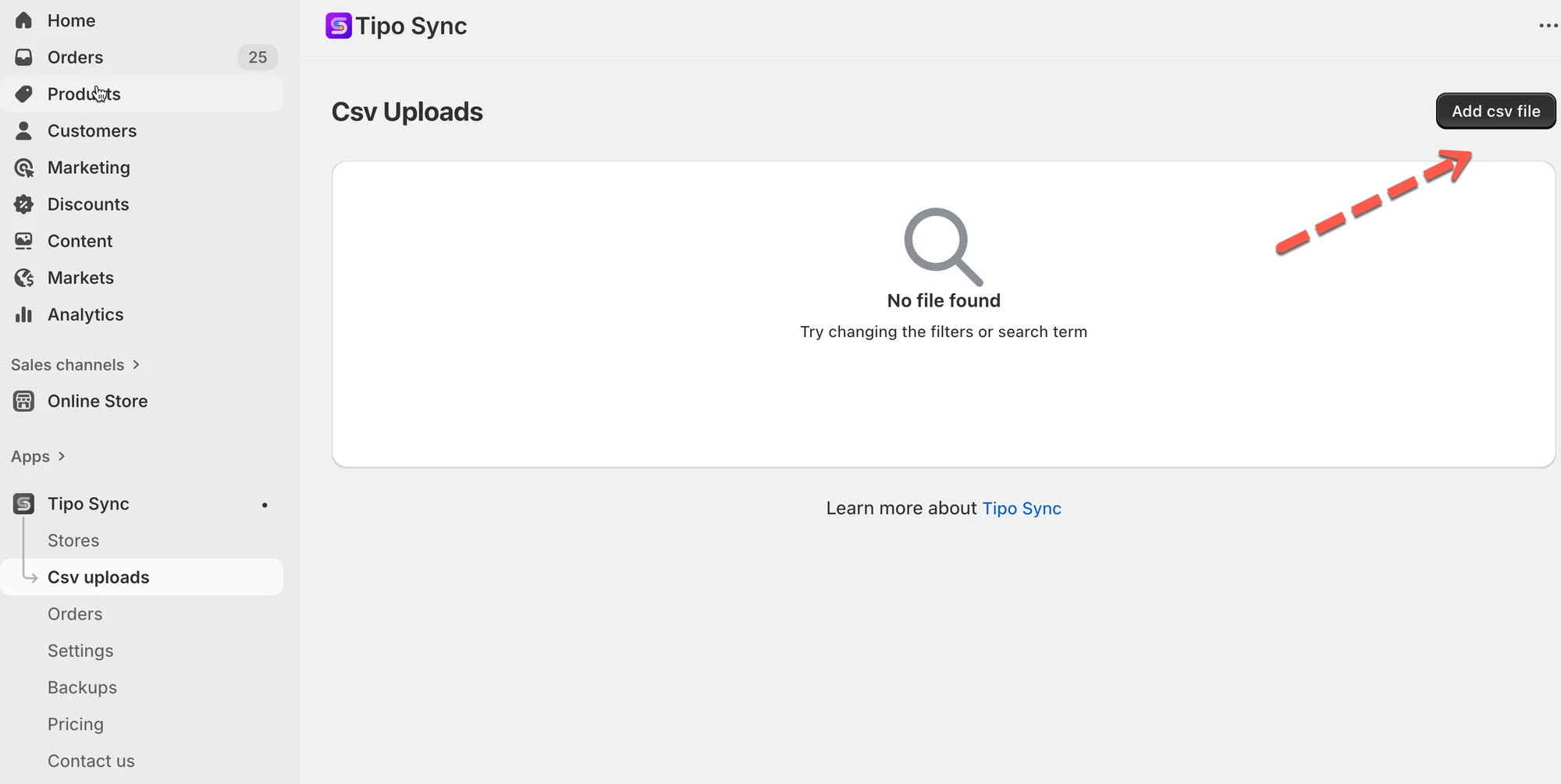
- 在 Shopify Admin 中,開啟 Apps → Tipo Sync
- 點選 CSV uploads
- 點選 Add csv file
系統會帶您進入匯入精靈(進度 1/3)。
📤 步驟 1/3 — 上傳 CSV
Section titled “📤 步驟 1/3 — 上傳 CSV ”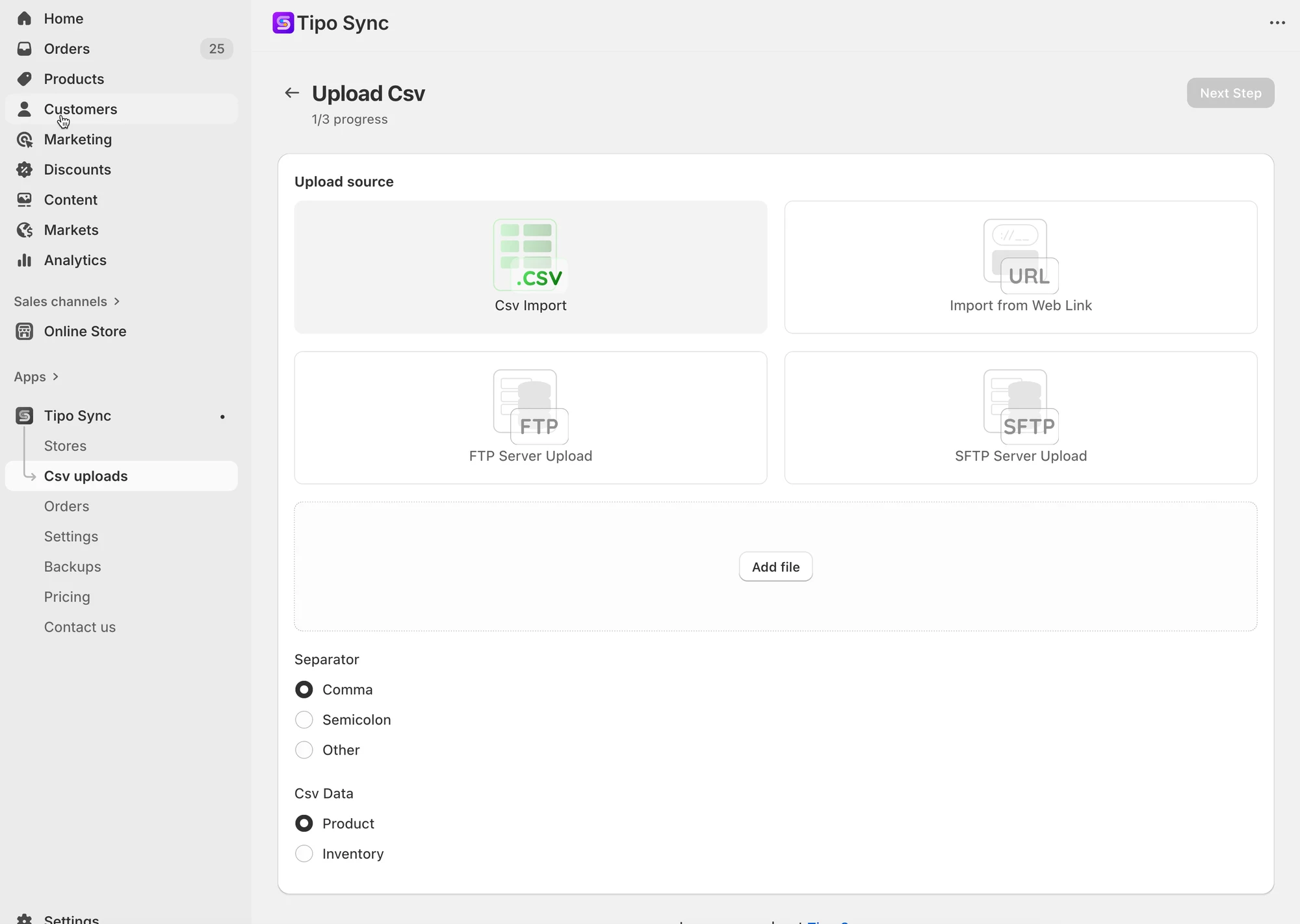
選擇上傳來源
Section titled “選擇上傳來源”您可以從以下來源上傳 CSV:
- CSV Import(從您的電腦上傳檔案)
- Import from Web Link (URL)
- FTP Server Upload
- SFTP Server Upload
選擇 CSV 選項
Section titled “選擇 CSV 選項”Separator
- Comma(最常見)
- Semicolon
- Other
CSV Data
- Product(用於商品欄位,如標題、描述、供應商…)
- Inventory(用於庫存數量)
然後點選 Next Step。
🧩 步驟 2/3 — 對應欄位
Section titled “🧩 步驟 2/3 — 對應欄位 ”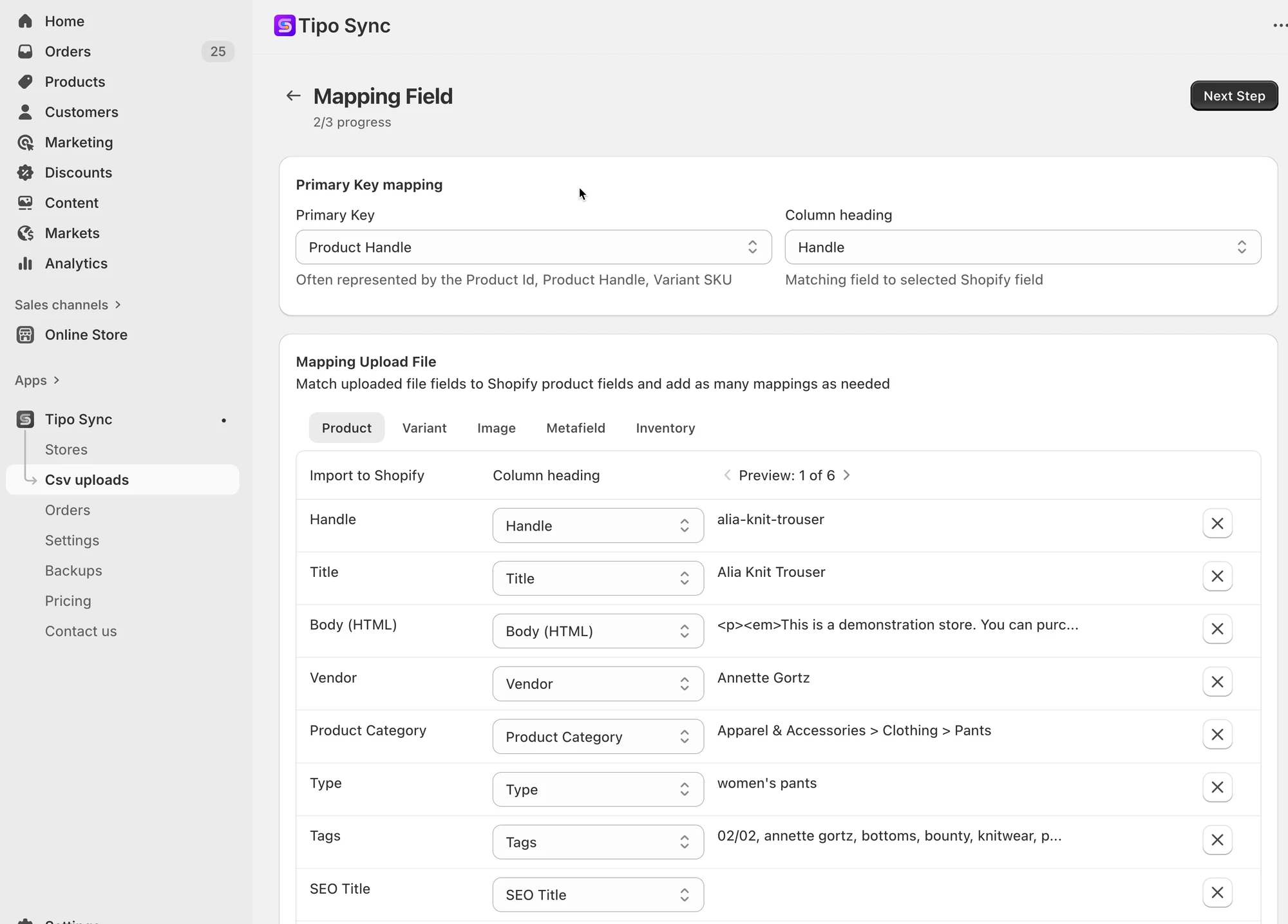
A) 主鍵對應
這會告訴應用程式如何將 CSV 中的列與 Shopify 中的商品配對。
- Primary Key:選擇您的 Shopify 商店要依據什麼進行配對
範例:Product Handle - Column heading:選擇您 CSV 中的欄位
範例:Handle
如果您的主鍵不相符,應用程式可能會建立重複項目,或無法更新正確的商品。
B) 將 CSV 欄位對應至 Shopify 欄位
您會看到如下的分頁:
- Product
- Variant
- Image
- Metafield
- Inventory
針對每一列:
- Import to Shopify = Shopify 欄位(例如:Title)
- Column heading = CSV 欄位(例如:Title)
您可以點選 ➕ Add mapping 匯入更多欄位。
然後點選 Next Step。
⚙️ 步驟 3/3 — 匯入設定
Section titled “⚙️ 步驟 3/3 — 匯入設定 ”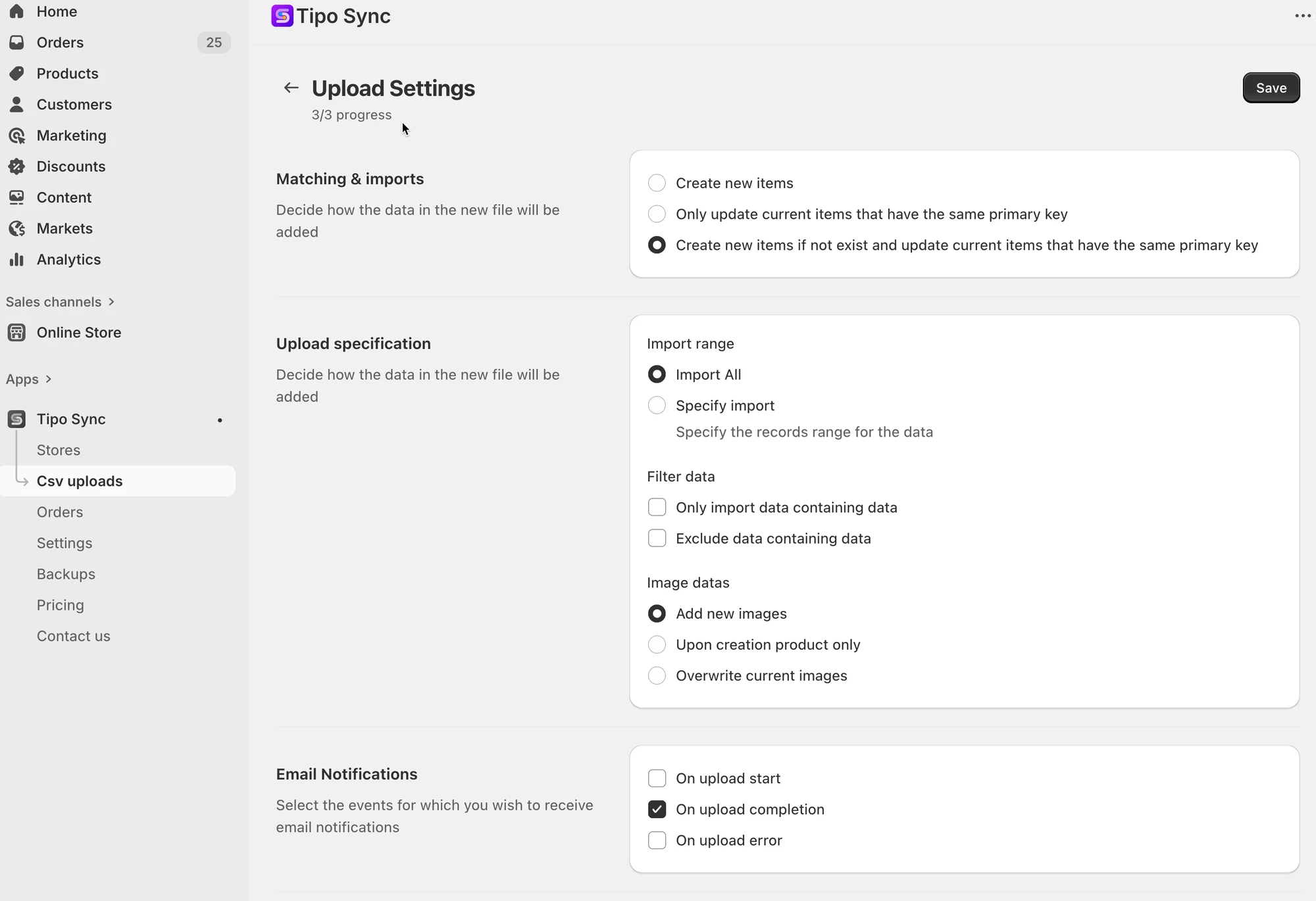
步驟 3.1. 配對與匯入(如何更新 Shopify)
Section titled “步驟 3.1. 配對與匯入(如何更新 Shopify)”請擇一選擇:
✅ Create new items
- 僅建立新商品(不更新現有商品)
✅ Only update current items that have the same primary key
- 僅更新現有商品
- 不會建立新商品
✅ Create new items if not exist and update current items that have the same primary key (常見選擇)
- 建立不存在的商品
- 更新相符的現有商品(依據 Handle/SKU 等)
步驟 3.2. 上傳規格(匯入多少資料)
Section titled “步驟 3.2. 上傳規格(匯入多少資料)”- Import All:匯入檔案中的所有內容
- Specify import:僅匯入選定範圍的列(適合用於測試)
步驟 3.3. 篩選資料(選用)
Section titled “步驟 3.3. 篩選資料(選用)”- Only import data containing …(包含規則)
- Exclude data containing …(排除規則)
如果您只想匯入特定的列,請使用此功能(例如:僅匯入包含 SYNC 的列)。
步驟 3.4. 圖片資料(如果您的 CSV 包含圖片)
Section titled “步驟 3.4. 圖片資料(如果您的 CSV 包含圖片)”請擇一選擇:
- Add new images(新增圖片,不移除舊圖片)
- Upon creation product only(僅為新商品新增圖片)
- Overwrite current images(取代現有圖片)
步驟 3.5. 電子郵件通知(選用)
Section titled “步驟 3.5. 電子郵件通知(選用)”選擇您希望在何時收到電子郵件:
- On upload start
- On upload completion
- On upload error
步驟 3.6. 排程上傳
Section titled “步驟 3.6. 排程上傳 ”- Run now(立即匯入)
(視您的方案/設定而定,可能會出現其他排程選項。)
最後點選右上角的 Save。
🧪 範例:更新現有商品並建立新商品
Section titled “🧪 範例:更新現有商品並建立新商品”CSV 範例
| Handle | Title | Vendor |
|---|---|---|
| ceramic-table-lamp | Ceramic Table Lamp | ModernHome |
| wooden-floor-mirror | Wooden Floor Mirror | ModernHome |
要選擇的設定
- Primary Key:Product Handle
- Column heading:Handle
- Matching & Imports:Create new items if not exist and update current items that have the same primary key
結果
- 如果
ceramic-table-lamp已存在 → 將會更新 - 如果
wooden-floor-mirror不存在 → 將會建立
🙋 還需要協助嗎?
如果您仍需要協助,歡迎隨時寄信至 hi@tipo.io 與我們聯繫,我們很樂意為您提供進一步的協助。