
取消同步商品
AI 概览
了解如何在 Tipo Sync 中取消 Source store 与 Destination store 之间商品的同步。取消同步会移除映射,使商品不再接收来自 Source store 的更新,但不会从 Destination store 中删除该商品。您可以取消单个商品的同步,也可以使用批量操作。
查看更多收起
- 在 Destination store 中,打开 Dashboard,点击 Stores,然后点击 Products。
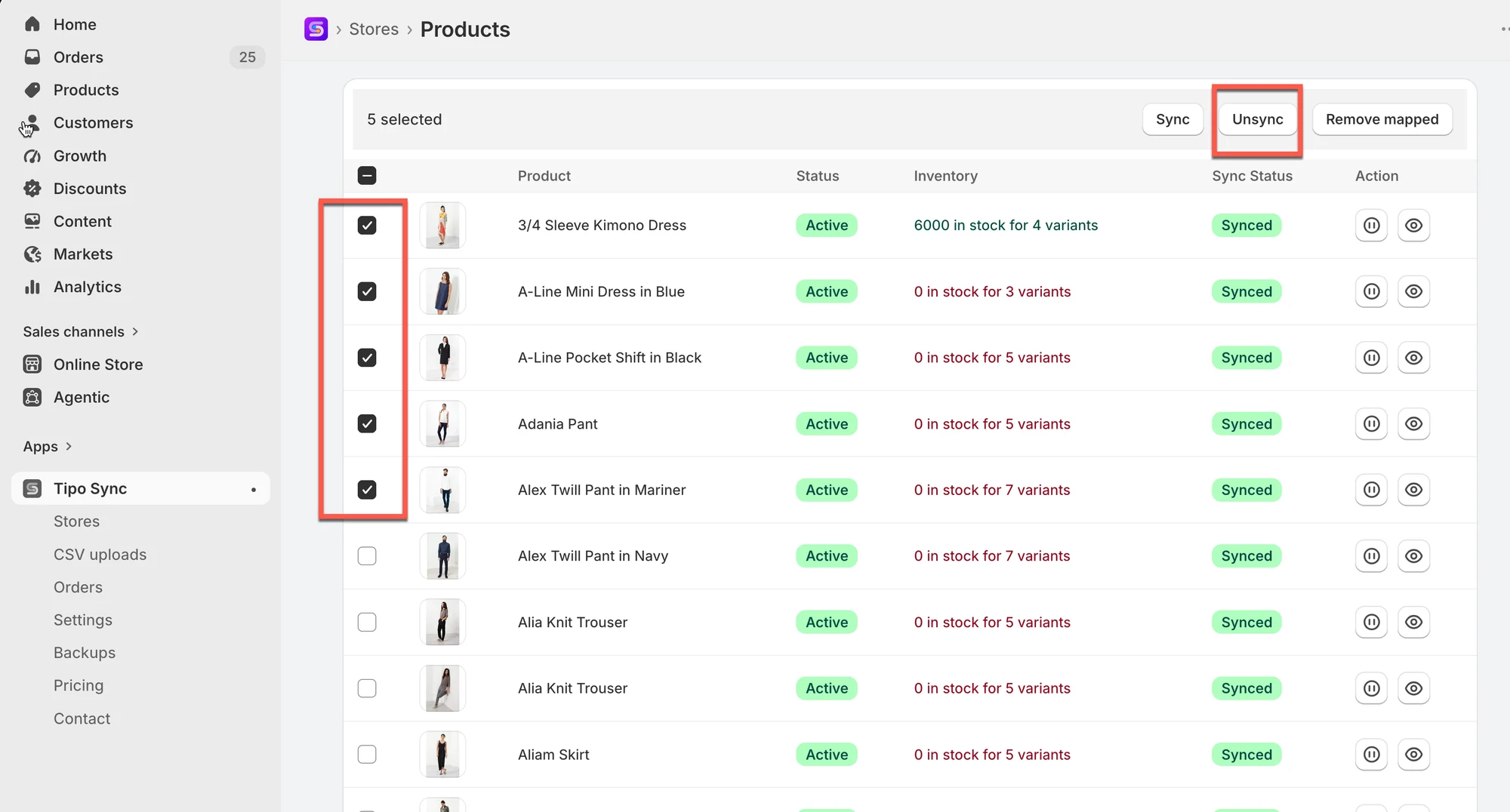
- 点击某个商品的停止同步图标,或选择多个(或全部)商品并点击 Unsync。
- 已取消同步的商品会标记为 Manually Excluded。
- 如需恢复同步,请重新选择这些商品并点击 Sync。
- 取消同步不会删除商品;除非您自行删除,否则它会保留在 Destination store 中。
由 AI 生成的摘要,可能存在错误,请查看下方的完整指南。
本指南介绍如何在 Source store 和 Destination store 之间取消同步商品。取消同步会移除关联(映射),该商品将不再接收来自 Source store 的更新。
❓ 取消同步后会发生什么?
Section titled “❓ 取消同步后会发生什么?”当您取消同步某件商品时:
- Source 与 Destination 之间的映射将被移除
- 来自 Source 的后续更新将不再应用于 Destination 中的该商品
- 该商品可能仍保留在 Destination store 中
🛠️ 取消同步特定商品的步骤
Section titled “🛠️ 取消同步特定商品的步骤 ”1. 前往 Destinations store,打开应用 Dashboard > 点击 Stores > 点击 Products,查看该连接已同步的商品列表
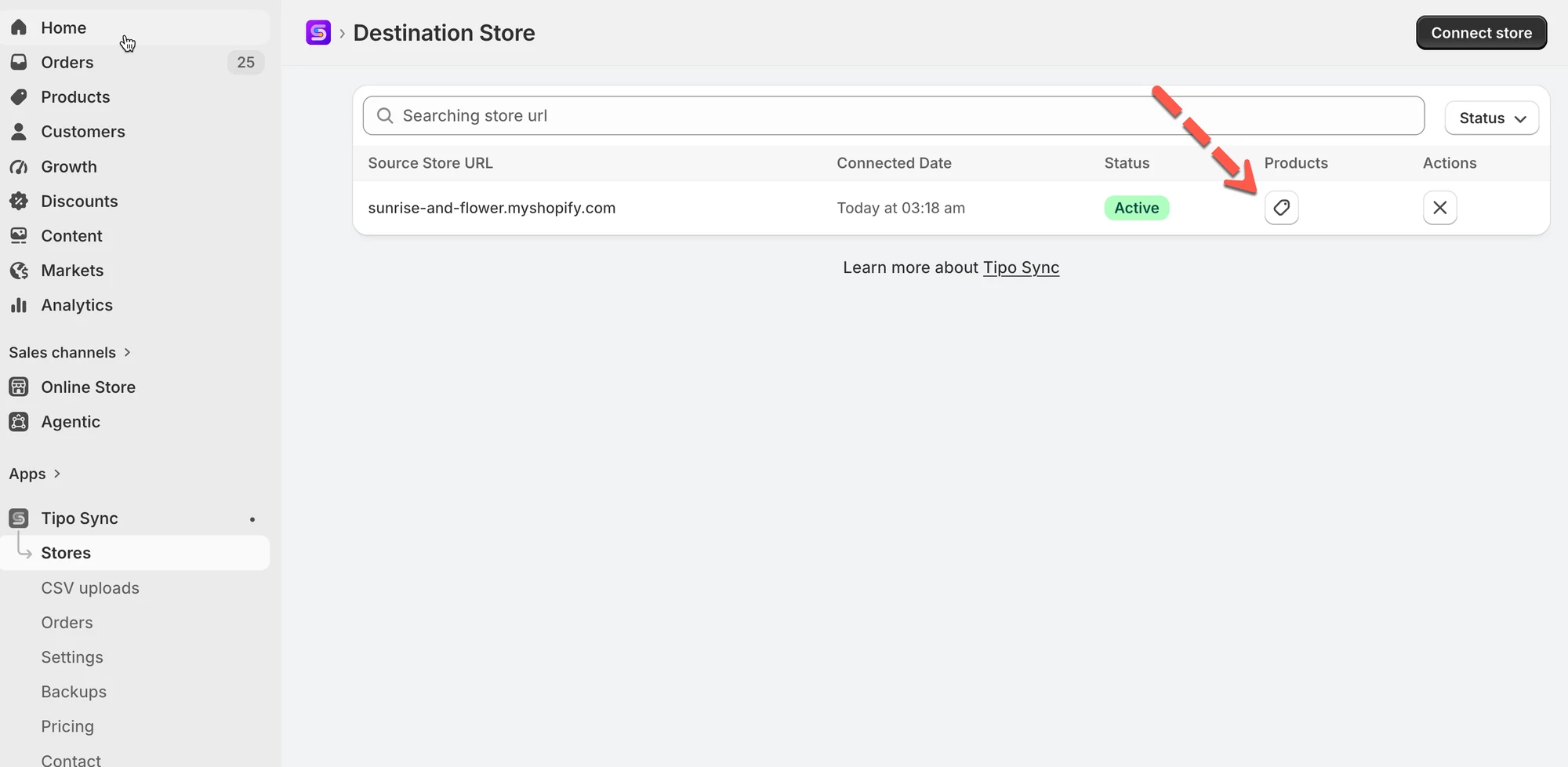
2. 点击此图标,停止同步单件商品
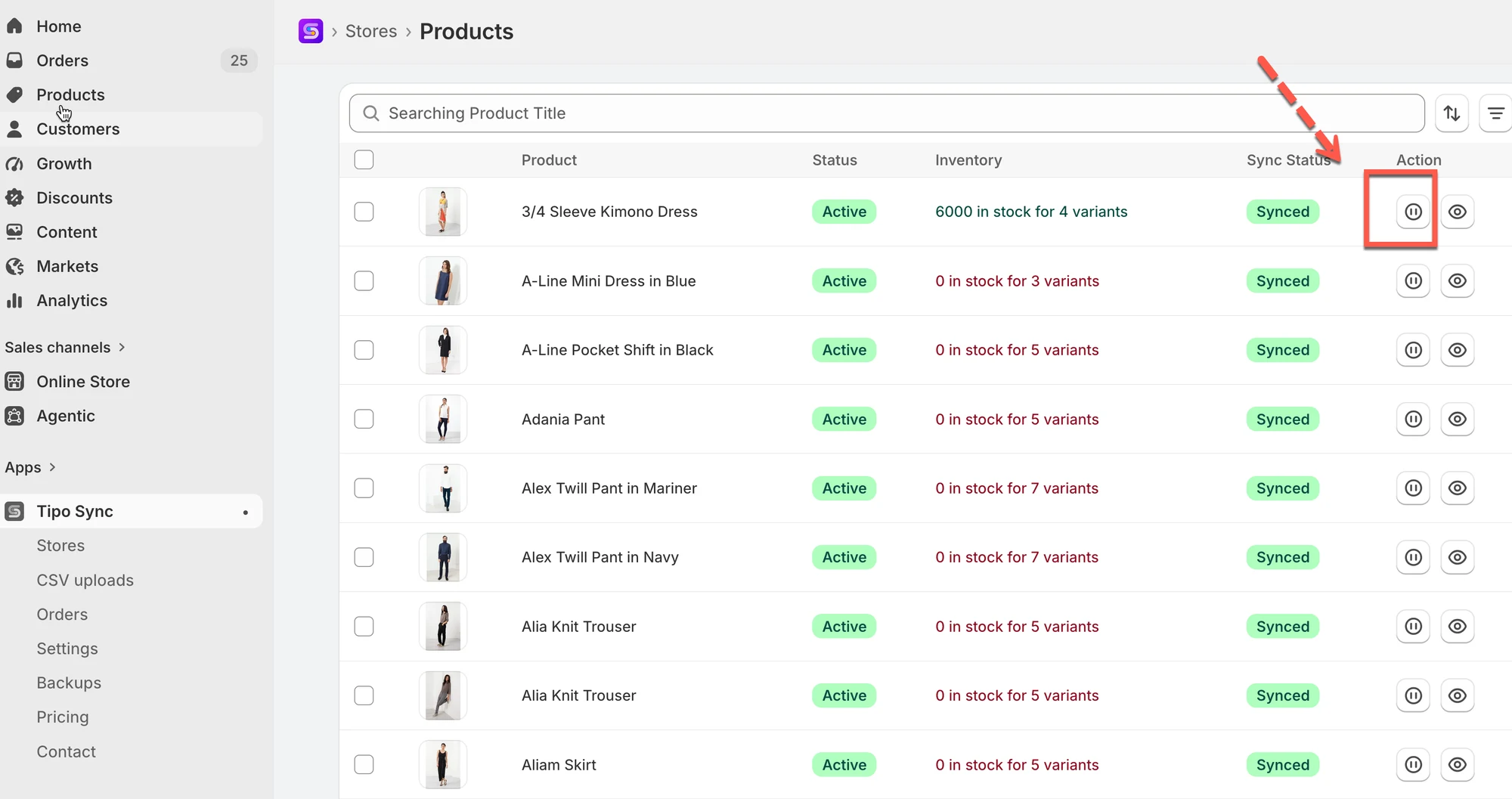
3. 批量操作:选择您想要取消同步的商品。如果要选择列表中的所有商品,请选择 Select all 25+ products > 点击右侧的 Unsync 按钮
取消同步后,这些商品将被标记为 Manually Excluded,表示它们不再与 Source Store 同步。
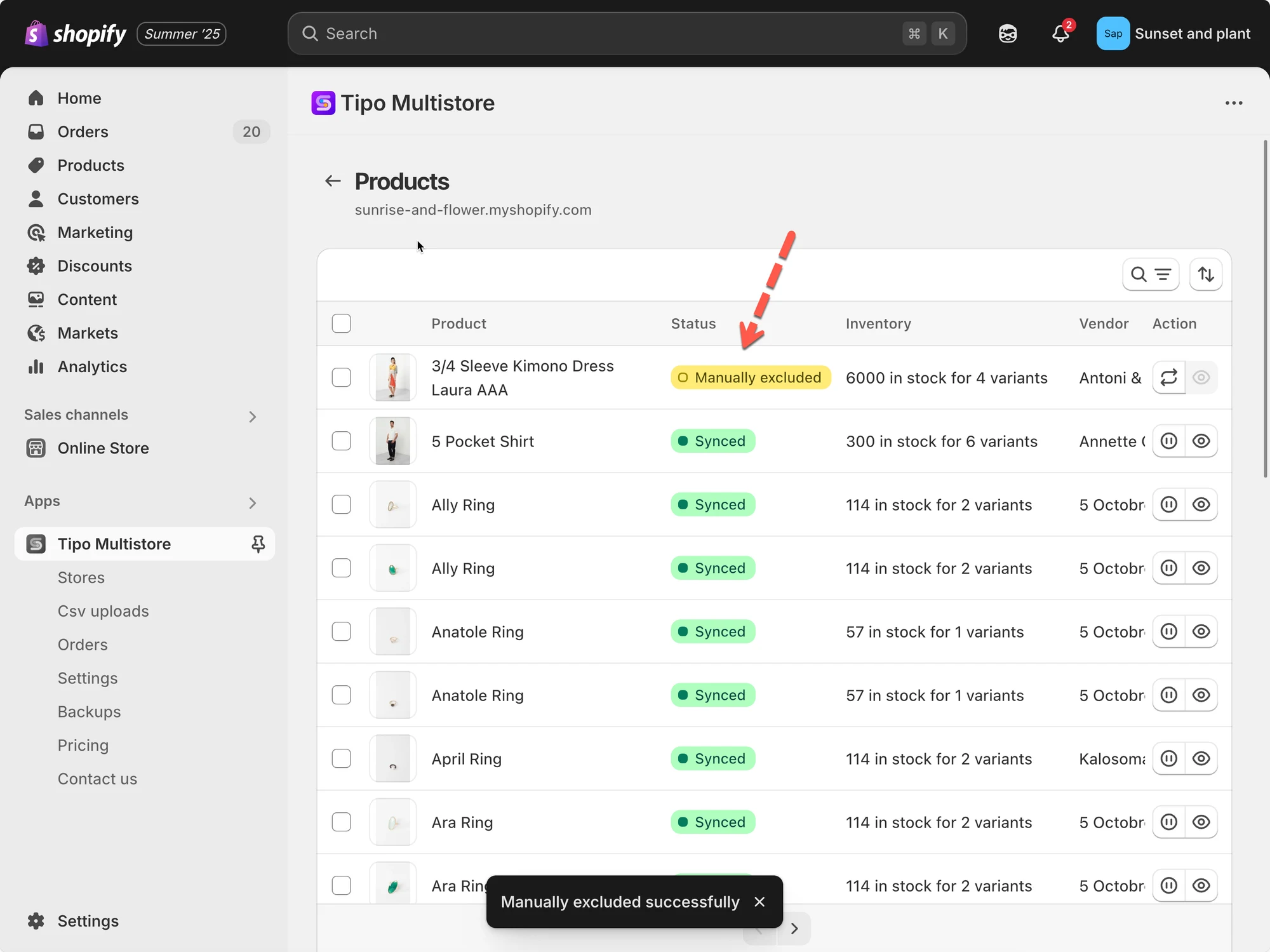
如果您想重新开始同步,请再次选择这些商品,然后点击 Sync 按钮,而不是 Unsync 按钮。
📝 注意
取消同步不会删除商品。
它只是停止 Source store 的后续更新同步到 Destination store。除非您手动删除,否则该商品仍会保留在您的 Destination store 中。
🙋 还需要支持吗?
Section titled “🙋 还需要支持吗?”如果您仍需要帮助,请随时通过 [your support email or link] 联系我们。我们很乐意为您提供进一步协助。