
Delete a widget
AI Overview
Delete a widget in Tipo Related Products to permanently remove it from the app. Deletion cannot be undone, so consider setting the widget to Draft instead if you only want to hide it. If the widget was added to your theme, remove it there too.
View moreView less
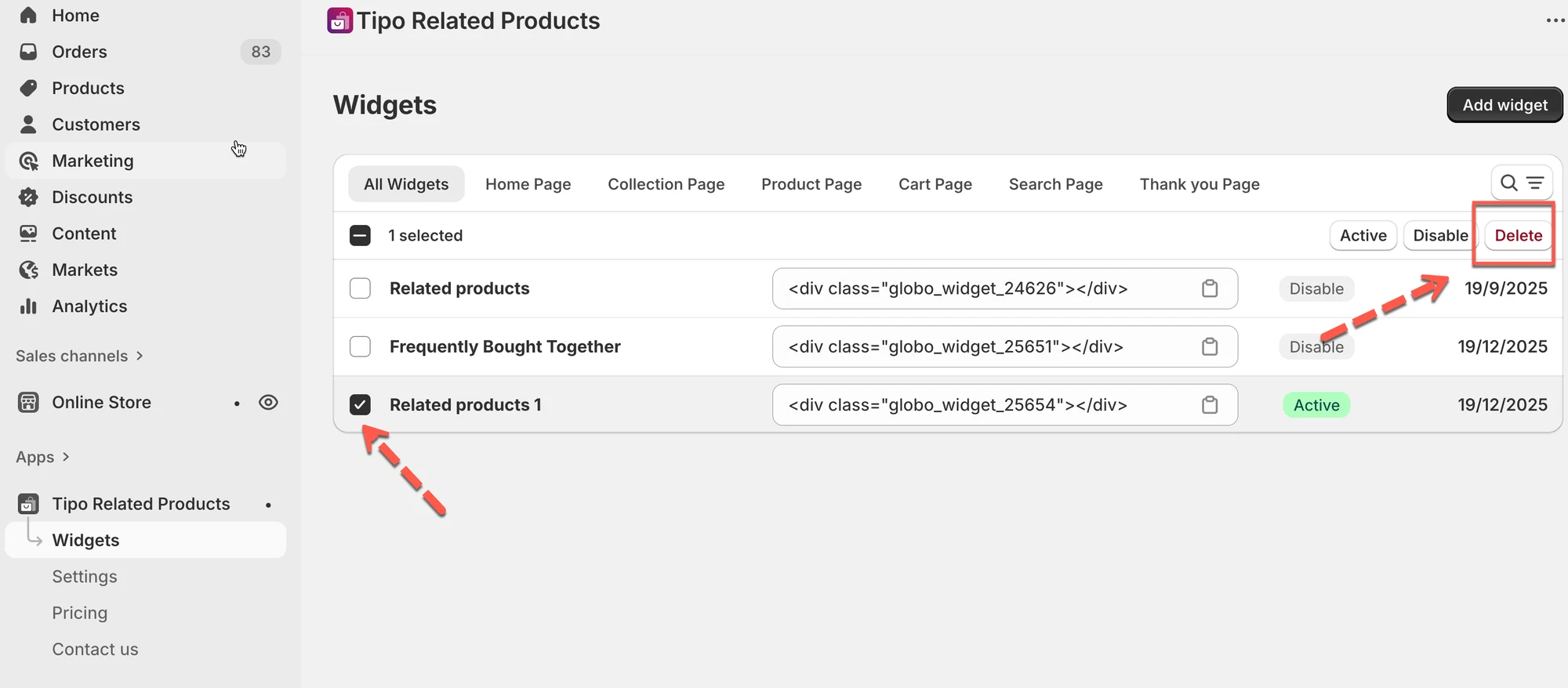
- On Widgets, select the widget, click Delete and confirm.
- Deleting cannot be undone.
- Remove an app block in the Theme Editor, or remove a shortcode from the theme code.
- To hide a widget temporarily, set it to Draft instead.
Summary generated by AI. It can make mistakes, so check the full guide below.
Deleting a widget permanently removes it from the app.
🛠️ Step-by-step: Delete a widget
Section titled “🛠️ Step-by-step: Delete a widget”- Go to the app > click Widgets
- Select the widget you want to delete
- Click Delete
- Confirm the deletion
⚠️ Important before deleting
Section titled “⚠️ Important before deleting”- Deleting a widget cannot be undone
- If you added the widget to your theme:
- App block → Remove the block in Theme Editor
- Shortcode → Remove the shortcode from theme code
🧪 Example scenarios
Section titled “🧪 Example scenarios”- Temporarily hide a widget → Set status to Draft
- Replace an old widget → Set old widget to Draft, then create a new one
- Clean up unused widgets → Delete them
🙋 Still need support?
If you still need help, please feel free to contact us at hi@tipo.io. We’ll be happy to assist you further.