
Getting started
AI Overview
Get started with Tipo Related Products, Upsell, an app that increases sales by showing related products, upsells and cross-sells on Product, Cart, Search and Thank you pages. Setup takes four steps: enable the app embed, create a widget, set the design and publish the widget in your theme.
View moreView less
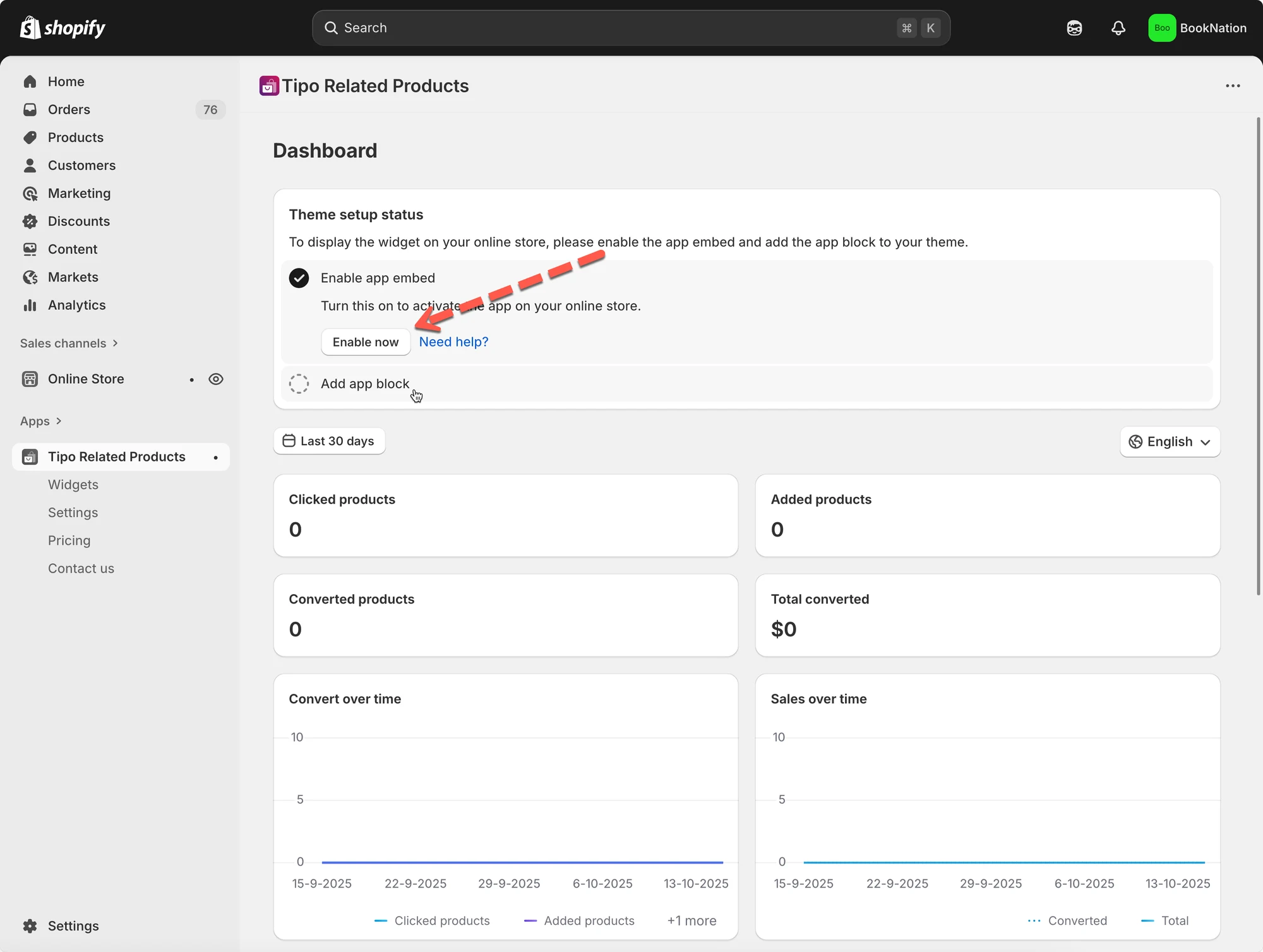
- Enable the app embed in the theme editor.
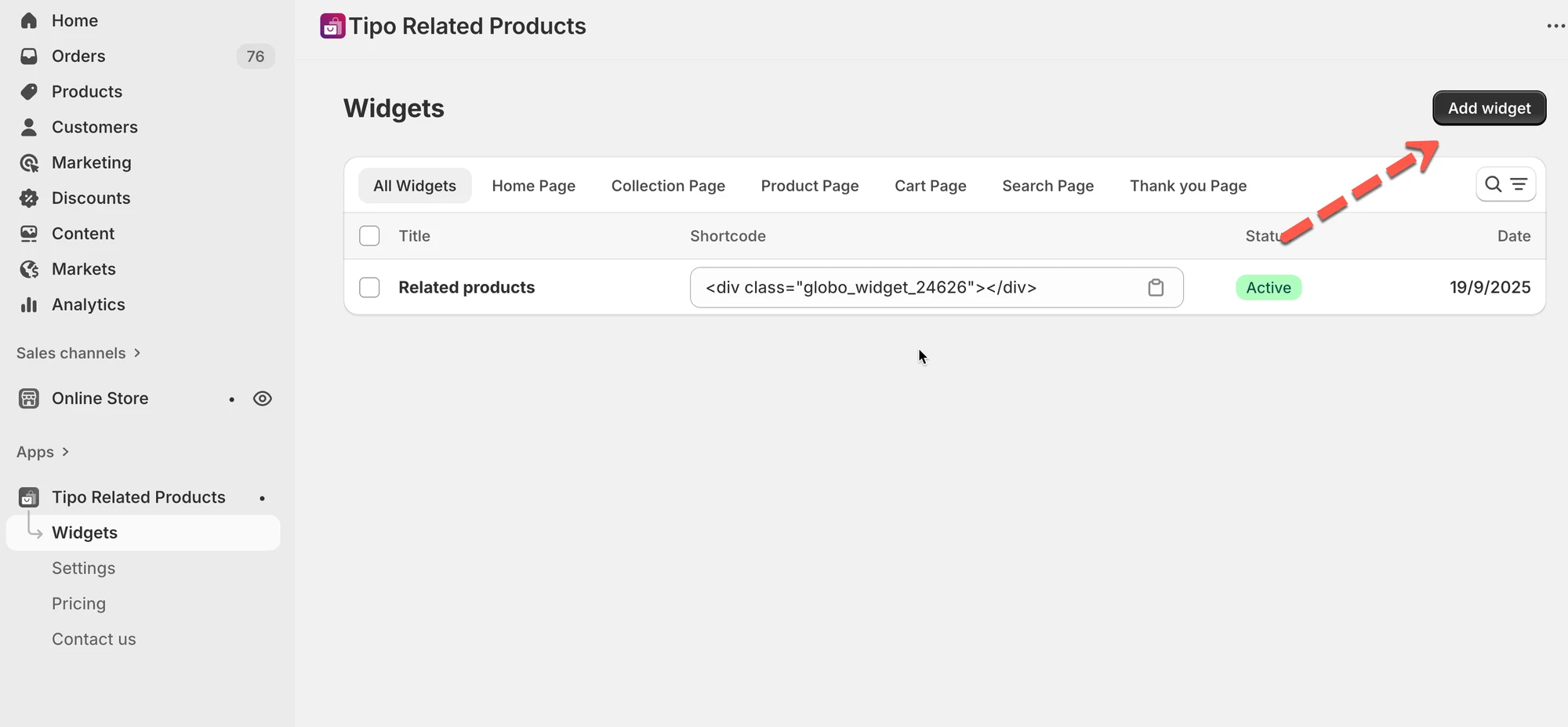
- Go to Widgets, click Add widget, and choose a placement and layout.
- Set the target (all products, specific products, tags or collections) and a recommendation rule.
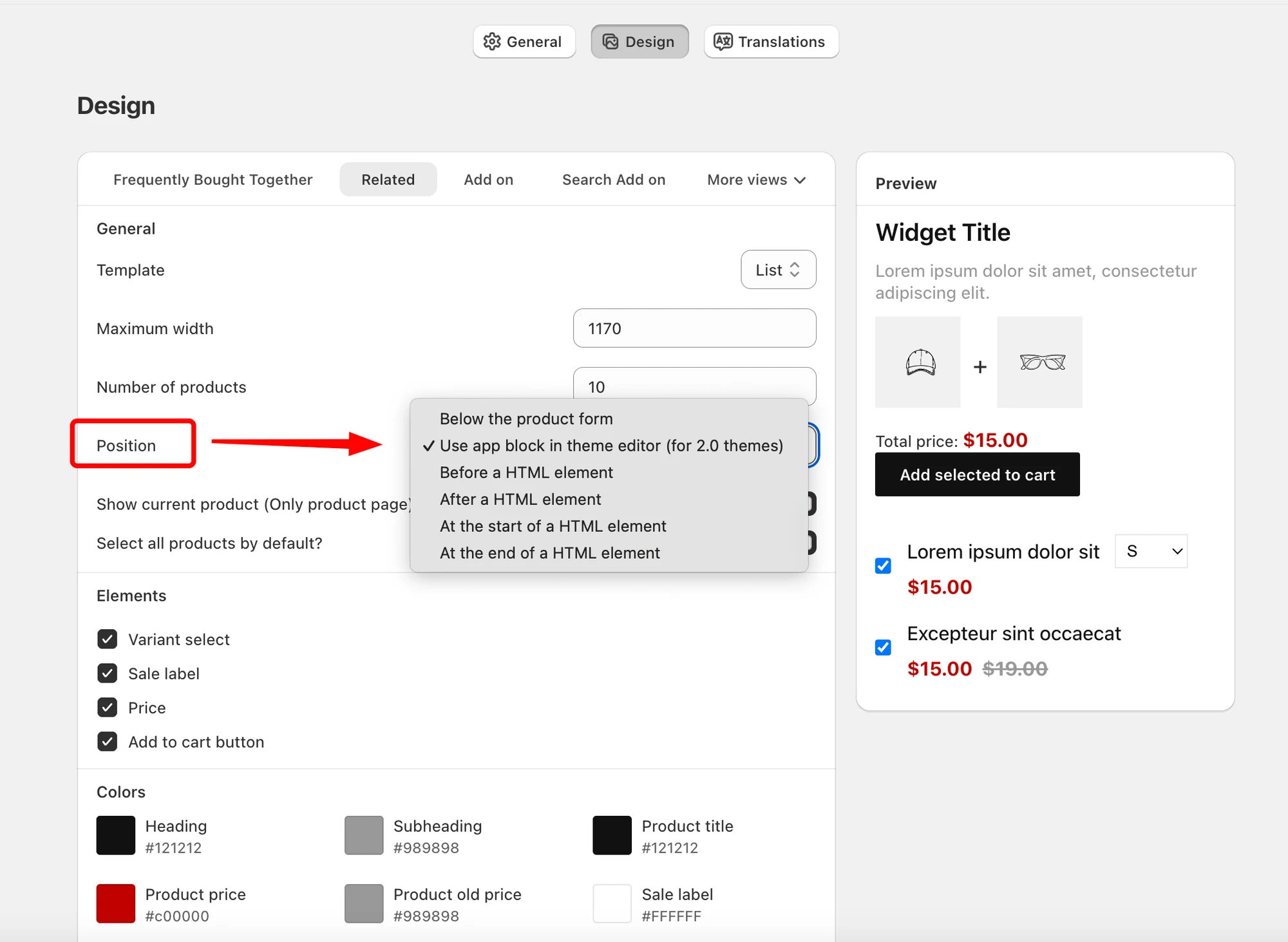
- Adjust product limit, position and colors in Settings > Design.
- Publish: add the app block in Online Store 2.0 themes, or paste the shortcode in vintage themes.
Summary generated by AI. It can make mistakes, so check the full guide below.
Welcome to Tipo Related Products, Upsell!
This app helps you increase sales by showing related products, upsells, and cross-sells on key pages like Product, Cart, Search, and Thank you pages.
✨ Key Features
Section titled “✨ Key Features”- Show related products widget automatically based on tags, collections, vendor, product type, etc.
- Select related products manually for full control (handpick what you want to recommend)
- Use popular recommendation layouts like:
- “You may also like”
- “Frequently bought together”
- Customize the design layout, number of products, colors, buttons, spacing of the widget
- Track performance: impressions, clicks, conversions
- Support multiple languages: translate widget text
🚀 Quick start
Section titled “🚀 Quick start ”Step 1: Enable the app in your theme
Section titled “Step 1: Enable the app in your theme”You can activate the app embed of Inventory Sync, Multi store TP app in the theme editor.
More detail here
Step 2: Create your first widget
Section titled “Step 2: Create your first widget”- Go to Widgets.
- Click Add widget.
- Choose:
- Placement (Product page, Cart page, etc.)
- Layout (Related, Frequently Bought Together, Add-on, Recently viewed…)
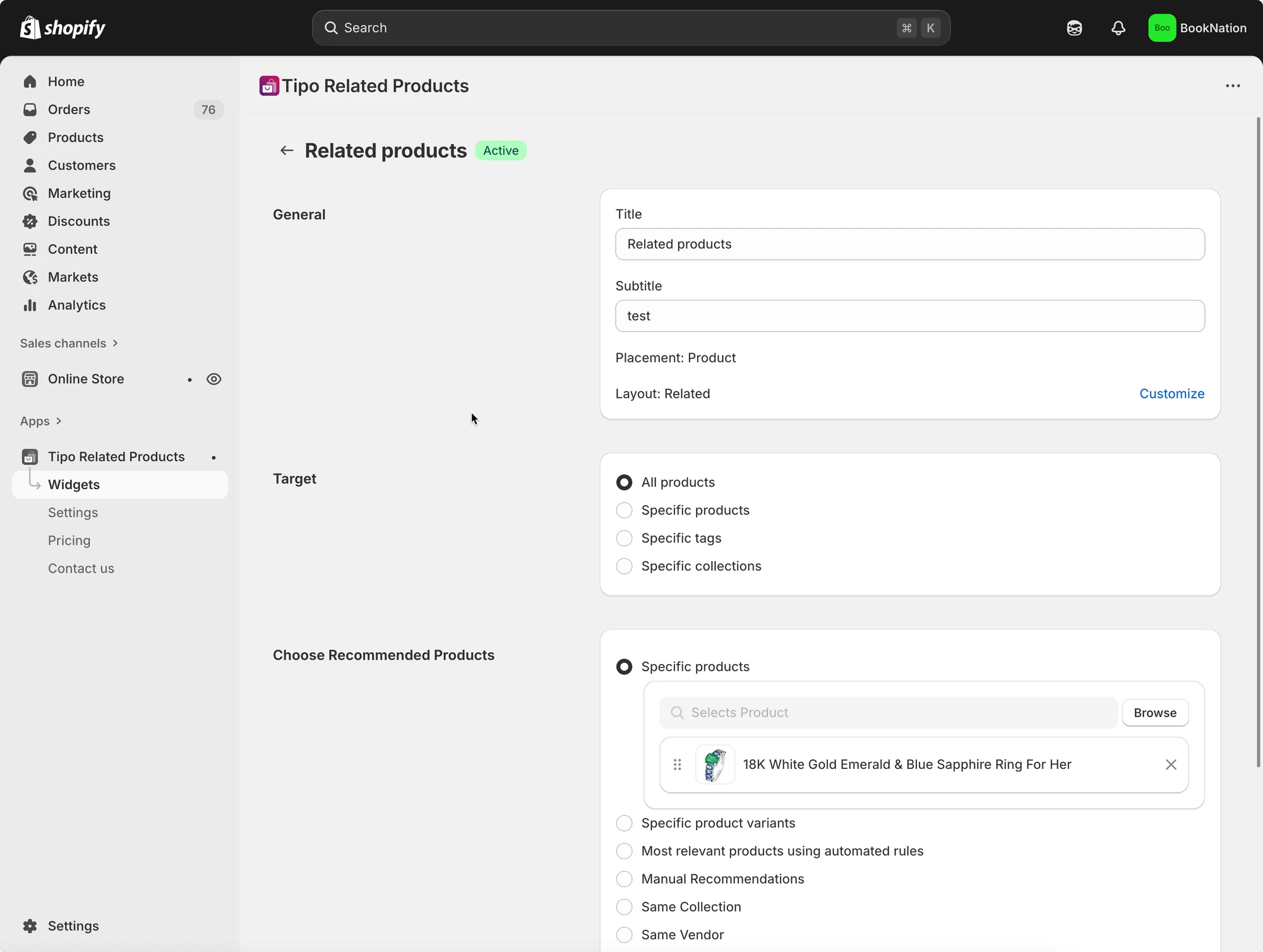
- Set up products in widget detail
Learn more here
Widget types (where you can show recommendations)
Section titled “Widget types (where you can show recommendations)”Tipo supports widgets on these pages:
- Product page
- Home page
- Collection page
- Cart page
- Search page
- Thank you page
Choose what products to recommend
Section titled “Choose what products to recommend”When editing a widget, you’ll usually set 2 things:
1) Target (where this widget applies)
- All products
- Specific products
- Specific tags
- Specific collections
2) Recommendation rule (what to show)
Examples:
- Same collection / tag / vendor / product type
- Manual recommendations
- Automated “most relevant” rules (when supported by the layout)
Step 3: Configuring Appearance
Section titled “Step 3: Configuring Appearance ”Go to the app Settings > Design page. Set the product limit, widget position, elements,configure colors.
Step 4: Publish the widget on your storefront
Section titled “Step 4: Publish the widget on your storefront”How you add widgets depends on your theme type:
- Online Store 2.0 themes: Add the app block in Theme Editor (recommended)
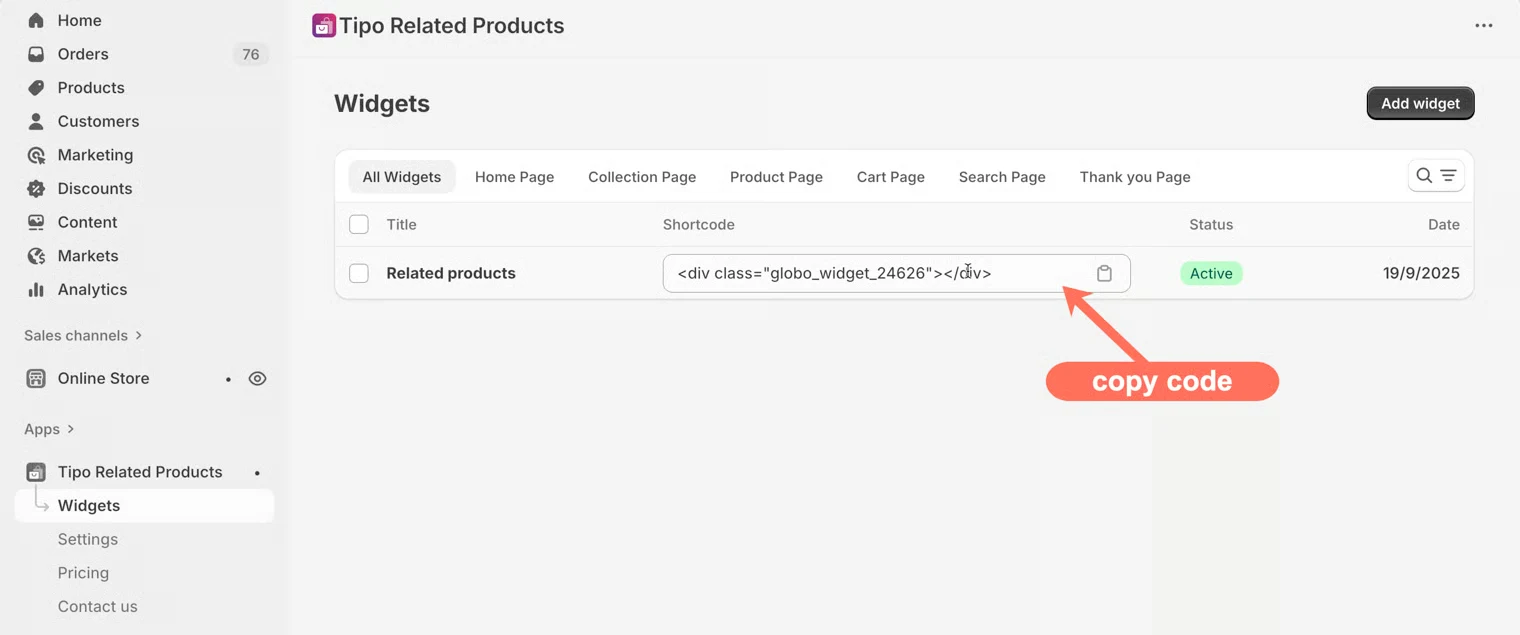
- Vintage themes: Paste the widget shortcode into your theme code
📚 Reference
Section titled “📚 Reference”Support email: hi@tipo.io
▶️ Reference videos
Section titled “▶️ Reference videos ”What the app can do:
How to set:
🙋 Still need support?
If you still need help, please feel free to contact us at hi@tipo.io. We’ll be happy to assist you further.