
Locaties koppelen voor voorraadsynchronisatie
AI-overzicht
Leer hoe je Shopify-locaties koppelt tussen een Source en Destination store zodat voorraadsynchronisatie correct werkt. Tipo Sync moet weten welke Source-locatie wordt gesynchroniseerd met welke Destination-locatie; zonder koppeling wordt voorraad mogelijk niet gesynchroniseerd of komt deze op de verkeerde plek terecht. De koppeling is strikt één-op-één.
Meer weergevenMinder weergeven
- Open in de Source store Settings > Locations, kies All locations of Specific locations en klik op Save.
- Klik in de Destination store op Stores > Connect Store en voer de koppelingscode van de Source store in.
- Kies in het gedeelte Mapping locations welke Source- en Destination-locaties je wilt koppelen en klik op Save; de synchronisatie start direct.
- Eén Source-locatie kan slechts aan één Destination-locatie worden gekoppeld.
- Alleen gekoppelde locaties worden bijgewerkt; niet-gekoppelde locaties worden genegeerd.
Samenvatting gemaakt door AI. Er kunnen fouten in staan, dus raadpleeg de volledige handleiding hieronder.
Deze handleiding laat zien hoe u Shopify-locaties tussen uw bron- en bestemmingswinkel koppelt, zodat voorraadsynchronisatie correct werkt.
Om ervoor te zorgen dat uw voorraadaantallen altijd kloppen, worden online bestellingen en verkopen in de winkel toegewezen aan locaties.
✅ Waarom locatiekoppeling nodig is
Section titled “✅ Waarom locatiekoppeling nodig is”Shopify houdt de voorraad bij per locatie (magazijn, winkel, fulfilmentcentrum).
Om voorraad correct te synchroniseren, moet Tipo Sync weten:
Welke bronlocatie naar welke bestemmingslocatie moet worden gesynchroniseerd.
Zonder koppeling:
- synchroniseert de voorraad mogelijk niet
- kan de voorraad naar de verkeerde locatie worden gesynchroniseerd
- kan de voorraad in de bestemmingswinkel onjuist lijken
🛠️ Stap 1: Bepaal welke locaties voor de bronwinkel worden gesynchroniseerd
Section titled “🛠️ Stap 1: Bepaal welke locaties voor de bronwinkel worden gesynchroniseerd ”1. Open de app in de bronwinkel > klik op Settings
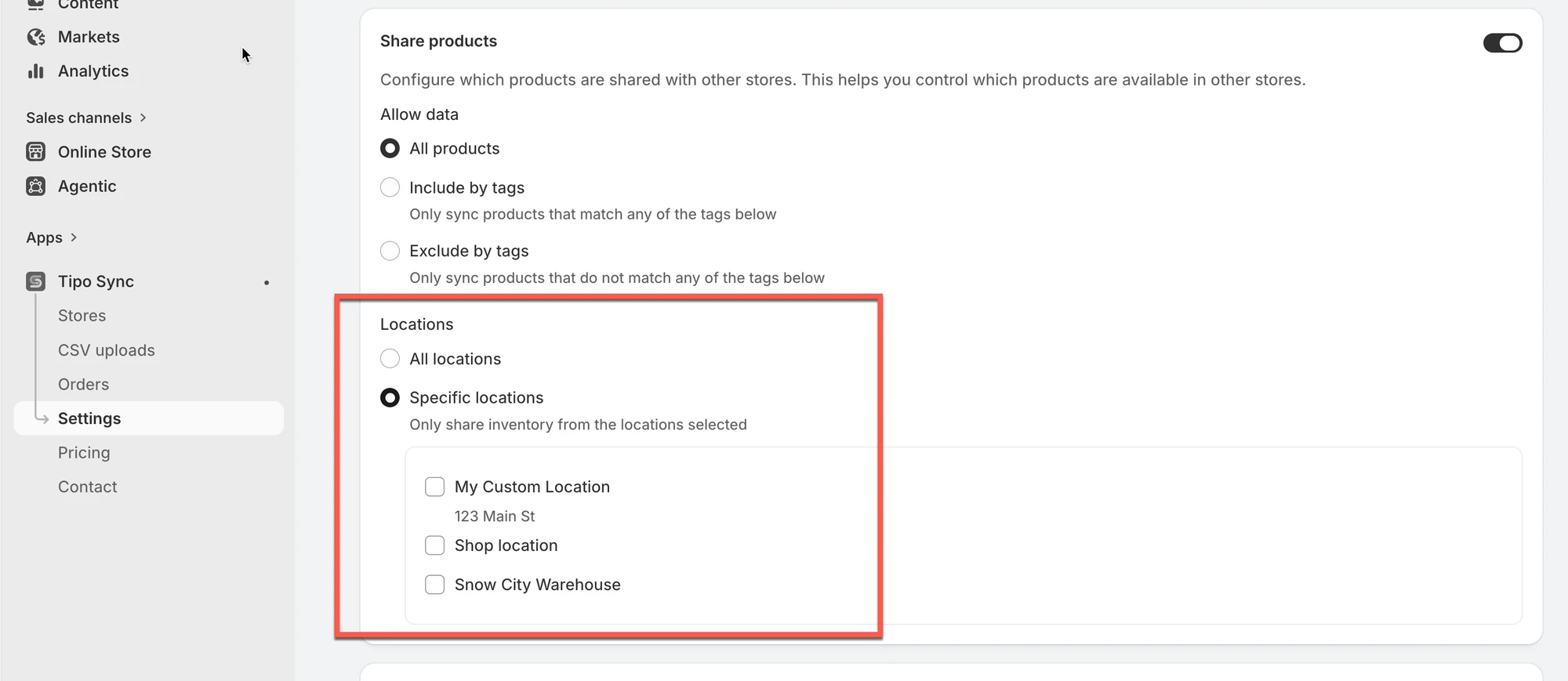
2. Scrol naar het onderdeel Locations en selecteer een van de 2 onderstaande opties:
- All locations: producten die beschikbaar zijn op alle locaties van uw winkel worden gesynchroniseerd met de bestemmingswinkel
- Specific locations: alleen de producten op de geselecteerde locatie(s) worden bijgewerkt wanneer er wijzigingen zijn in de bestemmingswinkel
3. Klik op Save
🛠️ Stap 2: Locaties koppelen bij het verbinden van 2 winkels
Section titled “🛠️ Stap 2: Locaties koppelen bij het verbinden van 2 winkels”1. Open de app in de bronwinkel > klik op Stores > klik op de knop Get connect code > kopieer de verbindingscode in het pop-upvenster
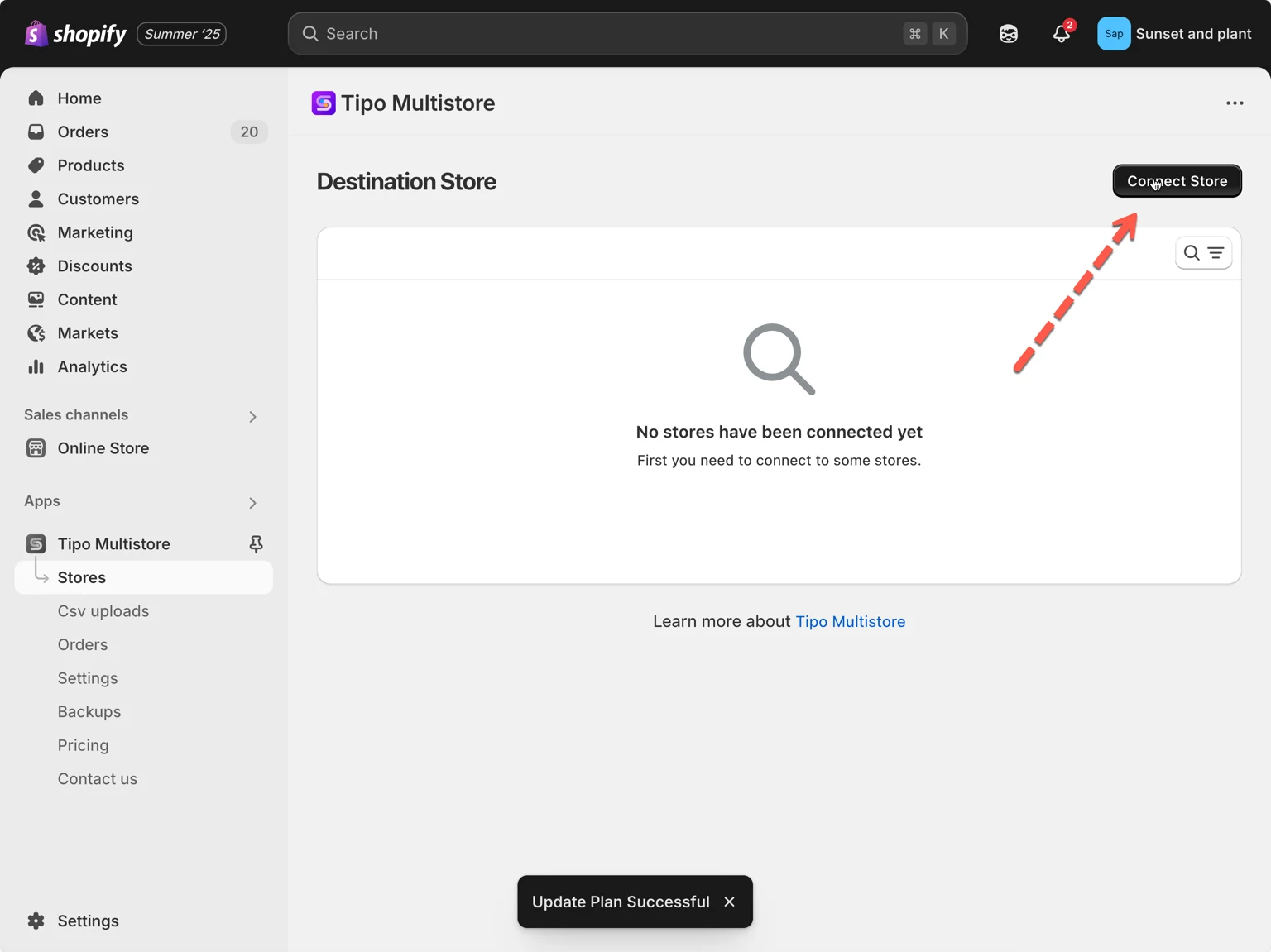
2. Ga naar de bestemmingswinkel, open de Tipo Multi-store-app > klik op Stores > klik op de knop Connect Store
3. Voer de verbindingssleutel in (haal de sleutel op uit het Dashboard van de app in de bronwinkel)
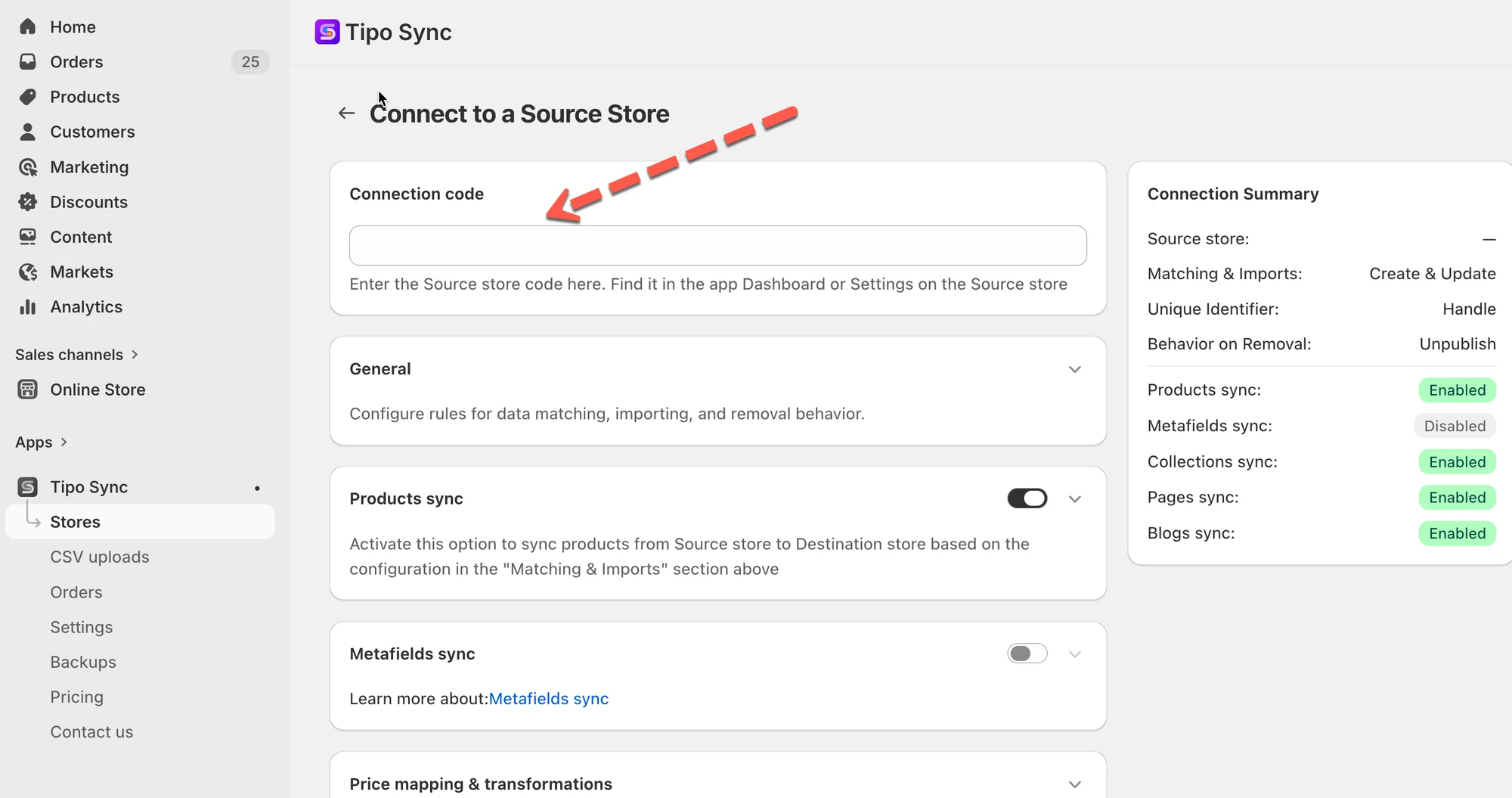
- Selecteer de producten die u wilt synchroniseren en voltooi de instellingen in de verbindingsdetails
- Scrol naar beneden naar het onderdeel Mapping locations en selecteer de locaties die tussen de winkels moeten worden gekoppeld
Op het koppelingsscherm ziet u:
- Locaties van de bronwinkel (links)
- Locaties van de bestemmingswinkel (rechts)
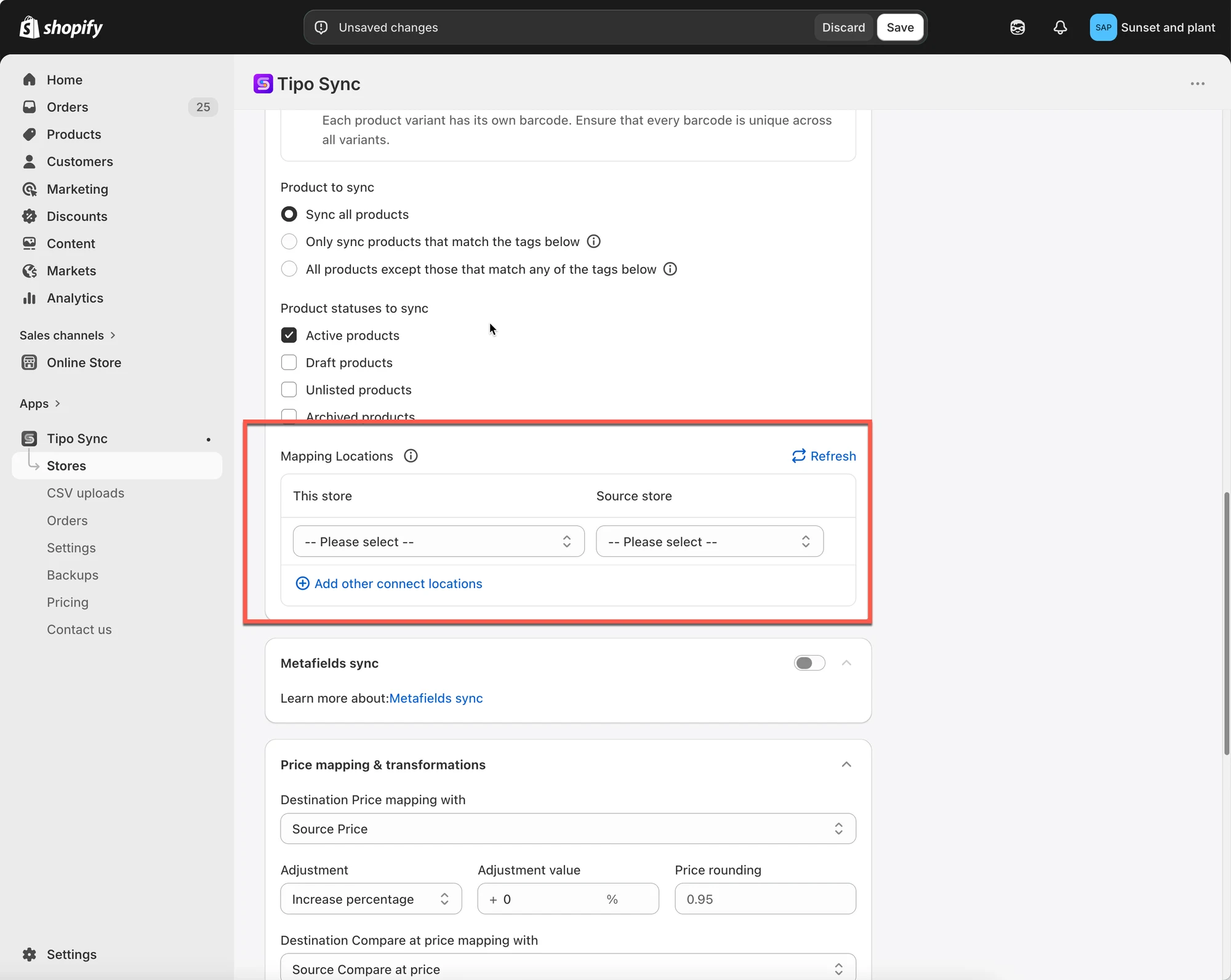
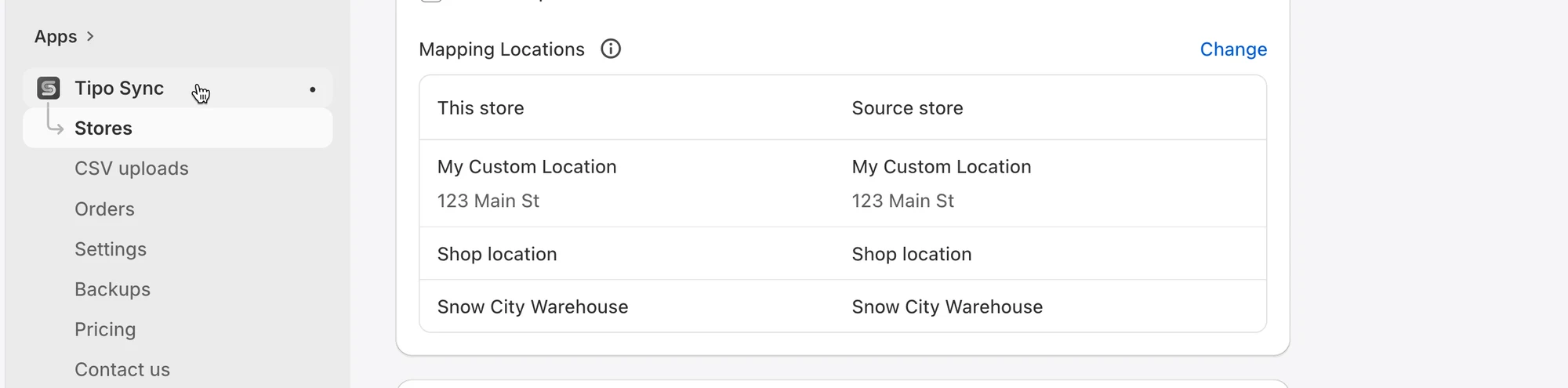
Let op: Onze app synchroniseert momenteel 1 locatie van de bronwinkel naar 1 locatie van de bestemmingswinkel. Het is niet mogelijk om één locatie van de bronwinkel aan 2 locaties in de bestemmingswinkel te koppelen.
- Klik op Save
De synchronisatie wordt direct uitgevoerd. Het kan even duren voordat deze is voltooid.
✅ Wat er gebeurt na het koppelen
Section titled “✅ Wat er gebeurt na het koppelen”Zodra de koppeling is opgeslagen, zal de app
- De voorraad alleen bijwerken op de locaties die u in de verbinding hebt gekoppeld
- Locaties die niet zijn gekoppeld negeren
Belangrijk: één-op-één-koppeling
Elke locatie kan maar aan één overeenkomstige locatie worden gekoppeld.
✅ Ondersteund:
| Bronwinkel | Bestemmingswinkel |
|---|---|
| Magazijn A | Magazijn A |
❌ Niet ondersteund:
| Bronwinkel | Bestemmingswinkel |
|---|---|
| Magazijn A | Magazijn A |
| Magazijn A | Magazijn B |
Een enkele bronlocatie kan de voorraad niet naar meerdere bestemmingslocaties synchroniseren.
🧪 Voorbeeld
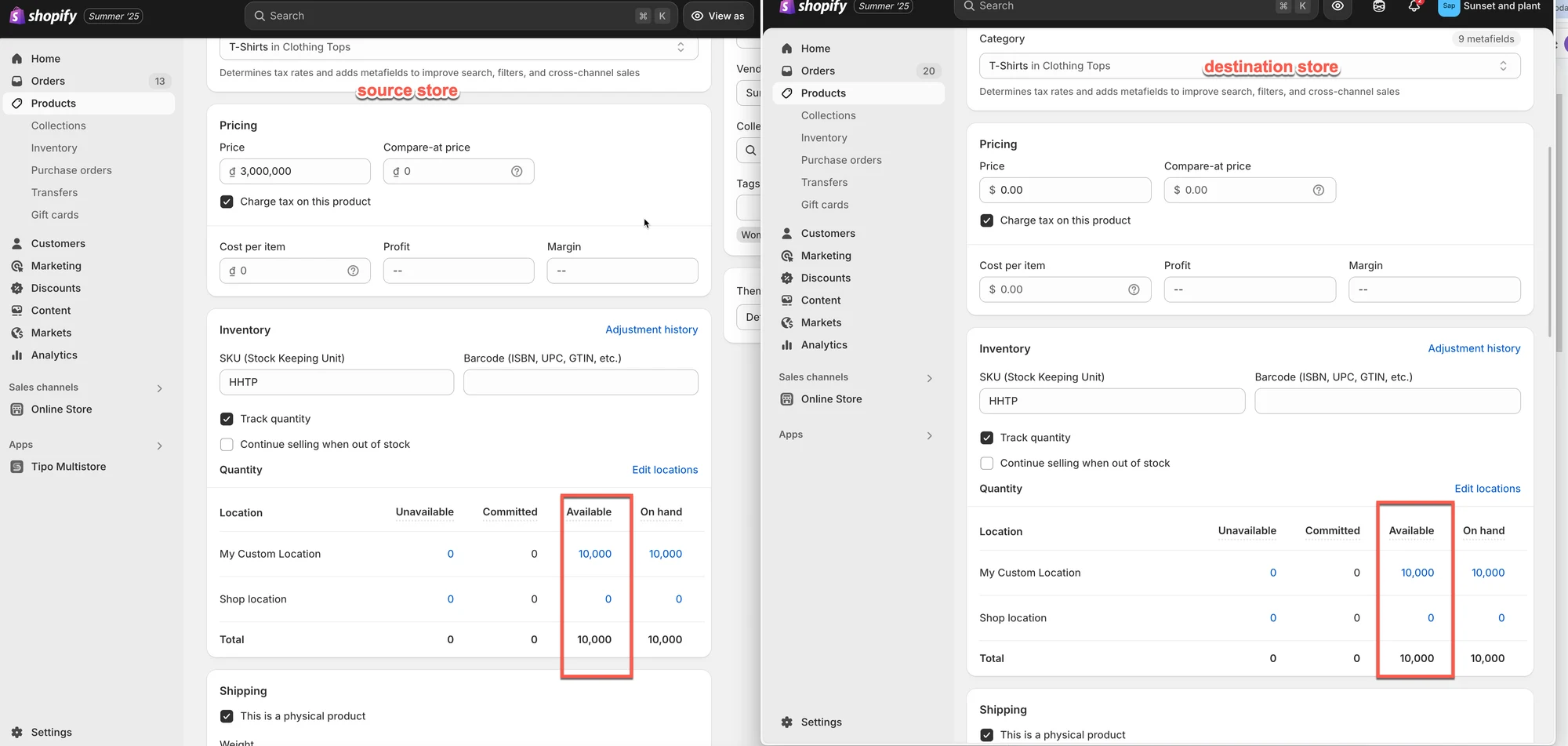
Section titled “🧪 Voorbeeld”Stel dat beide winkels de volgende locaties hebben:
| Bronwinkel | Bestemmingswinkel |
|---|---|
| My Custom Location | My Custom Location |
| Shop location | Shop location |
En de koppeling is ingesteld als:
| Bestemmingswinkel | Bronwinkel |
|---|---|
| My Custom Location | My Custom Location |
| Shop location | Shop location |
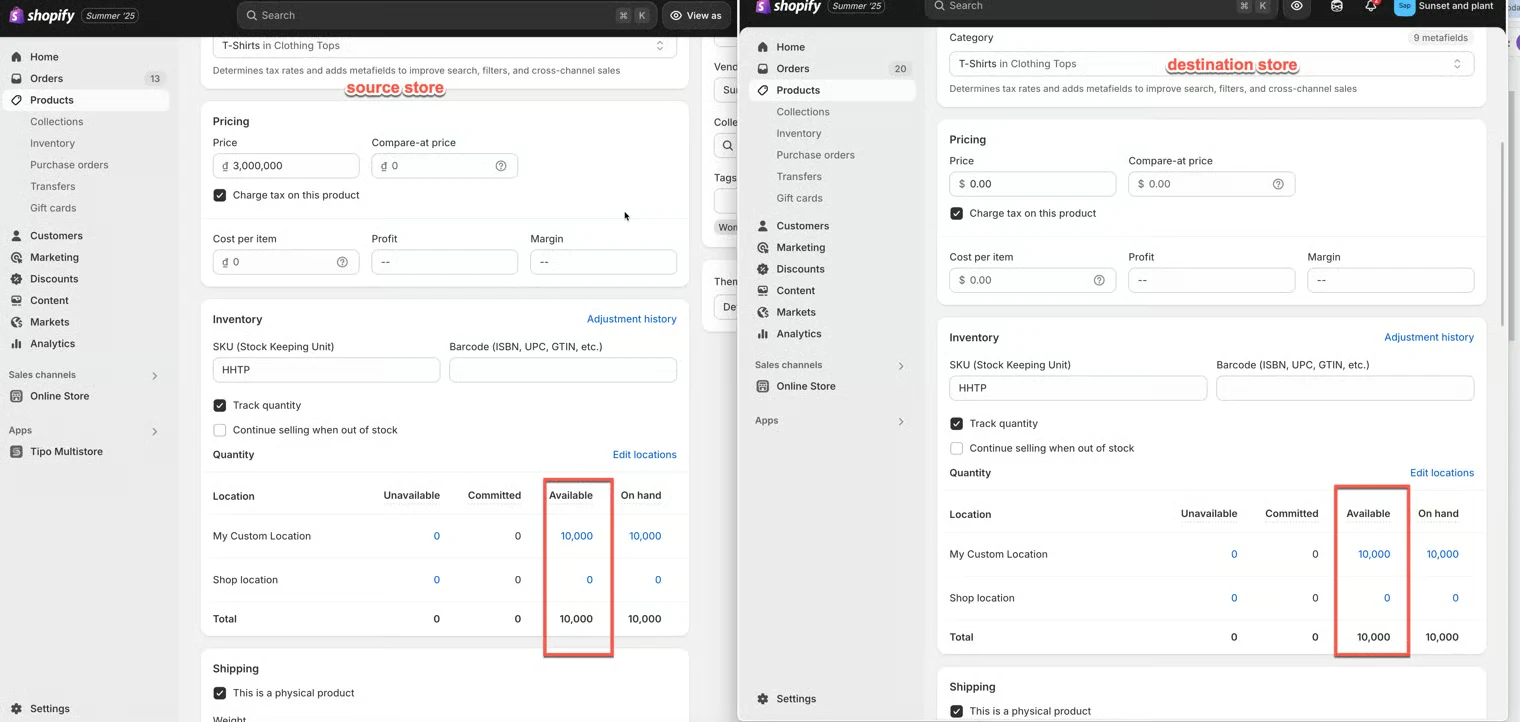
Voorbeeld 1: Eenrichtings-voorraadsynchronisatie
Section titled “Voorbeeld 1: Eenrichtings-voorraadsynchronisatie”Synchronisatierichting: Bronwinkel → Bestemmingswinkel
Voor de synchronisatie
Bronwinkel
| Locatie | Beschikbaar |
|---|---|
| My Custom Location | 10,000 |
| Shop location | 0 |
Bestemmingswinkel
| Locatie | Beschikbaar |
|---|---|
| My Custom Location | 5 |
| Shop location | 100 |
Na de synchronisatie
Bestemmingswinkel
| Locatie | Beschikbaar |
|---|---|
| My Custom Location | 10,000 |
| Shop location | 0 |
Omdat de voorraad van de bronwinkel naar de bestemmingswinkel wordt gesynchroniseerd, wordt de voorraad in de bestemmingswinkel bijgewerkt zodat deze overeenkomt met de gekoppelde bronlocaties.
Voorbeeld 2: Tweerichtings-voorraadsynchronisatie
Section titled “Voorbeeld 2: Tweerichtings-voorraadsynchronisatie”Synchronisatierichting: Bronwinkel ↔ Bestemmingswinkel
Stel dat de locaties als volgt zijn gekoppeld:
| Bestemmingswinkel | Bronwinkel |
|---|---|
| My Custom Location | My Custom Location |
| Shop location | Shop location |
Scenario A: Verkoop in de bronwinkel
Voor de verkoop:
| Locatie | Bronwinkel | Bestemmingswinkel |
|---|---|---|
| My Custom Location | 10,000 | 10,000 |
Een klant koopt 1 artikel in de bronwinkel.
Nadat Shopify de voorraad heeft bijgewerkt:
| Locatie | Bronwinkel |
|---|---|
| My Custom Location | 9,999 |
Tipo Sync werkt vervolgens de gekoppelde locatie in de bestemmingswinkel bij:
| Locatie | Bestemmingswinkel |
|---|---|
| My Custom Location | 9,999 |
Resultaat: beide winkels blijven gesynchroniseerd.
Scenario B: Verkoop in de bestemmingswinkel
Voor de verkoop:
| Locatie | Bronwinkel | Bestemmingswinkel |
|---|---|---|
| My Custom Location | 10,000 | 10,000 |
Een klant koopt 1 artikel in de bestemmingswinkel.
Nadat Shopify de voorraad heeft bijgewerkt:
| Locatie | Bestemmingswinkel |
|---|---|
| My Custom Location | 9,999 |
Tipo Sync werkt vervolgens de gekoppelde locatie in de bronwinkel bij:
| Locatie | Bronwinkel |
|---|---|
| My Custom Location | 9,999 |
Resultaat: beide winkels blijven gesynchroniseerd.
Voorbeeld 3: Niet-gekoppelde locaties worden genegeerd
Section titled “Voorbeeld 3: Niet-gekoppelde locaties worden genegeerd”Stel dat alleen My Custom Location is gekoppeld.
| Bestemmingswinkel | Bronwinkel |
|---|---|
| My Custom Location | My Custom Location |
Shop location is niet gekoppeld.
Bronwinkel
Section titled “Bronwinkel”| Locatie | Beschikbaar |
|---|---|
| My Custom Location | 10,000 |
| Shop location | 500 |
Bestemmingswinkel
Section titled “Bestemmingswinkel”| Locatie | Beschikbaar |
|---|---|
| My Custom Location | 10,000 |
| Shop location | 100 |
Na de voorraadsynchronisatie:
| Locatie | Resultaat |
|---|---|
| My Custom Location | Gesynchroniseerd |
| Shop location | Niet gesynchroniseerd |
De voorraad op Shop location blijft ongewijzigd, omdat deze locatie niet in de locatiekoppeling is opgenomen.
▶️ Een video-instructie
Section titled “▶️ Een video-instructie ”🙋 Heb je nog steeds ondersteuning nodig?
Als je nog steeds hulp nodig hebt, neem dan gerust contact met ons op via hi@tipo.io. We helpen je graag verder.