
Hide price settings
AI Overview
Shows how to use the Hide price setting in Tipo Related Products to hide product prices in the related products widget. It is a short guide: enable one checkbox in General settings, save, and check the result on your store.
View moreView less
- Open the app, then Settings > General.
- In the Hide price section, tick Enable.
- Click Save.
- Check the result on the store.
Summary generated by AI. It can make mistakes, so check the full guide below.
The Hide price setting lets you control who can see product prices in the related products widget.
✅ Enable Hide Price
Section titled “✅ Enable Hide Price”What this option does
When enabled, product prices in the related products widget are hidden
Steps
- Open the app > click Settings > General
- Find Hide price section > tick on Enable checkbox
- Click Save
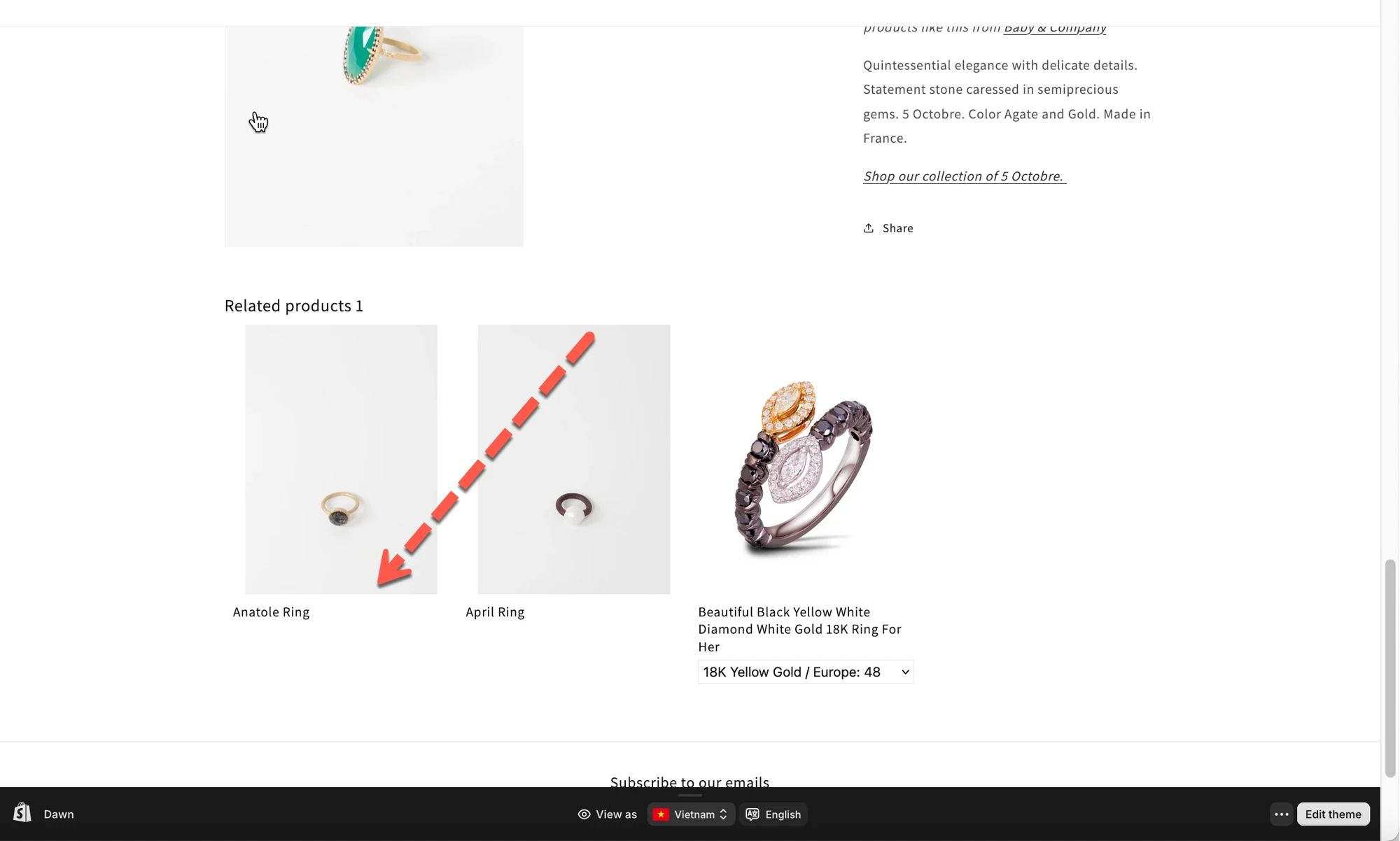
- Check the result on the store
🙋 Still need support?
If you still need help, please feel free to contact us at hi@tipo.io. We’ll be happy to assist you further.