> For the complete documentation index, see [llms.txt](https://docs.tipo.io/llms.txt). Markdown versions of documentation pages are available by appending `.md` to page URLs; this page is available as [Markdown](https://docs.tipo.io/tipo-auction/~/revisions/3uOn584ZFy41DoorDGbA/mail-notifications/reminder-email-for-coming-auctions.md).
# Reminder email for coming auctions
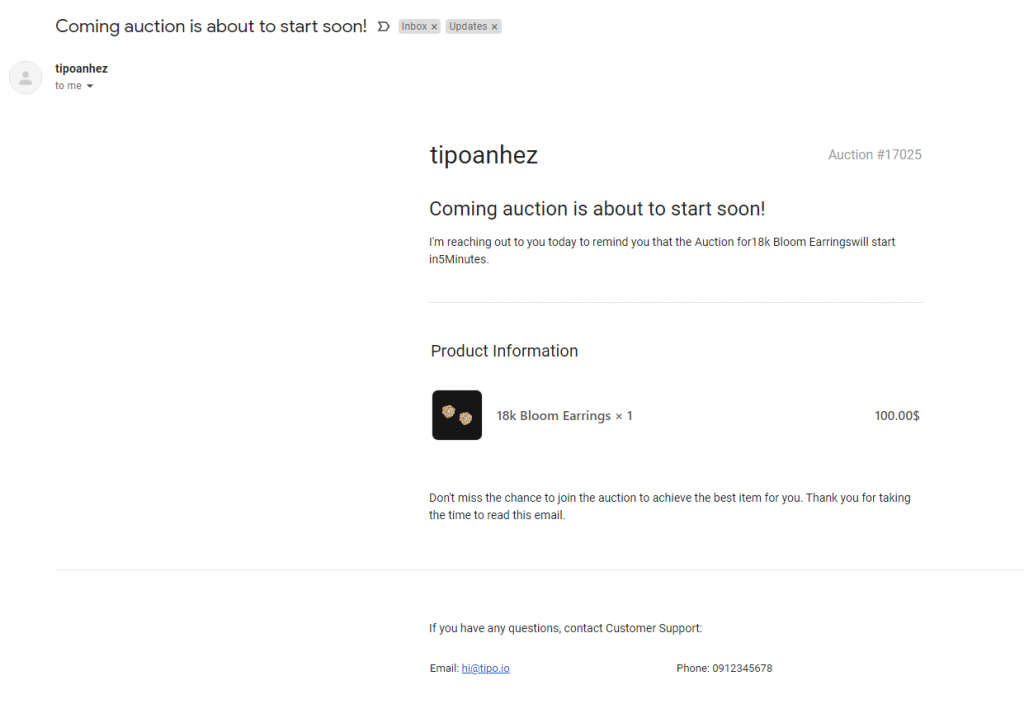
Before the auction start, there will be an email sent to customers to remind him/her the auction of a product the customer is interested in.
Here is an example of the reminder email:
To achieve that, please follow the steps below.
### Set up reminder email
**Steps to manage**
1. Open the app > click **Notifications > Customer**
2. Tick on the checkbox **Remind He (her) when the auction is about to start**
3\. On the right side, edit the email template
* Change the email subject
For example:
*Coming auction is about to start soon!*
*Don’t miss your auction!*
* Change the time to send the email in advance.
For example: If the time is set as 1 hours in advance, your customers will receive the email (reminding him/her about the coming auction) 1 hour before the auction starts.
* Edit the content of the email template
You can edit the content of email based on your needs. Also, our app offers variables to make the content more flexible.
4\. Click **Save** to update the changes
### Change the text of “Remind me” button
1. Open the app > click **Settings** > click **Translations**
2. Find **Remind Me** field, enter the new text of the button
For example: *Auction reminder*
3\. Click **Save** to update the changes
Check the result on the front store
### Show “**Remind me”** button on the collection page
1. Open the app > click **Collection page** > **Show auction widget** option
2. Tick on the checkbox **Show remind me**
3. Save **Settings**
### How customer register to receive reminder email
* When customer visit your store, he/she will see the auction widget on the product page or collection page as below:
* Click **Remind me** button on the widget, a popup will show ask for customer email
* Enter the email you want to receive email notification before the auction start > Click **Remind me about the auction button** to finish
* After that, the email reminding you about the auction of an item will be automatically sent to email before the auction starts.
Here is an example of the reminder email: