# 設定庫存與訂單同步
* 庫存同步規則
* 訂單同步行為(Destination → Source)
當您希望由 Source store 控制下列項目時,請使用這些設定:
本指南說明在哪裡從 **Source store** 設定中啟用並管理 **Inventory Sync** 與 **Order Sync**。
#### 🛠️ 在 Source store 中設定庫存與訂單同步
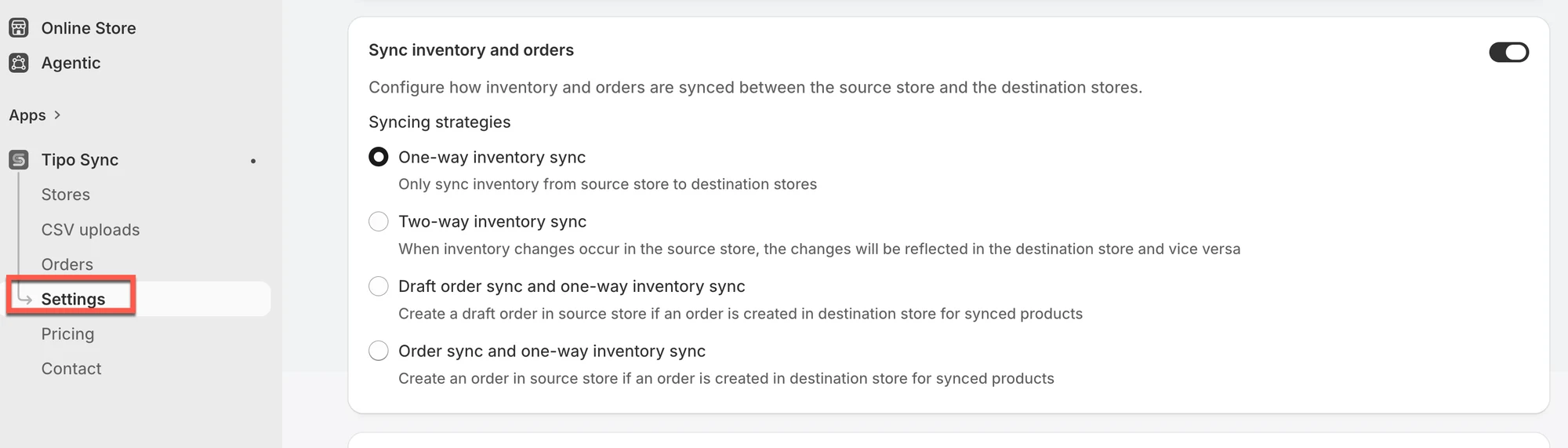
1. 在 **Source** store 中開啟應用程式 > 點選 **Settings**
2. 在 **Sync Inventory and Orders** 中,啟用該區塊並選擇**一種**策略
* ➡️ One-Way Inventory Sync\
僅將庫存從 Source → Destination store 同步。
* **🔁 Two-Way Inventory Syn**c\
雙向同步庫存。任一商店的變更都會更新另一間商店。
* 🧾 **Draft Order Sync + One-Way Inventory Sync**\
如果在 Destination store 中建立了訂單(針對已同步的商品),應用程式會在 Source store 中建立草稿訂單。\
庫存仍會由 Source → Destination 同步。
* 🛒 **Order Sync + One-Way Inventory Sync**\
如果在 Destination store 中建立了訂單(針對已同步的商品),應用程式會在 Source store 中建立正式訂單。\
庫存仍會由 Source → Destination 同步。
 3. 點選 **Save**
***
### 🔄 同步的運作方式
#### 庫存同步
* **商品比對:** 應用程式會使用您選擇的識別碼(例如:Handle、SKU 或 Barcode)來比對商品。\
請確保該識別碼在每間商店中都相同。
* **地點同步:** 庫存會依據您的地點設定進行更新。\
最佳做法:在 Source 與 Destination 使用相同的地點名稱,或在您的設定支援時對應地點。
* **同步方向:**
* ➡️ **單向:** 僅限 Source → Destination
* 🔁 **雙向:** Source ↔ Destination(任一方的更新都會同步)
#### 訂單同步
* **訂單匯入:** 在 Destination store 下的訂單可以匯入到 Source store(依您選擇的選項,匯入為草稿訂單或正式訂單)。
* **重要:** 訂單同步通常只會在訂單建立時進行。之後的狀態變更(出貨/付款更新)不會同步。
#### **參考資料:**
[雙向庫存同步](/inventory-sync/two-way-inventory-sync)
[單向庫存同步](/inventory-sync/one-way-inventory-sync)
[訂單同步](/order-sync/order-sync)
[草稿訂單同步](/order-sync/draft-order-sync)
***
**🙋 還需要協助嗎?**
如果您仍需要協助,歡迎隨時寄信至 與我們聯繫,我們很樂意為您提供進一步的協助。