# 管理來源商店
本指南說明如何在 Tipo 應用程式中,查看並管理與您的 **Destination store** 連線的所有 **Source stores**。
在此頁面中,您可以查看已連線的 Source store、檢視連線狀態,並開啟連線設定。
### ✅ 查看 Source store 清單
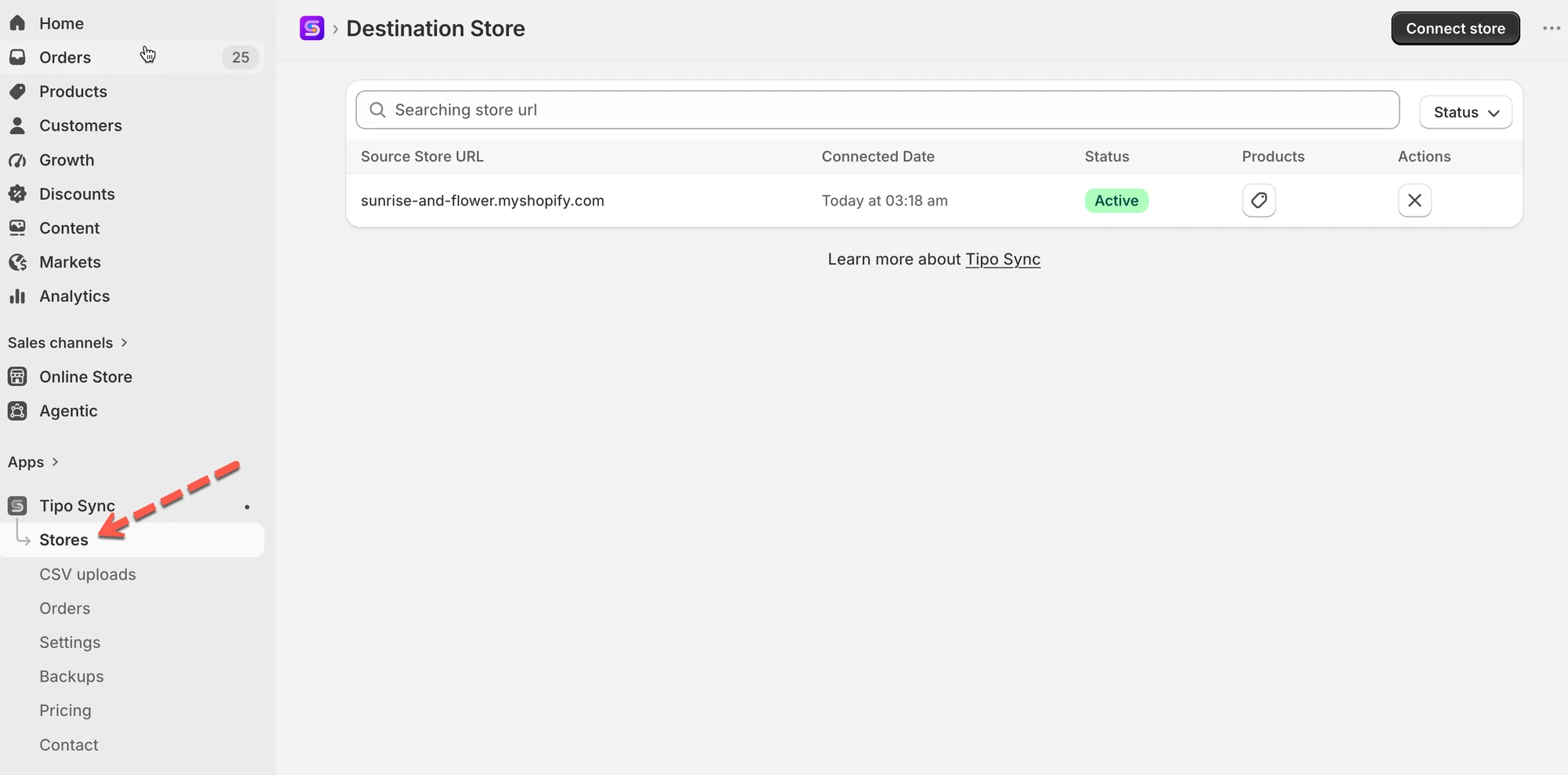
在 Destination store 中開啟應用程式 > 點選 **Stores** > 您會看到與您的 Destination store 連線的 Source store
🔎 您可以在此頁面執行的操作
在「Manage Source stores」頁面中,您可以:
* 查看已連線的 Source store 清單
* 檢查連線狀態(Active / Pending / Disconnected)
* 開啟 Source store 連線以檢視同步設定
* 中斷與 Source store 的連線(如有需要)
***
### ✏️ 編輯與 Source store 的連線
Destination store 連線完成後,您可以調整同步的運作方式(商品、定價、庫存地點、中繼欄位等)。
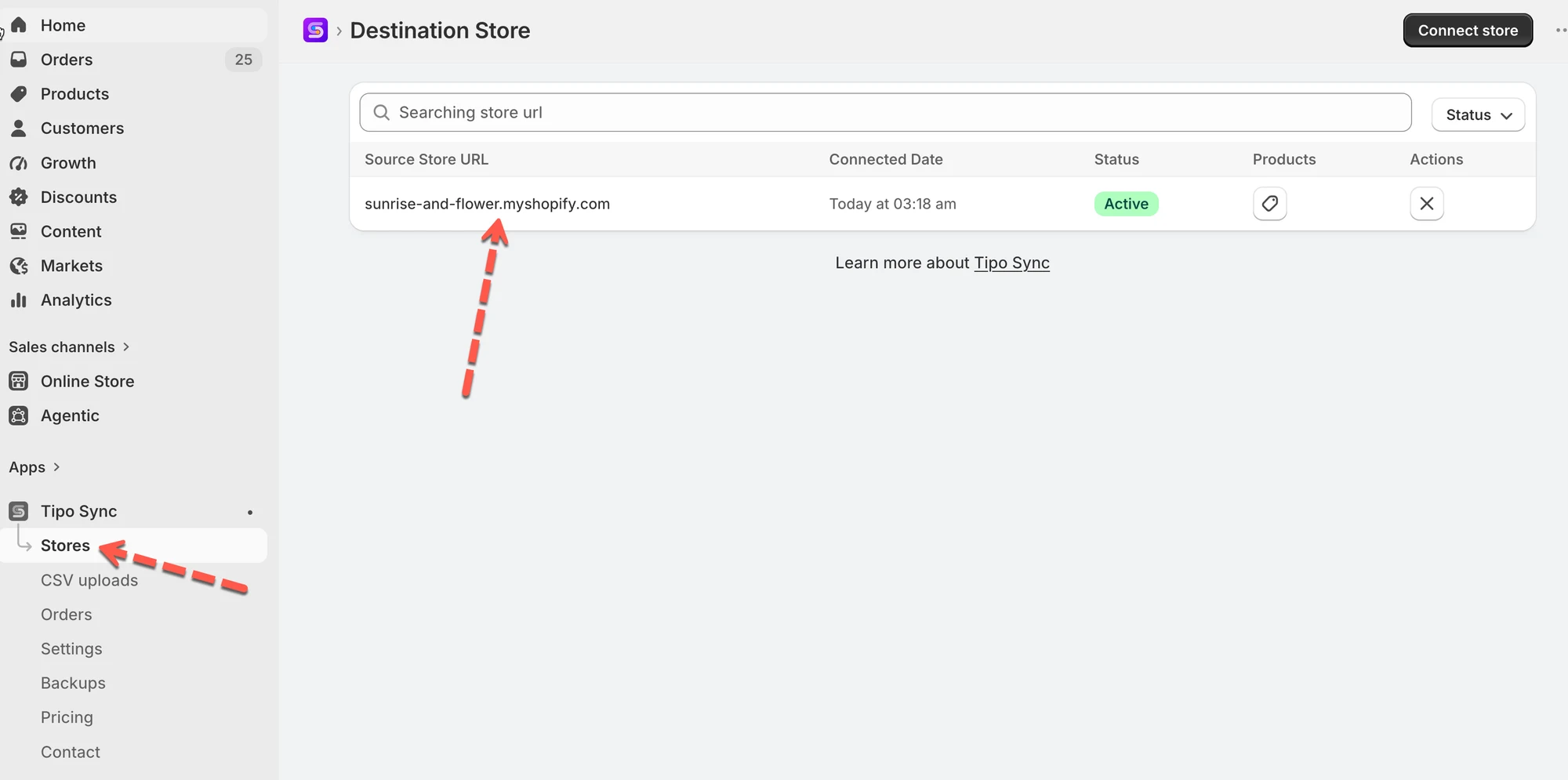
1\. 在 Destination store 中開啟應用程式 > 點選 **Stores** > 點選您想要的商店網址
 2\. 變更連線的設定
您可以
* 變更 matching imports 選項
* 依標籤選擇要同步的商品,或依標籤排除商品
* 變更價格對應與轉換 (Price mapping & transformations)
* 啟用/停用 Collections sync、page sync、blog sync
3\. 點選 **Save** 以更新變更
 連線詳細資料包含下列部分設定。
#### 🔁 Matching & Imports
選擇從 **Source store** 同步到此 **Destination store** 時,應用程式處理商品的方式。
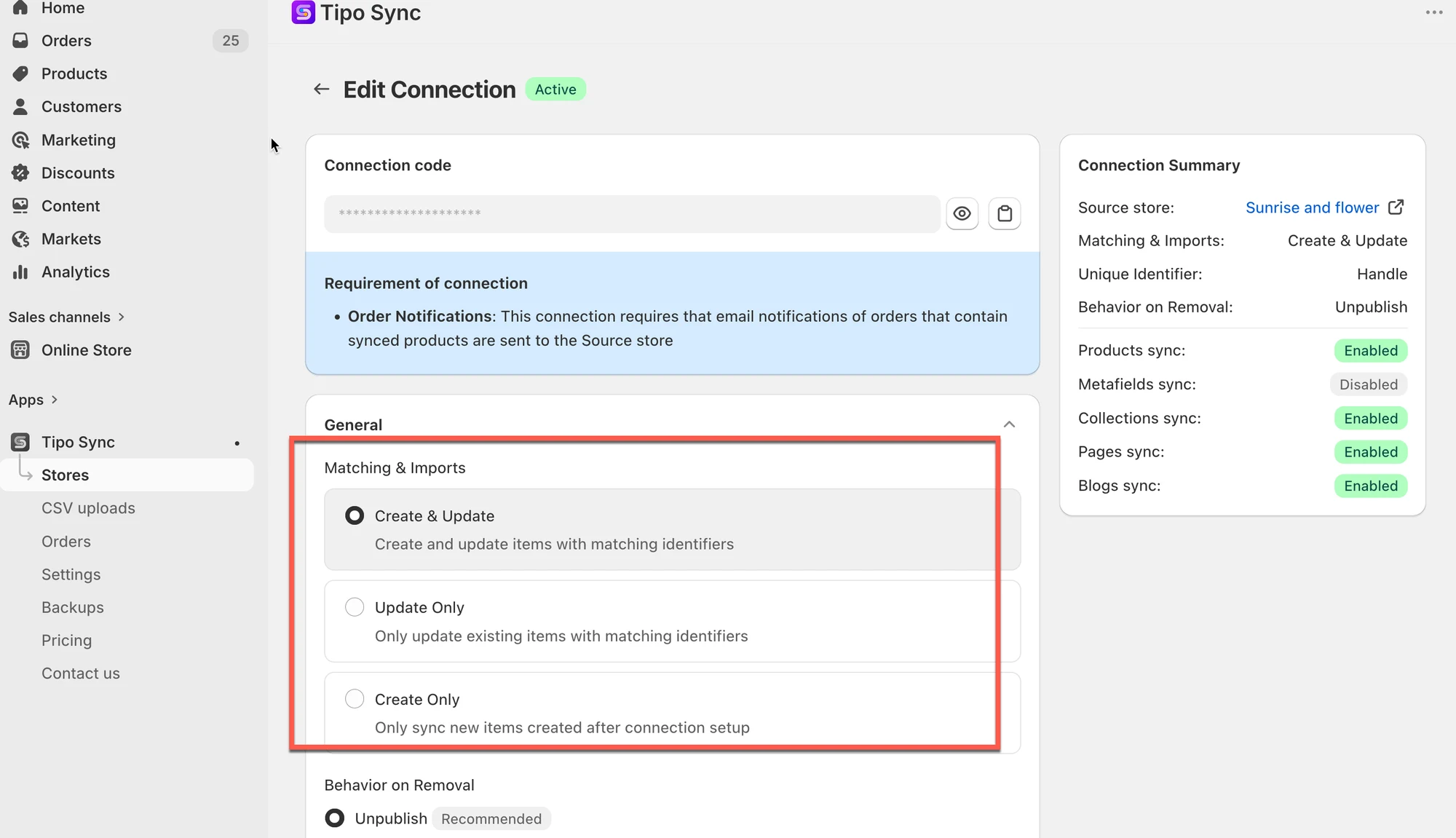 * **Matching & Imports**
> 如果您希望 Destination store 自動建立缺少的商品並讓現有商品保持更新,請選擇 **Create & Update**。
>
> 如果兩間商店中都已有商品,而您只想同步更新內容,請選擇 **Update Only**。
>
> 如果您只想將 Source store 的新商品新增到 Destination store,並讓 Destination store 上的現有商品維持不變,請選擇 **Create** **only**。
📌 *提示:*「識別碼」取決於您的設定(通常是 **Handle**,或您選擇的比對規則)。
### 🔗 Behavior on Removal
選擇當商品從同步中移除(或從 Source 同步集合中移除)時,Destination store 應該如何處理。
* Unpublish Recommended\
當商品從 Source store 刪除時,在 Destination store 上將該商品下架。
* Unpublish or Delete\
如果曾售出過,則下架。如果從未售出過,則從 Destination store 刪除
* Delete\
將商品從 Destination store 中完全移除。
* No action\
讓商品在 Destination store 上維持不變。
#### 🛍️ 商品同步設定
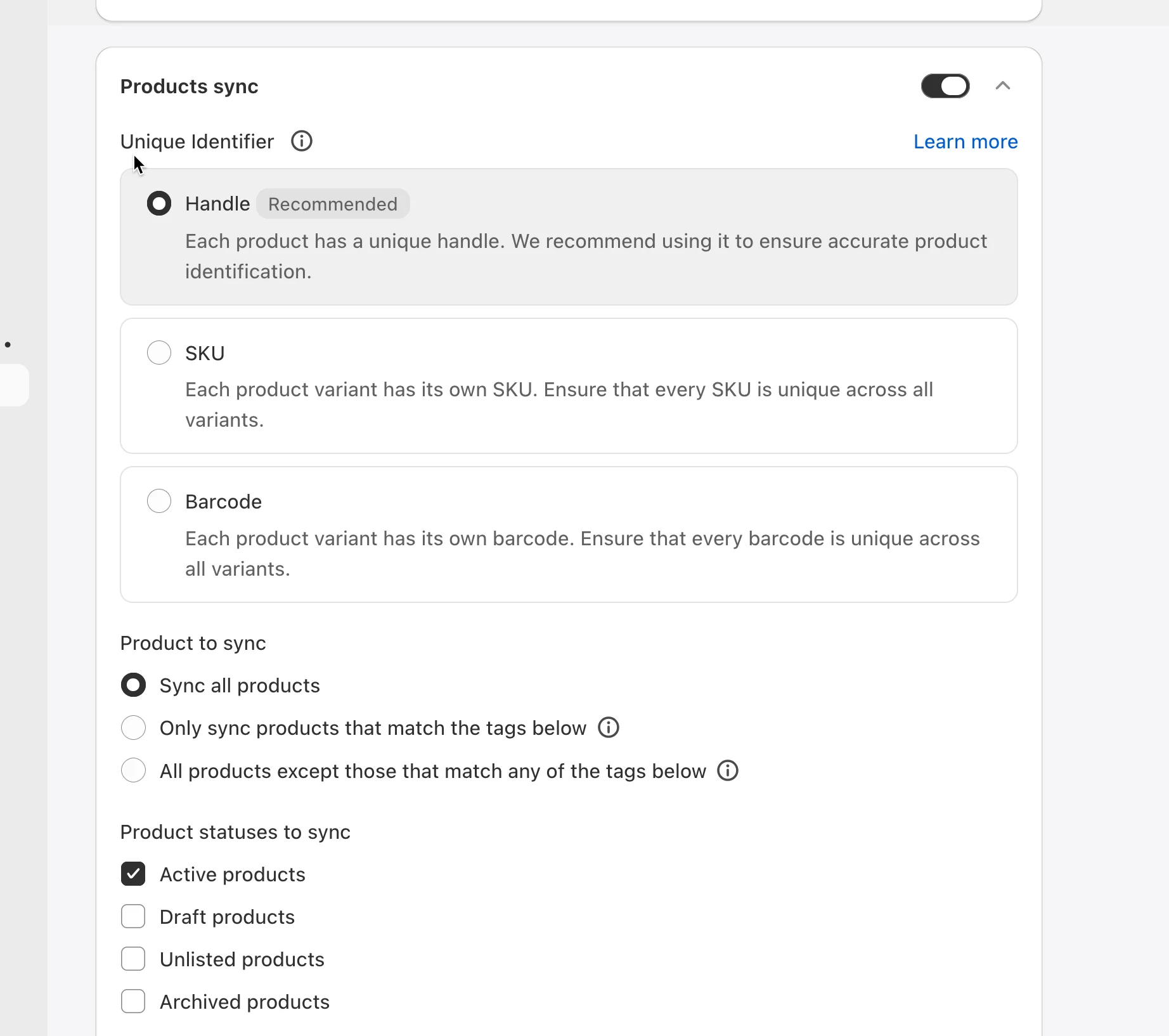
啟用商品同步選項
* 開啟 **Products sync** 選項
* 選擇 **Unique Identifier**,以在各商店之間比對商品
> 範例:如果兩間商店已有相同的商品 handle,請選擇 **Handle**,比對最為準確。如果您的商品所有款式都使用唯一的 SKU,請選擇 **SKU**。
* 選擇要同步哪些商品
> 範例:如果您只想同步標記為 `wholesale` 的商品,請選擇 **Only sync products that match the tags below**。
* 選擇要同步的 **Product Statuses**
 ***
#### 📍 Mapped Locations
此部分取決於 Source store 中的設定。[瞭解更多](/settings-destination-store/map-locations-for-inventory-sync)
#### 💰價格對應與轉換
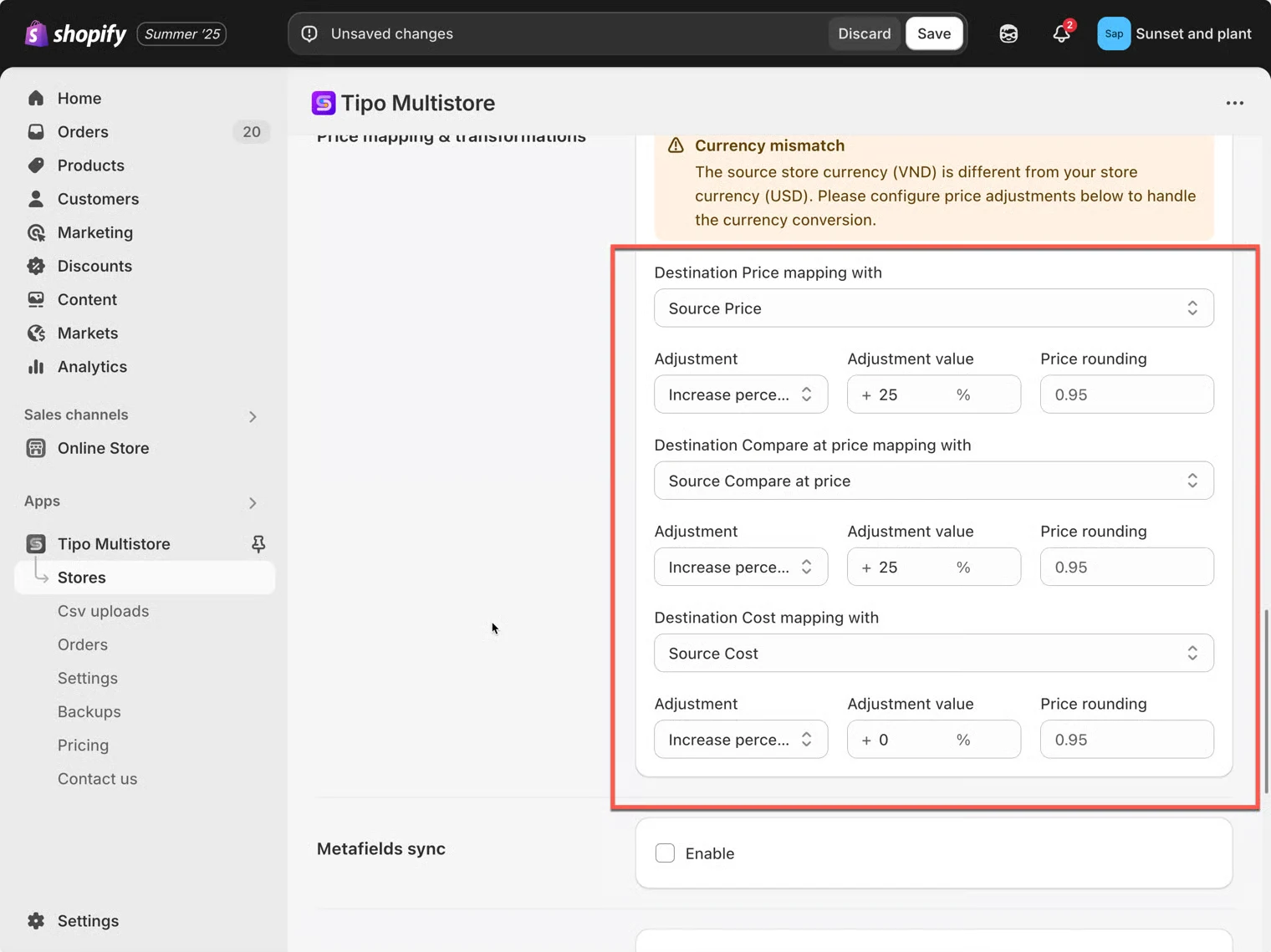 如果您希望在同步期間調整 Destination store 中的價格,請使用此區塊。
範例:
* 依 % 增加/減少
* 依固定金額增加/減少
* 選用的進位規則(例如讓價格以 `.95` 結尾)
瞭解更多請見[這裡](/product-syncs/price-sync-and-adjustments)
#### 🧾 中繼欄位同步
如果您想將中繼欄位從 Source → Destination 同步,請啟用此選項。
* 您可能需要新增中繼欄位定義(namespace.key)
* 資料類型必須相符
瞭解更多請見[這裡](/product-syncs/sync-metafields)
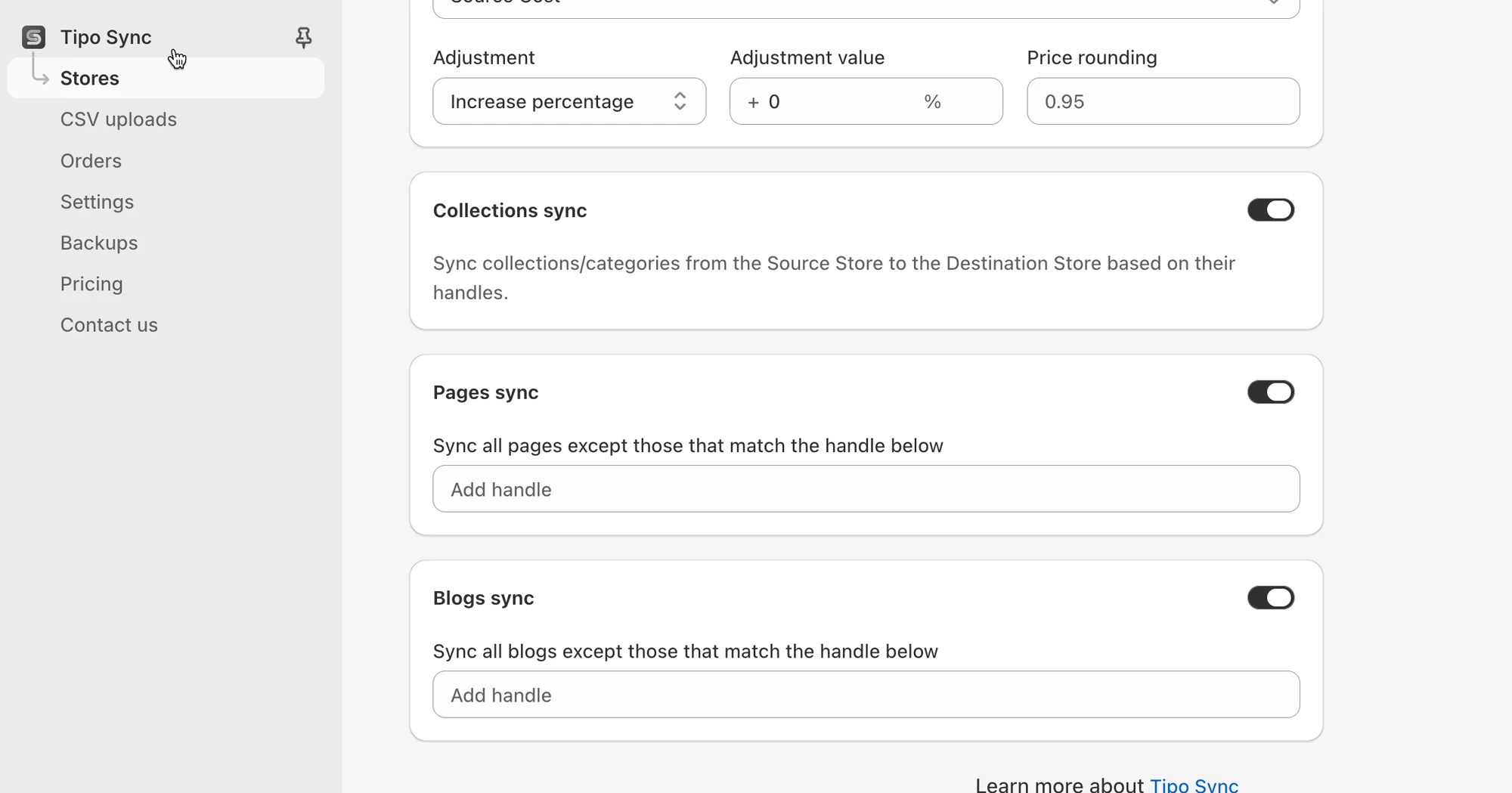
#### 📄 Collection、Pages 與 Blogs 同步設定
如果您希望 Source store 將其他內容同步到此 Destination store,請啟用這些選項,例如:
* Collections
* Pages
* Blogs & Articles
開啟您需要的設定,然後點選 **Save**。
 ***
### **🚫** 中斷與 Source store 的連線
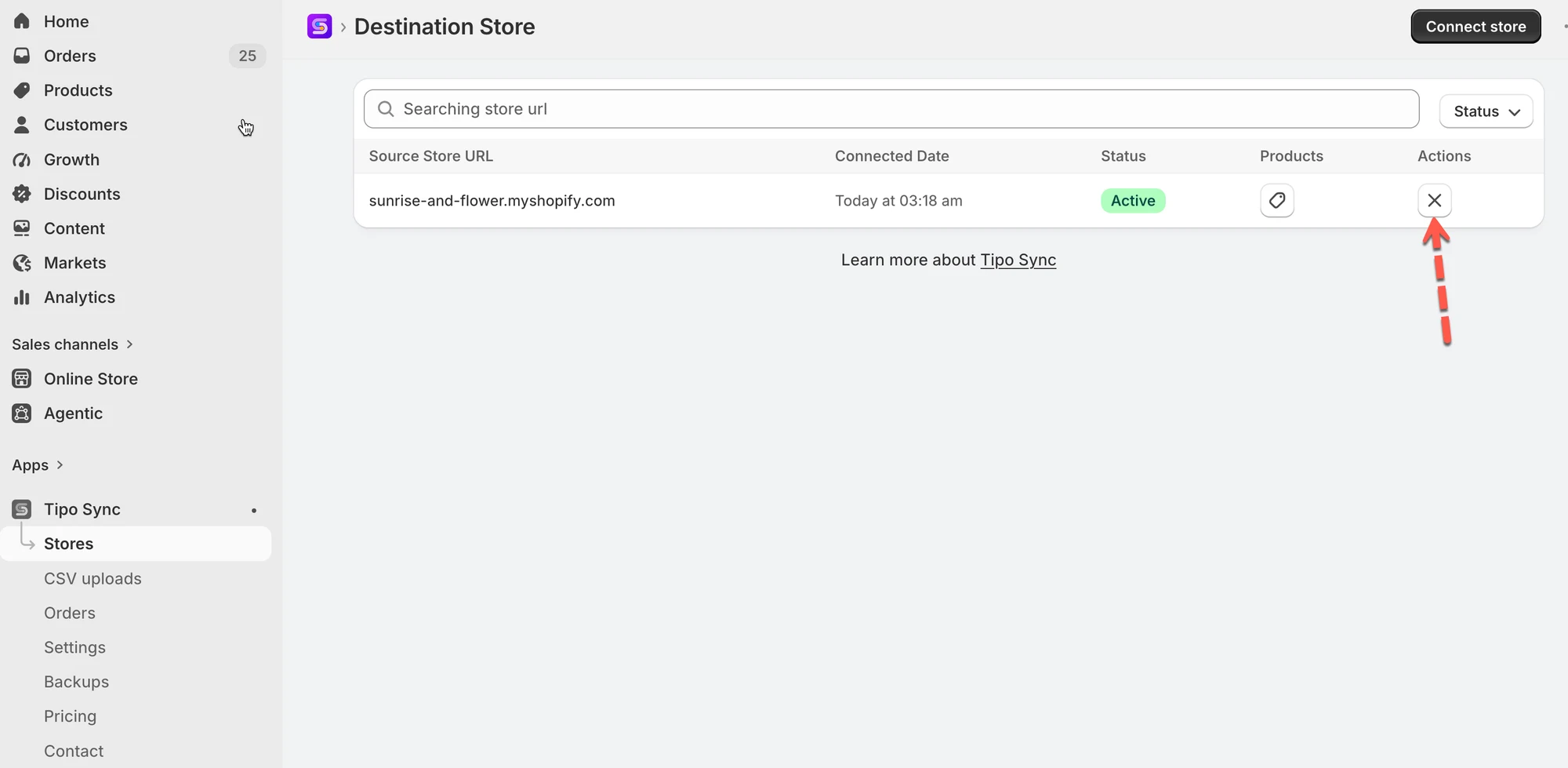
1\. 在 Destination store 中開啟應用程式 > 點選 **Stores**
2\. 點選您想移除的商店右側的 (x) 圖示
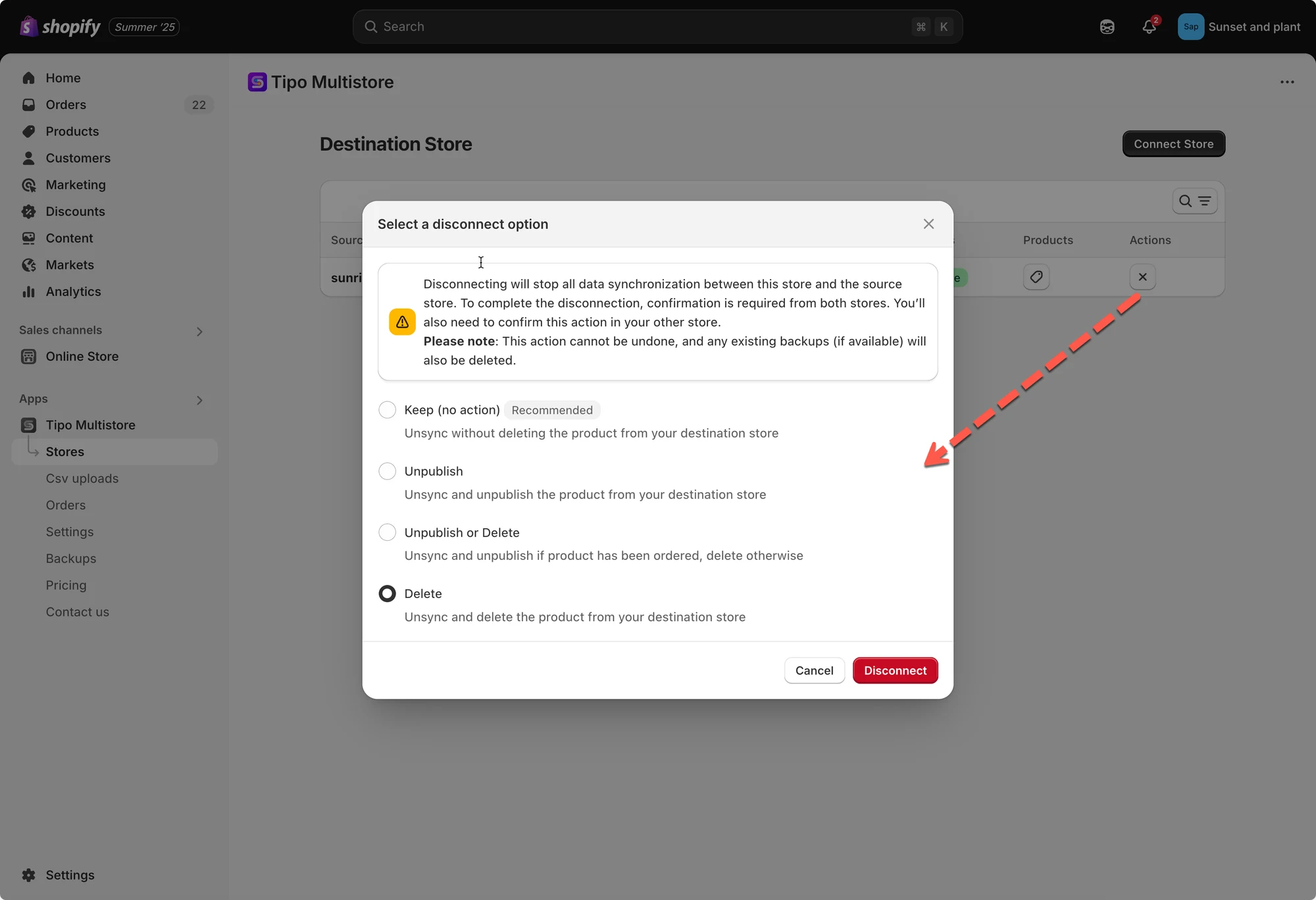
應用程式提供 4 個選項,讓您管理 Destination store 上已同步的商品。您可以選擇其中一個。
例如,如果您想移除從 Source store 同步到此商店的商品,請選擇 **Delete** 選項。
* **Keep (no action) :** 取消同步,但不會從您的 Destination 商店刪除商品
* **Unpublish**:取消同步,並將商品從您的 Destination 商店下架
* **Unpublish or Delete**:取消同步;如果商品曾被訂購則下架,否則刪除
* **Delete**:取消同步,並從您的 Destination 商店刪除商品
 接著在 Source store 的應用程式中執行相同操作,即可完全移除連線。
連線移除後,可能需要一些時間處理。請稍候,讓應用程式完成處理後,您才能建立新的連線。
***
**🙋 還需要協助嗎?**
如果您仍需要協助,歡迎隨時寄信至 與我們聯繫,我們很樂意為您提供進一步的協助。