# 依唯一識別碼同步商品
此應用程式可讓您使用下列其中一種唯一識別碼,將商品從來源商店同步到目的商店:
* **Handle**(建議使用)
* **SKU**
* **Barcode**
**唯一識別碼**是指在兩間商店中相同、可用來正確比對商品的商品值。
商品比對成功後,Tipo 應用程式就能依照您的設定同步更新內容(價格、標題、圖片等)。
### ✅ 我應該使用哪一種識別碼?
#### 1. Handle(建議使用)
**說明:**\
Handle 是用於每項商品網址中的唯一字串。它會根據商品標題自動產生,但也可以在 Shopify 中手動編輯。
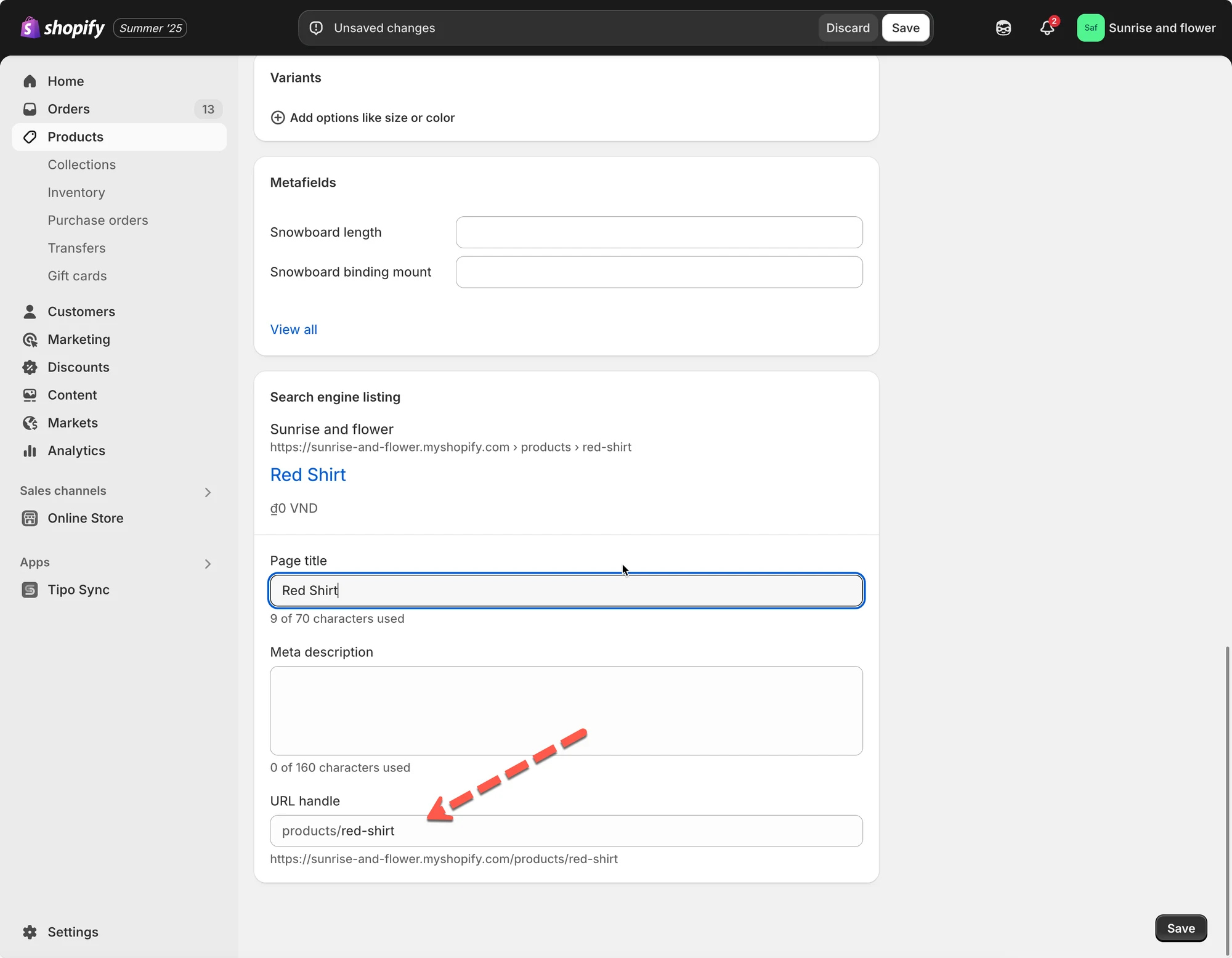 **同步邏輯:**\
如果來源商店中的商品與目的商店中的商品擁有相同的 handle,應用程式會將它們視為同一項商品並同步資料。
**範例:**
| Source Store | Destination Store |
| -------------------------- | -------------------------- |
| Product Title: "Red Shirt" | Product Title: "Red Shirt" |
| Handle: `red-shirt` | Handle: `red-shirt` |
由於 handle 相符,這項商品**會正確同步**。
❗**提示:** 如果您的各商店商品結構完全相同,請一律使用 handle 同步。
***
#### 2. SKU(庫存單位)
**說明:**\
SKU 是您指定給每個商品款式、用來追蹤庫存的代碼。
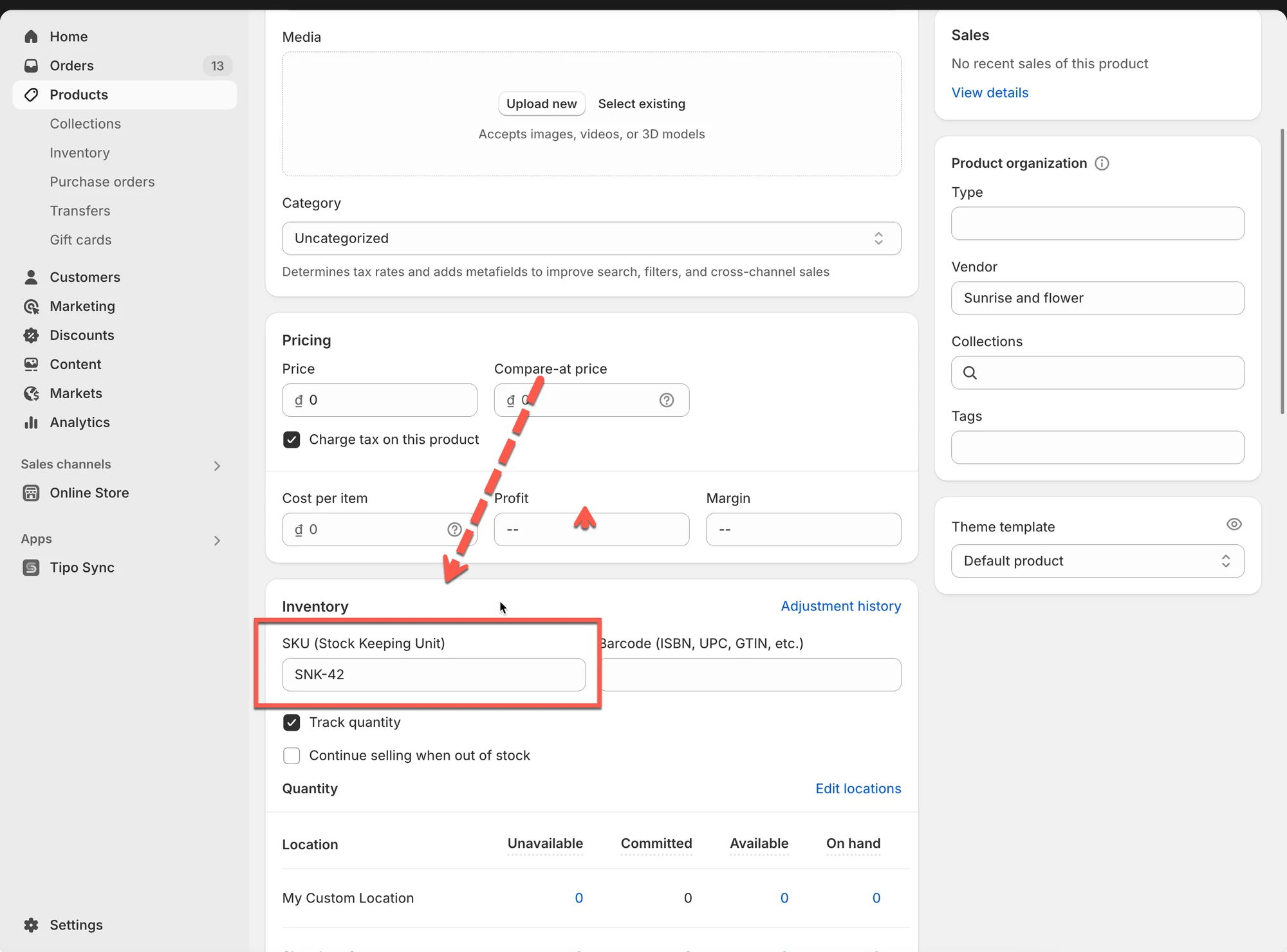 **同步邏輯:**\
應用程式會根據兩間商店中相同的 SKU 來比對商品款式。
**範例:**
| Source Store | Destination Store |
| -------------------------------- | -------------------------------- |
| Product: "Sneakers" | Product: "Sneakers" |
| Variant: Size 42 - SKU: `SNK-42` | Variant: Size 42 - SKU: `SNK-42` |
由於 SKU 相符,這個款式會同步。
❗**警告:** 如果多項商品的款式使用相同的 SKU,可能會導致比對錯誤。
***
#### 3. Barcode
**說明:**\
**Barcode** 是全球唯一的商品識別碼,通常用於零售掃描系統。
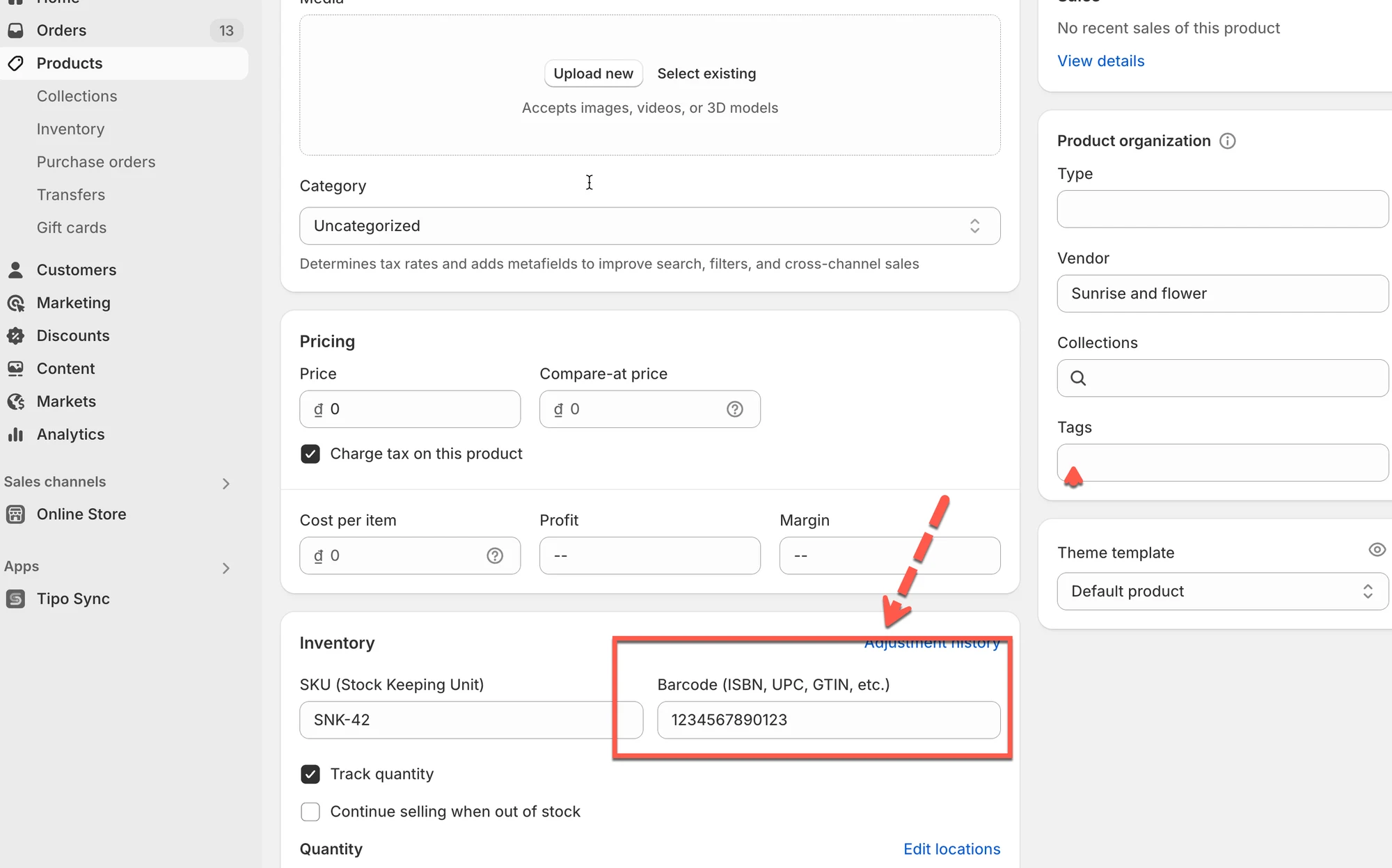 **同步邏輯:**\
應用程式會根據 Shopify 中的 barcode 欄位來比對**商品款式**。
**範例:**
| Source Store | Destination Store |
| ----------------------------------------- | ----------------------------------------- |
| Product: "Water Bottle" | Product: "Water Bottle" |
| Variant: 500ml - Barcode: `1234567890123` | Variant: 500ml - Barcode: `1234567890123` |
這項商品會使用 barcode 正確同步。
❗**注意:**
僅在各商店所有款式都使用唯一 barcode 時,才使用此選項。
***
### ⚙️ **選擇識別碼的步驟**
#### **新增連線:**
連線之前,請先在[這裡](/product-syncs/select-products-to-sync)檢查並選擇您想同步的商品資訊。
1\. 在 **Destination** store 中開啟應用程式 > 點選 **Stores** > 點選 **Connect store** 按鈕
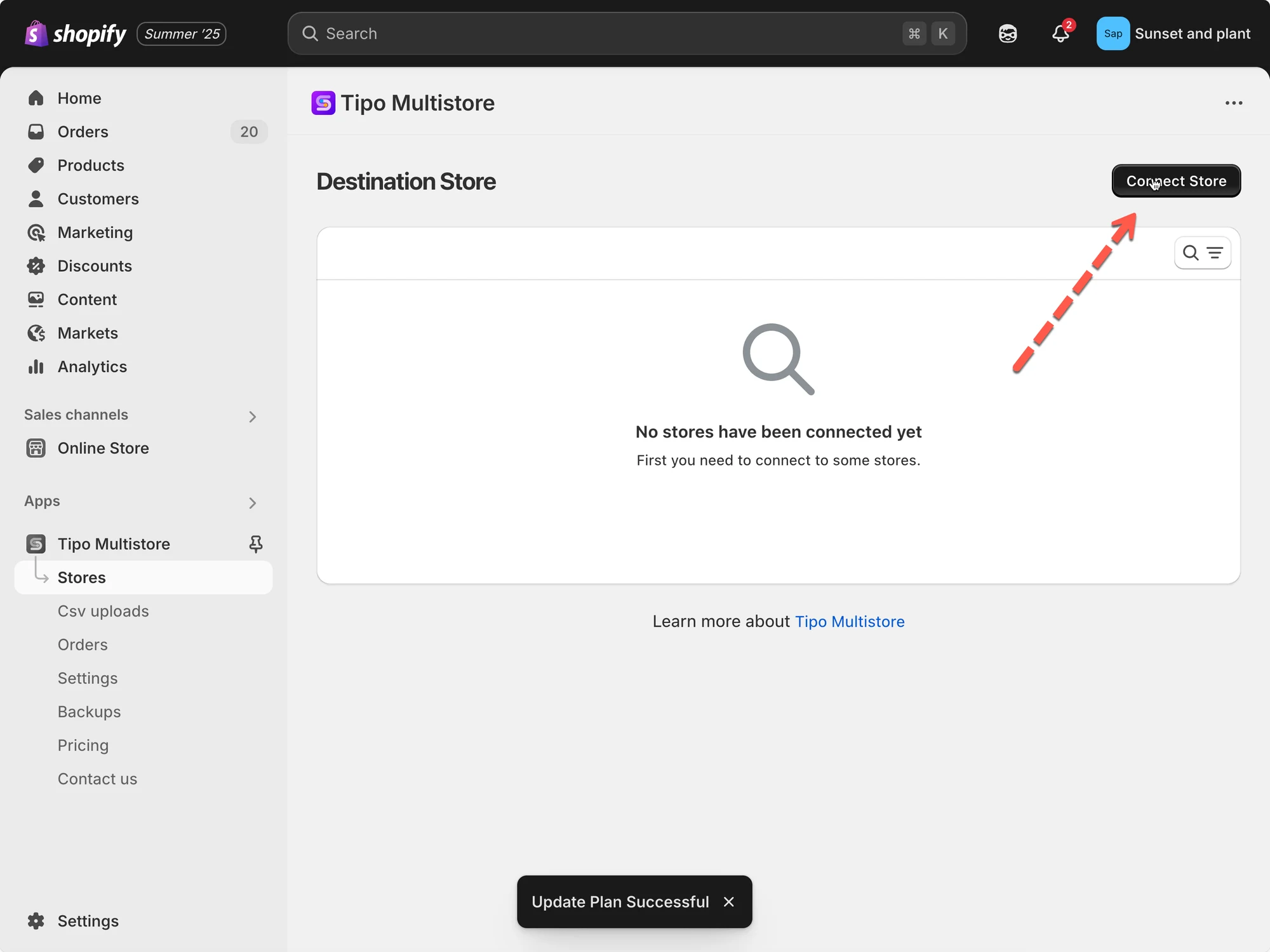 2\. 輸入從 Source Store 取得的 **Connection Code**(可在 Source Store 的應用程式 Settings 下找到)。
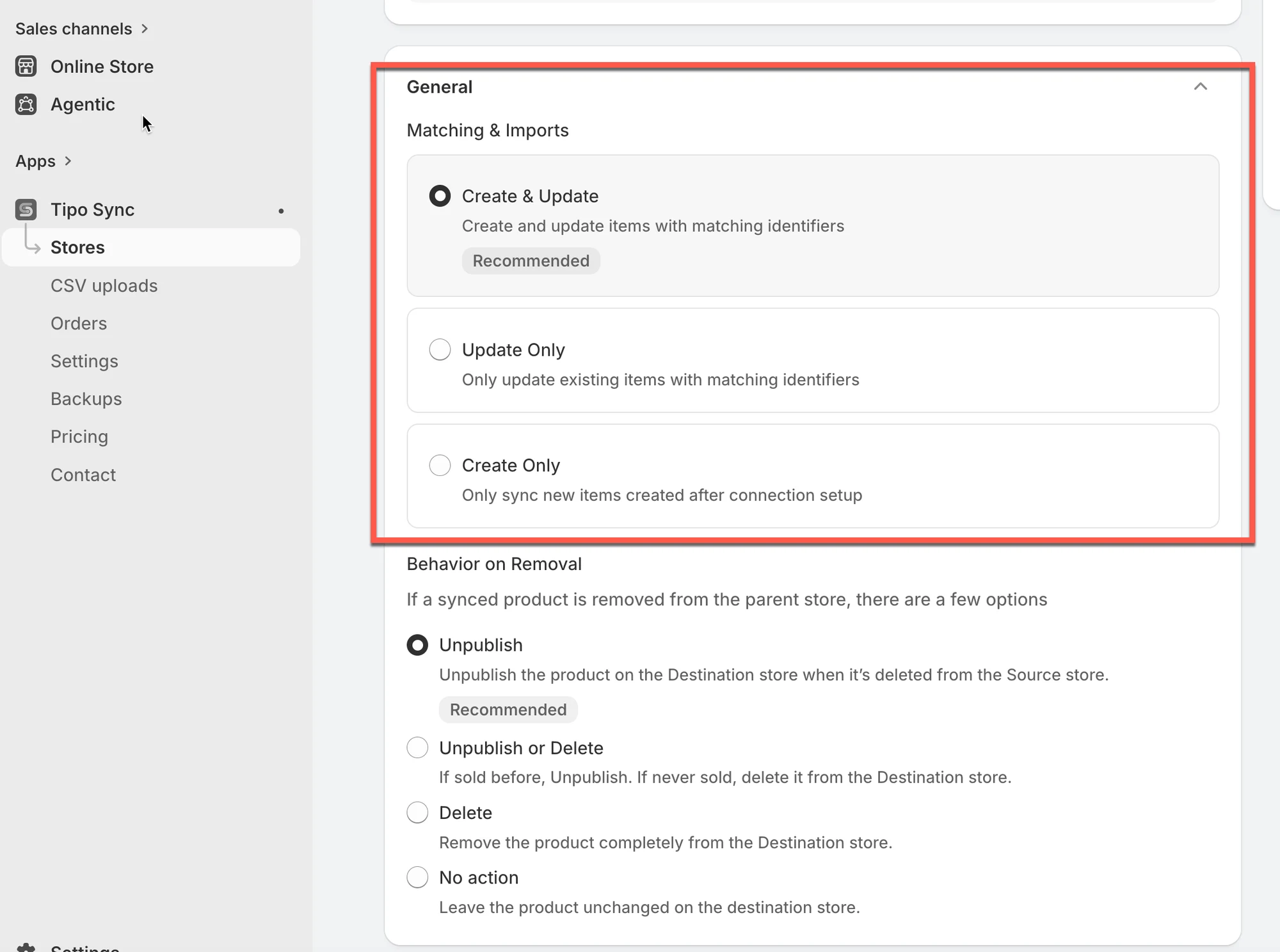
3\. 在 **General** > **Matching & Imports** 區塊 > 選擇 **Create new items if not exist and update current items that have the same handle**
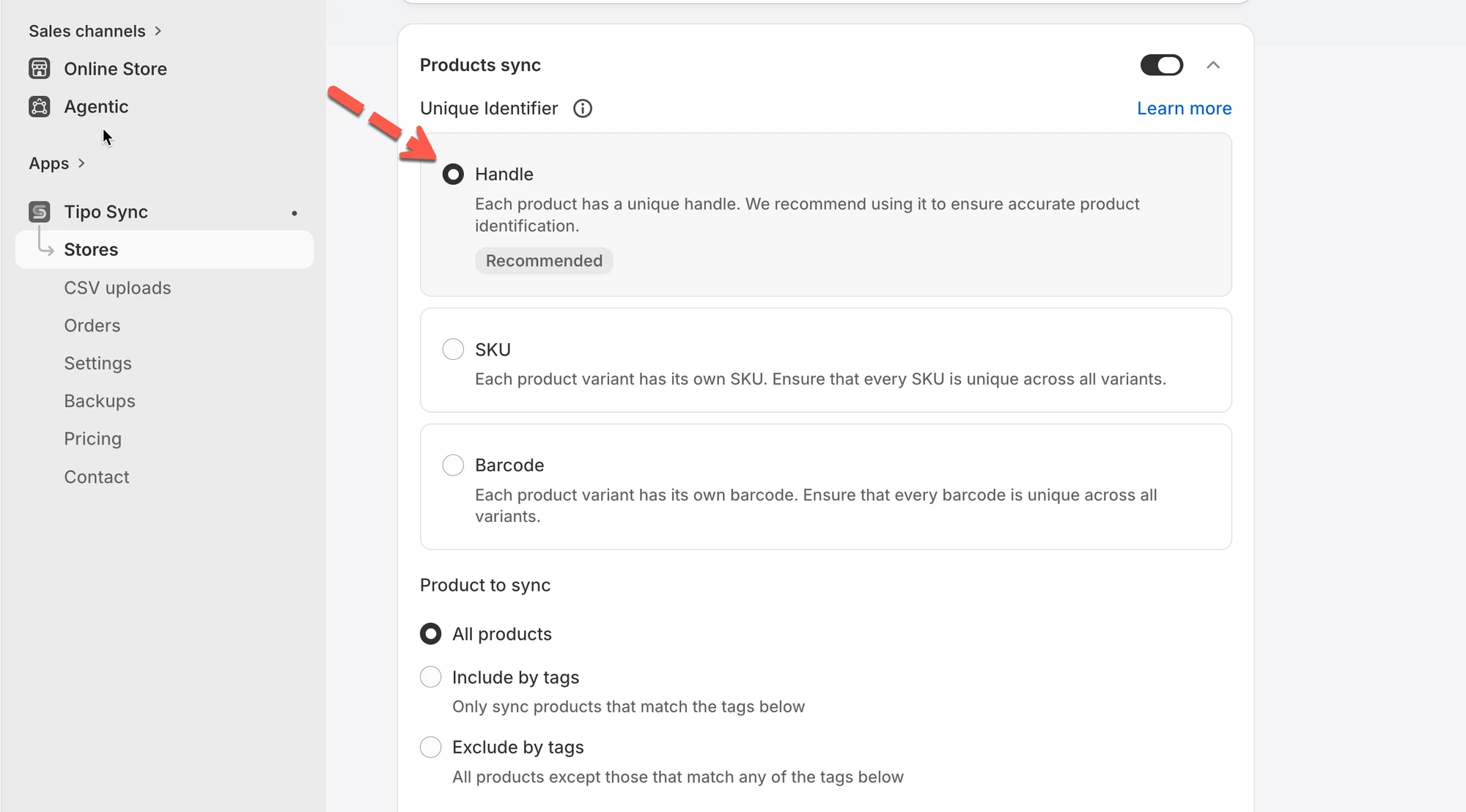
 4\. 啟用 **Product sync** 設定 > 選擇 **Unique Identifier**,以依此同步商品
例如:如果選擇 handle,則各商店之間具有相同 handle 的商品就會被同步。
 5. 儲存以開始連線
#### **已在運作中的連線**
1\. 前往 **Destinations** 商店 > 點選 **Stores** > 點選 Source store 的商店網址,以檢視連線詳細資料
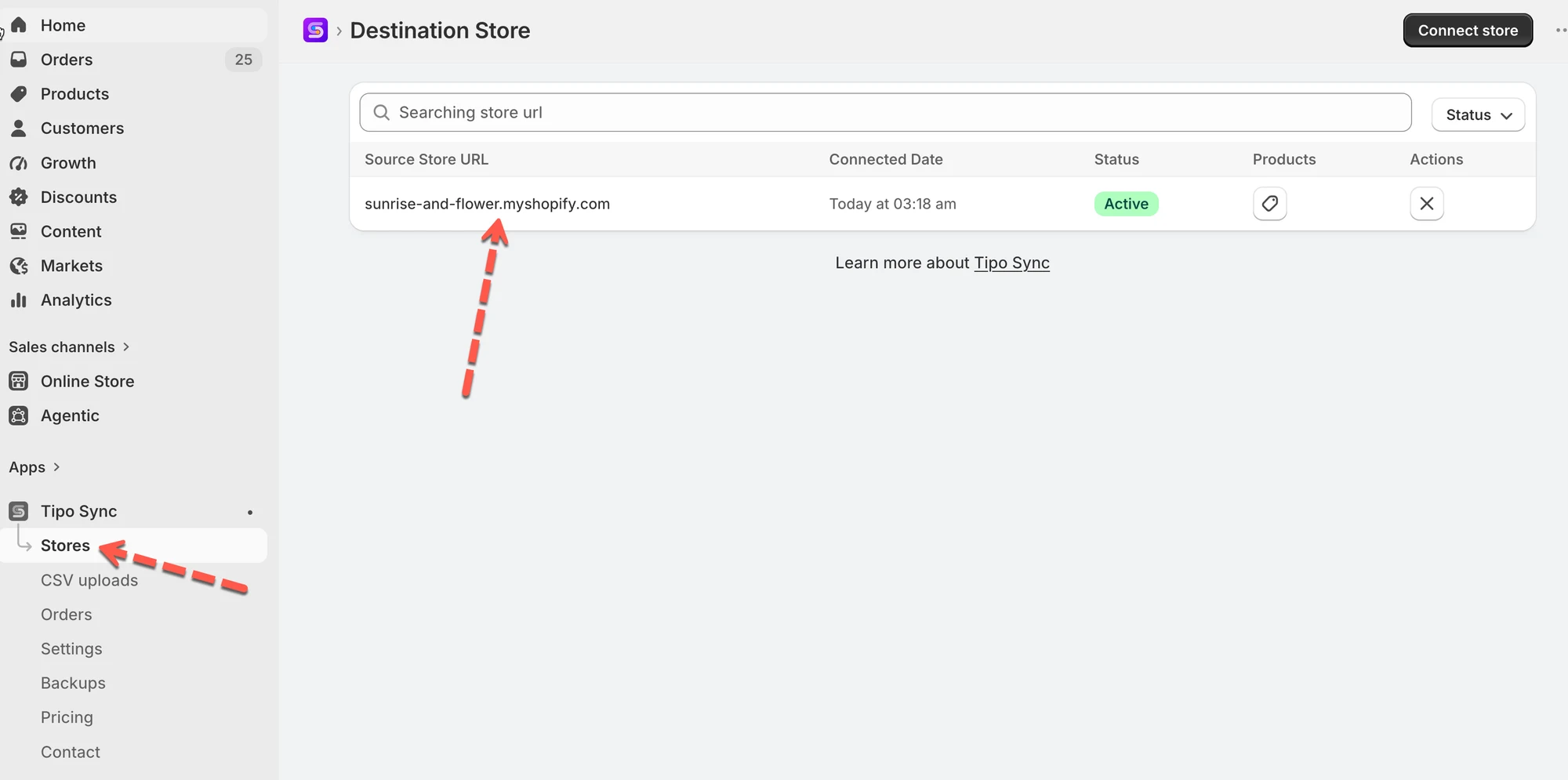 2\. 選擇一個唯一識別碼,以依此同步商品
3. 點選 **Save** 以套用變更。
***
### 🔄 同步期間會發生什麼事?
🧪 範例(Handle 比對)
**Source store 的商品**
* 商品:Ceramic Table Lamp
* Handle:`ceramic-table-lamp`
**Destination store**
* 如果存在 handle 為 `ceramic-table-lamp` 的商品 → 該商品會被更新
* 如果不存在 → 會被匯入(若已啟用)
**⚙️ 同步期間的比對方式**
執行同步時:
1. Tipo Sync 會從 Source store 讀取商品
2. 它會在 Destination store 中搜尋具有相同識別碼的商品
3. 接著判斷:
* **找到相符項目** → 更新現有商品欄位(依據您的同步選項)
* **找不到相符項目** → 匯入/建立新商品(若您的匯入模式允許)
***
### 🌟 最佳做法
* 如果各商店的商品結構相同,請**使用 Handle**。
* 只有在每個款式都有**唯一 SKU** 時,才**使用 SKU**。
* 在持續使用條碼的零售環境中,請**使用 Barcode**。
***
**🙋 還需要協助嗎?**
如果您仍需要協助,歡迎隨時寄信至 與我們聯繫,我們很樂意為您提供進一步的協助。