# 雙向庫存同步
本指南說明 Tipo 應用程式中的雙向庫存同步如何運作,讓任一間商店的庫存變動都能更新另一間商店。
### ✅ 什麼是雙向庫存同步?
使用**雙向同步**時,庫存可以朝兩個方向流動:
* 如果 **Source store** 的庫存變動 → 會更新 **Destination store**
* 如果 **Destination store** 的庫存變動 → 會更新 **Source store**
當您在多間商店銷售相同商品時,這有助於保持庫存一致。
***
### 🎯 什麼時候應該使用?
在以下情況使用雙向庫存同步:
* 您在多間商店銷售相同的商品
* 兩間商店都可能產生銷售(或庫存調整)
* 您希望庫存能自動保持一致
⚠️ 如果您只希望由一間「主」商店控制庫存,請改用 **One-way Inventory Sync**。
***
### 🛠️ **設定雙向庫存同步的步驟**
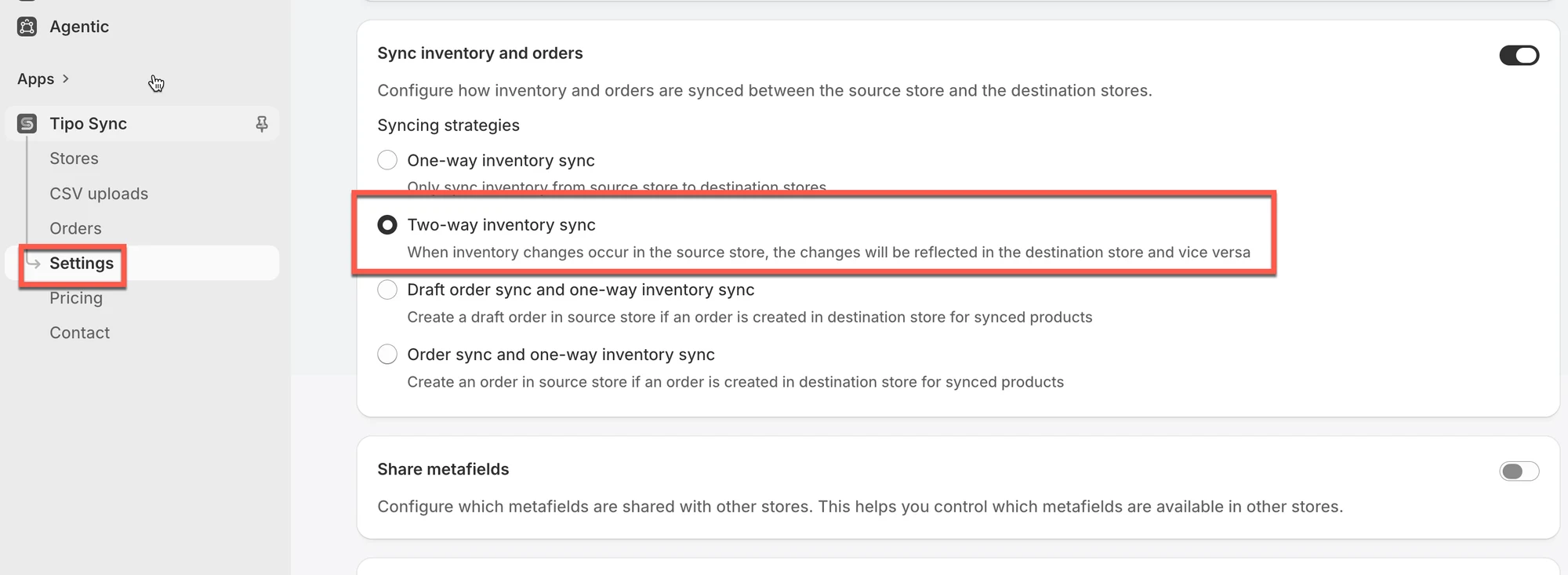
1\. 在 **Source** store 中開啟應用程式 > 點選 **Settings >** 開啟 **Sync inventory and orders**
2. 選擇 **Two-Way Inventory Sync**
3\. 點選 **Save**
 ***
### ✅ 「雙向庫存同步」的運作方式
#### ✅ 什麼會觸發同步?
* **銷售**(建立訂單)
* **退款/取消**
* **補貨或手動調整**
當庫存因以下原因變動時,會觸發同步:
#### 🔗 商品如何比對
**商店**
* Source:`urbanwear-eu.myshopify.com`
* Destination:`urbanwear-us.myshopify.com`
**商品**
* 名稱:Slim Fit Denim Jacket
* Handle:`slim-fit-denim-jacket`
#### 情境 1:在 Destination store 銷售
**銷售前**
* Source:50 件
* Destination:50 件
顧客在 Destination 購買了 **5 件**。
**同步後**
* Source:✅ 45 件
* Destination:✅ 45 件
➡️ Destination 的減少會反映到 Source。
***
#### 情境 2:在 Source store 補貨
您在 Source 補貨 **10 件**。
**同步後**
* Source:✅ 55 件
* Destination:✅ 55 件
➡️ Source 的增加會反映到 Destination。
***
### 🎬 教學影片
設定方式:
運作方式:
**🙋 還需要協助嗎?**
如果您仍需要協助,歡迎隨時寄信至 與我們聯繫,我們很樂意為您提供進一步的協助。