# 設定應用程式
透過三步驟的 Get started 精靈,選擇要保護的內容、備份的執行時間,以及誰會收到電子郵件。
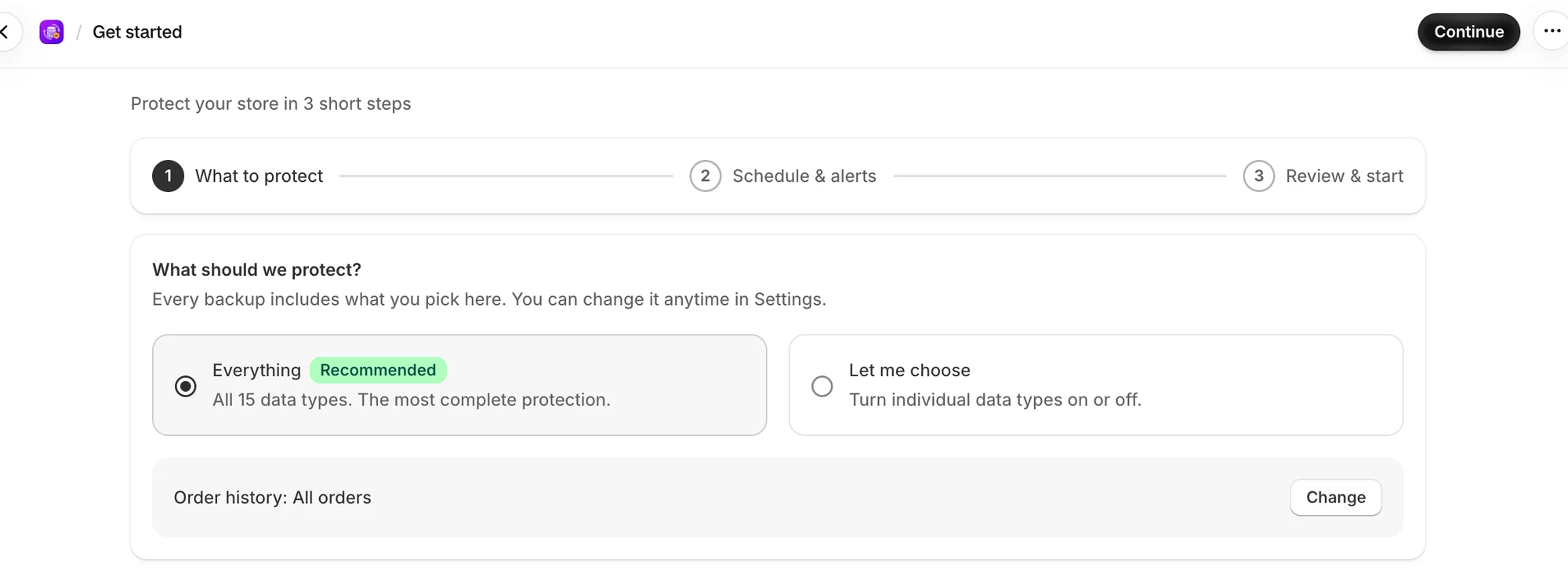
第一次開啟 **Backup & Restore Tipo** 時,名為 **Get started** 的簡短精靈會協助您選擇要備份的內容、要包含多少訂單記錄、備份的執行時間,以及誰會收到電子郵件。標題下方會顯示 **Protect your store in 3 short steps**。步驟追蹤列會顯示每個步驟的名稱以及您目前所在的步驟。在每個步驟中,選取頁面頂部的 **Continue**,直到您到達 **Review & start**。
| 步驟 | 名稱 | 您要決定的事項 |
| --- | --- | --- |
| 1 | [What to protect](#what-to-protect) | 要保護哪些資料類型,以及要包含多少訂單記錄 |
| 2 | [Schedule & alerts](#schedule-and-alerts) | 備份的執行時間,以及誰會收到電子郵件 |
| 3 | [Review & start](#review-and-start) | 檢查您的選擇並開始第一次備份 |
:::note
不需要選擇方案:在此期間,凡是安裝此應用程式的商店目前都可免費使用。請參閱[價格](/backup-and-restore-tipo/pricing/plans)。
:::
## 精靈何時出現
新安裝時,精靈會自動開啟。您不需要在選單中尋找它。
* 您的進度會被儲存。如果您關閉應用程式後再回來,精靈會從您離開的地方繼續。
* 在您完成之前,**Home** 會顯示精靈而不是儀表板。
* 您無法跳過步驟。**Continue** 會儲存該步驟並前往下一步。若要返回,請選取 **Back**,或選取步驟追蹤列中已完成步驟的名稱(旁邊有勾號)。
您之後可以在 [Settings](/backup-and-restore-tipo/settings/settings) 中變更每一項選擇,唯獨訂單記錄的選擇例外,該項只能設定一次。
## What to protect
第一個步驟會詢問 **What should we protect?** 並顯示 **Every backup includes what you pick here. You can change it anytime in Settings.**
保持選取 Everything,或選擇 Let me choose 來開啟或關閉各資料類型。
從兩個選項中擇一:
| 選項 | 功能 |
| --- | --- |
| **Everything** (**Recommended**) | 備份全部 15 種資料類型。**All 15 data types. The most complete protection.** |
| **Let me choose** | 以分組方式將每種資料類型顯示為圖磚,讓您可以逐一開啟或關閉。 |
如果您選擇 **Let me choose**,資料類型會分為四組顯示:
| 群組 | 資料類型 |
| --- | --- |
| **Catalog** | 商品與款式、商品系列、中繼欄位定義、中繼物件、地點和庫存 |
| **Online store** | 佈景主題、頁面、部落格與文章、選單、檔案、政策 |
| **Customers & orders** | 顧客、訂單 |
| **Store settings** | 已儲存的搜尋、運送區域 |
* 選取圖磚即可開啟或關閉該資料類型。
* 每個群組的名稱旁有一個核取方塊,以及類似 **3 of 5 selected** 的數量。勾選群組核取方塊會開啟該群組中的所有資料類型,取消勾選則會全部關閉。
* 部分圖磚帶有 **Backup only** 標籤:已儲存的搜尋、地點與庫存、政策、運送區域和訂單。如底部的說明所述:**Saved and exportable, but Shopify doesn't let apps write it back.**
:::caution
如果所有資料類型都已關閉,**Continue** 會保持停用。請至少保持開啟一種資料類型。
:::
### Order history
當 **Orders** 開啟時,此步驟還會詢問 **How much order history?**
* 選取 **Everything** 時,會顯示 **Order history: All orders** 這一行。選取 **Change** 即可改選其他選項。
* 選取 **Let me choose** 時,這個問題會顯示在 **Customers & orders** 群組下方。
| 選項 | 功能 |
| --- | --- |
| **All orders** | 備份每一筆訂單。它可以顯示您商店有多少筆訂單以及開店時間,例如 **1,240 orders since your store opened on Mar 2, 2021.** |
| **Only orders from a date** | **A smaller, faster first backup.** 選擇 **Start date**。在該日期當天或之後建立的訂單會被備份。 |
開始日期必須早於今天。否則您會看到 **Pick a start date before today.**,且 **Continue** 會保持停用。
:::caution
**More history means a longer first backup and more storage. You can set this only once.** 選取 **Continue** 後,此步驟會顯示您的選擇,並附上 **Your order history choice is saved and can't be changed.**
:::
選取 **Continue**。您的資料類型和訂單記錄選擇會立即儲存。如果儲存失敗,會出現 **Couldn't save your choices** 訊息並附上原因。請修正後再次選取 **Continue**。
如果您看到 **Couldn't load your settings**,請選取 **Try again**。
## Schedule and alerts
此步驟會設定排程和接收警示的電子郵件地址。
### How often should we back up?
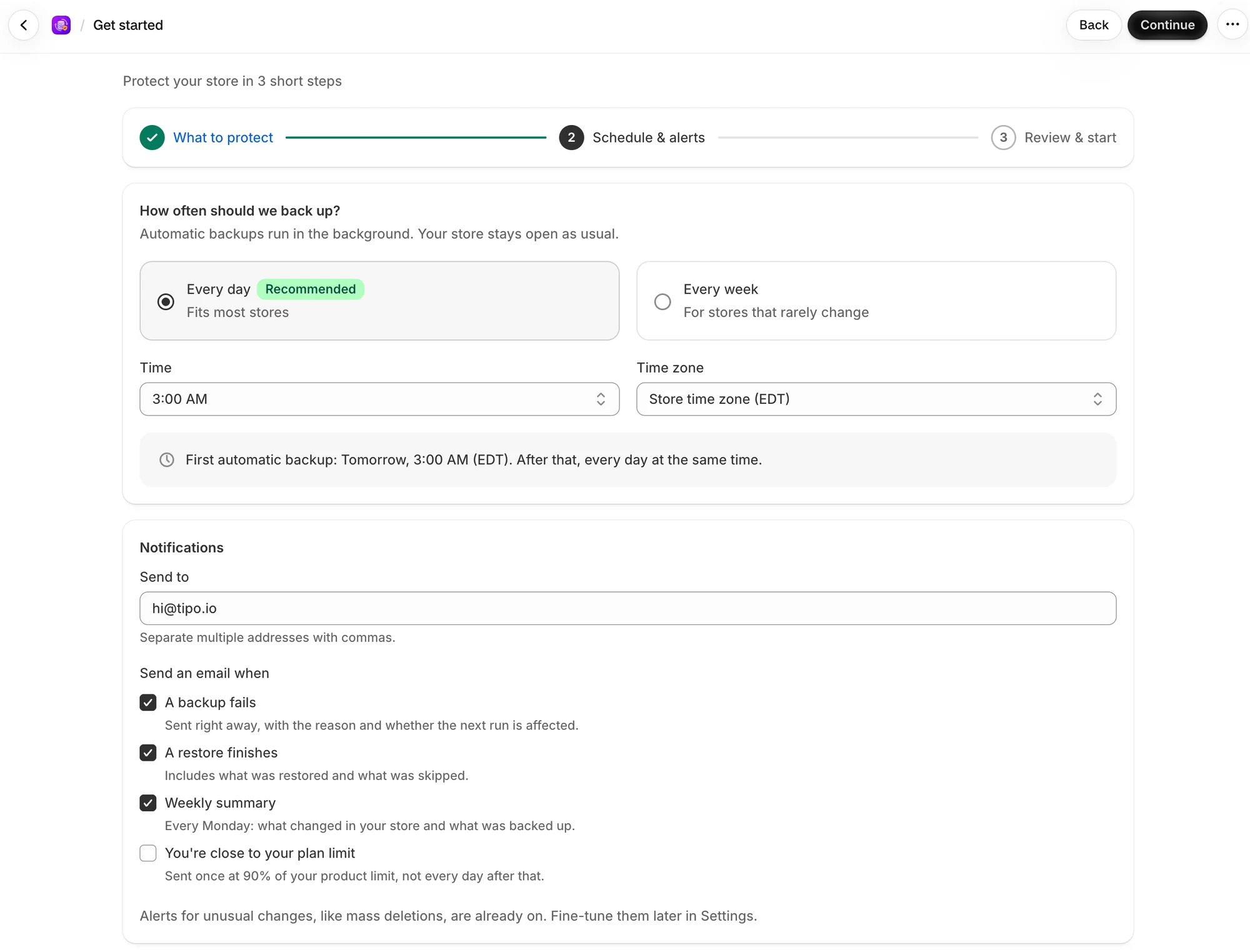
**Automatic backups run in the background. Your store stays open as usual.** 選擇頻率:
| 選項 | 說明 |
| --- | --- |
| **Every day** (**Recommended**) | 適合大多數商店 |
| **Every week** | 適合很少變動的商店 |
接著設定:
| 選項 | 可選項目 | 功能 |
| --- | --- | --- |
| **Time** | 12:00 AM, 2:00 AM, 3:00 AM, 6:00 AM, 12:00 PM, 9:00 PM | 備份的執行時間。精靈會顯示預設時間。 |
| **Time zone** | 商店時區,或 UTC | **Time** 使用的時鐘。預設為您的商店時區。 |
選項下方有一行文字會告訴您第一次自動備份的執行時間,例如 **First automatic backup: tomorrow at 3:00 AM (EST). After that, every day at the same time.**
自動備份每天最多執行一次,因此精靈只提供這兩個選項。請參閱[用量與上限](/backup-and-restore-tipo/pricing/plans/usage-and-limits)。
### Notifications
* **Send to** 是應用程式電子郵件的收件地址。多個地址請以逗號分隔。如果您尚未儲存地址,此欄位一開始會帶入您商店的電子郵件。
* **Send an email when** 有四個選項:
| 選項 | 功能 | 預設值 |
| --- | --- | --- |
| **A backup fails** | 立即發送,並附上原因以及下一次執行是否受影響。 | On |
| **A restore finishes** | 包含已還原的內容以及略過的內容。 | On |
| **Weekly summary** | 每週一發送:您商店的變更內容以及已備份的內容。 | On |
| **You're close to your plan limit** | 在達到商品上限的 90% 時發送一次,之後不會每天發送。 | Off |
選項下方寫著:**Alerts for unusual changes, like mass deletions, are already on. Fine-tune them later in Settings.** 請參閱[警示規則](/backup-and-restore-tipo/settings/settings/alert-rules)。
選取 **Continue** 即可儲存。如果您看到 **Couldn't save your settings**,請閱讀訊息、修正問題後再次選取 **Continue**。在儲存成功之前,您會停留在此步驟。選取 **Back** 可返回上一個步驟。
## Review and start
最後一個步驟會彙整您的選擇,並提供立即執行第一次備份的選項。
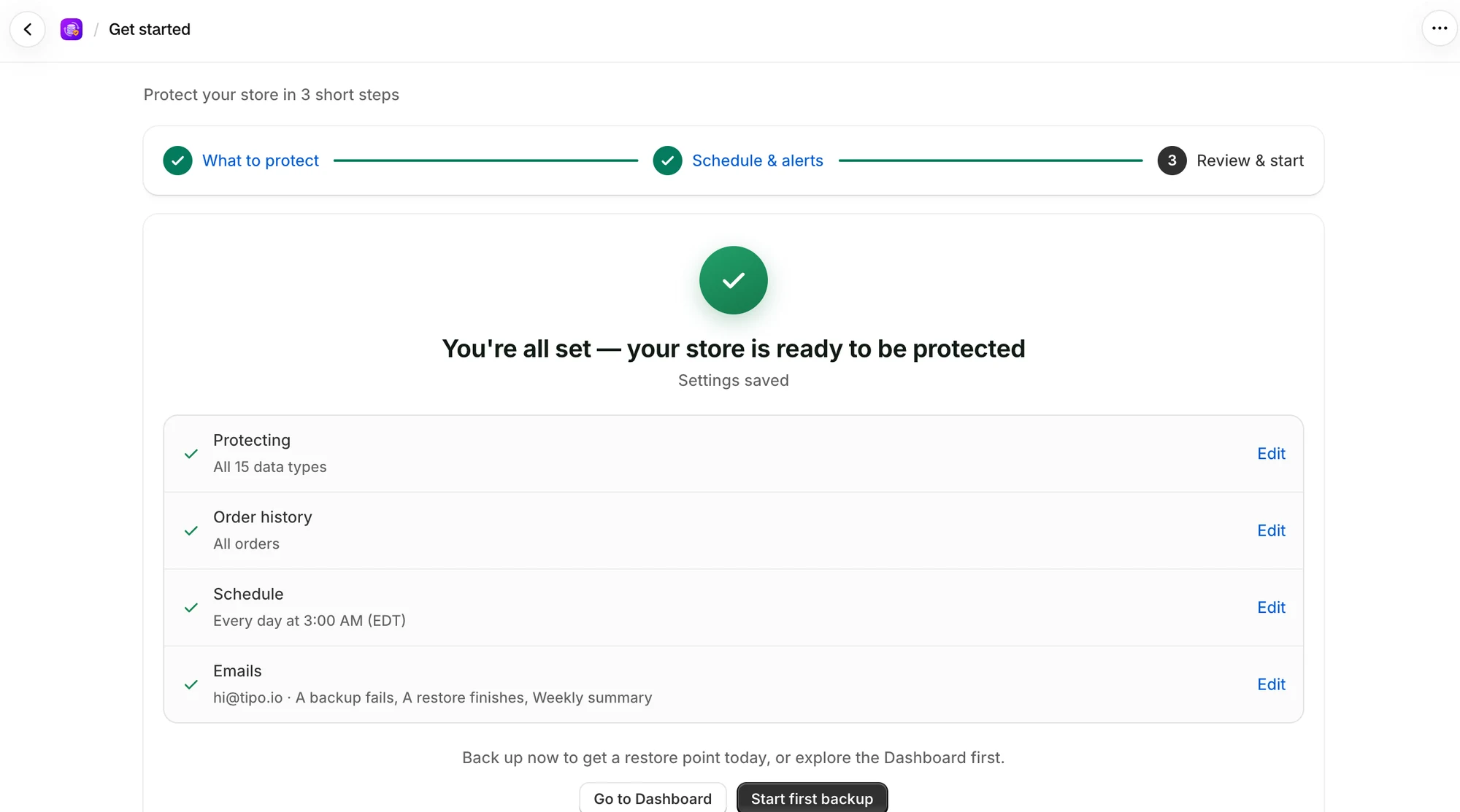
最後一個步驟會顯示 **You're all set — your store is ready to be protected** 和 **Settings saved**。此時所有內容都已儲存。此步驟會列出您的各項選擇,每項都有 **Edit** 連結,可帶您返回該步驟:
| 列 | 範例 |
| --- | --- |
| **Protecting** | **All 15 data types**,或 **12 of 15 data types** |
| **Order history** | **All orders**、**Orders from Mar 2, 2025** 或 **Orders aren't backed up** |
| **Schedule** | **Every day at 3:00 AM (EST)** |
| **Emails** | 地址以及您開啟的電子郵件,或 **No email alerts** |
**Back up now to get a restore point today, or explore the Dashboard first.** 從兩個按鈕中擇一:
| 按鈕 | 功能 |
| --- | --- |
| **Start first backup** | 開始第一次備份並開啟 **Home**,您可以在那裡觀看備份執行。 |
| **Go to Dashboard** | 開啟 **Home**,但不開始備份。 |
在您選取按鈕之前,不會有任何動作。
### 如果備份沒有開始
畫面上會出現紅色訊息,而您會停留在原處。您可以改從 **Home** 開始備份。
| 訊息 | 處理方式 |
| --- | --- |
| A backup is already in progress for this store. | 等待其完成。 |
| A restore is in progress for this store. Wait until it finishes before starting a backup. | 等待還原完成。 |
| No backup resources are enabled for this store. | 前往 **Settings** 並至少勾選一種資料類型。 |
| Choose how much order history to back up before starting a backup. | 選取 **Order history** 旁的 **Edit** 並做出選擇。 |
| Could not start the backup. You can start one from the Home page. | 選取 **Go to Dashboard**,然後在 **Home** 上選取 **Back up now**。 |
## 之後再變更
* 資料類型:[選擇要備份的內容](/backup-and-restore-tipo/settings/settings/what-we-back-up)
* 排程:[備份排程](/backup-and-restore-tipo/settings/settings/backup-schedule)
* 電子郵件:[電子郵件通知](/backup-and-restore-tipo/settings/settings/notifications)
## 後續步驟
* [快速入門:您的第一次備份](/backup-and-restore-tipo/getting-started/quickstart)
* [檢查您的保護狀態](/backup-and-restore-tipo/home/home/protection-status)
* [完成設定(設定指南)](/backup-and-restore-tipo/home/home/setup-guide)