# Google Sheet 集成

将预约导出到 Google Sheets，以便您跟踪预约、制作报告并与团队共享数据。

### 🔌 将 Tipo 连接到 Google Sheets

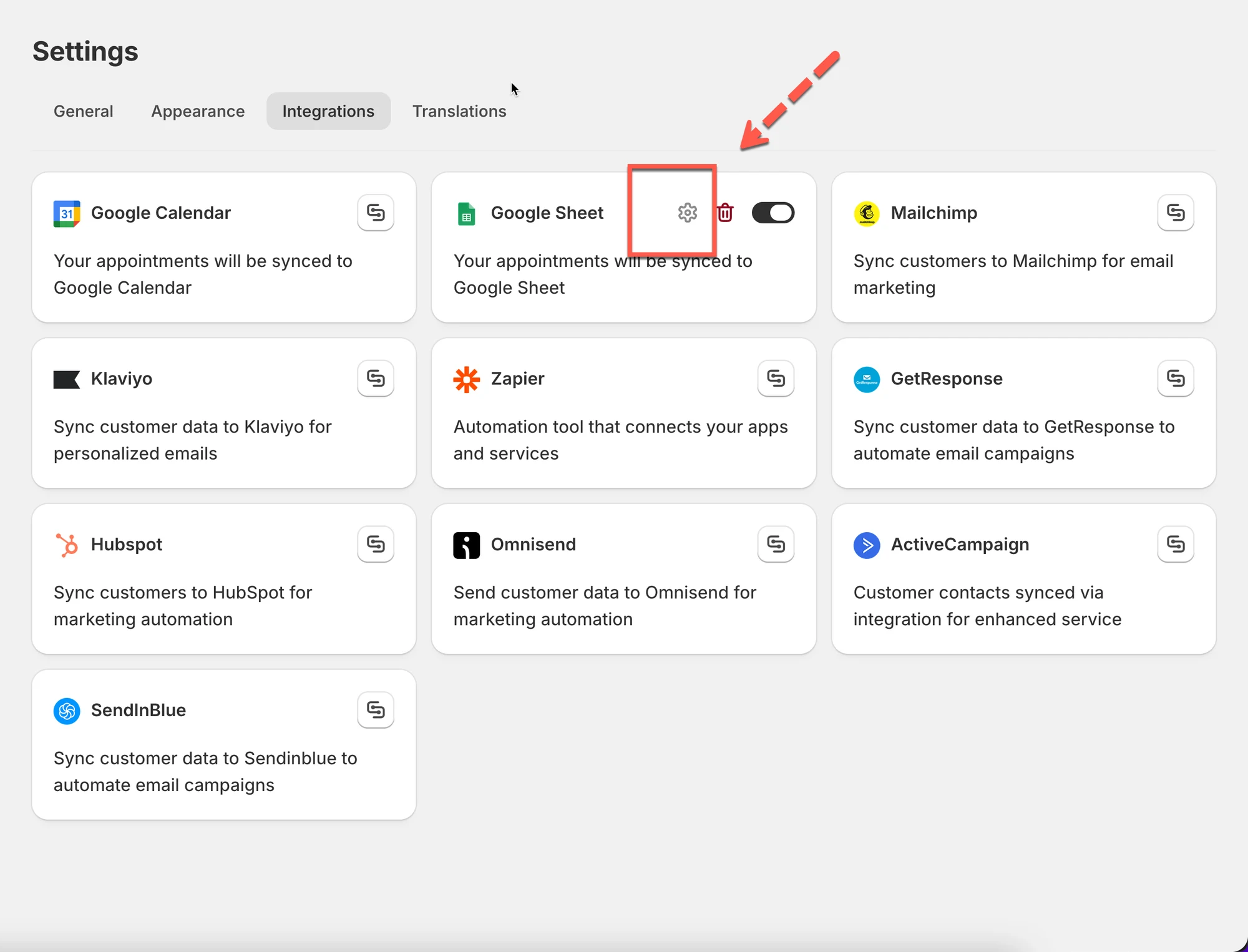
1\. 打开应用 > 点击 **Settings** > **Integrations** > 找到 **Google Sheets** 选项

2. 将 **Google Sheets** 选项设为 ON
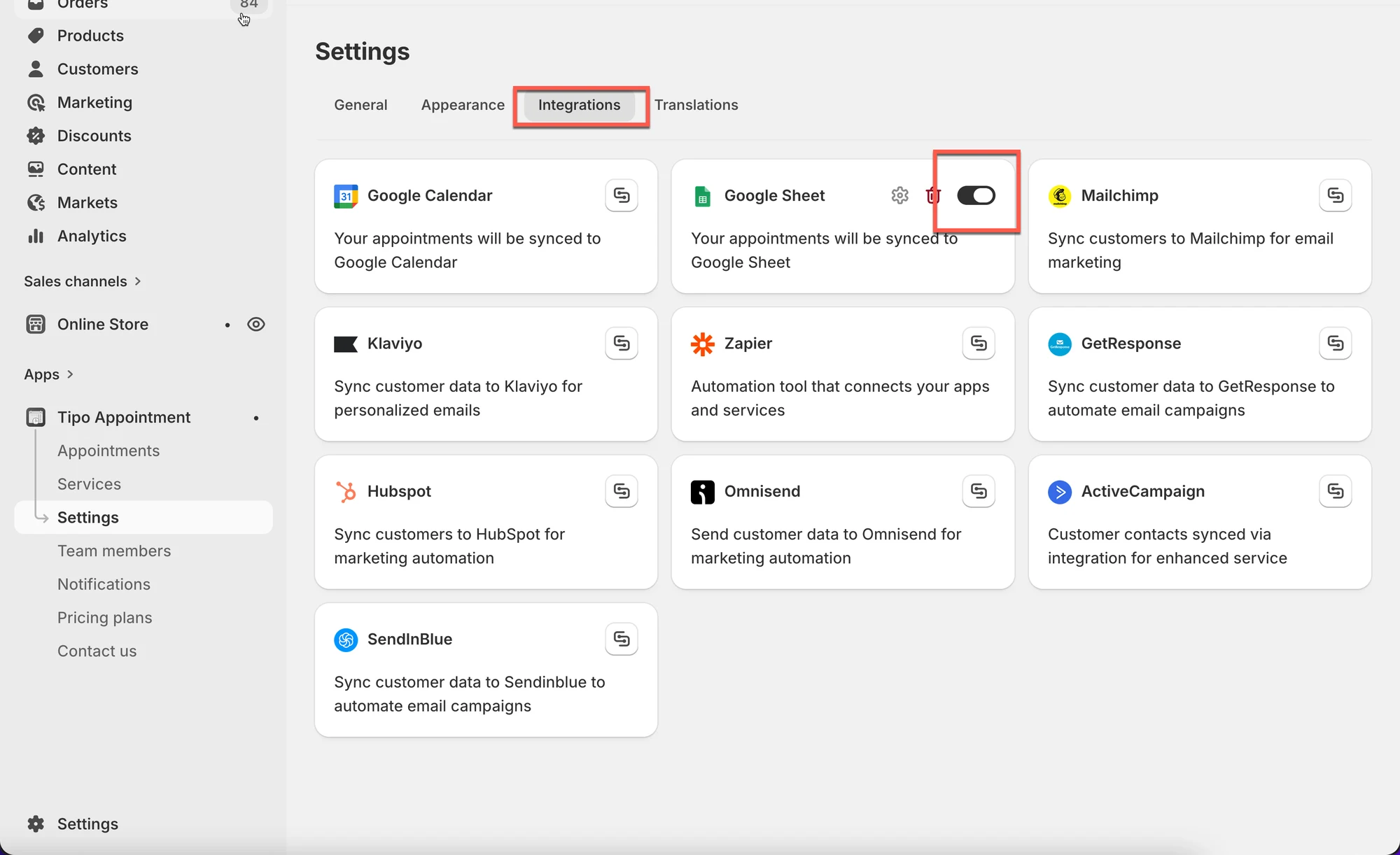
<figure><img src="/media/6d47b21fe4672eaf6e2e.webp" alt="" loading="lazy" decoding="async"><figcaption></figcaption></figure>

3. 点击齿轮图标进行配置

<figure><img src="/media/975ef4383de2d103f7bc.webp" alt="" loading="lazy" decoding="async"><figcaption></figcaption></figure>

3. 登录您的 Google 账户&#x20;
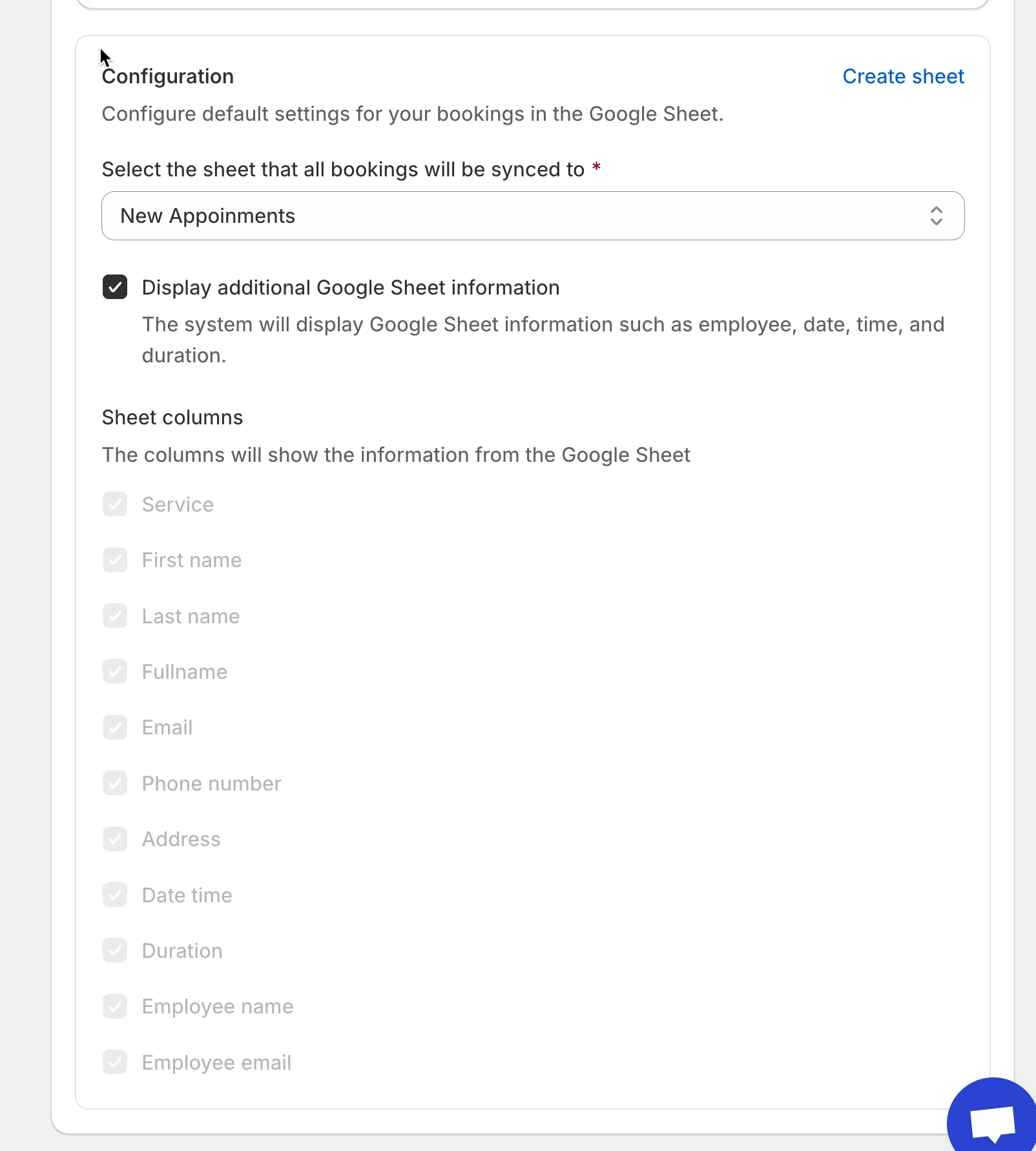
4. 在您的账户中选择一个可用的 **sheet**，或点击 **Create sheet** 生成新的列表

<figure><img src="/media/93b8e69c88b004e8fca8.webp" alt="" loading="lazy" decoding="async"><figcaption></figcaption></figure>

5. 勾选复选框 **Show appointment booking information (service, employee, date time, duration, …)**（可选）
6. 点击 **Save**

***

### ✅ **工作原理**

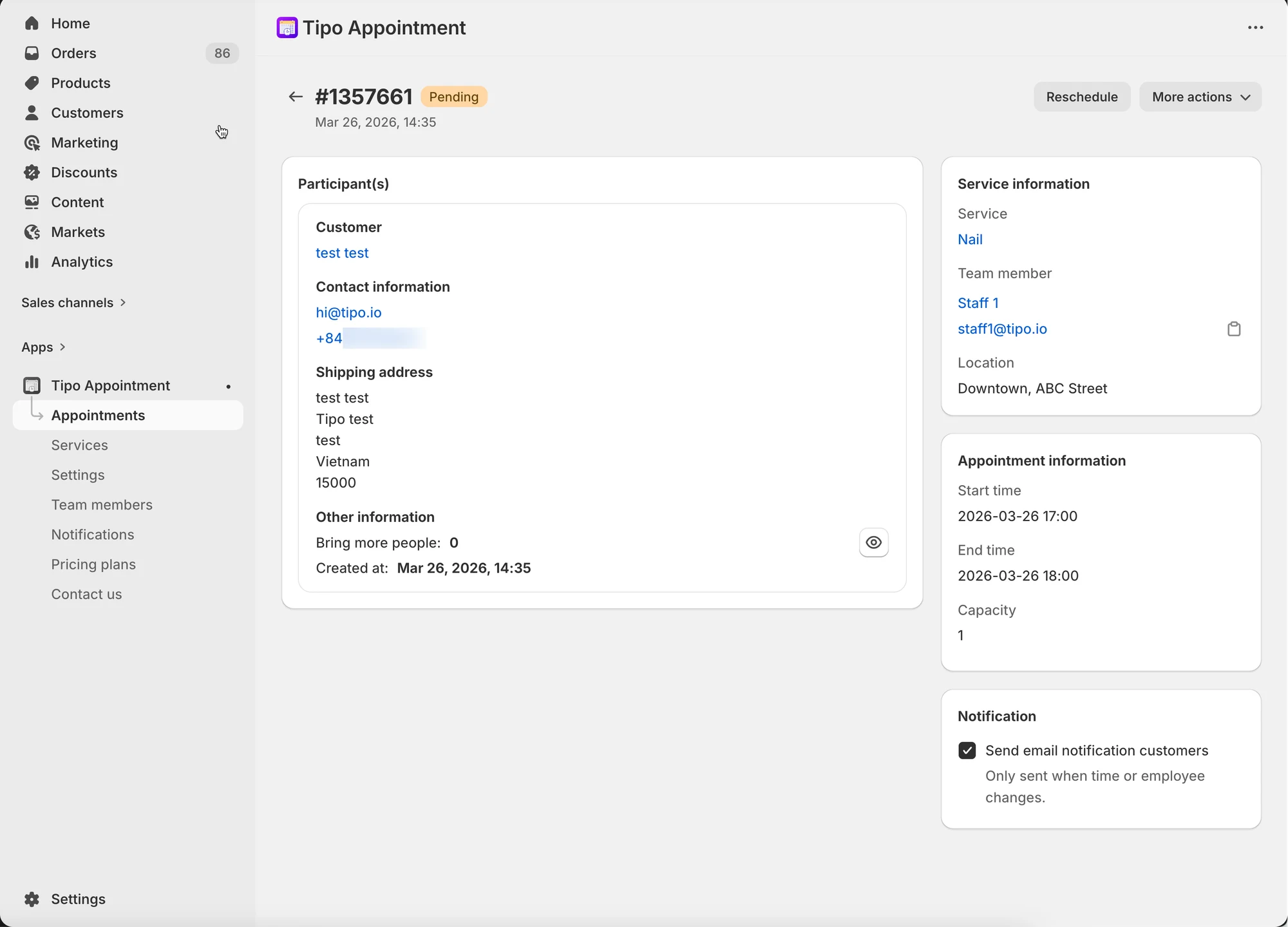
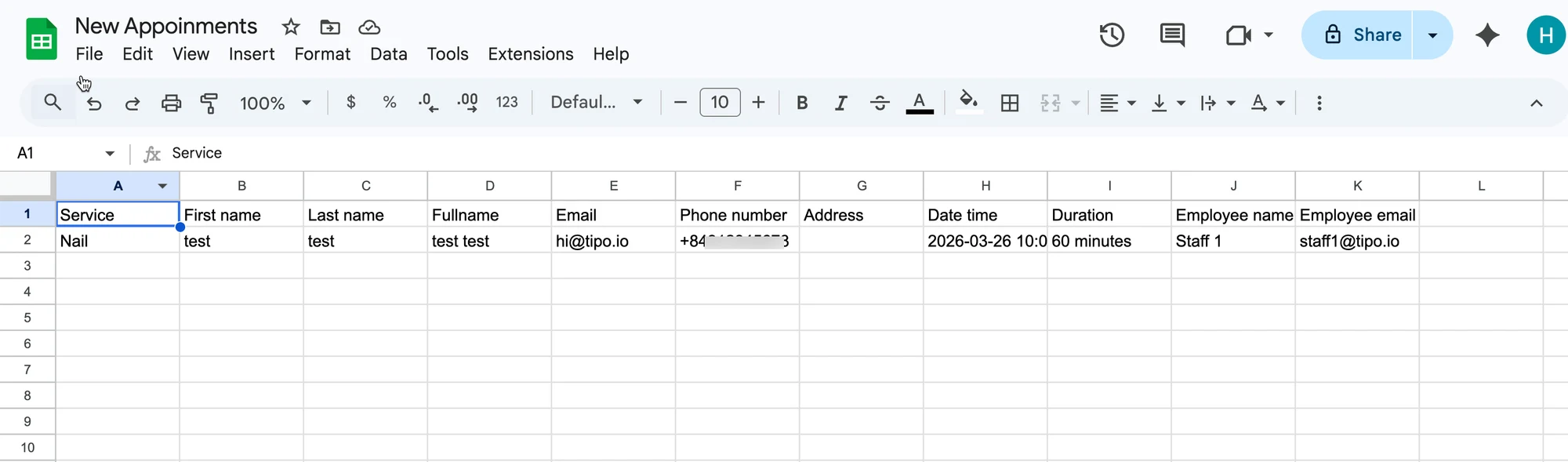
在应用中完成预约后，数据将自动添加到您 Google Sheet 中所选的表格里。

应用中的预约：&#x20;

<figure><img src="/media/53f03f63551ac150ec95.webp" alt="" loading="lazy" decoding="async"><figcaption></figcaption></figure>

数据已添加到 Google Sheets 中所选的工作表：

<figure><img src="/media/45abc953be644a1b6258.webp" alt="" loading="lazy" decoding="async"><figcaption></figcaption></figure>

<figure><span class="missing-media" role="note">This screenshot is unavailable in the original documentation.</span><figcaption></figcaption></figure>

***

**🙋 还需要支持吗?**

如果您仍需要帮助,请随时通过 <hi@tipo.io> 联系我们。我们很乐意为您提供进一步协助。