# Google Calendar 集成
将 Tipo 预约同步到 Google Calendar,让预约自动显示为日历事件。
### 🔌 将 Tipo 连接到 Google Calendar
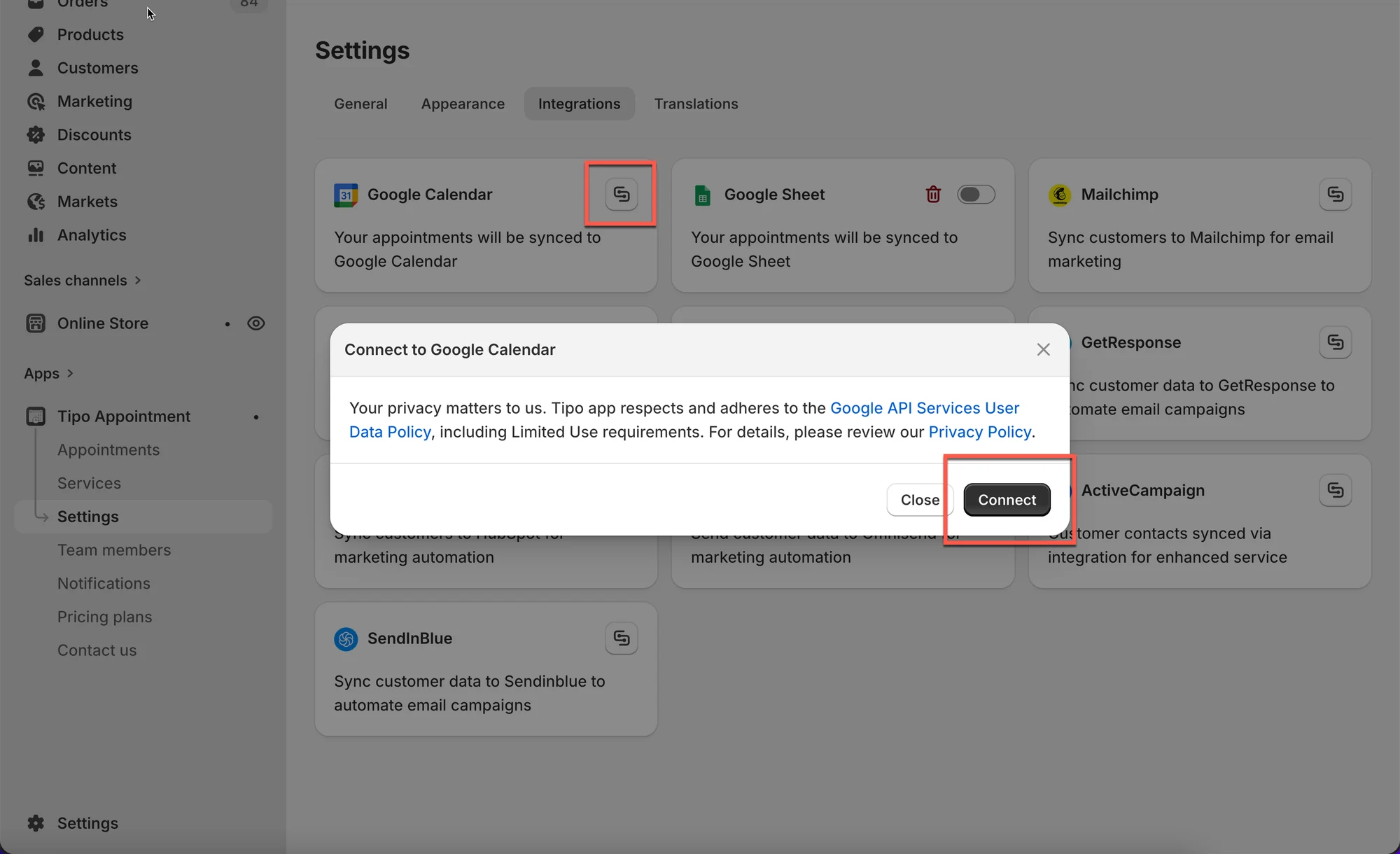
1. 打开应用 > 点击 **Settings** > **Integrations**
2. 开启 **Activate**
3. 点击 **Connect** 按钮并登录您的 Google 账户
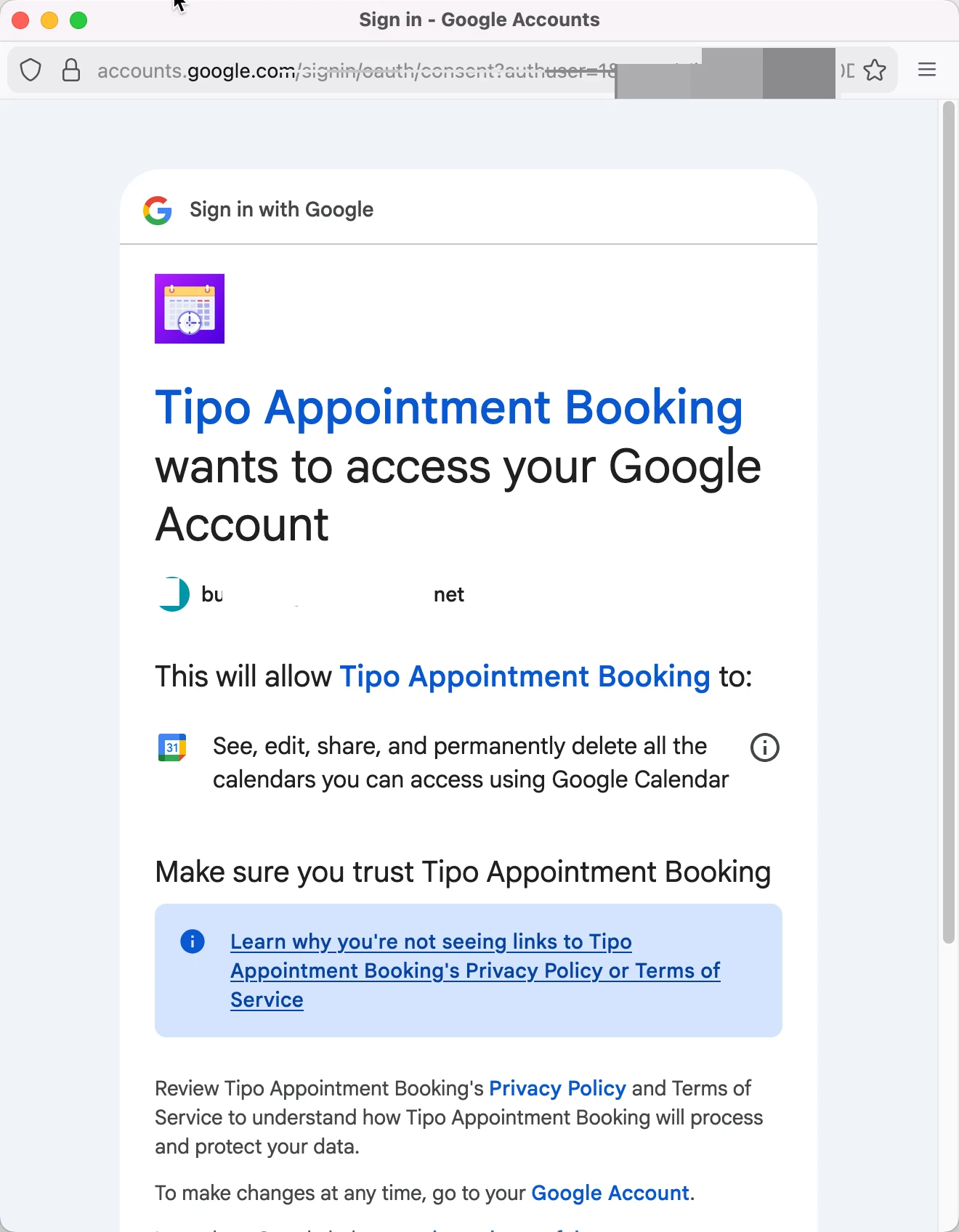 4. 选择您想要连接的 **Calendar**,并为 Google Calendar 中的事件添加**标题**和**描述**
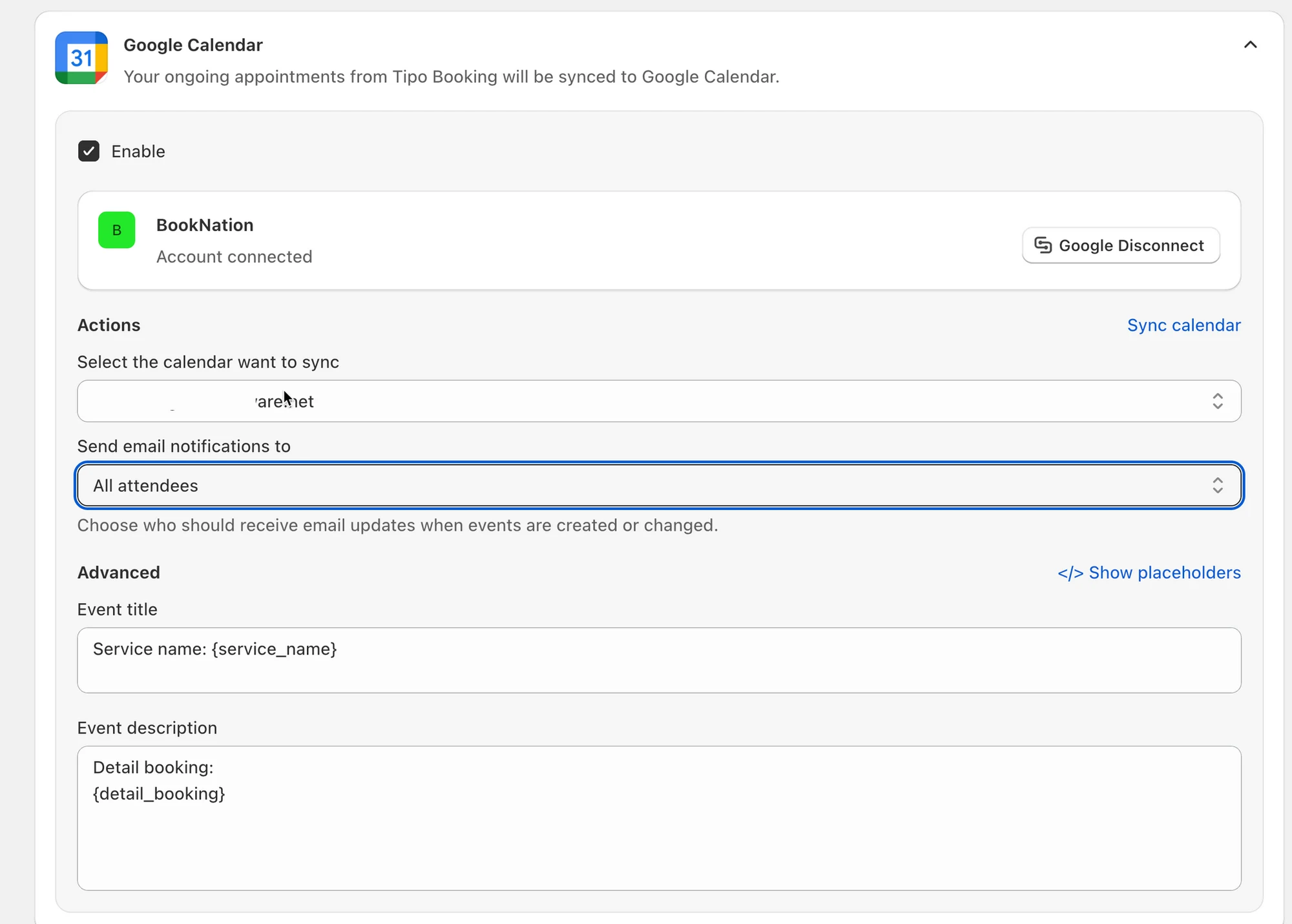 5. 点击 **Save** 以更新更改
现在,您的 Google Calendar 已完全连接。Tipo Booking 中新产生的预约将作为新事件同步到 Google Calendar。
***
### 🔁 同步现有预约(可选)
如果您也想将**现有预约**推送到 Google Calendar,请使用 **Sync calendar**。
此过程需要几分钟才能完成,具体取决于预约的数量。
**步骤**
1. 打开应用 > 点击 **Settings** > **Third party integration** > 勾选 **Google Calendar**
2. 点击 **Sync calendar**
3. 选择要同步的内容:
* **Upcoming bookings**
* **Past bookings**
* **All**
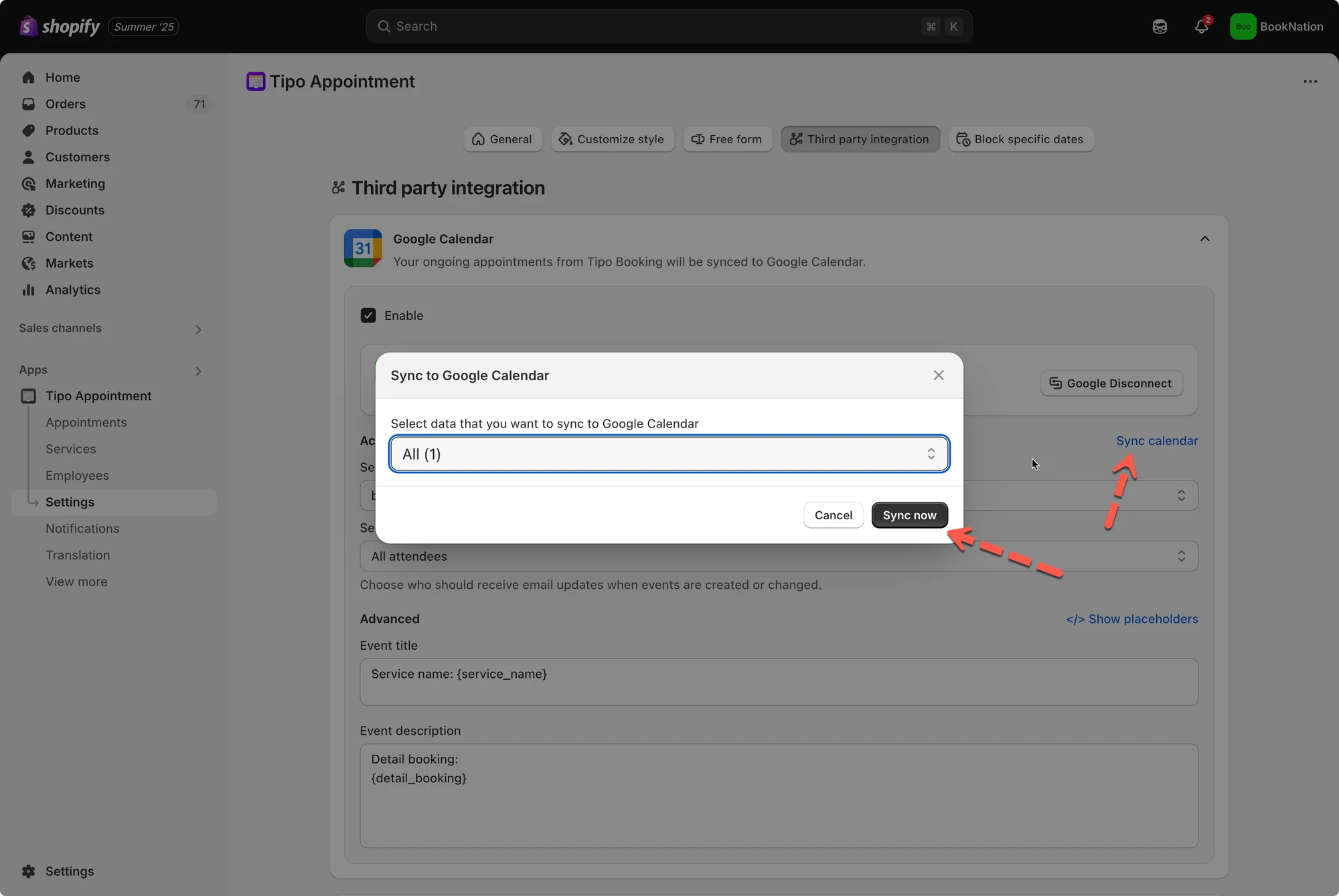 4. 选择目标日历
5. 点击 **Sync now.**
***
### ✅ 同步的内容
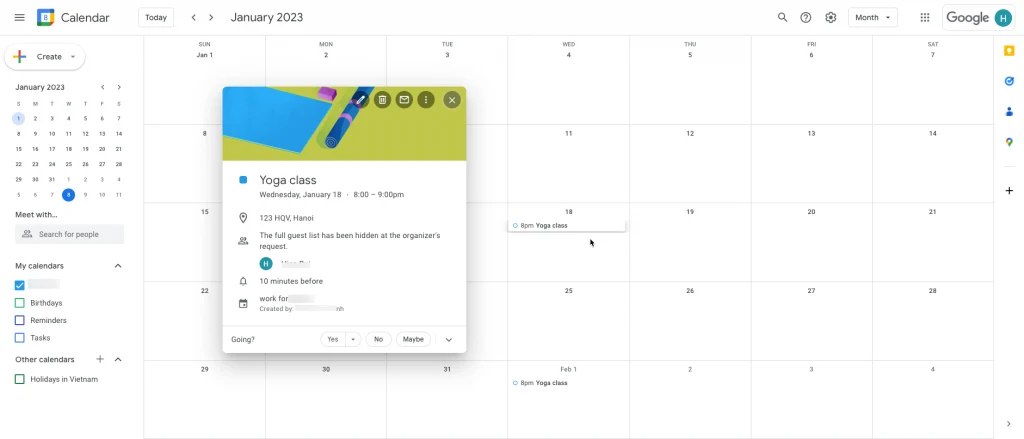
通过 Tipo 预约小组件完成预约后,系统会自动在您的 **Google** **Calendar.** 中添加一个事件。
此外,Google Calendar 会向所有参与者发送包含事件详情的邀请邮件。
 ***
**🙋 还需要支持吗?**
如果您仍需要帮助,请随时通过 联系我们。我们很乐意为您提供进一步协助。