# 自定义邮件内容
您可以自定义邮件的 Subject 和 Content,并插入变量(占位符),这些变量会在实际邮件中自动显示预约/客户/服务信息。
### 🛠️ 编辑邮件模板的步骤
1. 打开应用 > 点击 **Notifications**
2. 选择 **Customer**、**Team member** 或 **Merchant**
3. 点击您要编辑的邮件模板
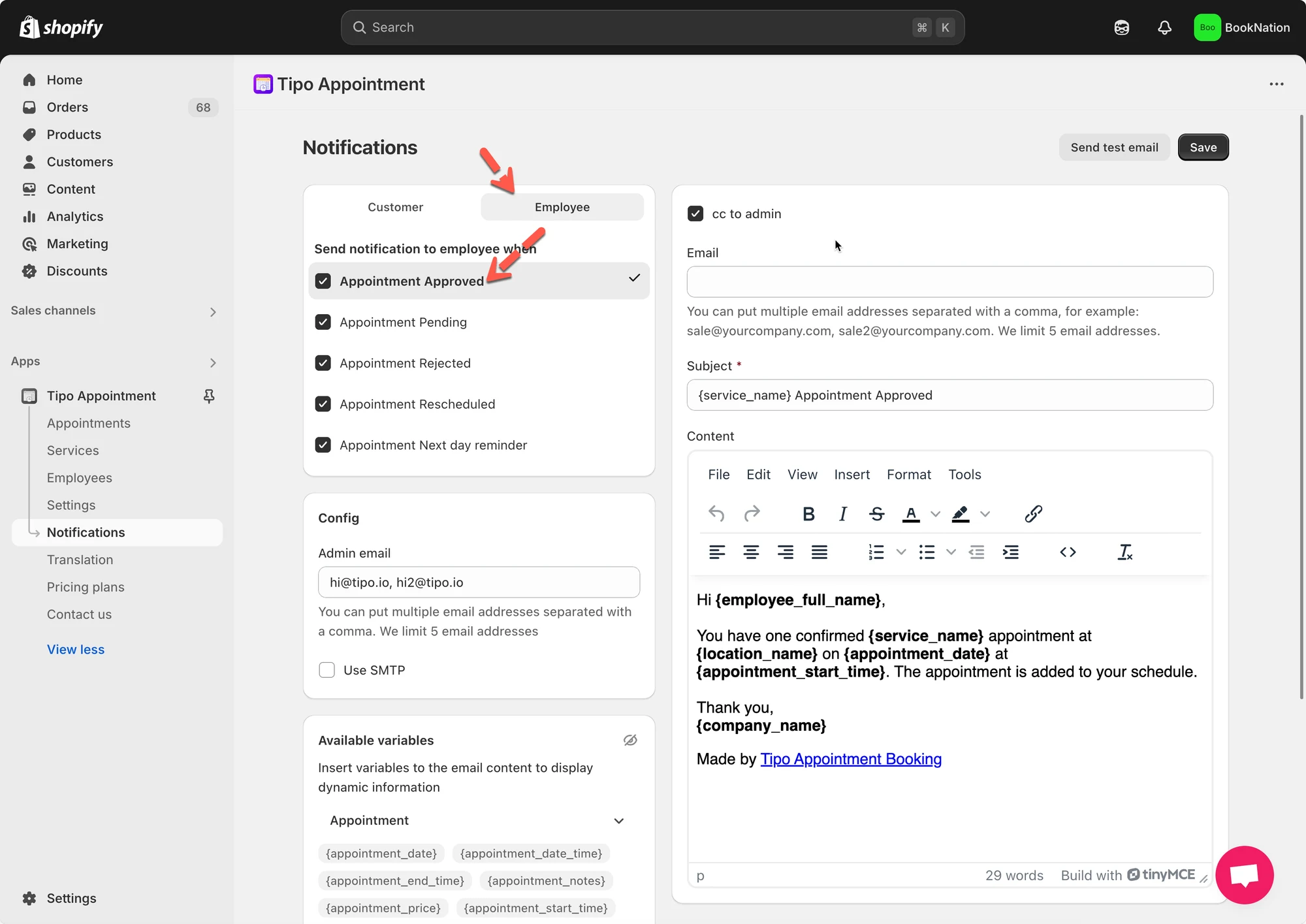 3. 在模板编辑器中:
* 更新 **Subject**
* 更新 **Content**(邮件正文)
4. 点击 **Save**
***
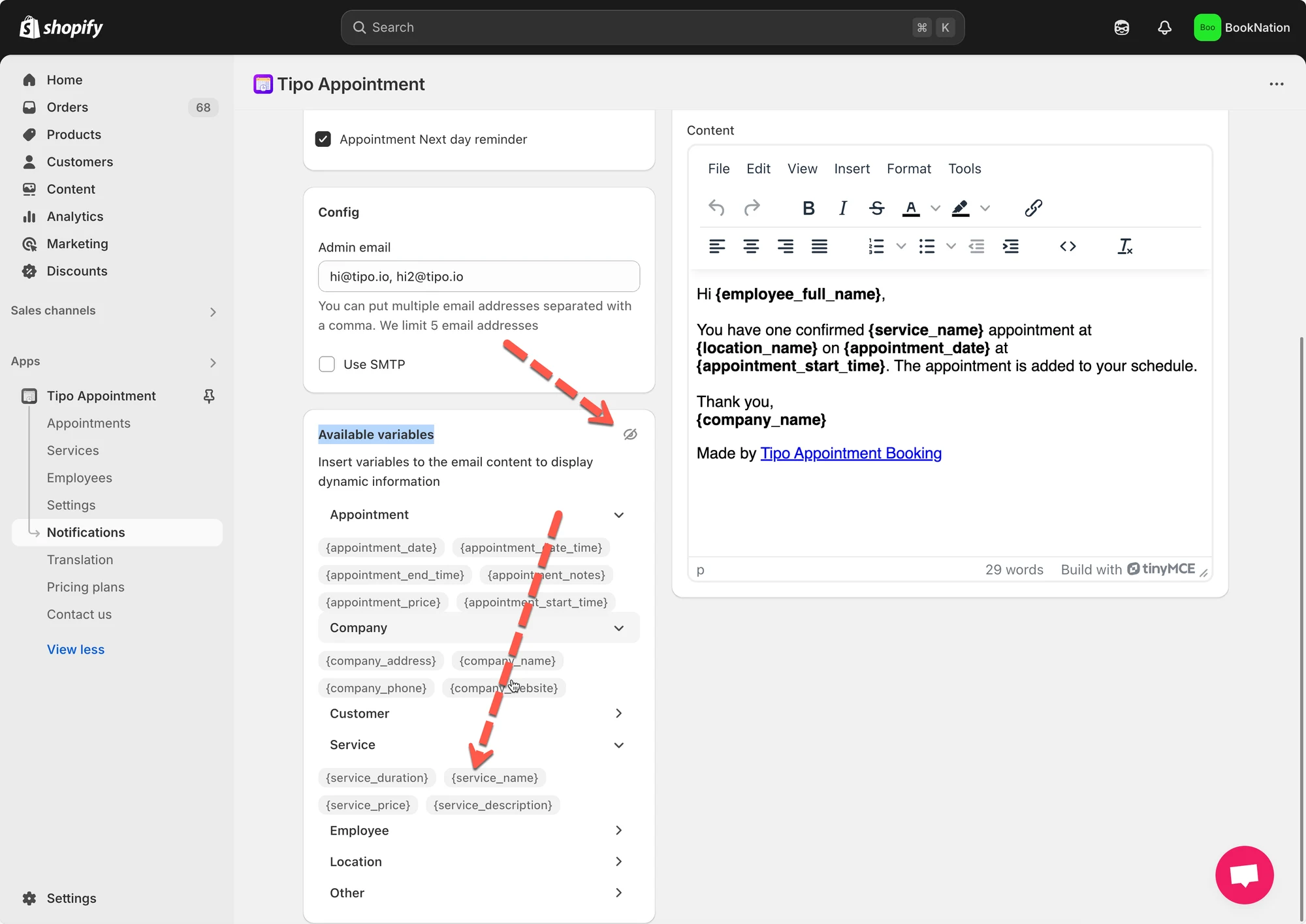
### 🧩 插入变量(动态数据)
变量可让您在邮件中自动显示**真实的预约信息**,例如客户姓名、服务名称、日期、时间和地点。
邮件发送时,Tipo 会将每个变量替换为**预约中的实际数据**。
#### 📌 什么是变量?
变量是用双花括号括起来的占位符,例如:
* `{{ customer.name }}`
* `{{ variant.name }}`
* `{{ booking.start_at }}`
⇒ 客户和员工不会看到变量代码,只会看到最终的值。
#### ➕ 如何插入变量
* 复制变量(示例:`{{ booking.start_time }}`)
* 将其粘贴到 **Subject** 或 **Content** 中
 ***
#### ✉️ 示例:客户确认邮件
**Subject**
```
Your booking for {{ variant.name }} is confirmed
```
**Email content**
```
Hi {{ customer.name }},
Your booking has been confirmed. Here are the details:
Service: {{ variant.name }}
Date: {{ booking.start_date }}
Time: {{ booking.start_time }} – {{ booking.end_time }}
Location: {{ booking.location }}
We look forward to seeing you!
```
📌 **客户看到的结果:**
Hi Anna,\
Your booking for Yoga Class is confirmed\
Date: Dec 17, 2025\
Time: 08:00 – 09:00\
Location: Hanoi Studio
***
**🙋 还需要支持吗?**
如果您仍需要帮助,请随时通过 联系我们。我们很乐意为您提供进一步协助。