# 设置库存和订单同步
* 库存同步规则
* 订单同步行为(Destination → Source)
当您希望由 Source store 控制以下内容时,请使用这些设置:
本指南介绍在哪里从 **Source store** 的设置中启用和管理 **Inventory Sync** 与 **Order Sync**。
#### 🛠️ 在 Source store 中设置库存和订单同步
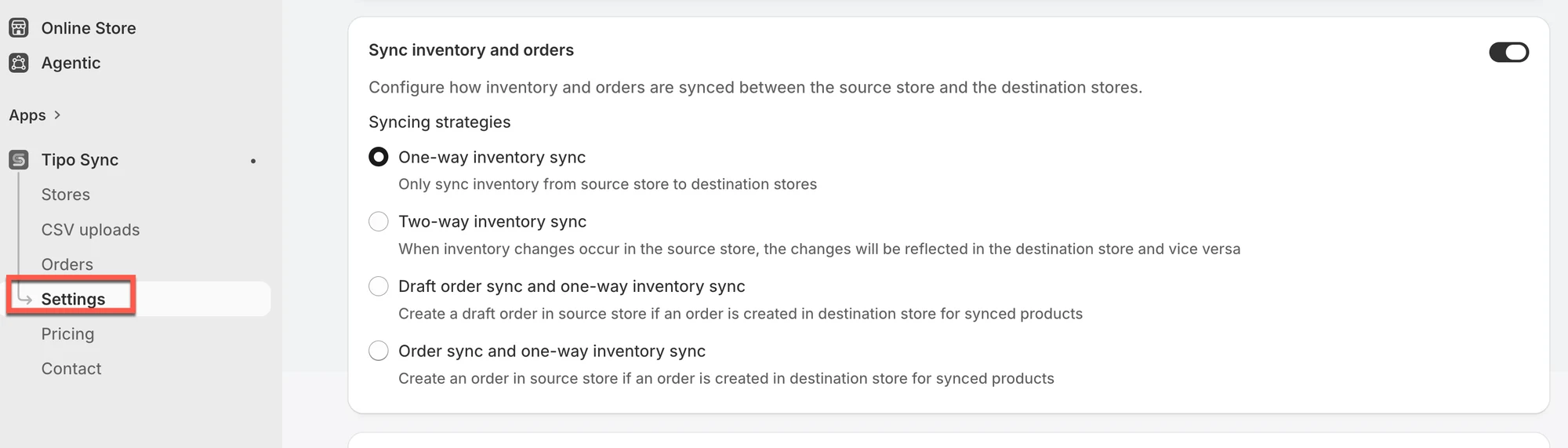
1. 在 **Source** store 中打开应用 > 点击 **Settings**
2. 在 **Sync Inventory and Orders** 中,启用该部分并选择**一种**策略
* ➡️ One-Way Inventory Sync\
仅将库存从 Source → Destination store 同步。
* **🔁 Two-Way Inventory Syn**c\
双向同步库存。任一商店中的更改都会更新另一个商店。
* 🧾 **Draft Order Sync + One-Way Inventory Sync**\
如果在 Destination store 中创建了订单(针对已同步的商品),应用会在 Source store 中创建一个草稿订单。\
库存仍然从 Source → Destination 同步。
* 🛒 **Order Sync + One-Way Inventory Sync**\
如果在 Destination store 中创建了订单(针对已同步的商品),应用会在 Source store 中创建一个正式订单。\
库存仍然从 Source → Destination 同步。
 3. 点击 **Save**
***
### 🔄 同步如何运作
#### 库存同步
* **商品匹配:** 应用使用您选择的标识符(例如:Handle、SKU 或 Barcode)来匹配商品。\
请确保该标识符在每个商店中都相同。
* **地点同步:** 库存会根据您的地点设置进行更新。\
最佳实践:在 Source 和 Destination 中使用相同的地点名称,或在您的设置支持时映射地点。
* **同步方向:**
* ➡️ **单向:** 仅 Source → Destination
* 🔁 **双向:** Source ↔ Destination(任一方的更新都会同步)
#### 订单同步
* **订单导入:** 在 Destination store 中下的订单可以导入 Source store(根据您选择的选项,作为草稿订单或正式订单)。
* **重要:** 订单同步通常只在订单创建时发生。之后的状态变化(履约/付款更新)不会同步。
#### **参考:**
[Two-way inventory sync](/inventory-sync/two-way-inventory-sync)
[One-Way Inventory Sync](/inventory-sync/one-way-inventory-sync)
[Order sync](/order-sync/order-sync)
[Draft order sync ](/order-sync/draft-order-sync)
***
**🙋 还需要支持吗?**
如果您仍需要帮助,请随时通过 联系我们。我们很乐意为您提供进一步协助。