# 为库存同步映射地点
本指南介绍如何在 Source 和 Destination 商店之间映射 Shopify 地点,以便库存同步正常运行。
为确保您的库存数量始终准确,线上订单和线下销售都会分配到[地点](https://help.shopify.com/en/manual/locations)。
### ✅ 为什么需要地点映射
Shopify 按**地点**(仓库、零售店、履约中心)跟踪库存。\
为了准确同步库存,Tipo Sync 需要知道:
哪个 **Source 地点**应同步到哪个 **Destination 地点**。
如果没有映射:
* 库存可能无法同步
* 库存可能同步到错误的地点
* Destination store 中的库存可能显示不正确
### 🛠️ **步骤 1:为 Source store 决定要同步的地点**
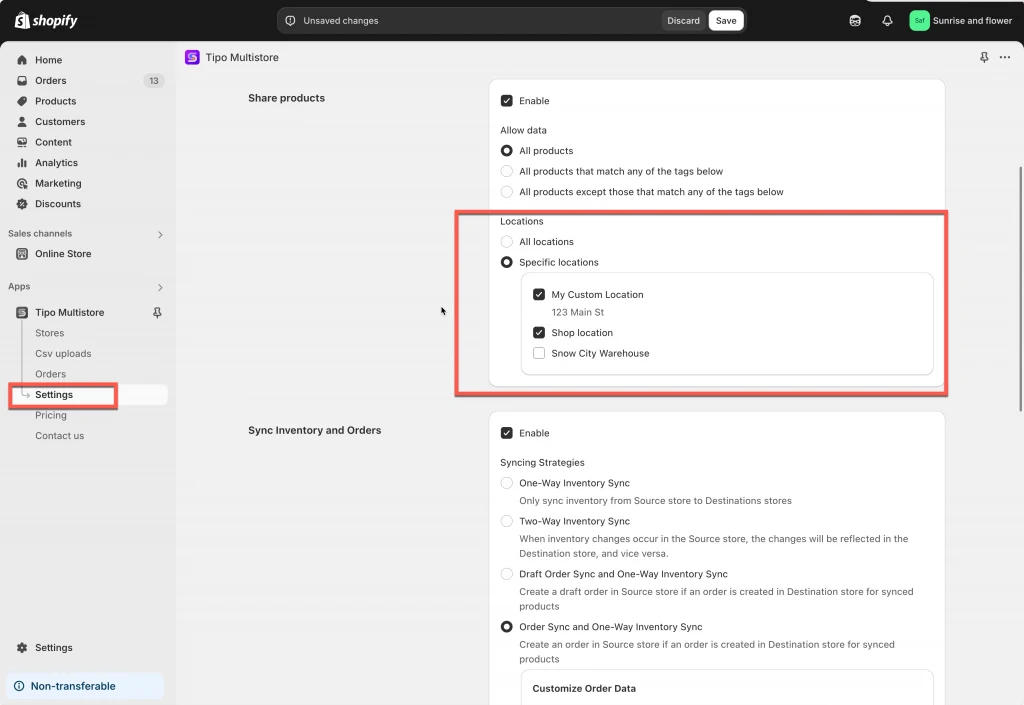
1\. 在 **Source** 商店中打开应用 > 点击 **Settings**
2\. 向下滚动到 **Locations** 部分,并选择以下 2 个选项之一:
* **All locations**:您商店所有地点中可用的商品都将与 Destination store 同步
* **Specific locations**:当 Destination store 发生变化时,仅更新所选地点中的商品
3\. 点击 **Save**
 ***
### 🛠️ 步骤 2:连接 2 个商店时映射地点
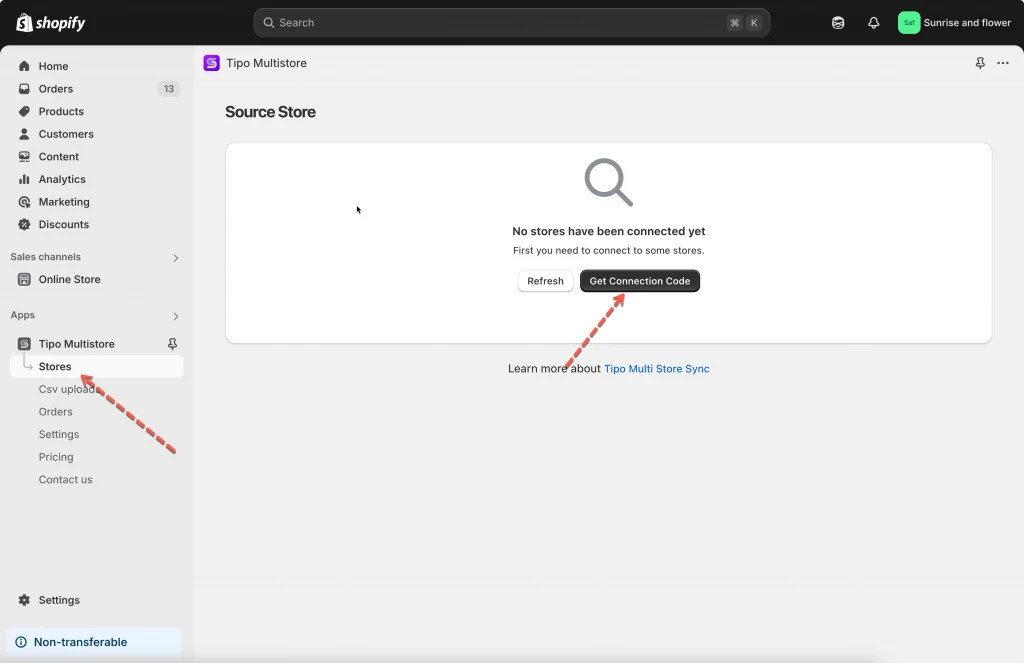
1\. 在 Source store 中打开应用 > 点击 **Stores** > 点击 **Get connect code** 按钮 > 复制弹出窗口中的连接代码
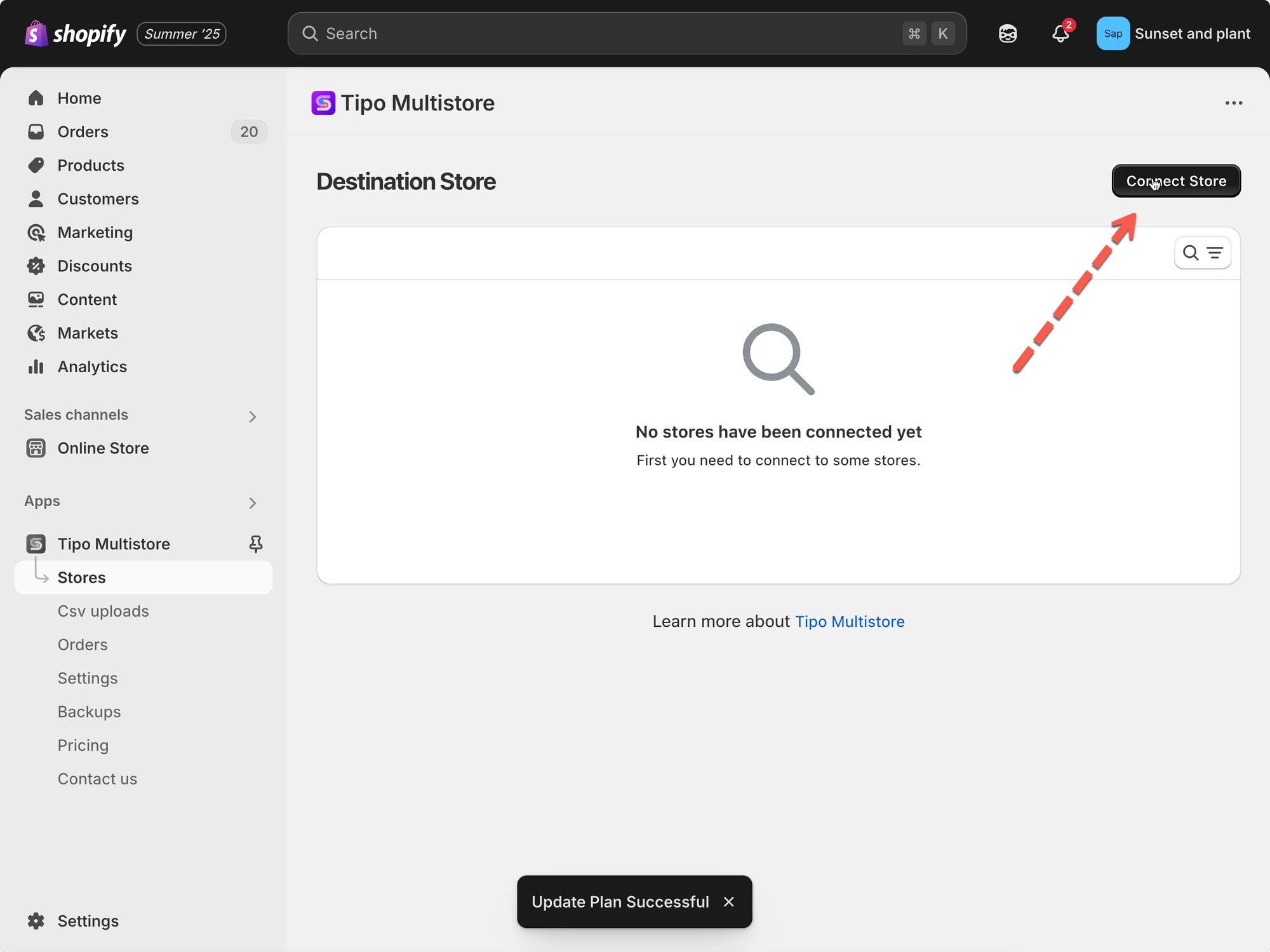
 2\. 前往 **Destination** 商店,打开 Tipo Multi-store 应用 > 点击 **Stores** > 点击 **Connect** **Store** 按钮
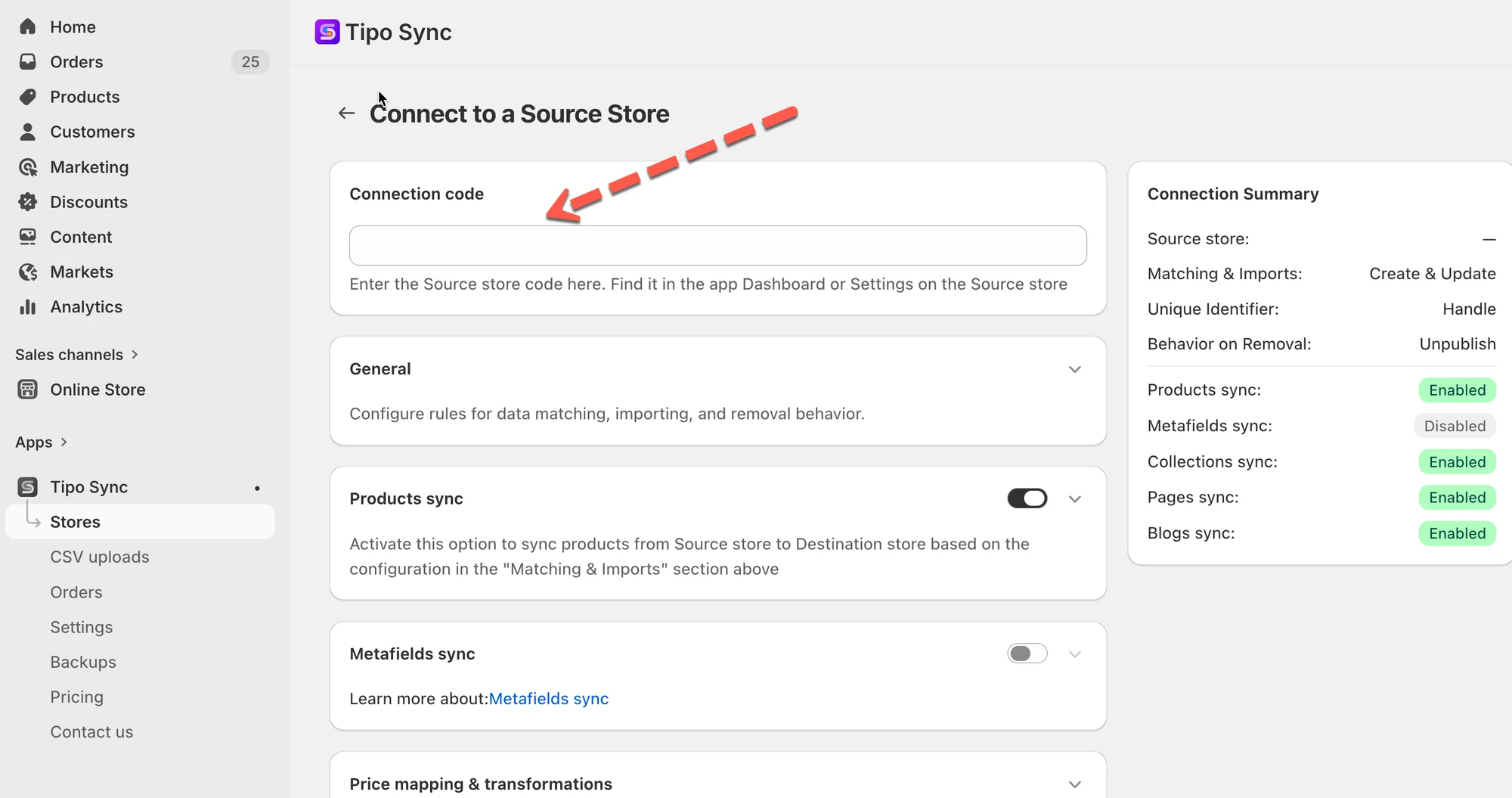
 3\. 输入连接密钥(从 Source store 的应用 Dashboard 获取密钥)
 4. 选择您要同步的商品,并在连接详情中完成设置
5. 向下滚动到 Mapping **locations** 部分,并选择要在商店之间映射的地点
在映射界面上,您会看到:
* Source store 地点(左侧)
* Destination store 地点(右侧)
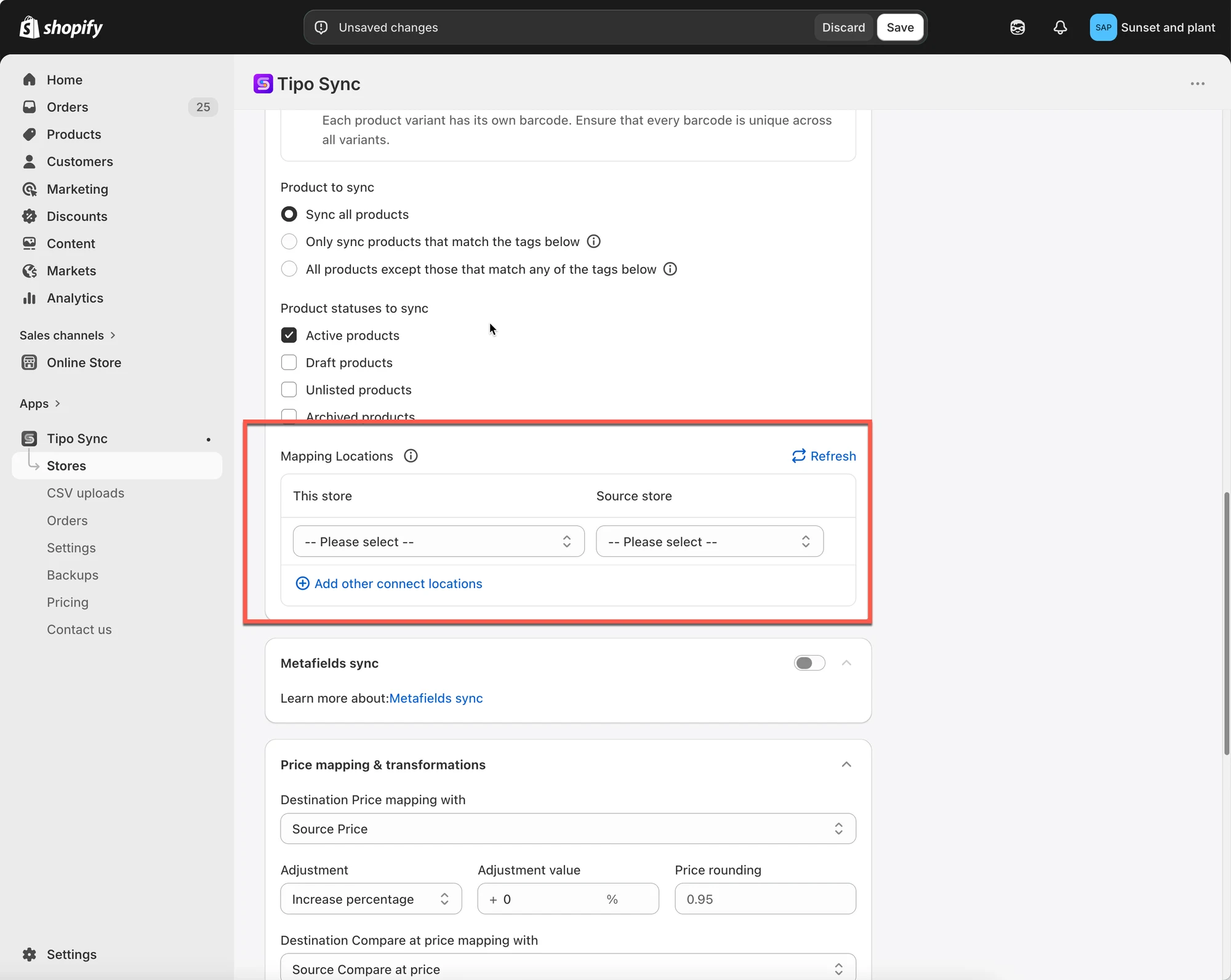
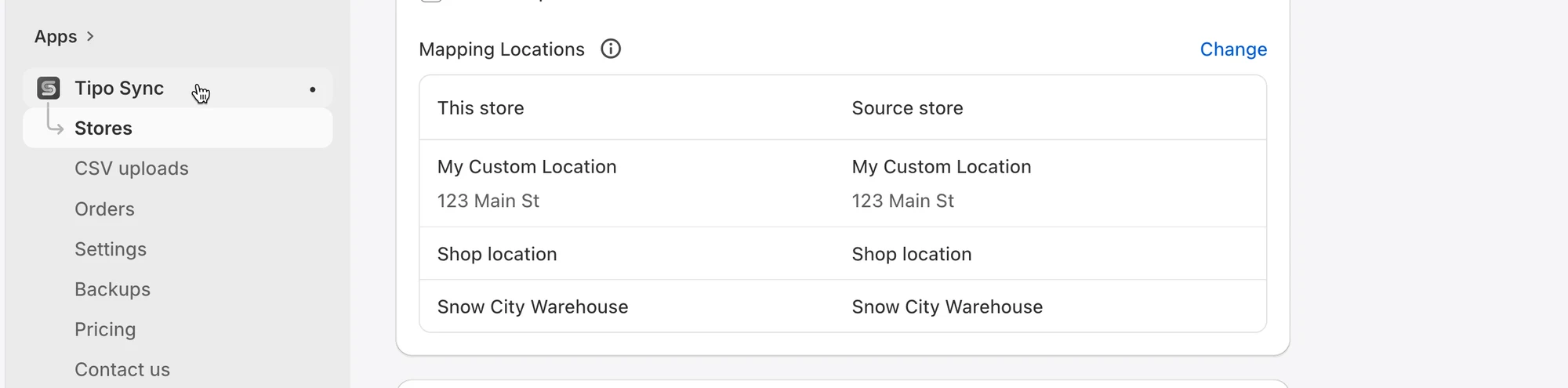 **注意**:目前我们的应用仅支持将 Source store 的 1 个地点同步到 Destination store 的 1 个地点。无法将 Source store 的一个地点映射到 Destination store 的 2 个地点
5. 点击 **Save**
同步将立即运行,可能需要一段时间才能完成。
***
### ✅ 映射之后会发生什么
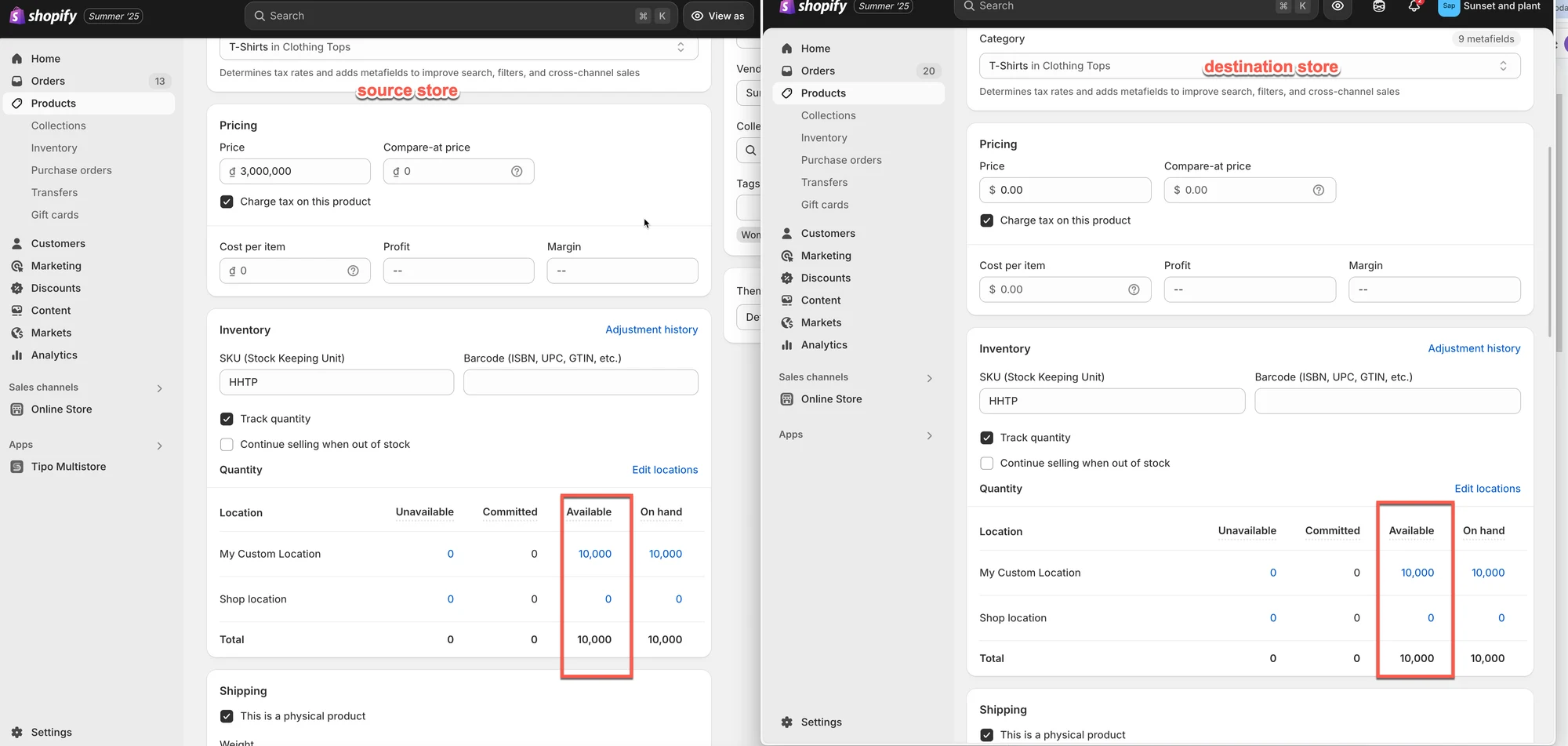
映射保存后,应用将
* 仅更新您在连接中映射的地点的库存
* 忽略未映射的地点
 > **重要提示:一对一映射**
>
> 每个地点只能映射到一个对应的地点。
✅ 支持:
| Source store | Destination store |
| ------------ | ----------------- |
| Warehouse A | Warehouse A |
❌ 不支持:
| Source store | Destination store |
| ------------ | ----------------- |
| Warehouse A | Warehouse A |
| Warehouse A | Warehouse B |
单个 Source 地点无法将库存同步到多个 Destination 地点。
### **🧪** 示例
假设两个商店都有以下地点:
| Source Store | Destination Store |
| ------------------ | ------------------ |
| My Custom Location | My Custom Location |
| Shop location | Shop location |
并且映射配置如下:
| Destination Store | Source Store |
| ------------------ | ------------------ |
| My Custom Location | My Custom Location |
| Shop location | Shop location |
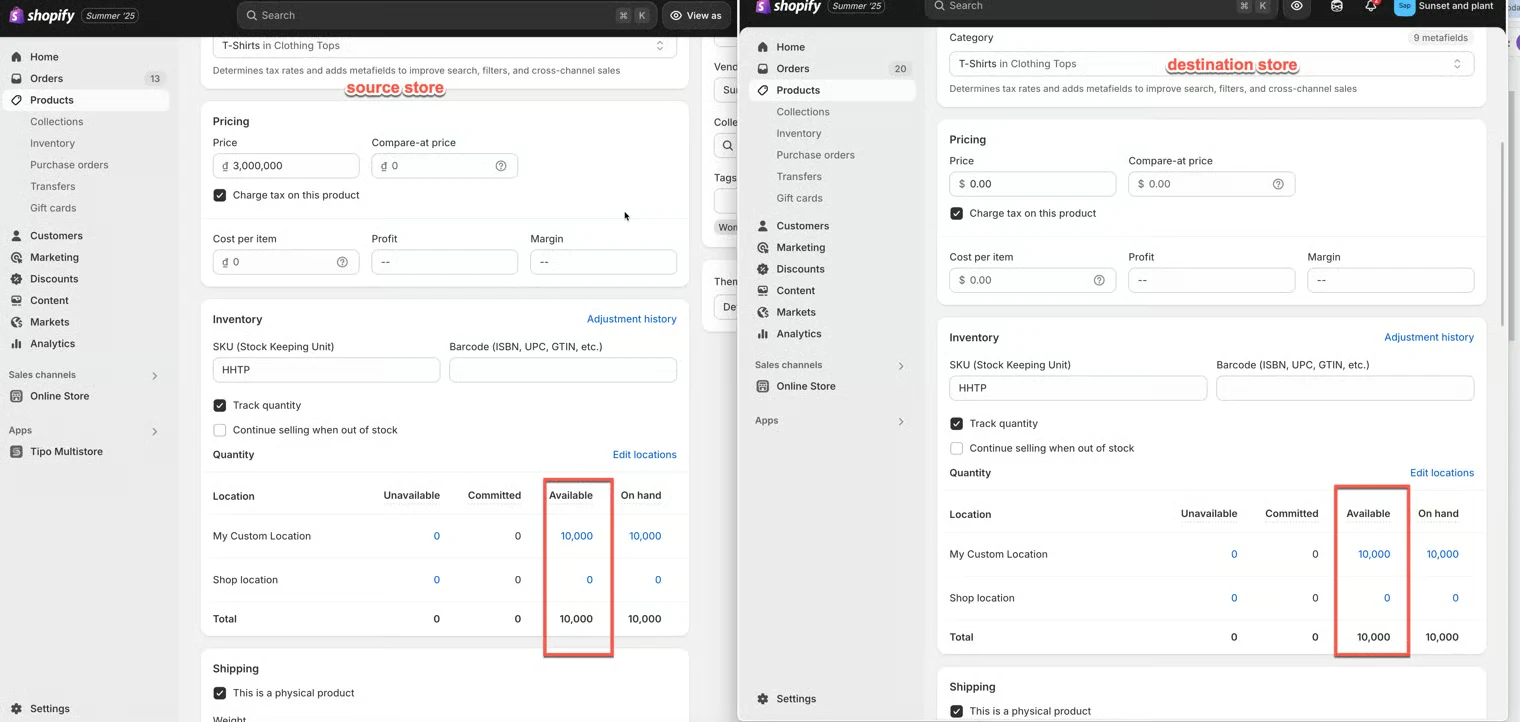 #### 示例 1:单向库存同步
同步方向:Source Store → Destination Store
同步前
**Source Store**
| 地点 | 可售数量 |
| ------------------ | --------- |
| My Custom Location | 10,000 |
| Shop location | 0 |
**Destination Store**
| 地点 | 可售数量 |
| ------------------ | --------- |
| My Custom Location | 5 |
| Shop location | 100 |
同步后
**Destination Store**
| 地点 | 可售数量 |
| ------------------ | --------- |
| My Custom Location | 10,000 |
| Shop location | 0 |
由于库存是从 Source Store 同步到 Destination Store 的,Destination 的库存会更新为与已映射的 Source 地点一致。
***
#### 示例 2:双向库存同步
同步方向:Source Store ↔ Destination Store
假设地点映射如下:
| Destination Store | Source Store |
| ------------------ | ------------------ |
| My Custom Location | My Custom Location |
| Shop location | Shop location |
**场景 A:在 Source Store 中销售**
销售前:
| 地点 | Source Store | Destination Store |
| ------------------ | ------------ | ----------------- |
| My Custom Location | 10,000 | 10,000 |
一位客户在 Source Store 中购买了 1 件商品。
Shopify 更新库存后:
| 地点 | Source Store |
| ------------------ | ------------ |
| My Custom Location | 9,999 |
随后 Tipo Sync 会更新 Destination Store 中已映射的地点:
| 地点 | Destination Store |
| ------------------ | ----------------- |
| My Custom Location | 9,999 |
结果:两个商店保持同步。
***
**场景 B:在 Destination Store 中销售**
销售前:
| 地点 | Source Store | Destination Store |
| ------------------ | ------------ | ----------------- |
| My Custom Location | 10,000 | 10,000 |
一位客户在 Destination Store 中购买了 1 件商品。
Shopify 更新库存后:
| 地点 | Destination Store |
| ------------------ | ----------------- |
| My Custom Location | 9,999 |
随后 Tipo Sync 会更新 Source Store 中已映射的地点:
| 地点 | Source Store |
| ------------------ | ------------ |
| My Custom Location | 9,999 |
结果:两个商店保持同步。
***
#### 示例 3:未映射的地点会被忽略
假设只映射了 **My Custom Location**。
| Destination Store | Source Store |
| ------------------ | ------------------ |
| My Custom Location | My Custom Location |
**Shop location** 未被映射。
#### Source Store
| 地点 | 可售数量 |
| ------------------ | --------- |
| My Custom Location | 10,000 |
| Shop location | 500 |
#### Destination Store
| 地点 | 可售数量 |
| ------------------ | --------- |
| My Custom Location | 10,000 |
| Shop location | 100 |
库存同步后:
| 地点 | 结果 |
| ------------------ | ---------- |
| My Custom Location | 已同步 |
| Shop location | 未同步 |
**Shop location** 的库存保持不变,因为它不在地点映射中。
***
### ▶️ 教程视频
***
**🙋 还需要支持吗?**
如果您仍需要帮助,请随时通过 联系我们。我们很乐意为您提供进一步协助。