# 管理 Source stores
本指南介绍如何在 Tipo 应用中查看和管理与您的 **Destination store** 相连的所有 **Source stores**。
在此页面上,您可以查看已连接的 Source store、检查连接状态,并打开连接设置。
### ✅ 查看 Source store 列表
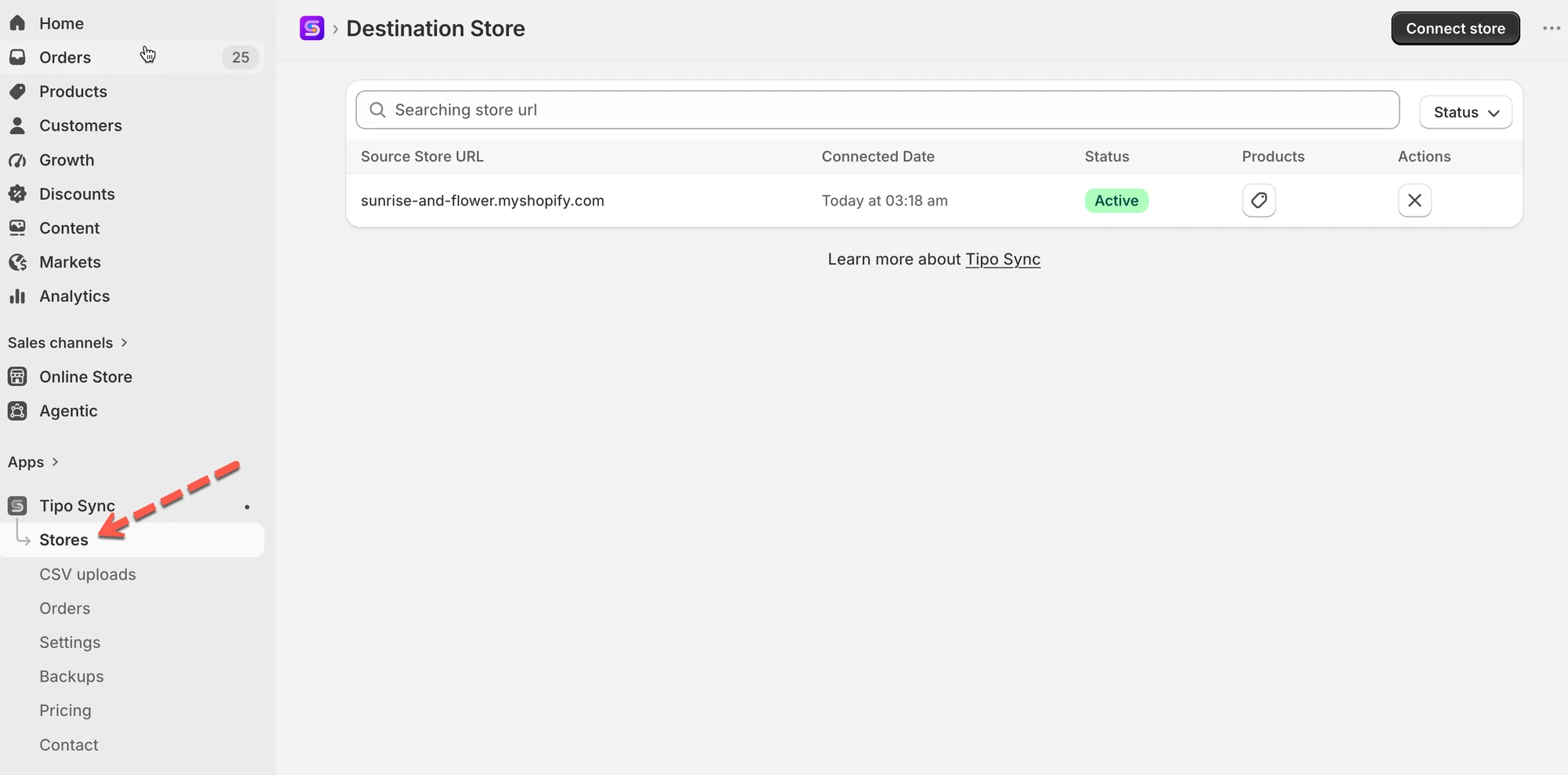
在 Destination store 中打开应用 > 点击 **Stores** > 您将看到与您的 Destination store 相连的 Source store
🔎 您可以在此页面上执行的操作
在“Manage Source stores”页面上,您可以:
* 查看已连接的 Source stores 列表
* 检查连接状态(Active / Pending / Disconnected)
* 打开某个 Source store 连接,查看同步设置
* 与某个 Source store 断开连接(如有需要)
***
### ✏️ 编辑与 Source store 的连接
Destination store 连接成功后,您可以调整同步的工作方式(商品、定价、库存地点、元字段等)。
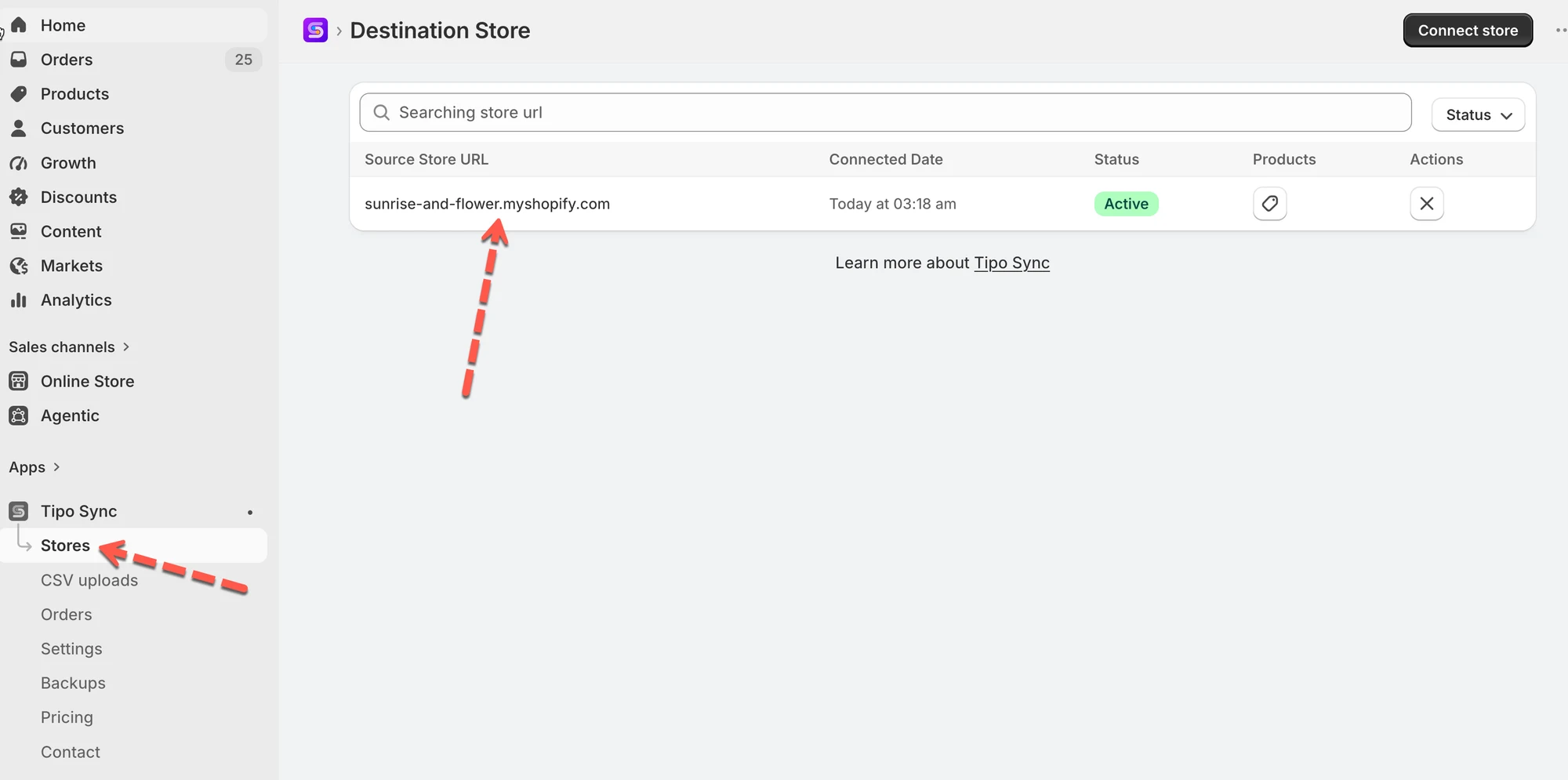
1\. 在 Destination store 中打开应用 > 点击 **Stores** > 点击您要查看的商店网址
 2\. 更改连接的配置
您可以
* 更改匹配与导入选项
* 按标签选择要同步的商品,或按标签排除商品
* 更改 Price mapping & transformations
* 启用/停用集合同步、页面同步、博客同步
3\. 点击 **Save** 以更新更改
 连接详情包含以下一些设置。
#### 🔁 Matching & Imports
选择从 **Source store** 向此 **Destination store** 同步时,应用如何处理商品。
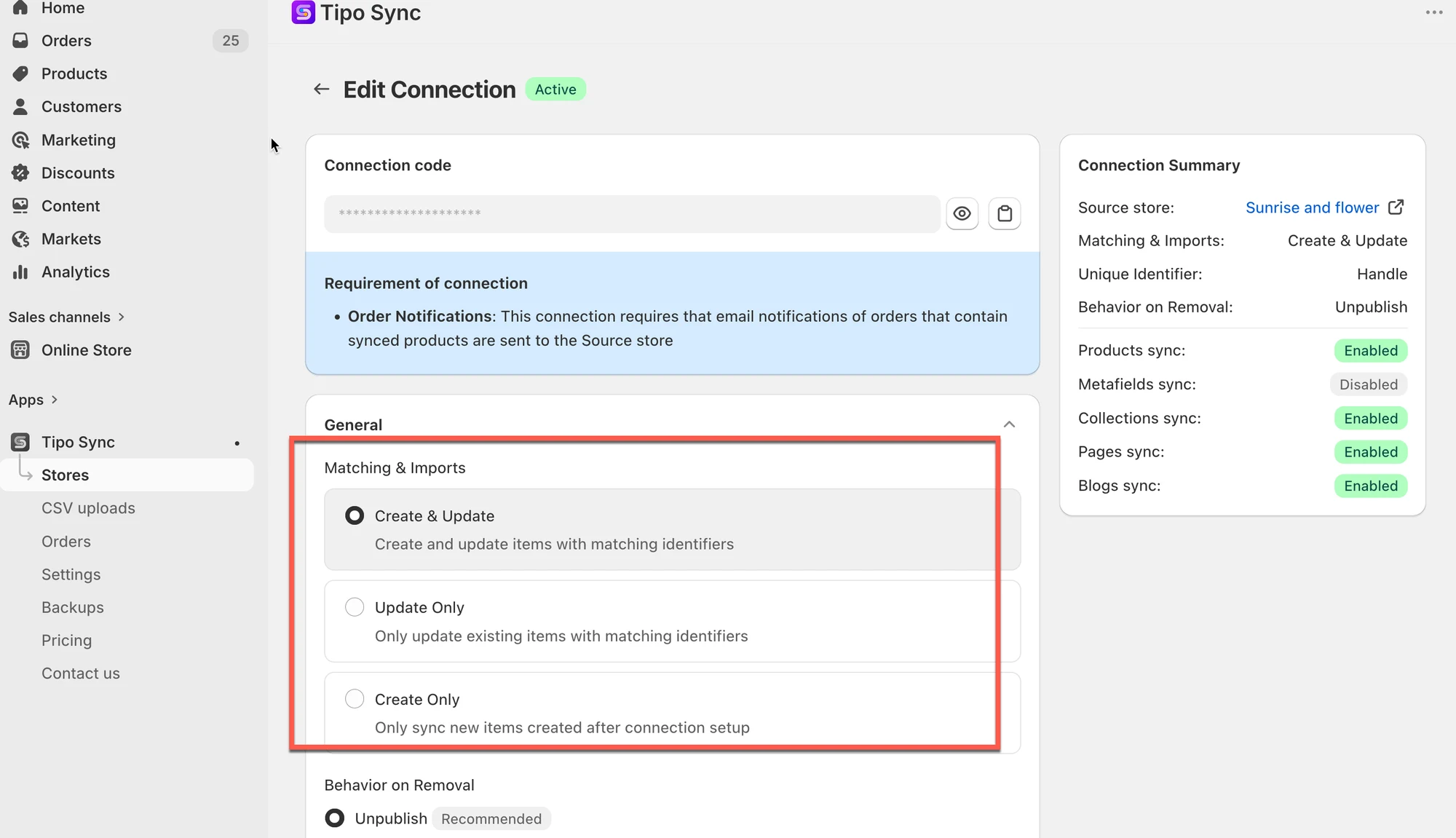 * **Matching & Imports**
> 如果您希望 Destination store 自动创建缺失的商品并保持现有商品为最新,请选择 **Create & Update**。
>
> 如果商品已同时存在于两个商店中,并且您只想同步更新,请选择 **Update Only**。
>
> 如果您只想将 Source store 中的新商品添加到 Destination store,并保持 Destination store 上的现有商品不变,请选择 **Create** **only**。
📌 *提示:*“Identifier”取决于您的设置(通常是 **Handle**,或您选择的匹配规则)。
### 🔗 Behavior on Removal
选择当某件商品被移出同步(或从 Source 同步范围中移除)时,Destination store 中应如何处理。
* Unpublish Recommended\
当商品从 Source store 中被删除时,在 Destination store 中将其取消发布。
* Unpublish or Delete\
如果曾经售出,则取消发布;如果从未售出,则从 Destination store 中删除。
* Delete\
从 Destination store 中彻底移除该商品。
* No action\
保持 Destination store 上的商品不变。
#### 🛍️ 商品同步设置
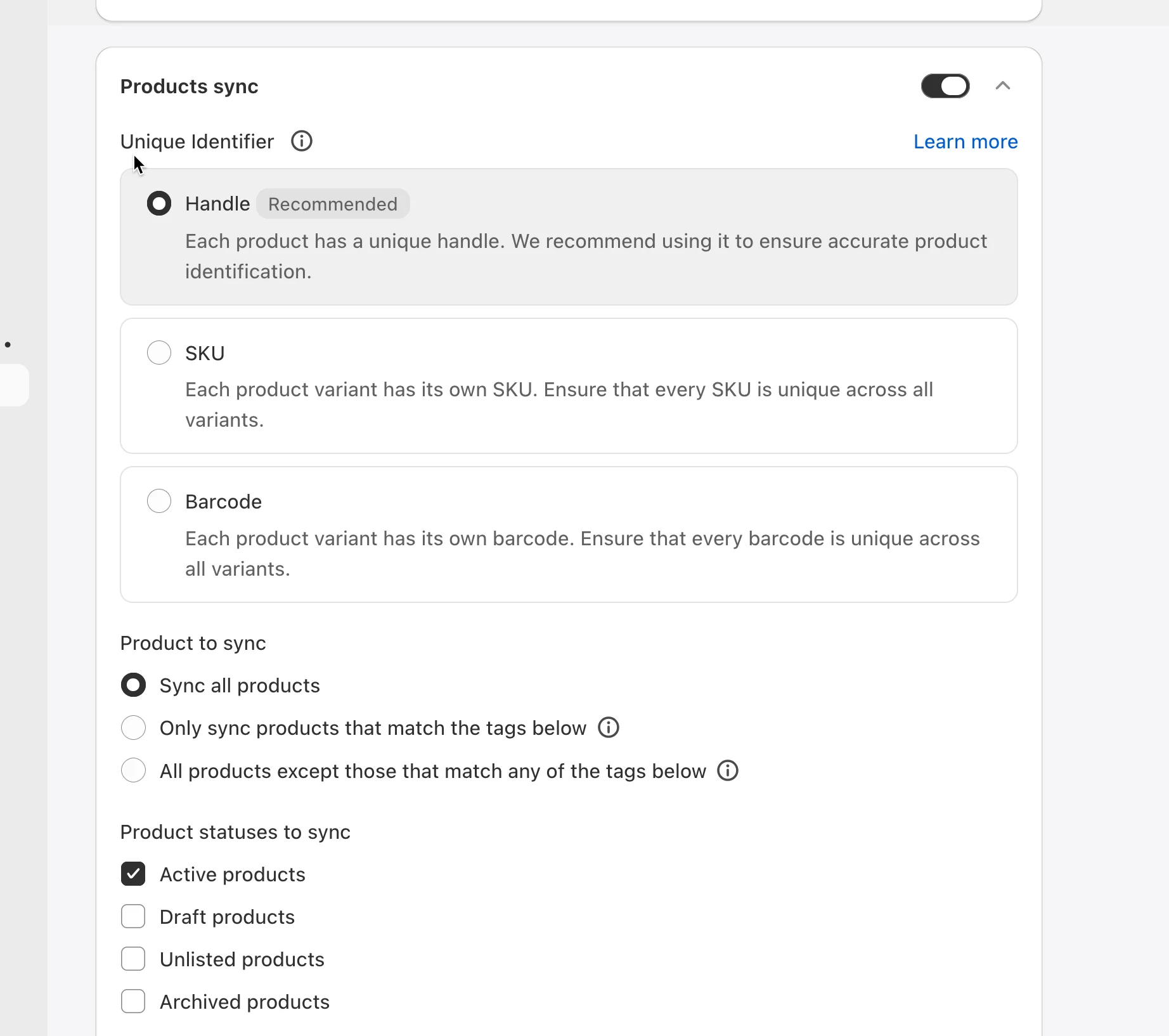
启用商品同步选项
* 开启 **Products sync** 选项
* 选择 **Unique Identifier t**o 以在商店之间匹配商品
> 示例:如果两个商店已有相同的商品 handle,请选择 **Handle** 以获得最准确的匹配。如果您的商品在所有变体中都使用唯一的 SKU,请选择 **SKU**。
* 选择要同步的商品
> 示例:如果您只想同步带有 `wholesale` 标签的商品,请选择 **Only sync products that match the tags below**。
* 选择要同步的 **Product Statuses**
 ***
#### 📍 Mapped Locations
此部分取决于 Source store 中的设置。[了解更多](/settings-destination-store/map-locations-for-inventory-sync)
#### 💰Price mapping & transformations
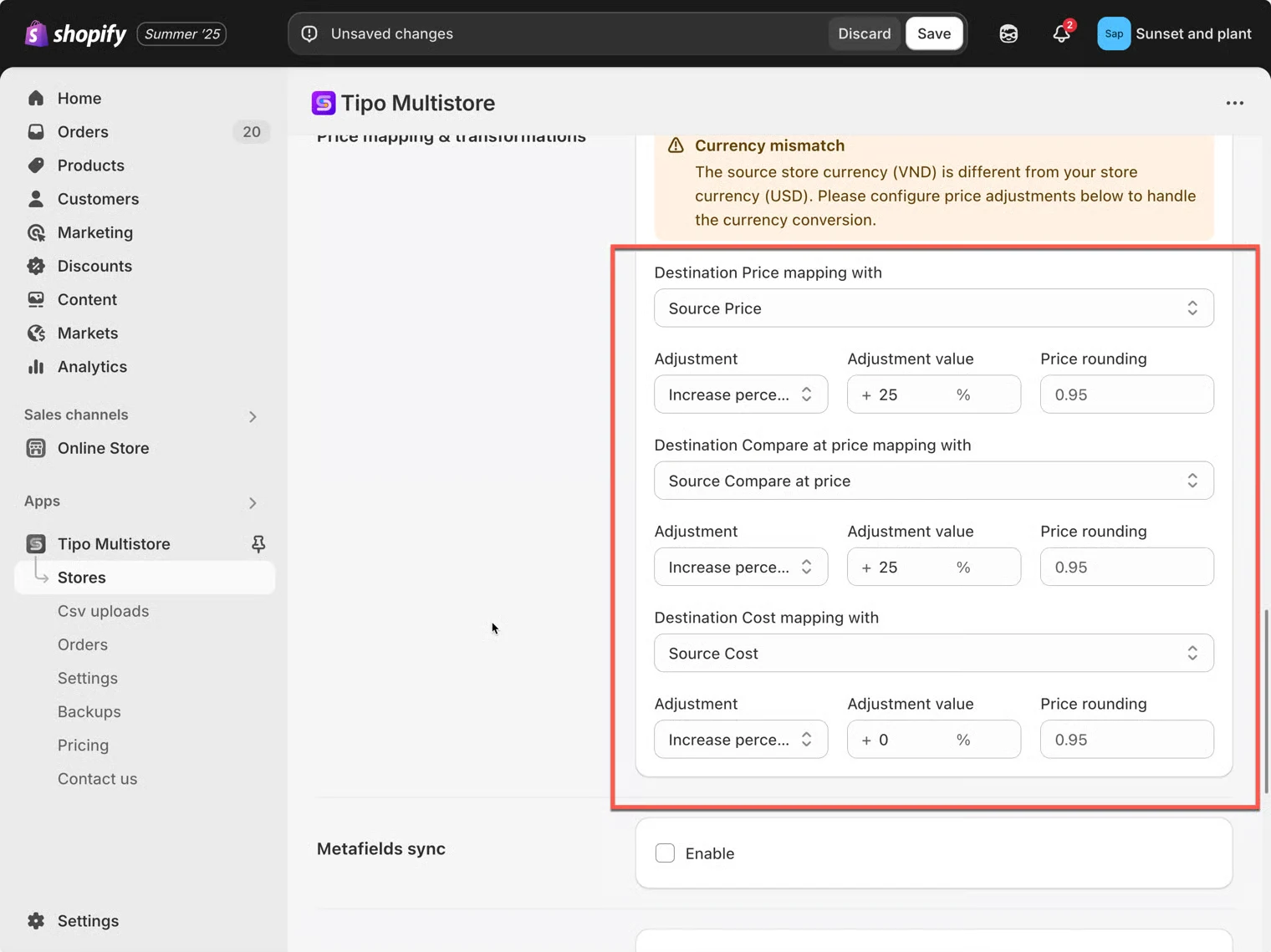 如果您希望在同步期间调整 Destination store 中的价格,请使用此部分。
示例:
* 按百分比上调/下调
* 按固定金额上调/下调
* 可选的取整规则(例如让价格以 `.95` 结尾)
[点击此处](/product-syncs/price-sync-and-adjustments)了解更多
#### 🧾 Metafield sync
如果您希望将元字段从 Source → Destination 同步,请启用此项。
* 您可能需要添加元字段定义(namespace.key)
* 数据类型必须一致
[点击此处](/product-syncs/sync-metafields)了解更多
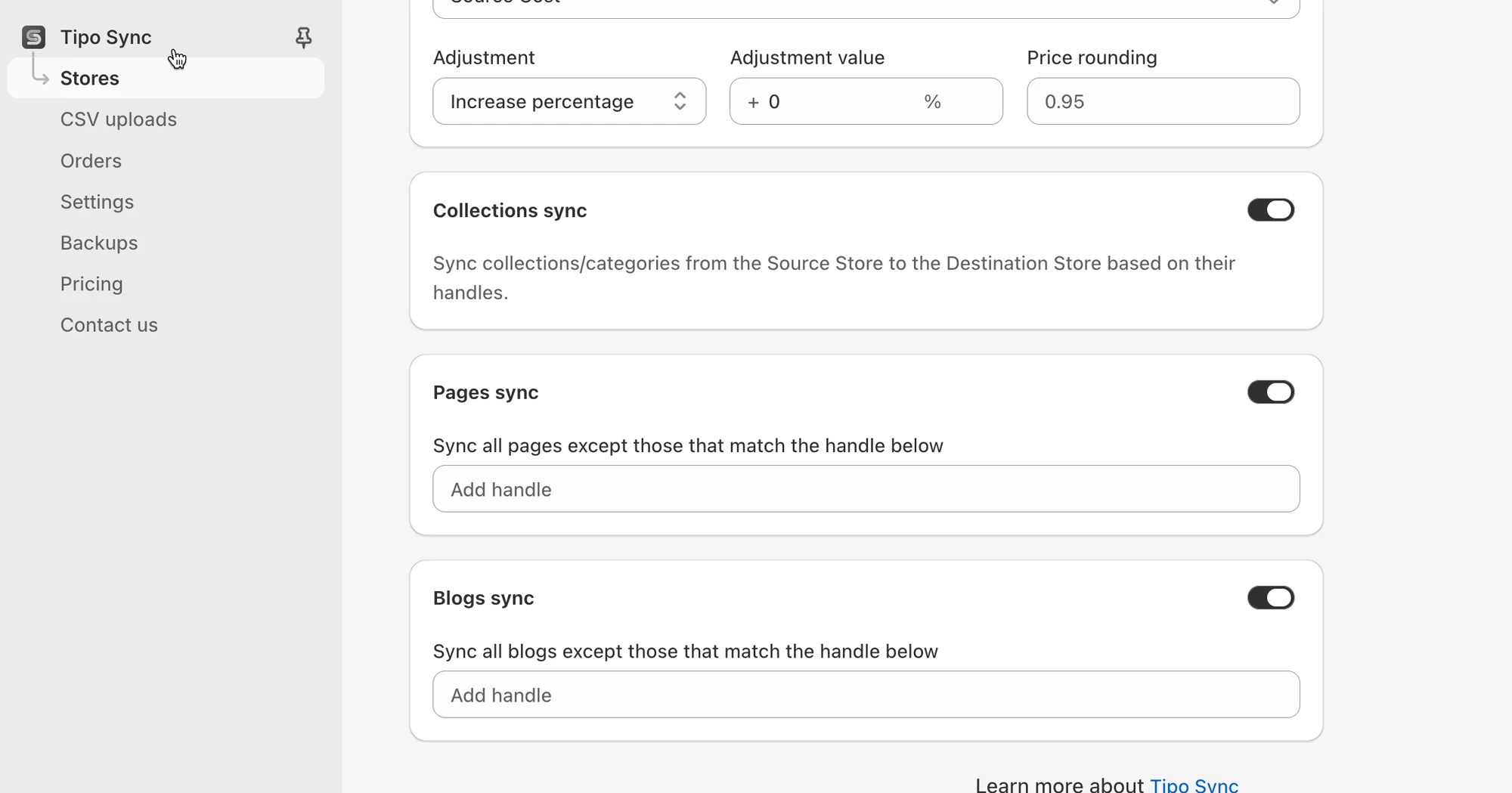
#### 📄 Collection, Pages and Blogs 同步设置
如果您希望 Source store 向此 Destination store 同步更多内容,请启用这些选项,例如:
* 集合
* 页面
* 博客和文章
开启您需要的设置,然后点击 **Save**。
 ***
### **🚫** 与 Source store 断开连接
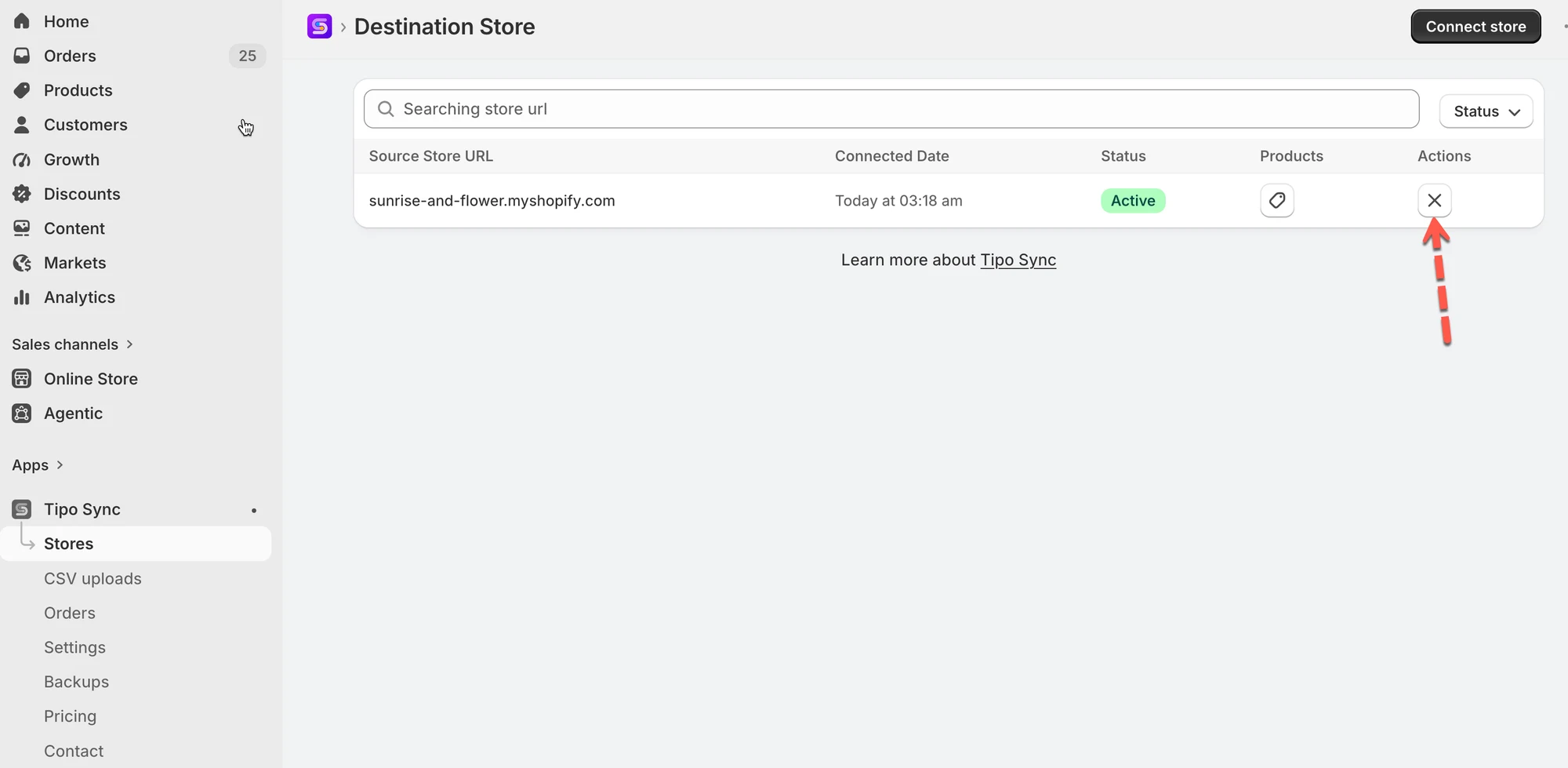
1\. 在 Destination store 中打开应用 > 点击 **Stores**
2\. 点击您要移除的商店右侧的 (x) 图标
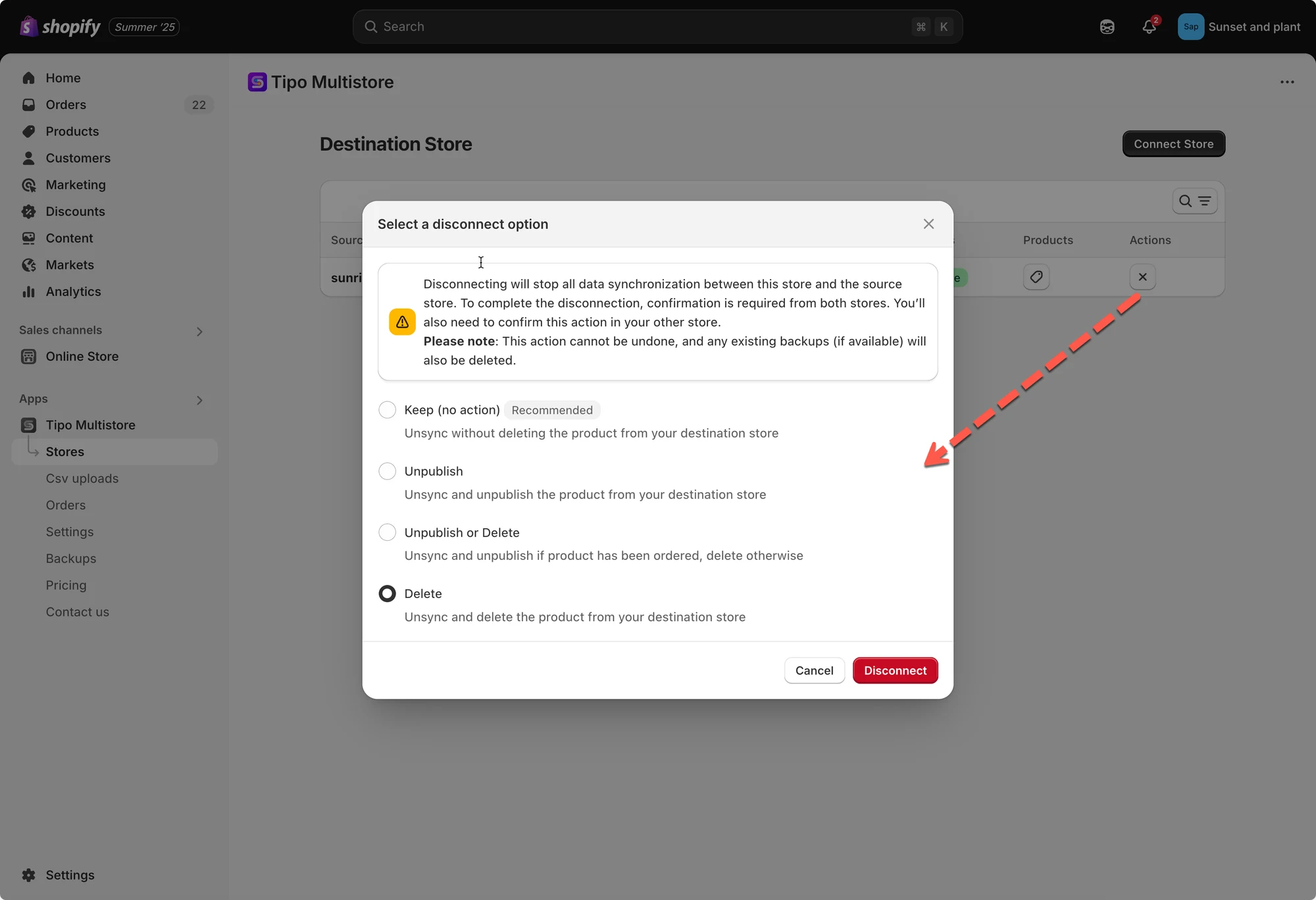
应用提供 4 个选项,用于管理 Destination store 上已同步的商品。您可以选择其中之一。
例如,如果您想移除从 Source store 同步到此商店的商品,请选择 **Delete** 选项。
* **Keep (no action) :**Unsync,但不会从您的 Destination store 中删除该商品
* **Unpublish**:取消同步,并从您的 Destination store 中取消发布该商品
* **Unpublish or Delete**:取消同步;如果商品已有订单则取消发布,否则删除
* **Delete**:取消同步,并从您的 Destination store 中删除该商品
 然后在 Source store 的应用中执行同样的操作,以彻底移除该连接。
连接移除后,处理可能需要一些时间。请稍等片刻,待应用处理完成后,您就可以创建新的连接。
***
**🙋 还需要支持吗?**
如果您仍需要帮助,请随时通过 联系我们。我们很乐意为您提供进一步协助。