# 连接商店的通用步骤
本指南介绍如何连接两个 Shopify 商店,以便 Tipo Sync 在它们之间同步商品、库存和其他数据。
在多商店同步中,您将连接:
* **Source store**(发送数据)
* **Destination store**(接收数据)
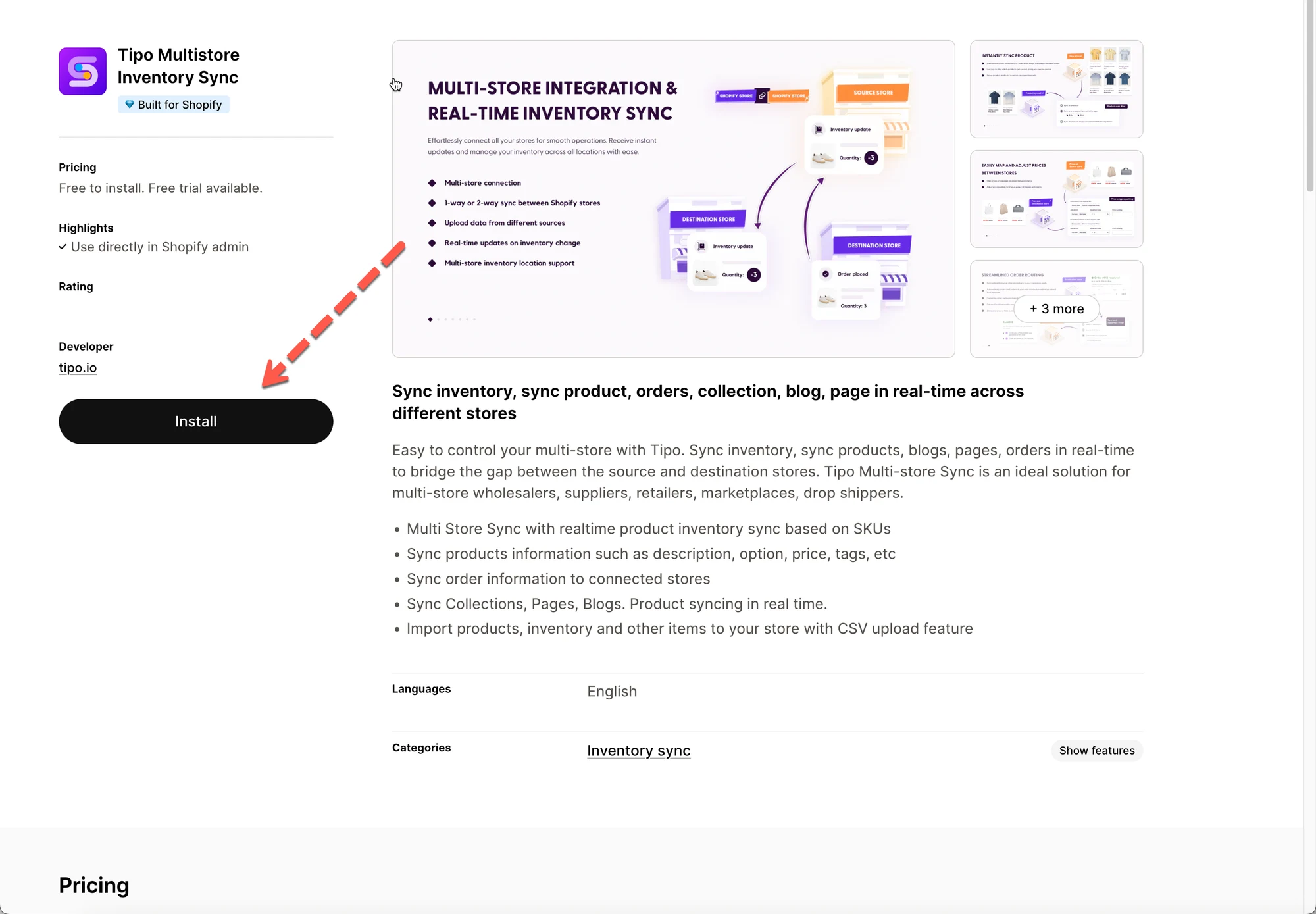
### 🛠️ 第 1 步:安装应用并选择商店类型
连接之前,请确保 **两个商店** 都已安装 Tipo Sync。
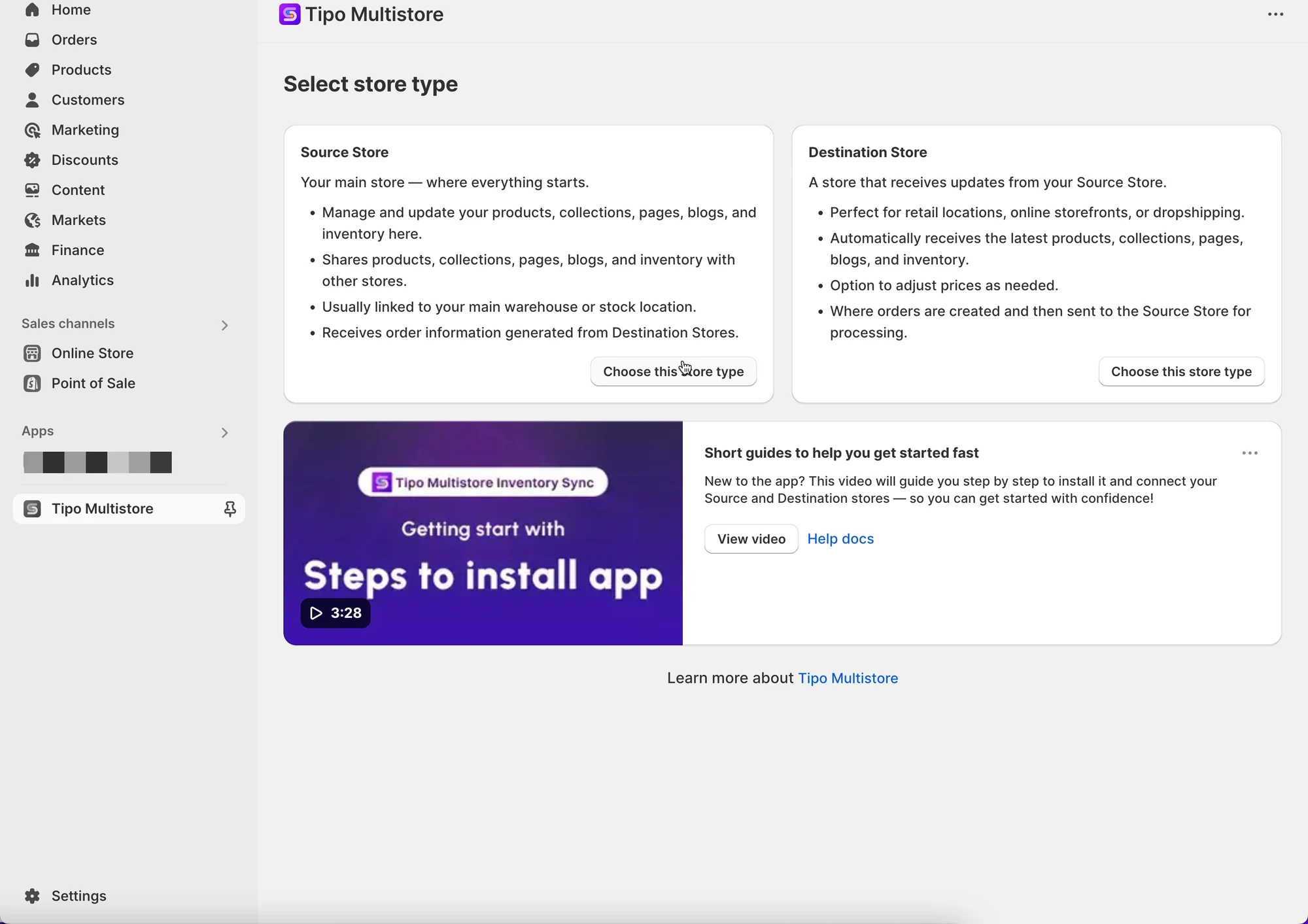
首次进入应用时,系统会提示您将该商店指定为 Source 或 Destination。请为每个商店选择合适的类型。有关商店类型的更多信息,请参阅[本指南](/overview/connect-stores)。
* 在商店 1 中安装应用 > 选择 Source store 类型
* 在商店 2 中安装应用 > 选择 Destination store 类型
 ***
### 🛠️ **第 2 步:配置应用设置**
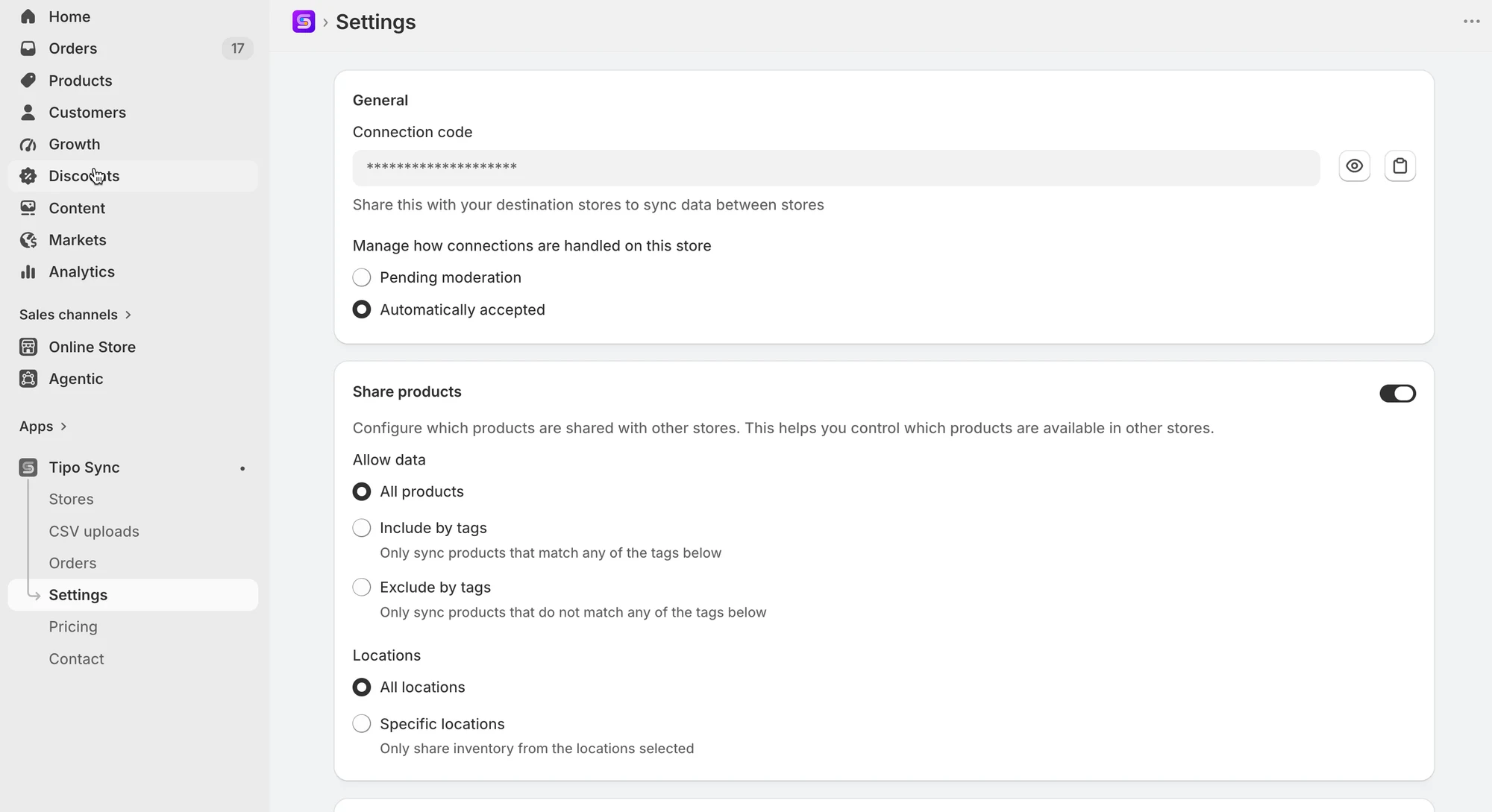
在两个商店都安装好应用后,请检查两个商店中应用的 **Settings** 并进行配置,以确保其按预期运行。
Source store:
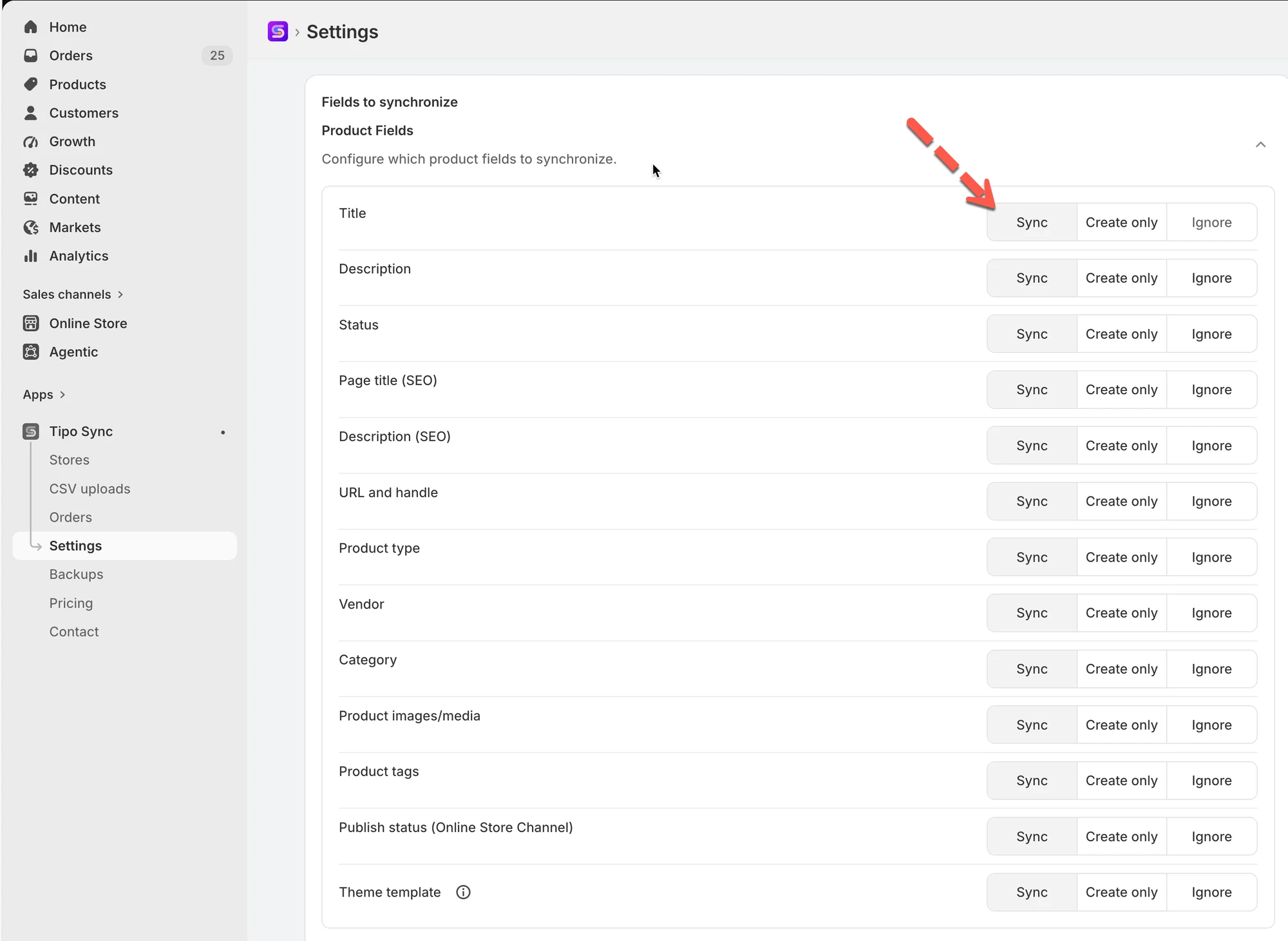
 Destination store
在 Destination store 的应用 **Settings** 中,决定您要同步的商品数据
 ***
### 🛠️ 第 3 步:将 Destination store 连接到 Source store
**注意**:连接由 Destination store 发起。
#### 获取连接码(在 Source store 中)
**Source Store** 是发送商品、库存、集合或其他数据的商店。
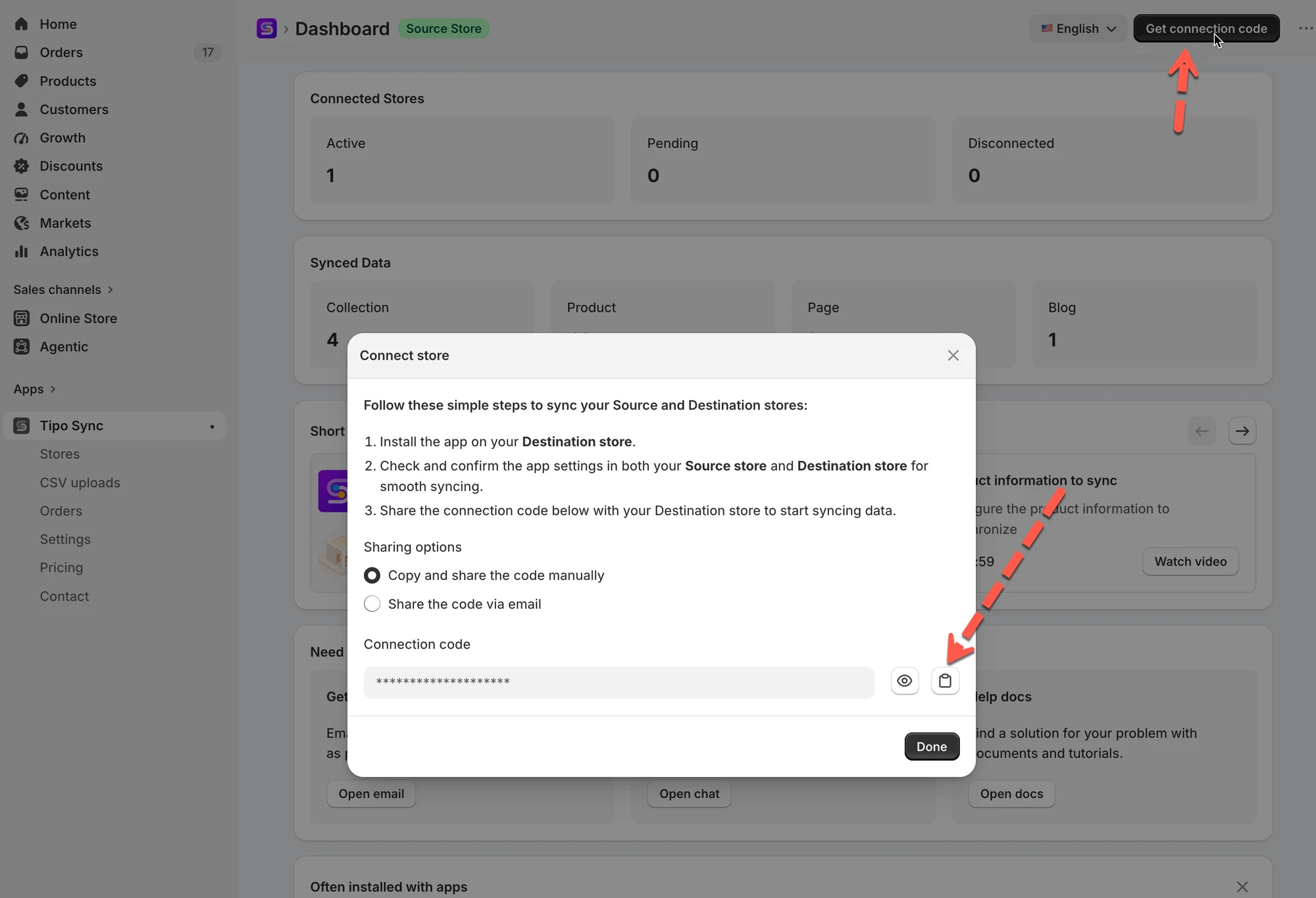
1. 在 Source store 中打开应用 > 点击 **Stores**
2. 点击 **Get connect code** 按钮
3. 复制弹窗中的连接码
 #### 使用连接码(在 Destination store 中)
**Destination Store** 是接收来自 Source store 同步数据的商店。
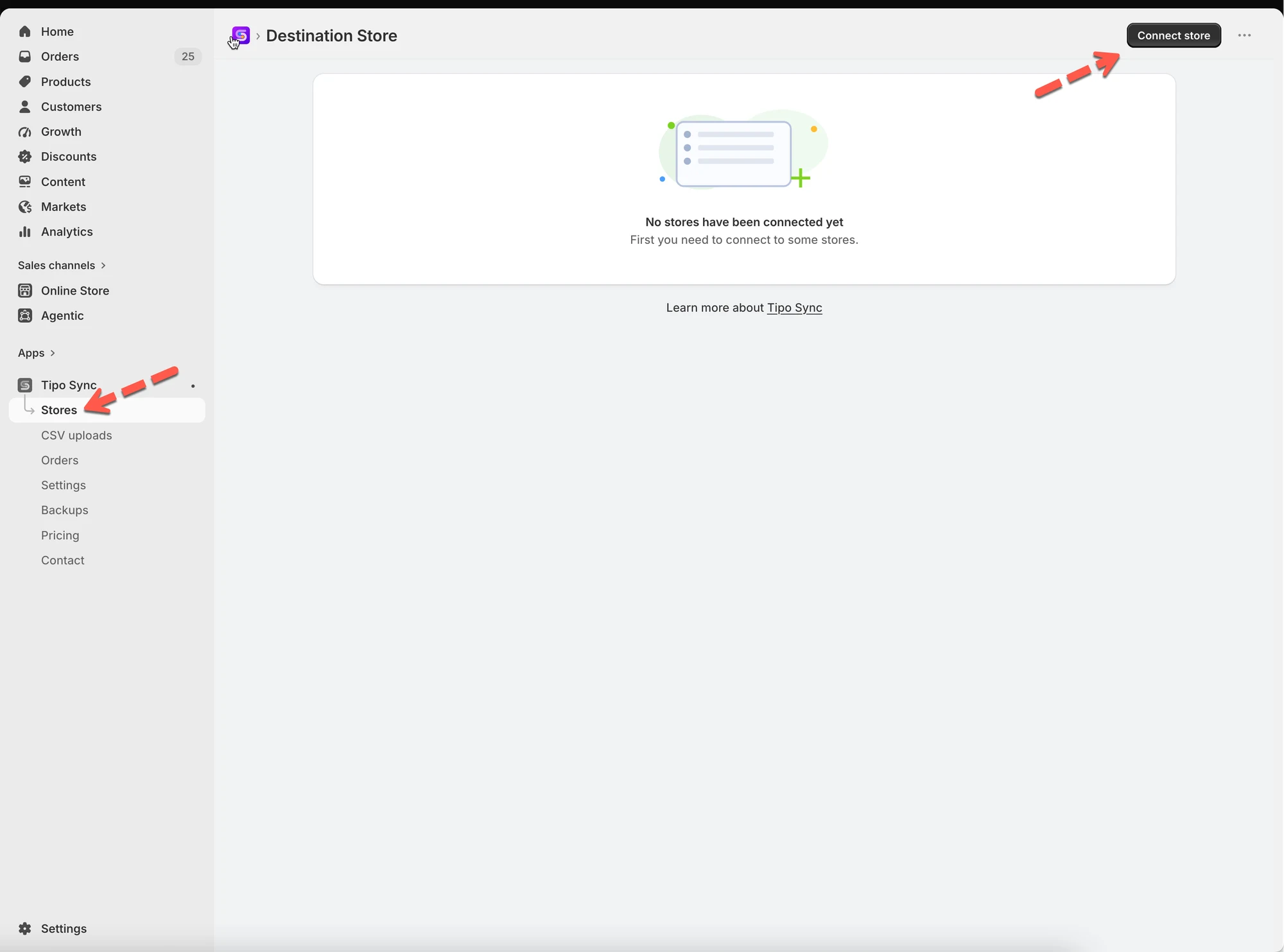
1. 前往 **Destination** store > 打开应用
2. 点击 **Stores** > 点击 **Connect** **Store** 按钮
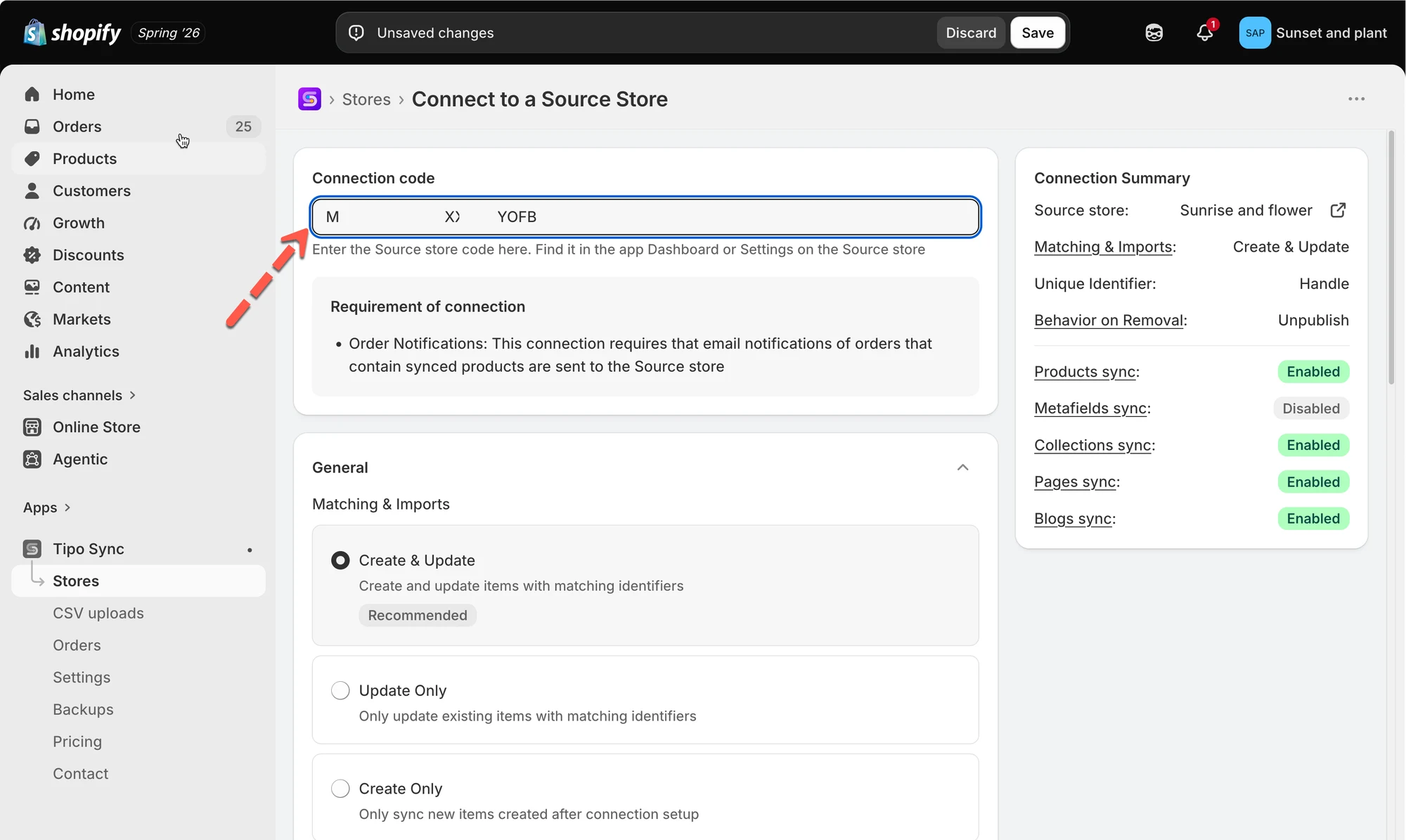
3. 将来自 Source store 的连接码粘贴到 **Connection code** 字段中
 4. 配置同步设置详情
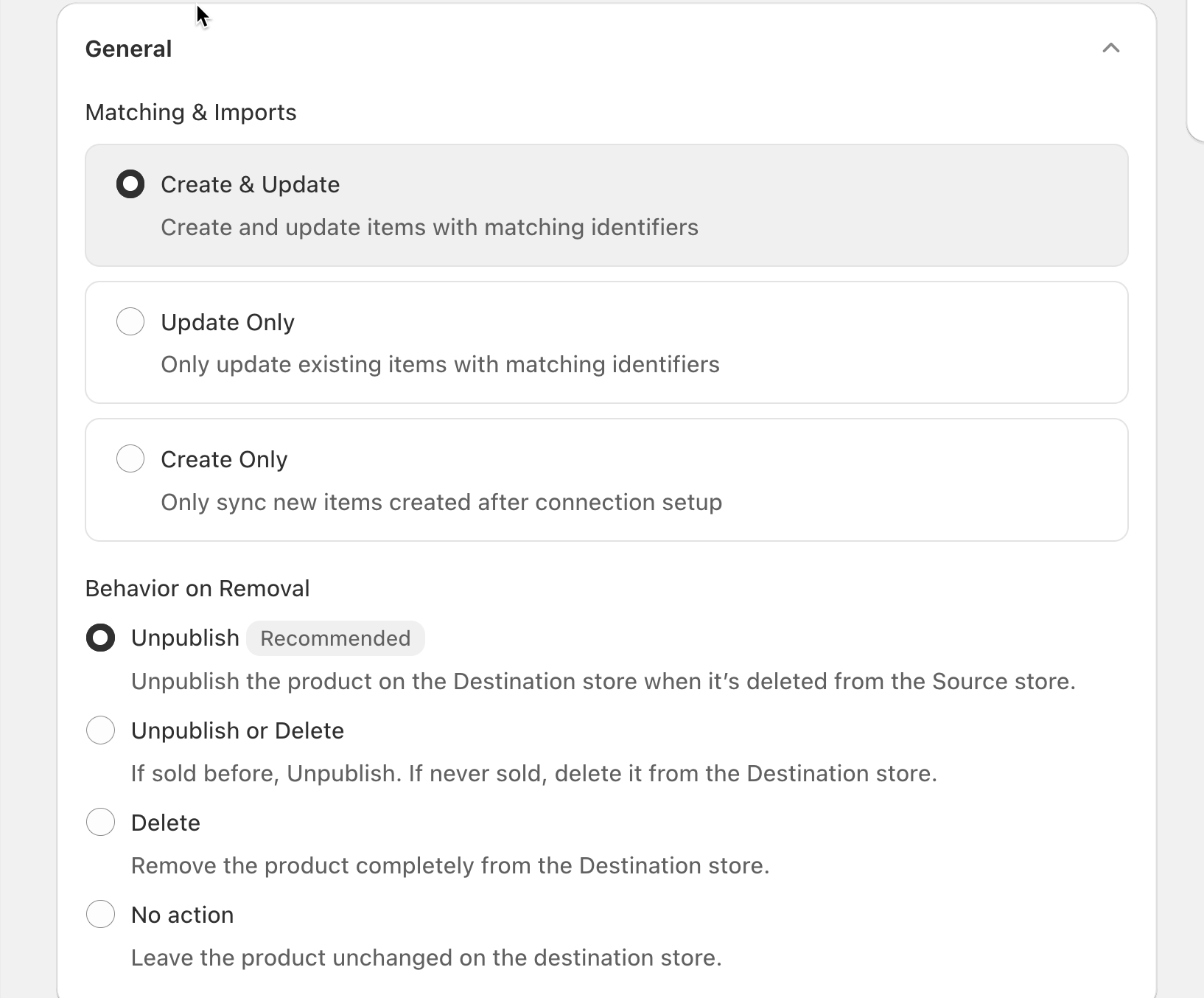
连接商店后,请选择同步的工作方式。
* **Matching & Imports**
> 如果您希望 Destination store 自动创建缺失的商品并保持现有商品为最新,请选择 **Create & Update**。
>
> 如果商品已同时存在于两个商店中,并且您只想同步更新,请选择 **Update Only**。
* **Behavior on Removal**
> 示例:\
> 如果某件商品从 Source store 中被删除,选择 **Unpublish** 会在 Destination store 中隐藏该商品,而不会永久删除它。
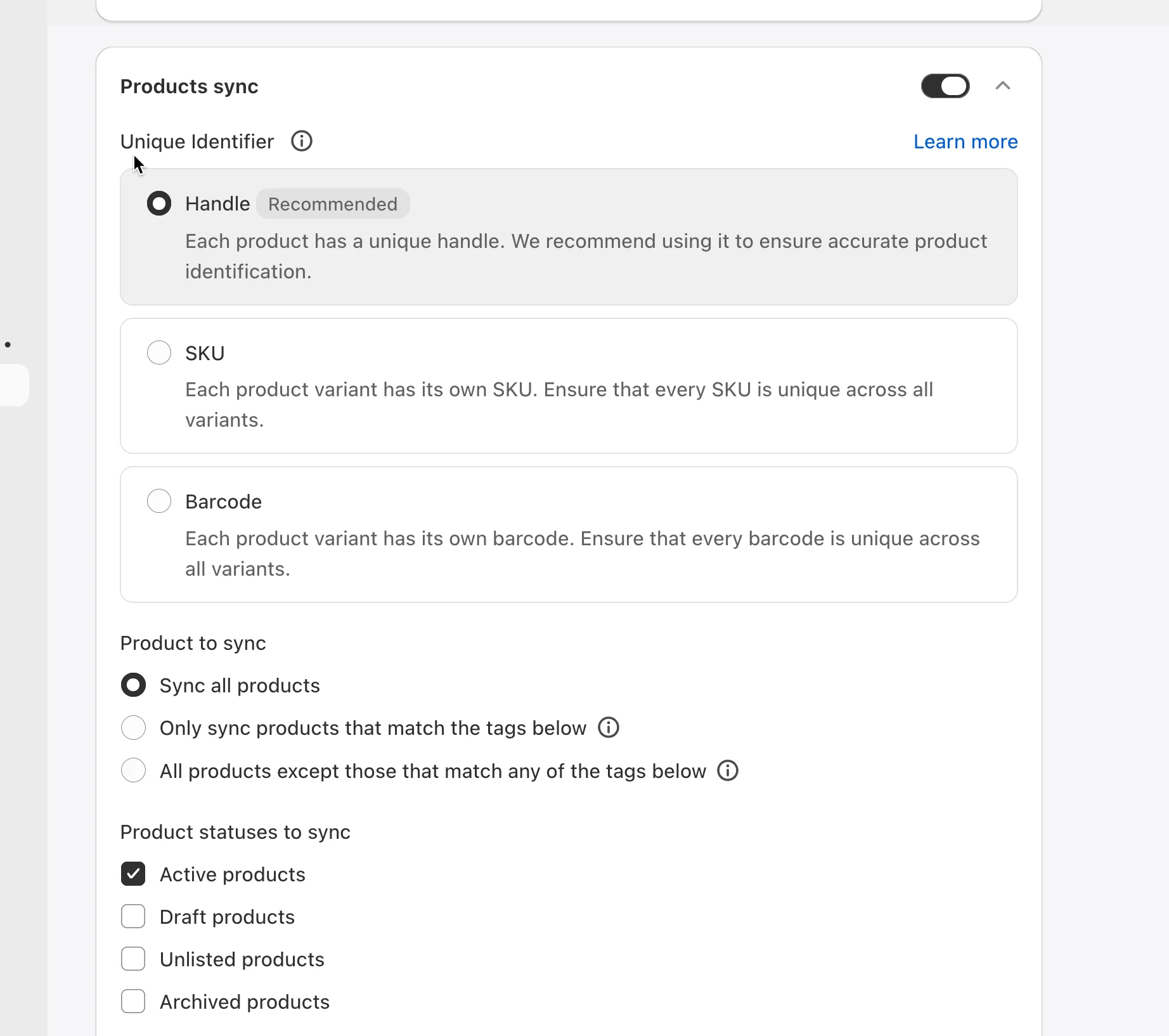
 5. 启用商品同步选项
* 开启 **Products sync** 选项
* 选择 **Unique Identifier t**o 以在商店之间匹配商品
> 示例:\
> 如果两个商店已有相同的商品 handle,请选择 **Handle** 以获得最准确的匹配。\
> 如果您的商品在所有变体中都使用唯一的 SKU,请选择 **SKU**。
* 选择要同步的商品
> 示例:\
> 如果您只想同步带有 `wholesale` 标签的商品,请选择 **Only sync products that match the tags below**。
* 选择要同步的 **Product Statuses**
 5. 选择您要在商店之间映射的 **Locations**(必填)
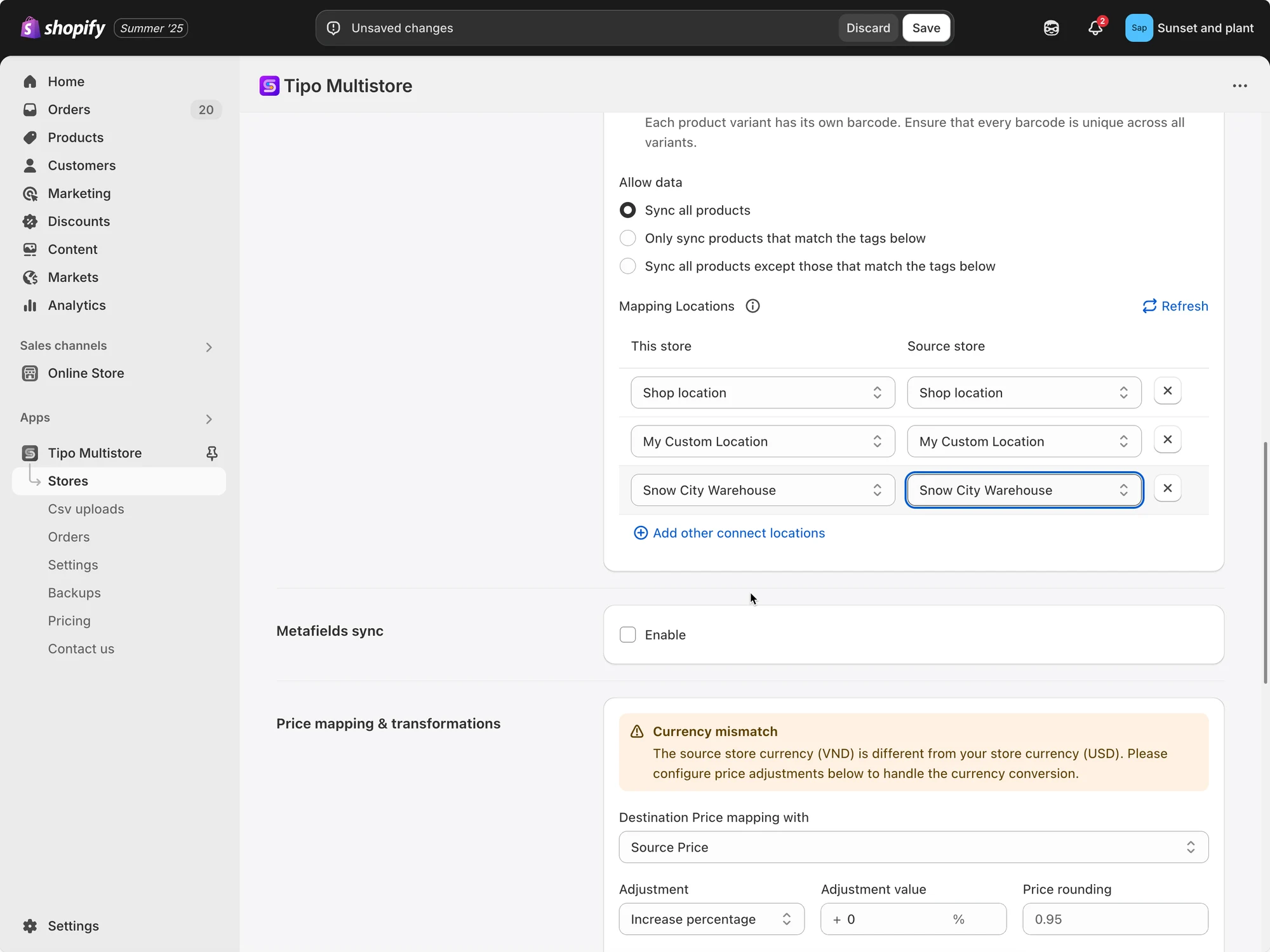 6. 点击 **Save.**
同步将立即运行。首次同步可能需要一些时间,具体取决于您同步的商品数量。
***
### 🔄 同步之后
连接完成后,Tipo Sync 可以:
* 将商品从 Source 导入/同步到 Destination(根据您的选择)
* 同步库存(如果您已映射地点并启用了库存同步)
* 根据您的连接设置持续保持更新
例如:
在 Source store 中创建商品 New Shirt 后,应用会自动在 Destination store 中创建商品 New Shirt(商品 handle 相同)。
***
### ▶️ 教程视频
***
**🙋 还需要支持吗?**
如果您仍需要帮助,请随时通过 联系我们。我们很乐意为您提供进一步协助。