# 同步元字段
本指南介绍如何在 Tipo 应用中将元字段从 Source store 同步到 Destination store。
### ℹ️ 什么是元字段?
* **商品元字段**
* **变体元字段**(如已启用)
Tipo 应用可以同步以下元字段:
* 材质、尺码表、规格参数
* 自定义徽章(例如“best\_seller”)
* 主题/应用使用的额外商品详情
元字段是 Shopify 中用于存储额外商品数据的自定义字段,例如:
***
### ✅ **支持的元字段类型**
* 多行文本
* 富文本
* 整数
* 小数
* 日期和时间
* 日期
* 尺寸
* 体积
* 重量
* 真或假
* 评分
* URL
* 金额
* 链接
* JSON
🚫 **暂不支持:**\
目前不支持引用类型(例如商品引用、集合引用)。
***
### 🛠️ 第 1 步:在 Source store 上配置元字段
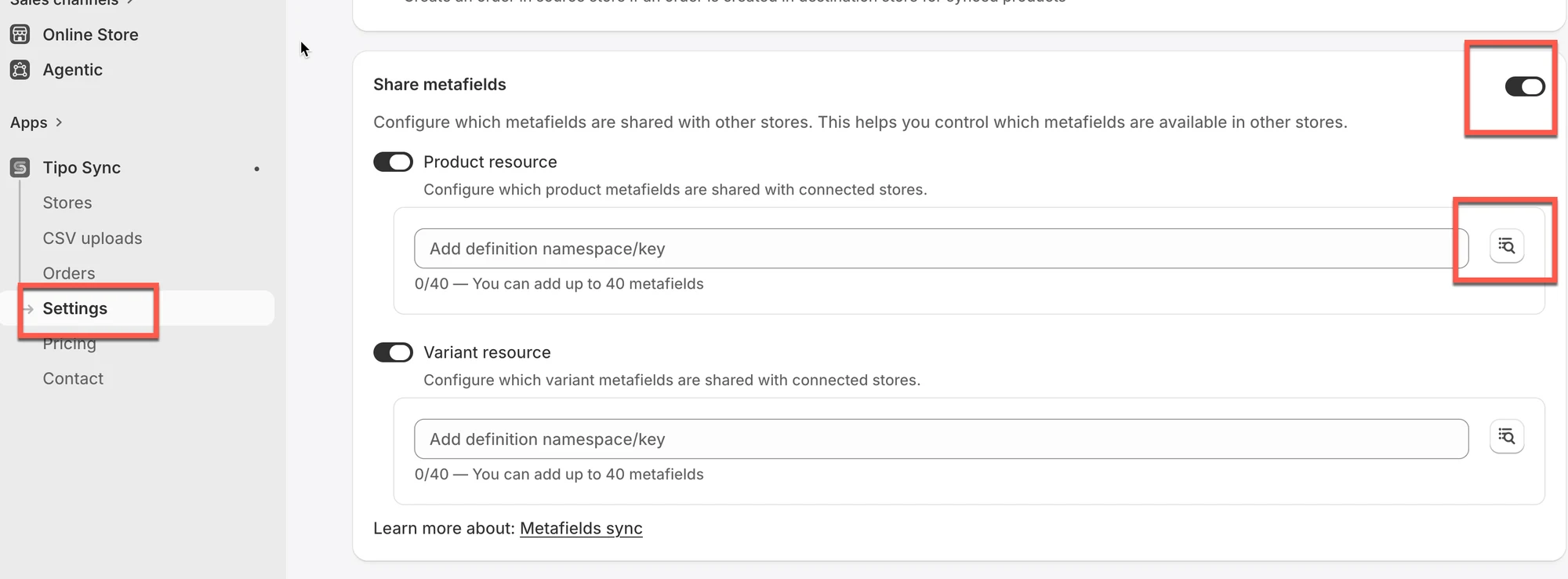
1. 打开应用 > 点击 **Settings** > 开启 **Share Metafields**
2. 选择要共享的资源:
* **Product resource** – 共享商品元字段。
* **Variant resource** – 共享变体元字段。
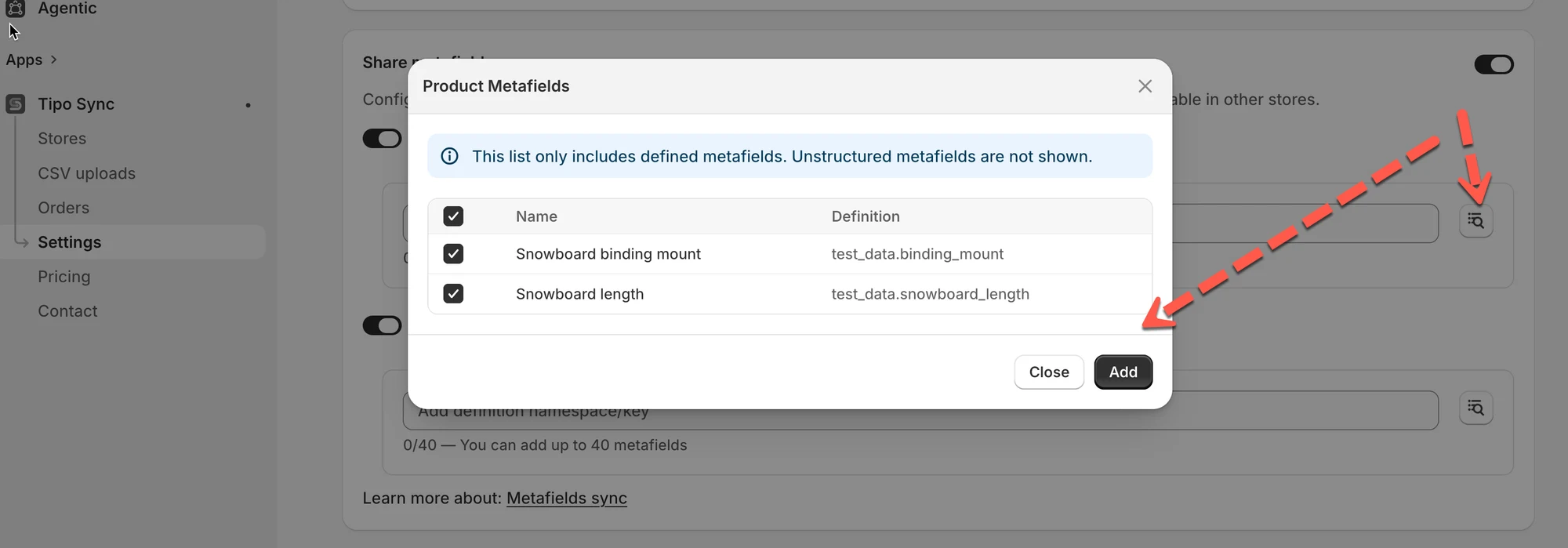
3. 添加特定的元字段定义,以限制共享哪些元字段。
* 点击 **Browse metafields** 图标,或
* 按以下格式输入元字段定义:
```
namespace.key
```
例如:
```
custom.materialseo.titlespecifications.weight
```
4. Click **Save** to update the changes
 ***
### 🛠️ 第 2 步:在 Destination store 上配置元字段
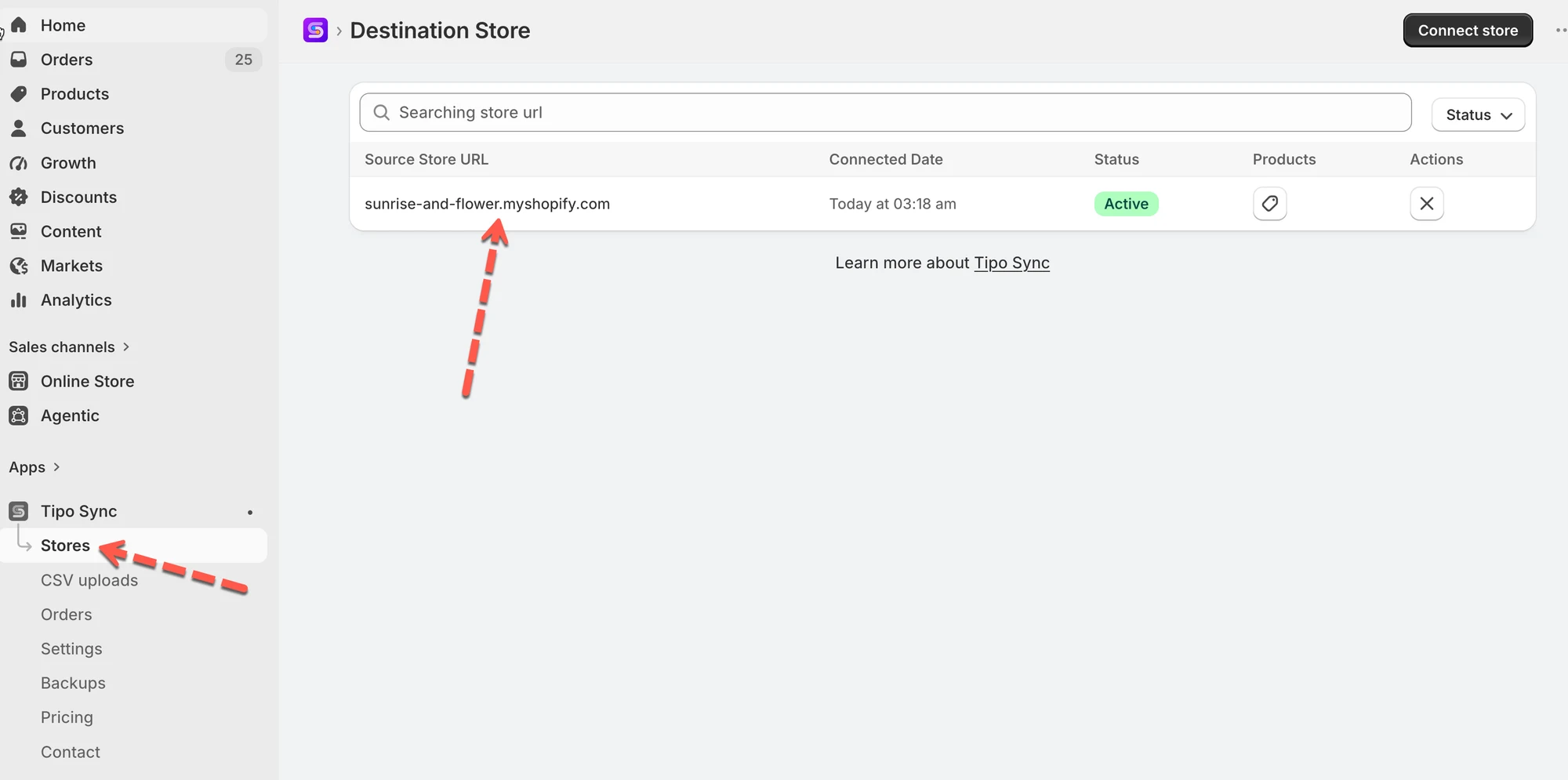
1. 打开应用 > 点击 **Stores** > 点击 Source store 的网址,打开连接详情
 2. 开启 **Metafields sync**
3. 选择要同步的内容
在 **Allow data** 下,选择其中一项或两项:
* **Product Resource** → 同步商品元字段
* **Variant Resource** → 同步变体元字段
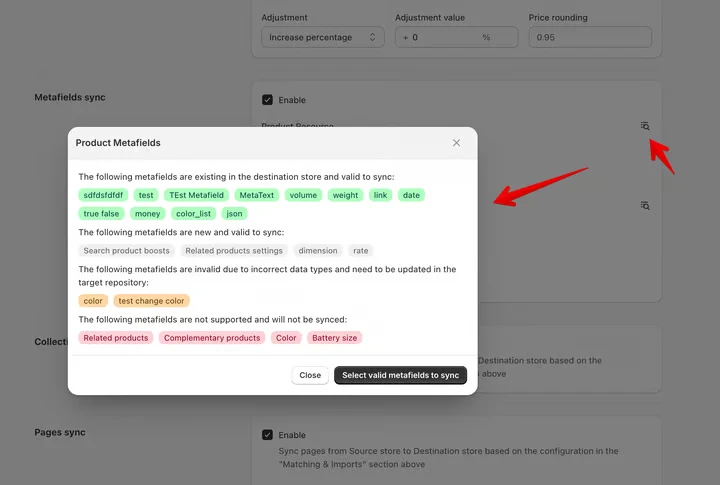
4. 点击右侧的搜索图标,查看所有受支持的元字段 > 点击 **Select valid metafield to sync** 按钮
5. 点击 **Save** 以更新更改
***
### 🔄 同步过程中会发生什么
#### **1) 如果 Destination store 没有该元字段定义**
应用会在需要时自动在 Destination store 中创建该元字段定义。
创建完成后,同步的元字段值将显示在 Destination store 的商品/变体上。
#### **2) 如果元字段存在但未“结构化”(非结构化元字段)**
在某些情况下,即使元字段尚未在 Destination store 中完整定义/结构化,也可能会被同步。
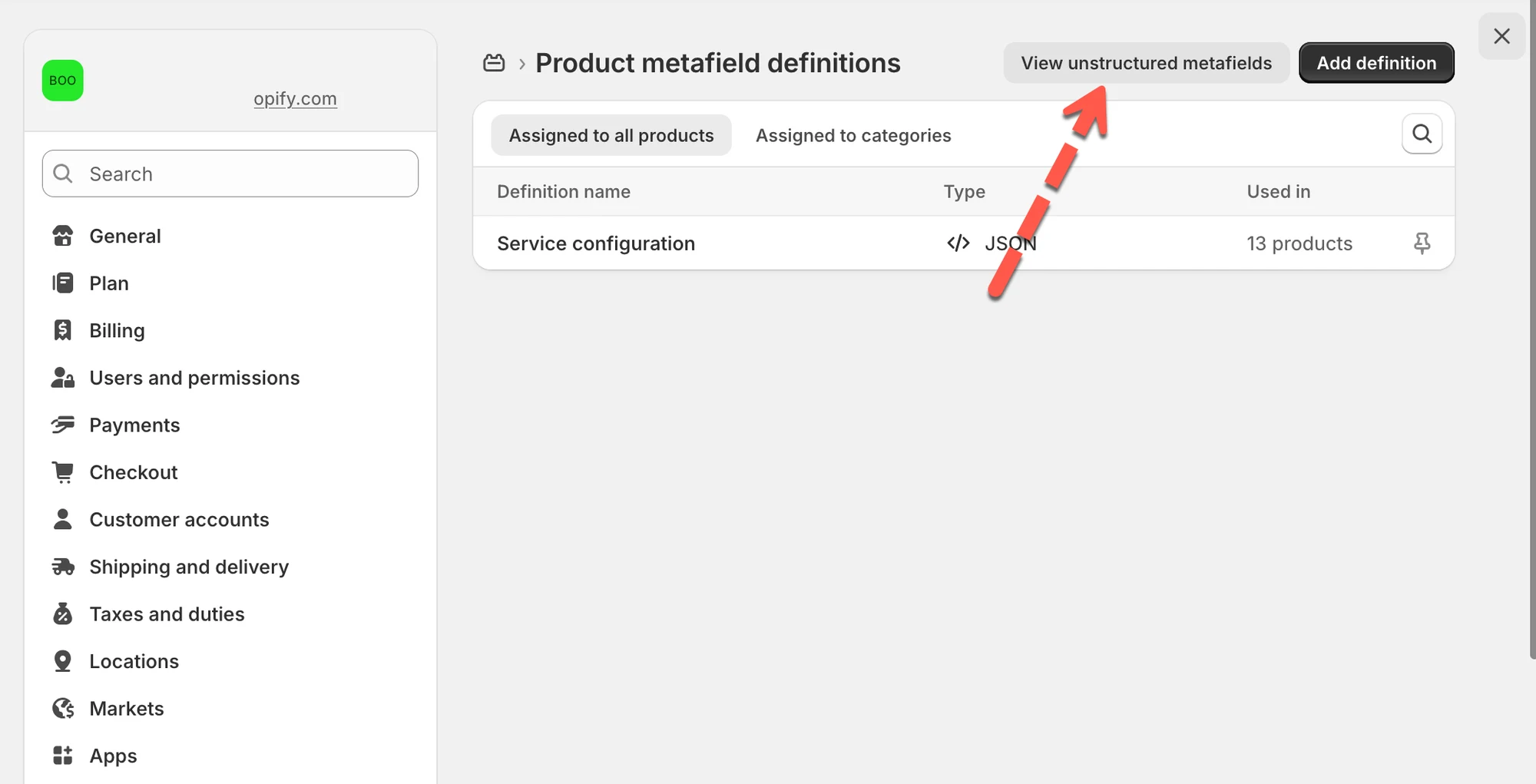
要在 Shopify Admin 中查看这些元字段:
* **打开**商店 **Settings → Metafields and metaobjects**
* 选择 **Product**(或 **Variant**)
* 打开 **View unstructured metafields**
💡 提示:您之后可以手动定义/结构化这些元字段,以保持商店数据整洁一致。
 #### **3) 如果 Source store 没有值,则不会覆盖 Destination**
如果 Destination 中存在某个元字段,但 Source 中的值为空,Tipo Sync 不会覆盖 Destination 中的值。
#### **4) 数据类型必须一致(非常重要)**
Source 和 Destination 之间的元字段数据类型必须完全一致。
数据类型不一致的示例:
* `single_line_text_field` 与 `multi_line_text_field`
* `number_integer` 与 `number_decimal`
* `product_reference` 与 `text`
⚠️ 如果数据类型不一致,同步可能会失败,或跳过该元字段。
***
### 📌 示例:同步商品元字段——“Material”
您想使用我们的应用,将名为 **Material** 的**自定义商品元字段**(例如“Cotton”“Leather”“Wool”)从 **Source Store** 同步到 **Destination Store**。
#### **第 1 步:在 Shopify 中定义元字段**
在您的 **Source Store** 中:
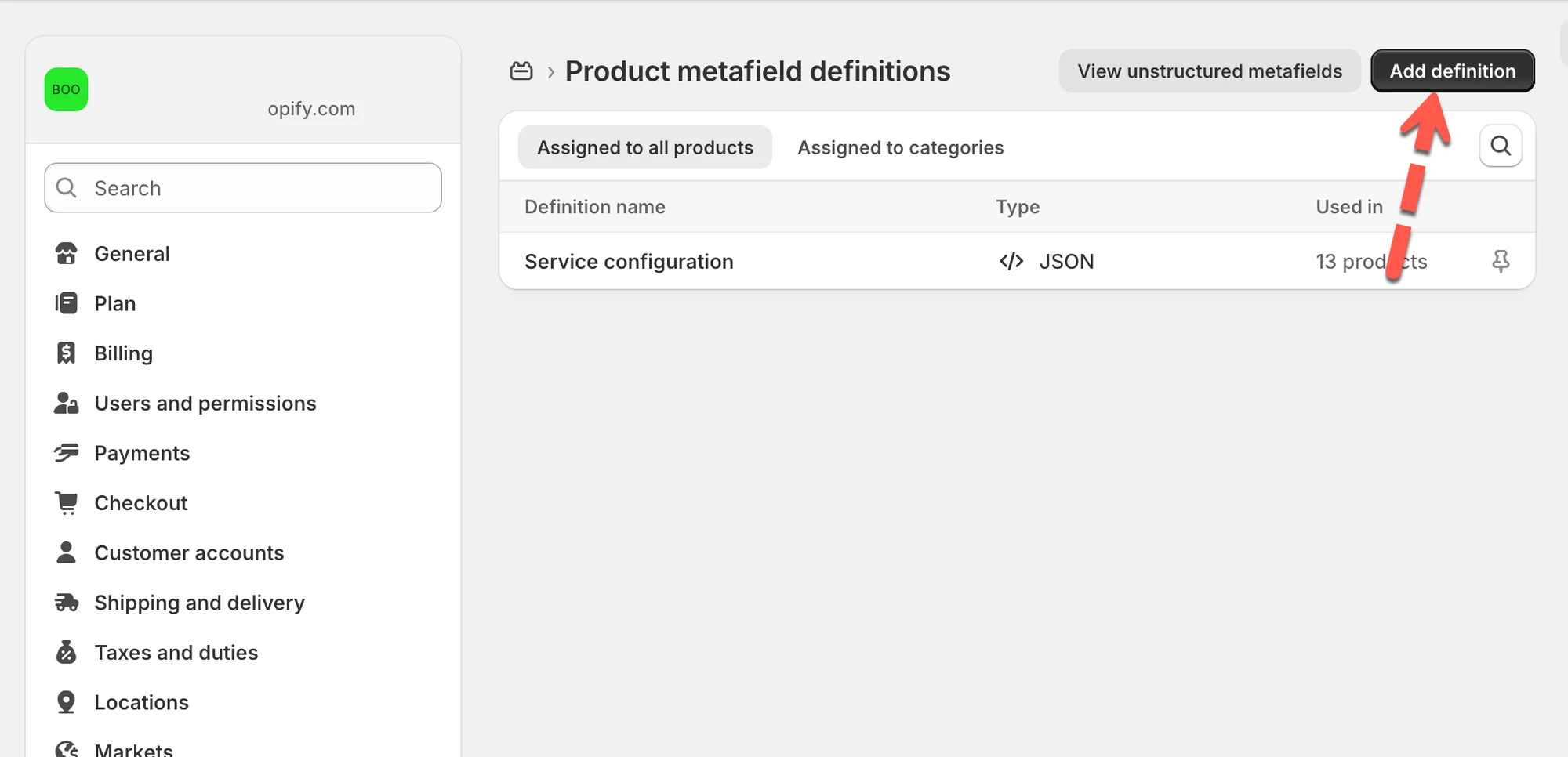
1. 前往 **Shopify Admin >** 打开商店 **Settings > Metafields and metaobjects** > 选择 **Product**(或 **Variant**)
2. 点击 **Add definition**(如果尚未创建)> 填写元字段定义:
* **Name**:Material
* **Namespace**:`custom`
* **Key**:`material`
* **Type**:Single line text
\=> 这样您就得到了完整的元字段键:`custom.material`
请在您的 **Destination Store** 中重复此步骤(键和类型必须一致)。
 #### **第 2 步:为商品添加元字段数据**
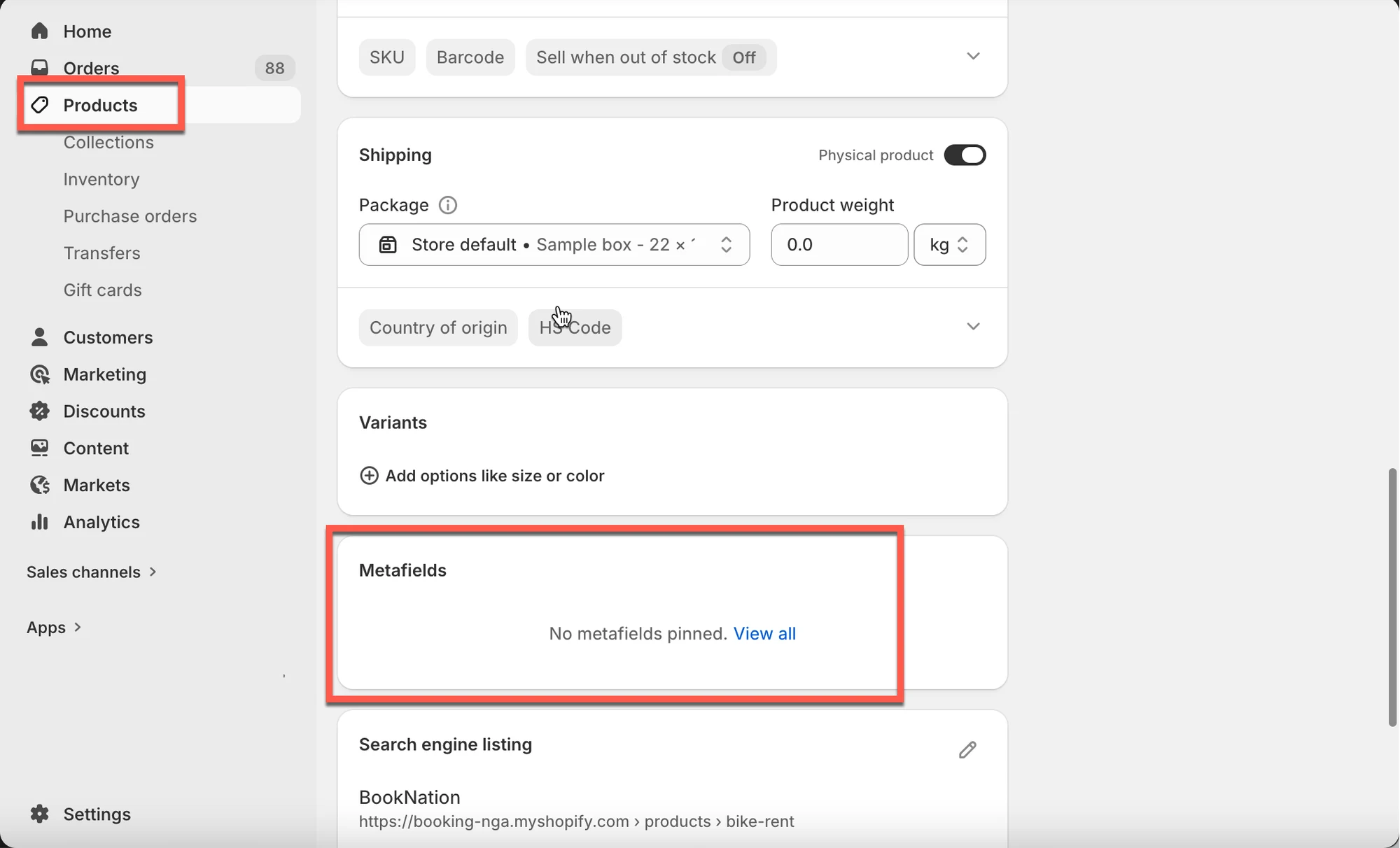
在您的 **Source Store** 中,打开一件商品并向下滚动到 **Metafields** > 在 **Material** 下输入:`Cotton`
现在这件商品拥有元字段 `custom.material = "Cotton"`。
 #### **第 3 步:在 Tipo 应用中配置同步**
* 在 **Destination Store** 中打开我们的应用 > 前往 Connect Configuration **> Metafield Sync**
* 选择 **Specific Metafields >** 准确输入元字段键:`custom.material`
**结果**
* 我们的应用会在 Source Store 中找到 `custom.material`
* 如果 Destination 商品上**不存在**该元字段,应用会**创建它**\
\=> 结果:两个商店中都有 `custom.material = "Cotton"`
* 如果 Destination 中已存在该元字段但 Source 中的值为空,我们**不会覆盖**该值
***
### ❓常见问题
#### 问题 1:如何在您的商店中设置 `namespace.key`?
要同步特定的元字段,您需要按以下格式输入**元字段定义键**:`namespace.key`(例如:`custom.color`)。
在 Shopify 后台中查找方法如下:
1. 前往 Shopify Admin >导航至 **Settings > Custom Data > Products**
2. 点击您想同步的元字段\
→ 您会看到 **Namespace** 和 **Key** 的值
3. 按以下格式将两者组合:`namespace.key`\
→ 示例:`custom.description`
#### 问题 2:为什么我的元字段没有同步?
如果您的元字段未能正确同步,可能是由以下原因之一造成的:
1. **未启用元字段同步**\
请确保两个商店都已开启元字段同步:
* 在 **Source Store** 中启用 **Share Metafields**。
* 在 **Destination Store** 中启用 **Receive Metafields**。
2. **未添加元字段定义键**
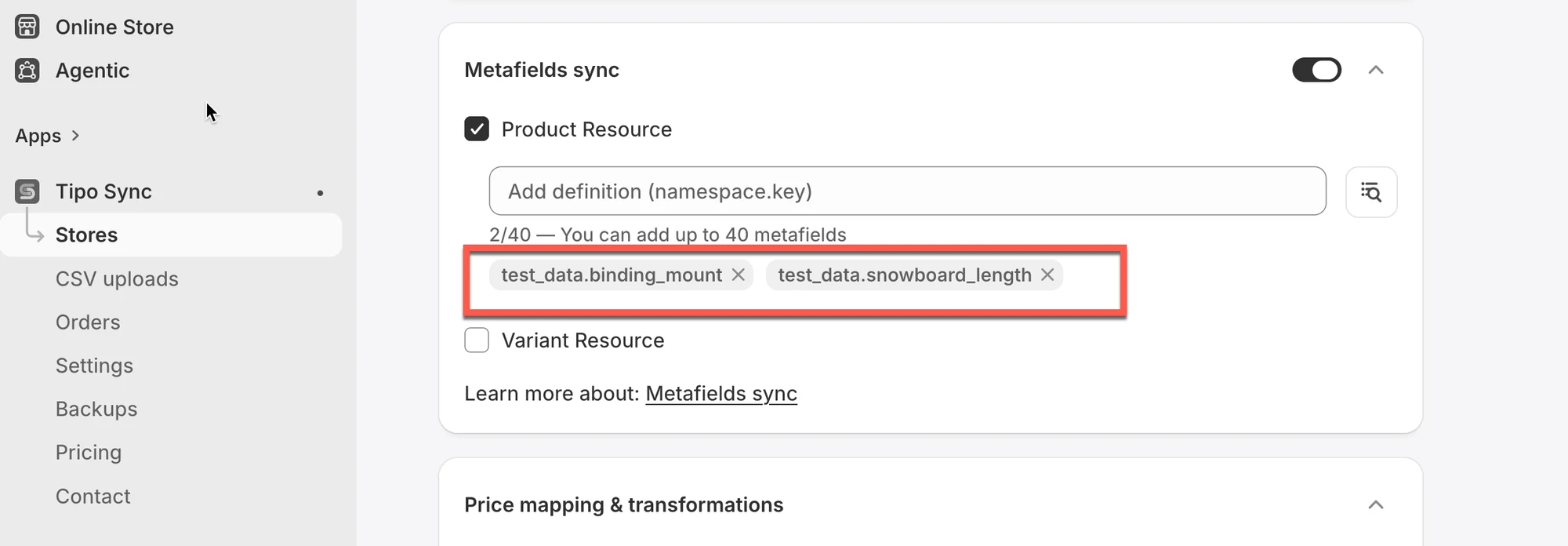
除了启用元字段同步外,您还必须添加想要同步的**元字段定义键(namespace.key)**。
* 前往 **Settings → Share Metafields**
* 确保已勾选 **Enable**
* 在 **Allow data** 下,按以下格式添加元字段定义:\
`namespace.key`\
示例:`custom.material`
 3. **不支持的元字段类型**\
部分元字段数据类型不受支持,例如 **Reference types** 或 **MetaObjects**。
红色:应用无法同步的不支持元字段
 4. **两个商店之间的元字段类型不一致**\
Source 和 Destination 中的元字段必须具有**相同的数据类型和结构**。\
常见的不一致情况包括:
* 一个元字段是 **Single line text**,而另一个是 **Multi-line text**。
* 一个元字段使用 **Single value**,而另一个使用 **List of values**。
要解决这些问题,请确认两个商店中的元字段具有相同的 **namespace**、**key** 和**数据类型**,然后重新尝试同步。
***
**🙋 还需要支持吗?**
如果您仍需要帮助,请随时通过 联系我们。我们很乐意为您提供进一步协助。