# 通过 CSV 文件导入
使用 CSV 导入,您可以通过电子表格文件在 Shopify 商店中快速创建或更新商品(及库存)。
## ✅ 开始之前(要求)
#### 📌 准备您的 CSV 文件
请确保您的 CSV 包含:
* 第一行为**列标题**(例如:`Handle`、`Title`、`Vendor`)
* 可用于匹配记录的**唯一键**(推荐:**Handle**)
* 格式正确(CSV 文件)
#### 🔑 推荐的主键
* **Product Handle**(适用于大多数导入)
* 根据您的数据,您可能还会看到其他键(例如:Product ID、Variant SKU)
***
## 🛠️ 上传文件的步骤
### 在 Tipo 应用中打开 CSV Uploads
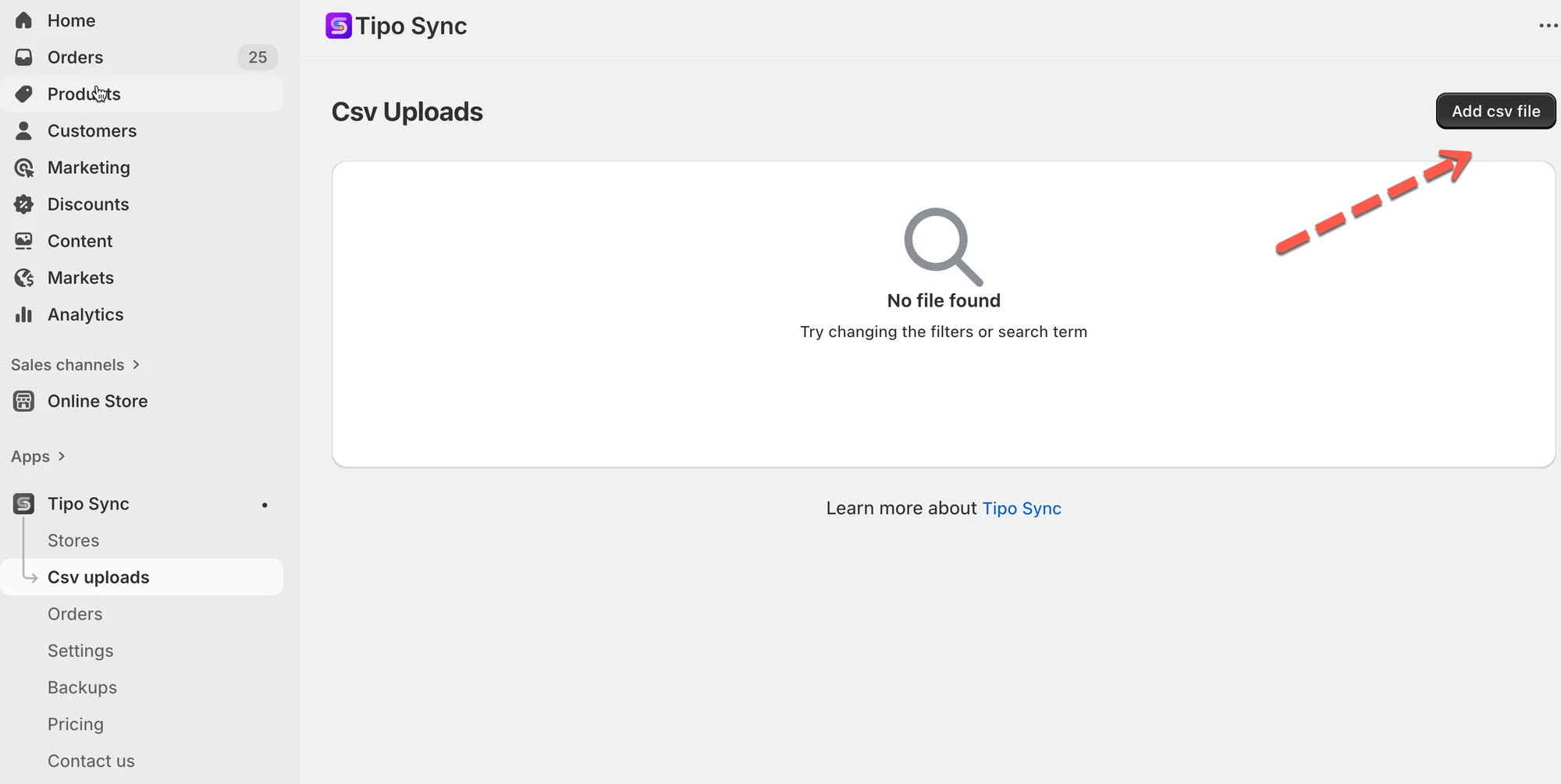 1. 在 Shopify Admin 中,打开 **Apps → Tipo Sync**
2. 点击 **CSV uploads**
3. 点击 **Add csv file**
您将进入导入向导(**进度 1/3**)。
***
### 📤 第 1/3 步 — 上传 CSV
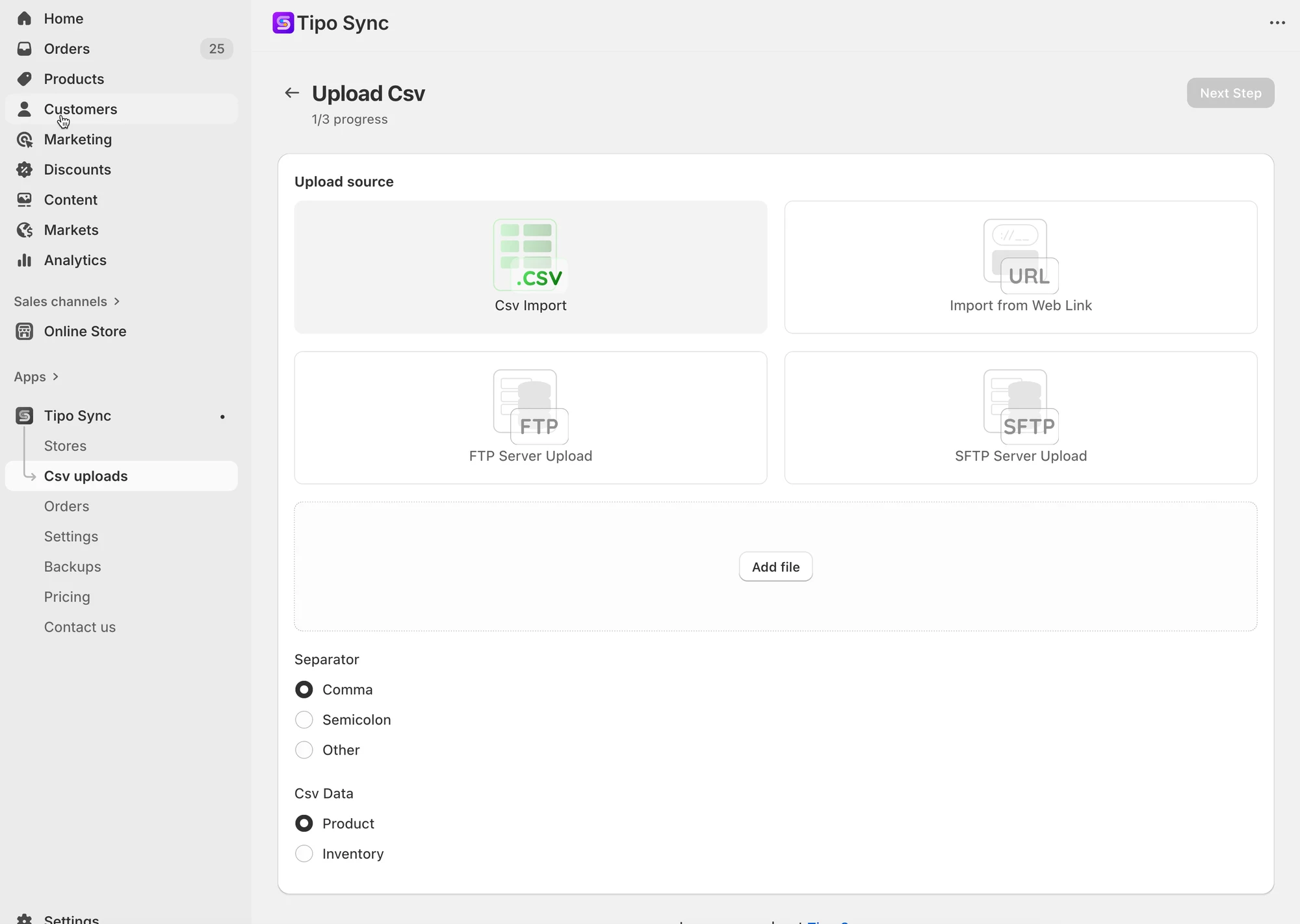 #### **选择上传来源**
您可以通过以下方式上传 CSV:
* **CSV Import**(从您的计算机上传文件)
* Import from Web Link (URL)
* FTP Server Upload
* SFTP Server Upload
#### **选择 CSV 选项**
**分隔符**
* 逗号(最常见)
* 分号
* 其他
**CSV 数据**
* **Product**(用于商品字段,如标题、描述、供应商……)
* **Inventory**(用于库存数量)
然后点击 **Next Step**。
This screenshot is unavailable in the original documentation.
***
### 🧩 第 2/3 步 — 映射字段
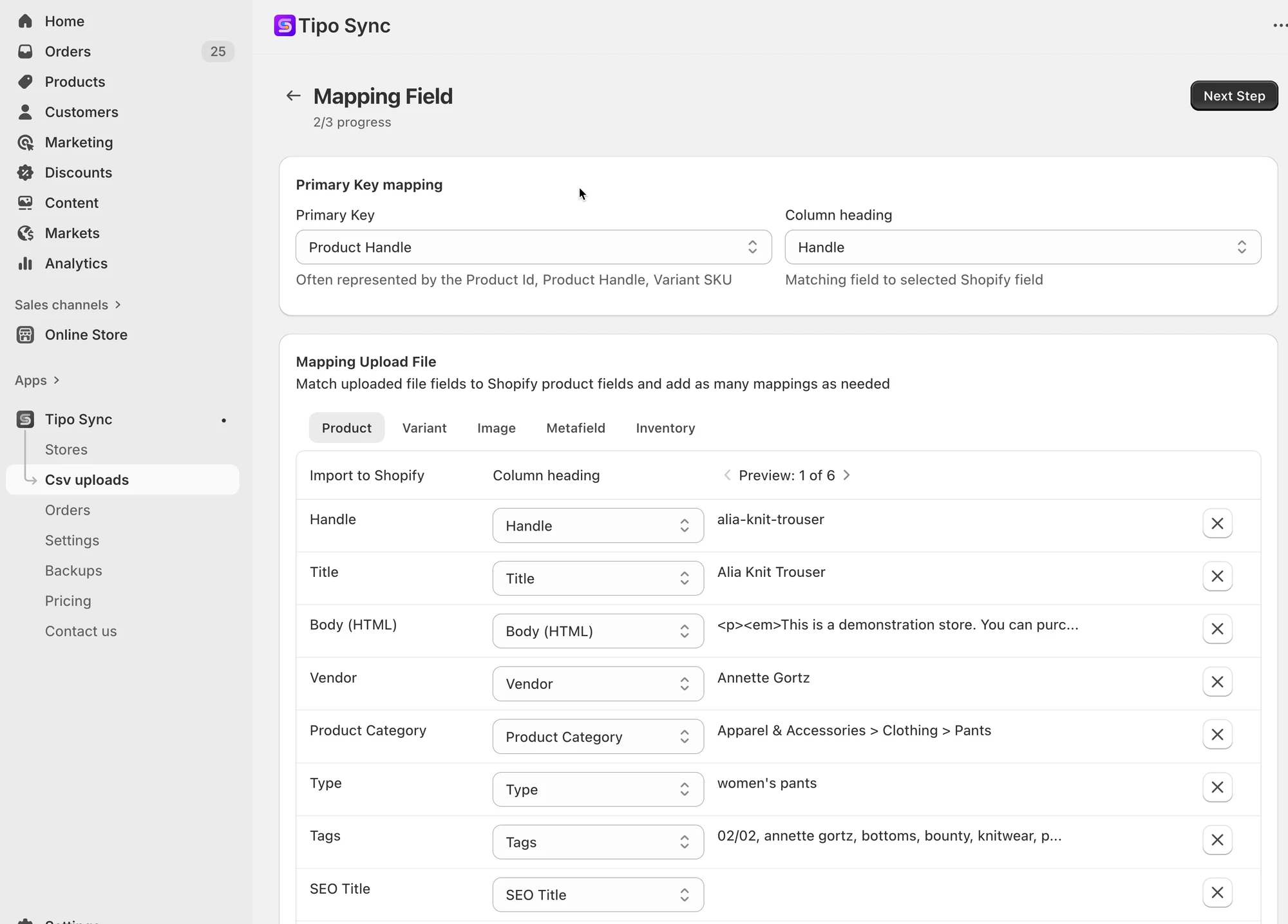 **A) 主键映射**
这会告诉应用如何将 CSV 中的行与 Shopify 中的商品进行匹配。
* **Primary Key**:选择您的 Shopify 商店用于匹配的依据\
示例:**Product Handle**
* **Column heading**:选择 CSV 中的列\
示例:**Handle**
> 如果您的主键不匹配,应用可能会创建重复商品,或无法更新正确的商品。
**B) 将 CSV 列映射到 Shopify 字段**
您会看到类似以下的标签页:
* **Product**
* **Variant**
* **Image**
* **Metafield**
* **Inventory**
对于每一行:
* **Import to Shopify** = Shopify 字段(例如:Title)
* **Column heading** = CSV 列(例如:Title)
您可以点击 **➕ Add mapping** 导入更多字段。
然后点击 **Next Step**。
***
### ⚙️ 第 3/3 步 — 导入设置
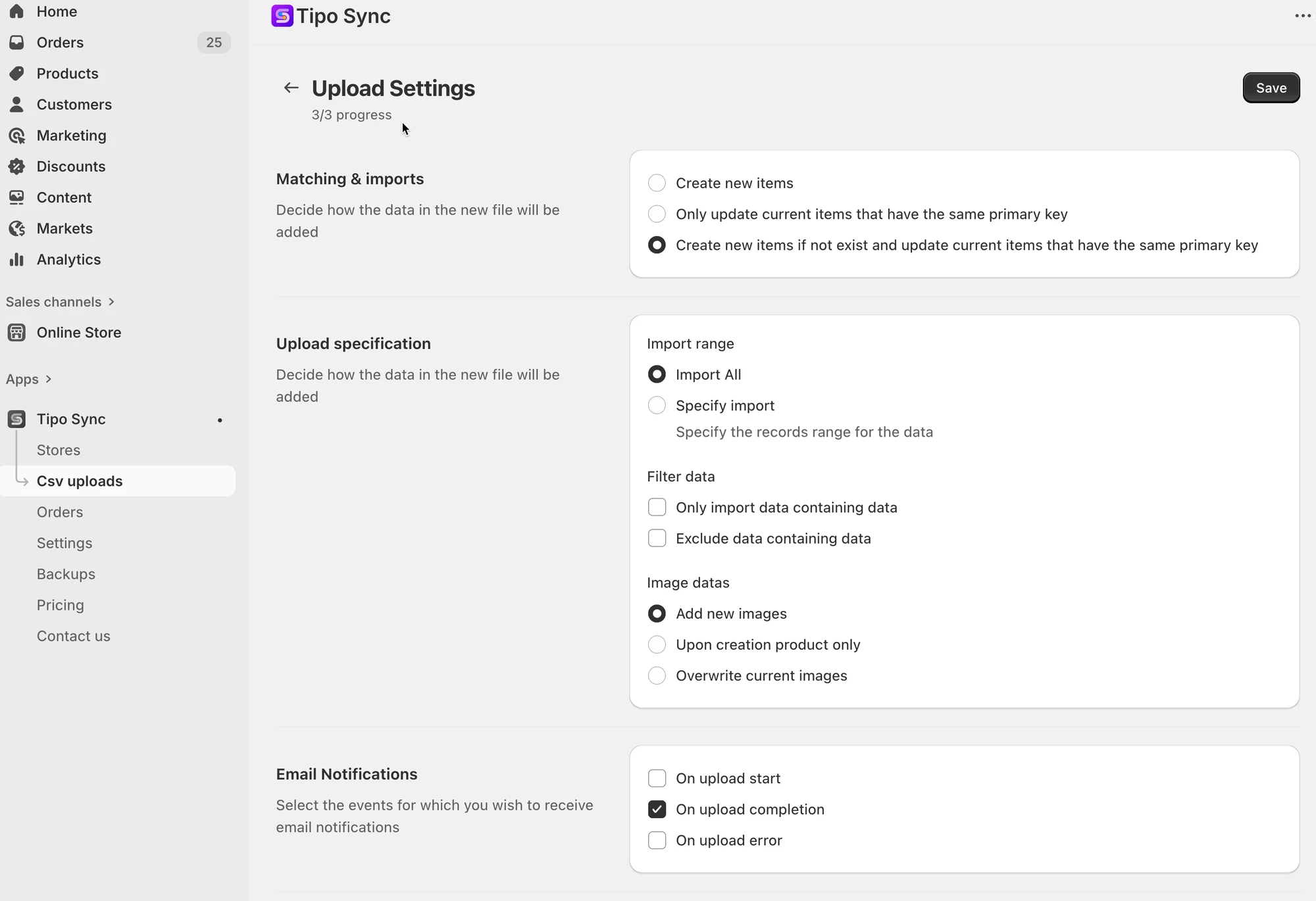 #### **步骤 3.1. 匹配与导入(如何更新 Shopify)**
请选择其一:
✅ **Create new items**
* 仅创建新商品(不更新现有商品)
✅ **Only update current items that have the same primary key**
* 仅更新现有商品
* 不会创建新商品
✅ **Create new items if not exist and update current items that have the same primary key** *(常用选择)*
* 创建缺失的商品
* 更新匹配的现有商品(按 Handle/SKU 等)
***
#### **步骤 3.2. 上传规格(导入多少)**
* **Import All**:导入文件中的所有内容
* **Specify import**:仅导入所选范围的行(适合测试)
***
#### **步骤 3.3. 筛选数据(可选)**
* **Only import data containing …**(包含规则)
* **Exclude data containing …**(排除规则)
如果您只想导入特定的行(例如:仅导入包含 `SYNC` 的行),请使用此功能。
***
#### **步骤 3.4. 图片数据(如果您的 CSV 包含图片)**
请选择其一:
* **Add new images**(添加图片,不删除旧图片)
* **Upon creation product only**(仅为新商品添加图片)
* **Overwrite current images**(替换现有图片)
***
#### **步骤 3.5. 电子邮件通知(可选)**
选择您希望何时收到电子邮件:
* 上传开始时
* 上传完成时
* 上传出错时
***
#### **步骤 3.6. 计划上传**
* **Run now**(立即导入)\
(根据您的套餐/设置,可能会显示其他计划选项。)
最后点击右上角的 **Save**。
***
## 🧪 示例:更新现有商品并创建新商品
**CSV 示例**
| Handle | Title | Vendor |
| ------------------- | ------------------- | ---------- |
| ceramic-table-lamp | Ceramic Table Lamp | ModernHome |
| wooden-floor-mirror | Wooden Floor Mirror | ModernHome |
**要选择的设置**
* **Primary Key**:Product Handle
* **Column heading**:Handle
* **Matching & Imports**:Create new items if not exist and update current items that have the same primary key
**结果**
* 如果 `ceramic-table-lamp` 已存在 → 将被更新
* 如果 `wooden-floor-mirror` 不存在 → 将被创建
***
**🙋 还需要支持吗?**
如果您仍需要帮助,请随时通过 联系我们。我们很乐意为您提供进一步协助。