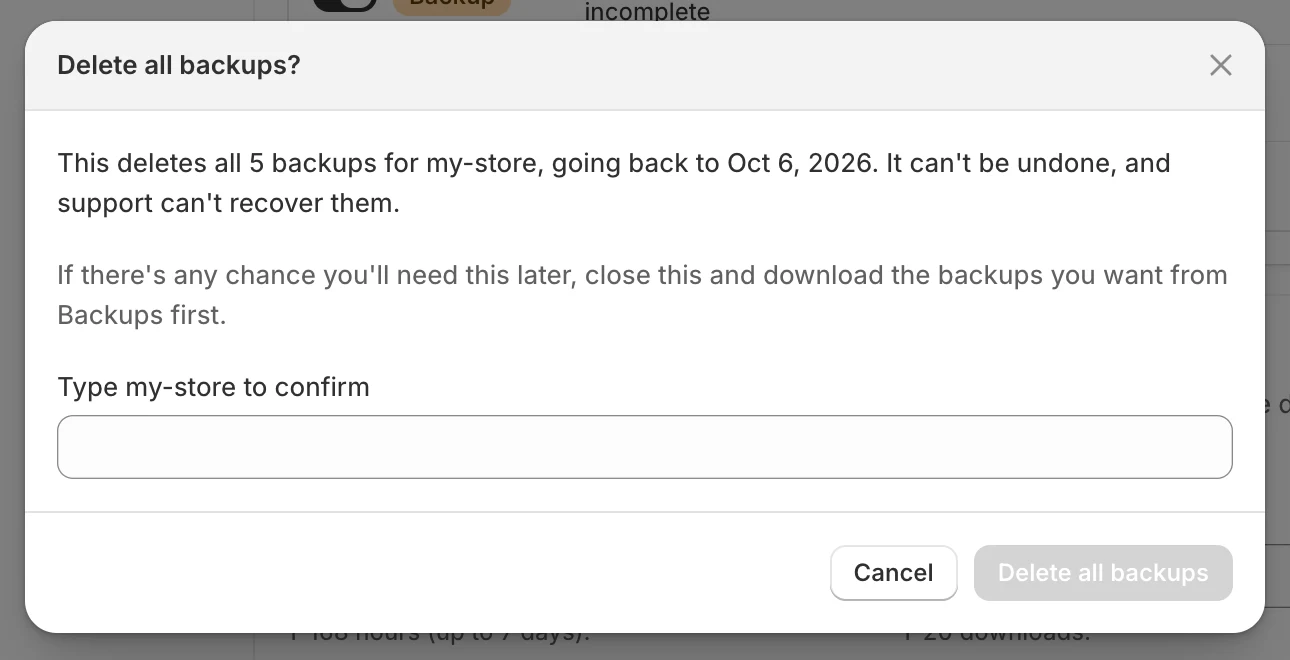
点击红色的 **Delete all backups** 按钮。在您输入的内容与 handle 完全匹配之前,它会保持禁用状态。点击 **Cancel** 可停止操作。
## 接下来会发生什么
您会看到 **Deletion started**。删除会在后台运行。此操作不使用保存栏。
## 如果被阻止
窗口会保持打开,并显示原因。
| 提示信息 | 处理方式 |
| --- | --- |
| **A backup is in progress for this store. Wait for it to finish, then try again.** | 等待备份结束。 |
| **A restore is in progress for this store. Wait for it to finish, then try again.** | 等待恢复结束。 |
| **A download is being prepared for this store. Wait for it to finish, then try again.** | 等待导出完成。 |
| **The store handle you typed does not match this store.** | 检查 handle 并重新输入。 |
| **Couldn't delete backups. Please try again.** | 重试。如果持续失败,请发送电子邮件至 。 |
## 须知
* 无法删除单个备份。此按钮会移除所有备份。
* 卸载应用后,备份也会被自动删除。请参阅[卸载与重新安装](/backup-and-restore-tipo/reference/permissions-and-data/uninstall-and-reinstall)。
## 后续步骤
* [下载您的数据](/backup-and-restore-tipo/backups/backups/download)
* [存储与保留](/backup-and-restore-tipo/settings/settings/storage-and-retention)
* [立即备份](/backup-and-restore-tipo/backups/backups/back-up-now)