# Brevo (Sendinblue) integration
Connect Tipo to Brevo (formerly Sendinblue) to add booking customers to your contact list.
### 🔑 Step 1: Get a Brevo API key
* Log in to **Brevo**
* Go to **SMTP & API**
* Generate an **API key**
[Learn more](https://help.brevo.com/hc/en-us/articles/209467485-Create-and-manage-your-API-keys)
***
### 🔌 Step 2: Connect Tipo booking form with Sendinblue
**Steps to manage**
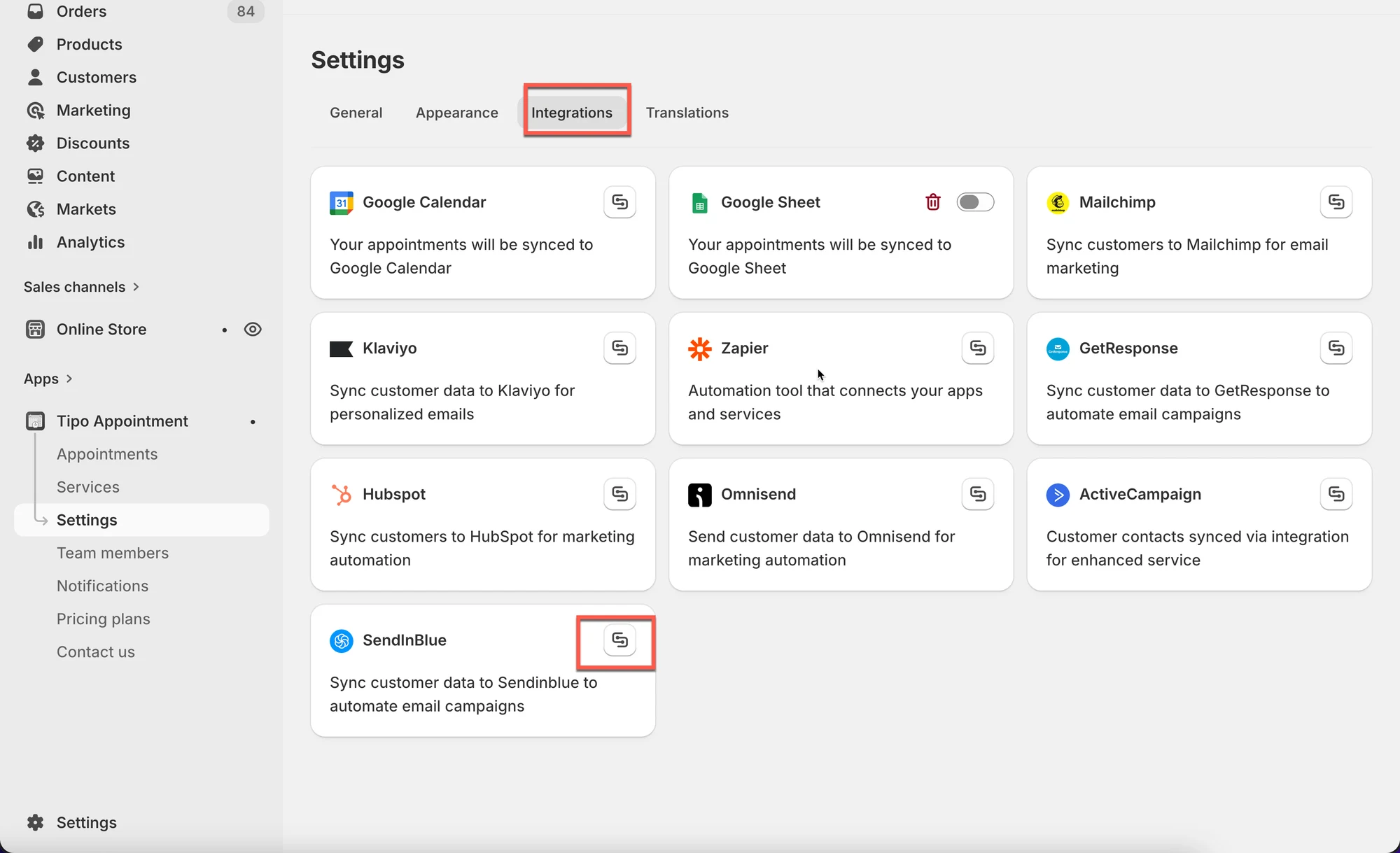
1. Open the app > click **Settings** > **Integrations** > click on **Sendinblue**
2. Click the connect icon
3. Enter the API generated on the step 1 to **API KEY** field
3\. Click **Save**
***
### ✅ How Sendinblue integration works?
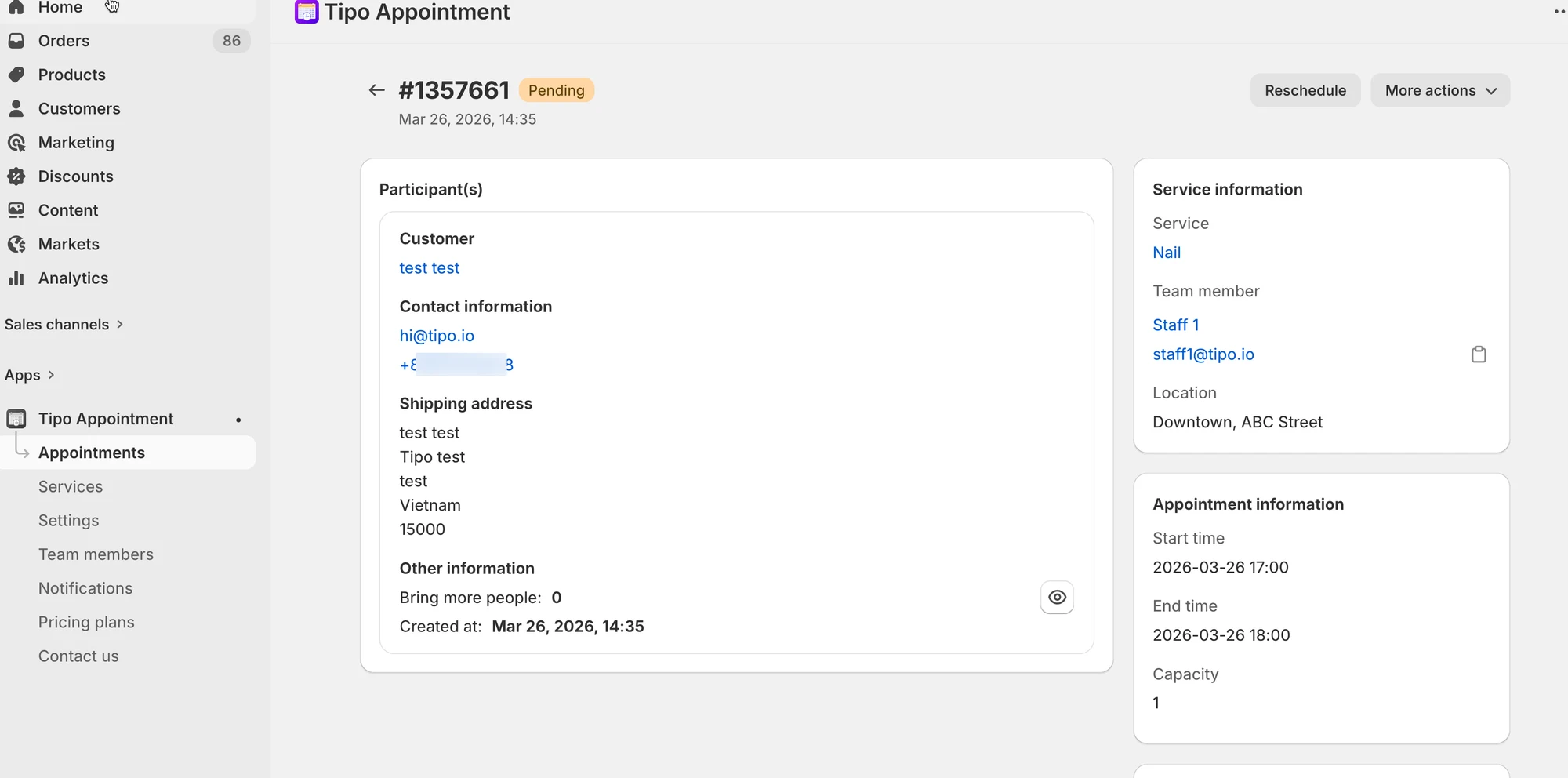
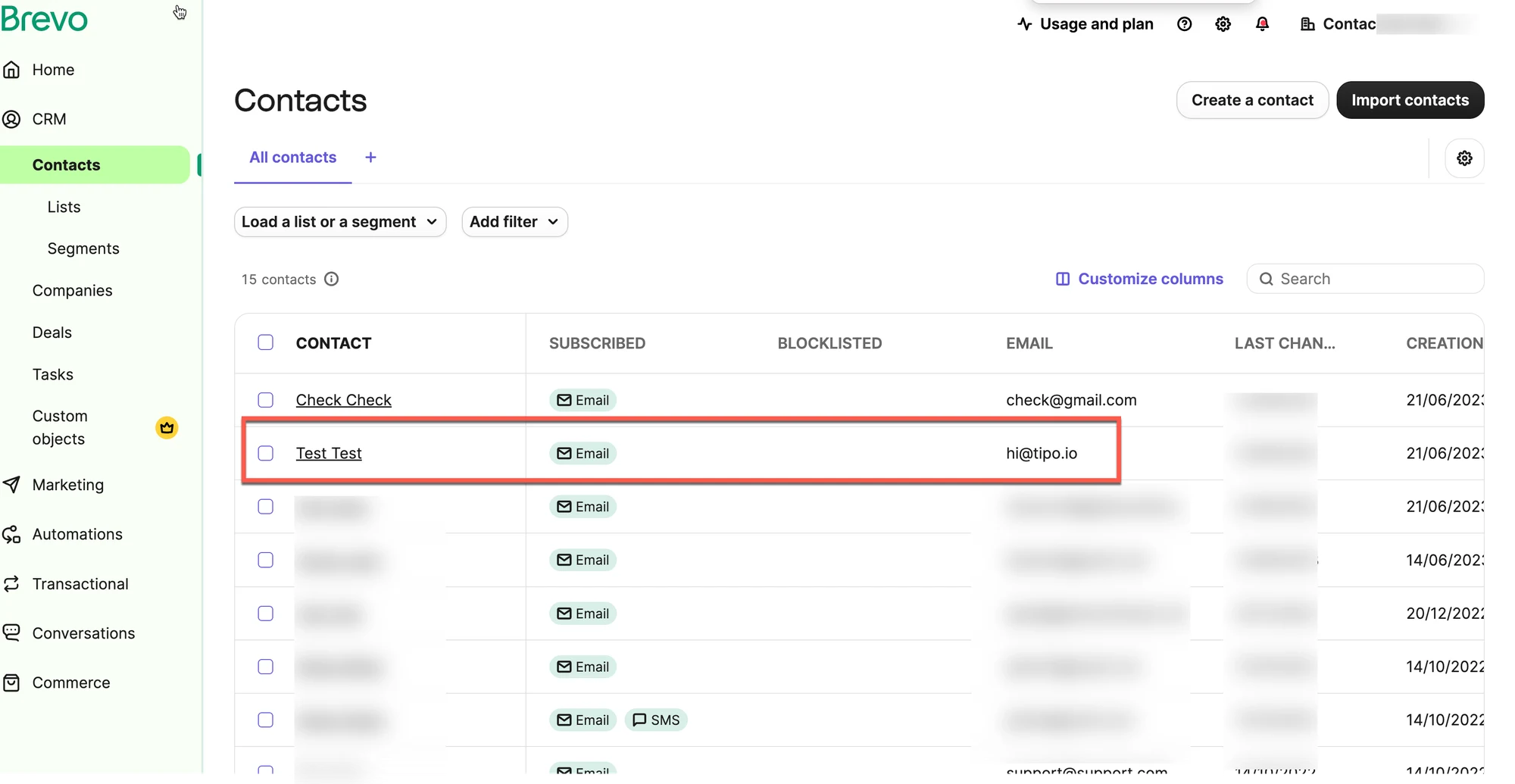
After an appointment is booked on Tipo calendar, the customer email will be added to the selected Sendinblue contact list.
Create a booking and check **Brevo → Contacts** for the new entry.
***
This screenshot is unavailable in the original documentation.
**🙋 Still need support?**
If you still need help, please feel free to contact us at . We’ll be happy to assist you further.