# Require Customer Login
This setting controls **whether customers must sign in to their Shopify customer account before booking**, or if they can book as a guest by filling out a form.
***
#### 🛠️ How to set
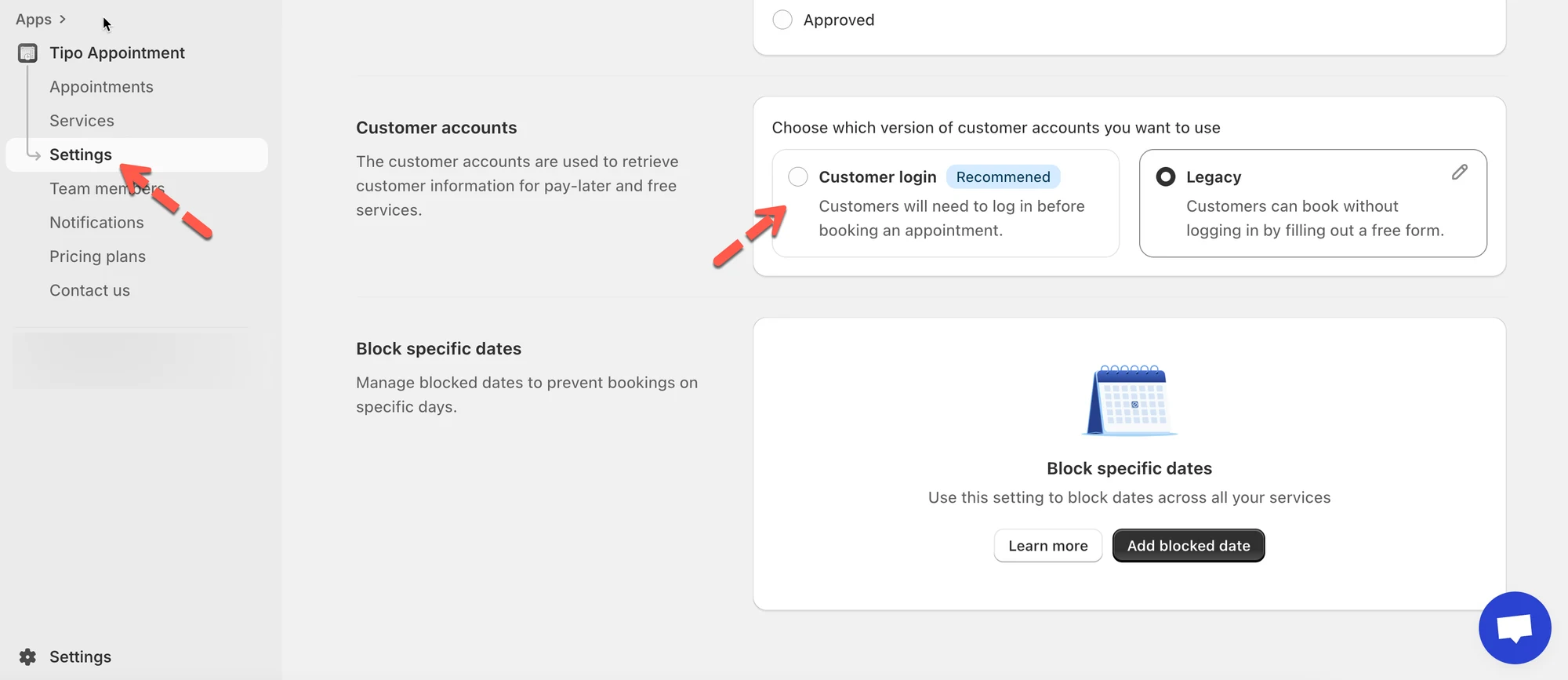
1. Go to **Tipo Appointment app** > open **Settings** > **General**
2. Scroll to the **Customer accounts** section
3. Choose one of the following options:
* **Customer Login**
* **Legacy Mode**
4, Click **Save**
***
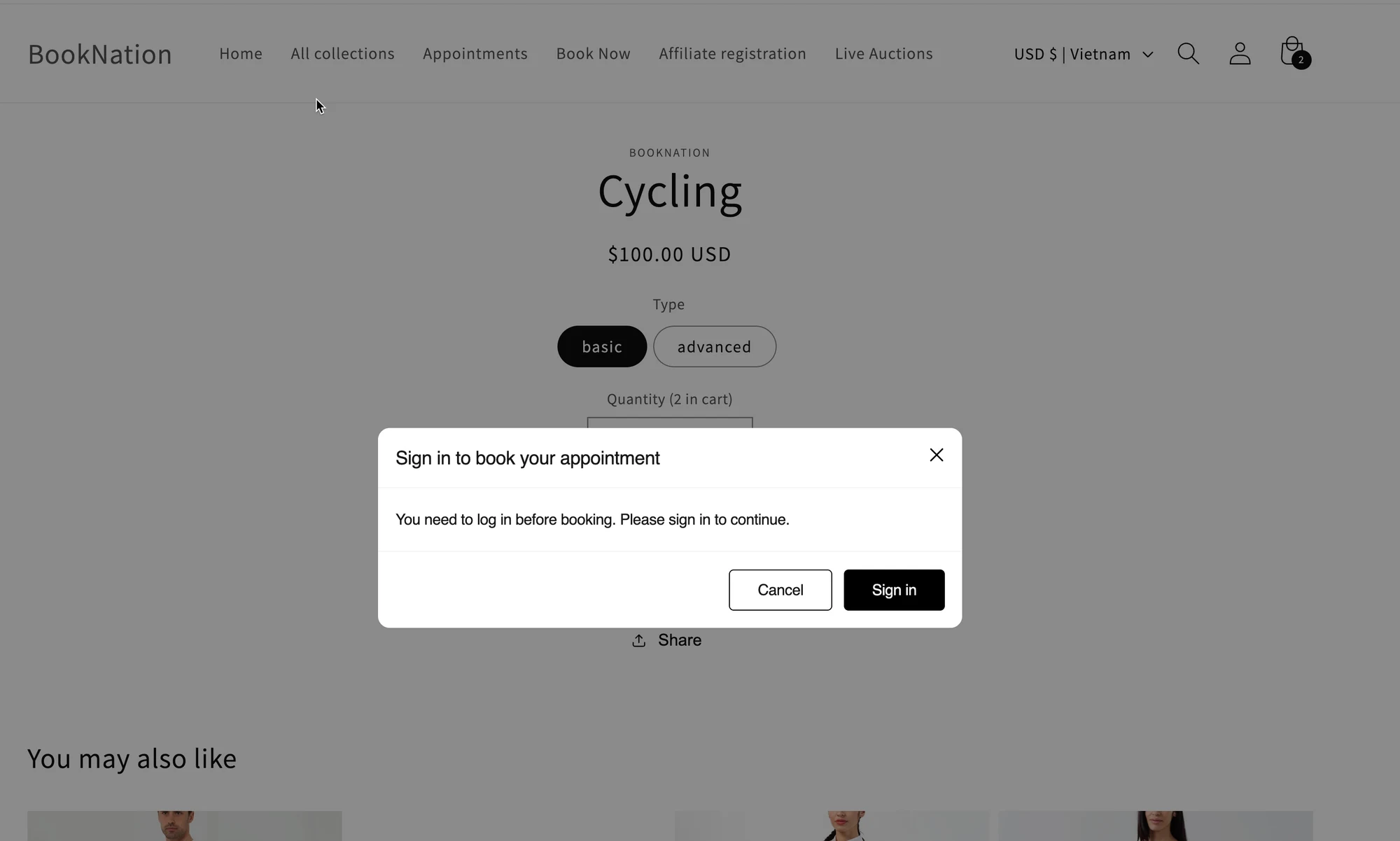
### 🔐 Option 1: Customer Login (Recommended)
When enabled, customers must log in before booking.
**What customers will see:** a sign-in prompt before they can continue.
**Best for:**
* Paid services
* Stores that want cleaner customer data (booking linked to a real Shopify customer)
***
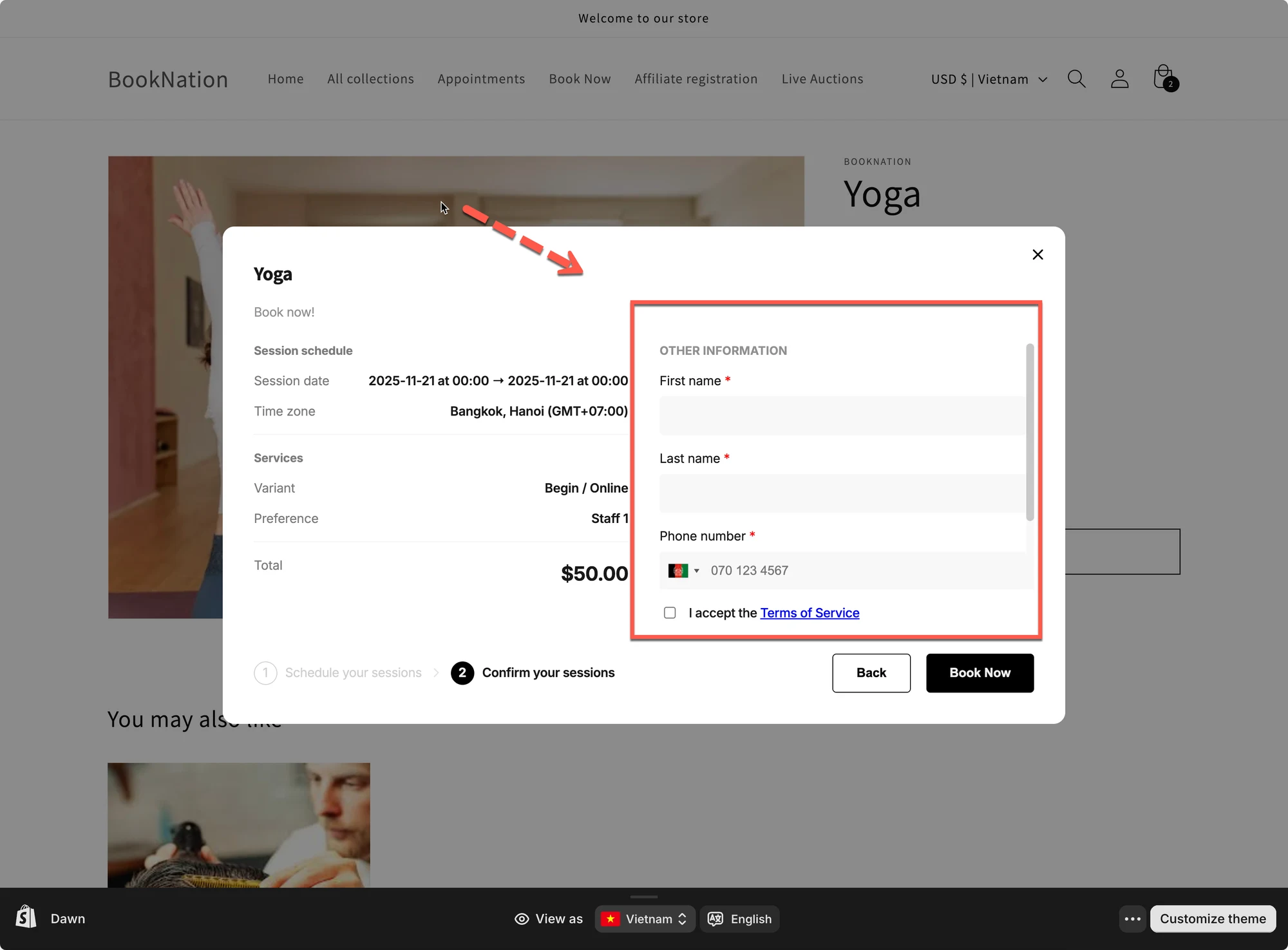
### 📝 Option 2: Legacy Mode (Book without login)
When enabled, customers **can book without signing in**. They simply fill out a form during booking.
**What customers will see:** extra fields (name, phone, etc.) to enter manually.
**Best for:**
* Free services
* “Fast booking” flows where you don’t want customers to create/login to an account
3. Click **Save**
***
### ⚡ Quick compare 2 setting options
Setting
Customer Login
Legacy Mode
Login required
Yes
No
***
**🙋 Still need support?**
If you still need help, please feel free to contact us at . We’ll be happy to assist you further.