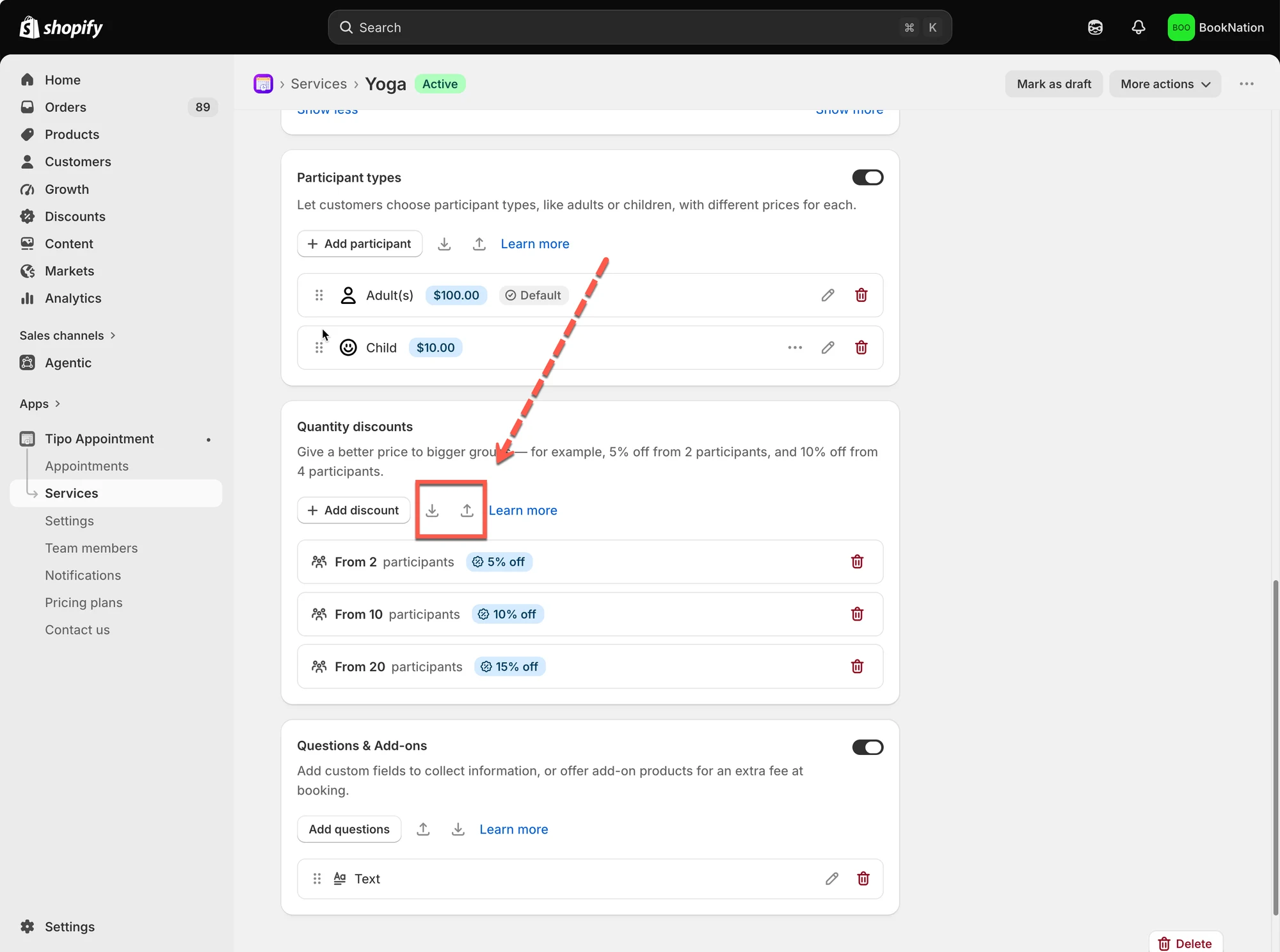
# Quantity Discounts
Quantity Discounts let you offer a percentage discount when customers book for a larger number of participants.
For example, you can offer 5% off for bookings with 2 or more participants.
***
### ⚙️ Set up Quantity Discounts
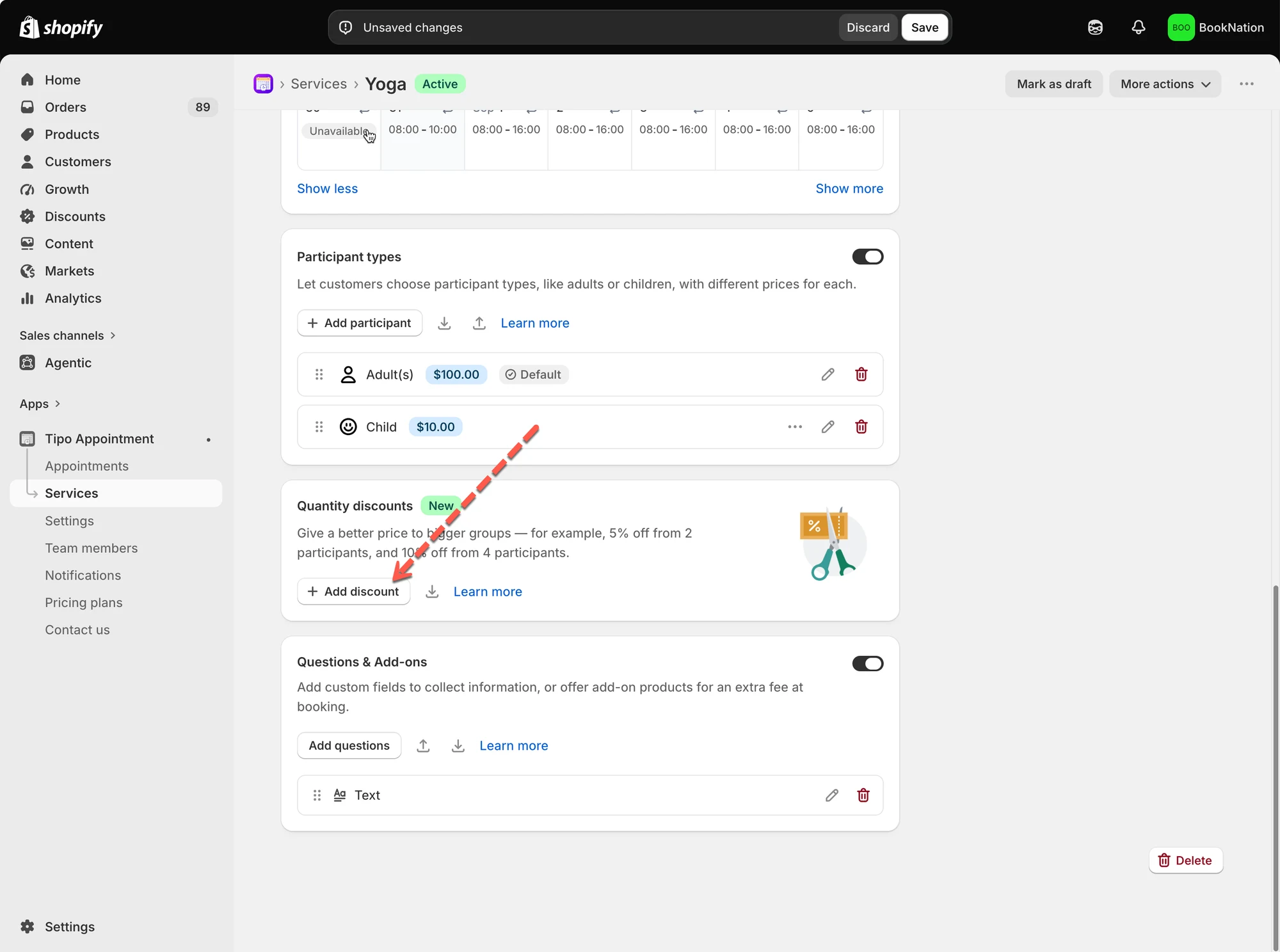
1. Open the app > go to **Services** > open the service you want to edit
2. Scroll down to the **Quantity discounts** section > Click **+ Add discount**
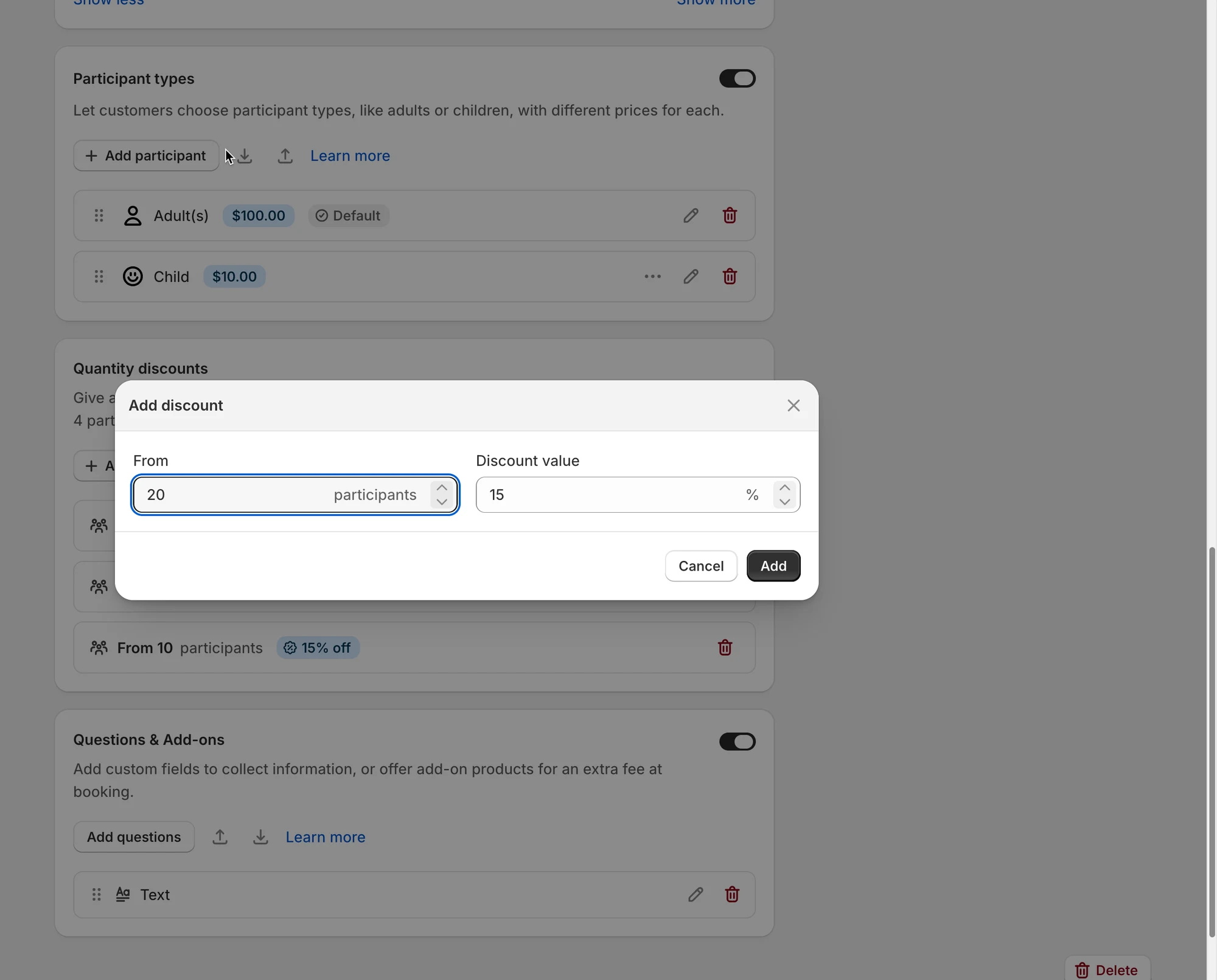
3. Enter:
* **From:** the minimum number of participants required to receive the discount.
* **Discount value:** the percentage discount you want to offer.
For example:
* From: 20 participants
* Discount value: 15%
Click **Add** to save the discount.
***
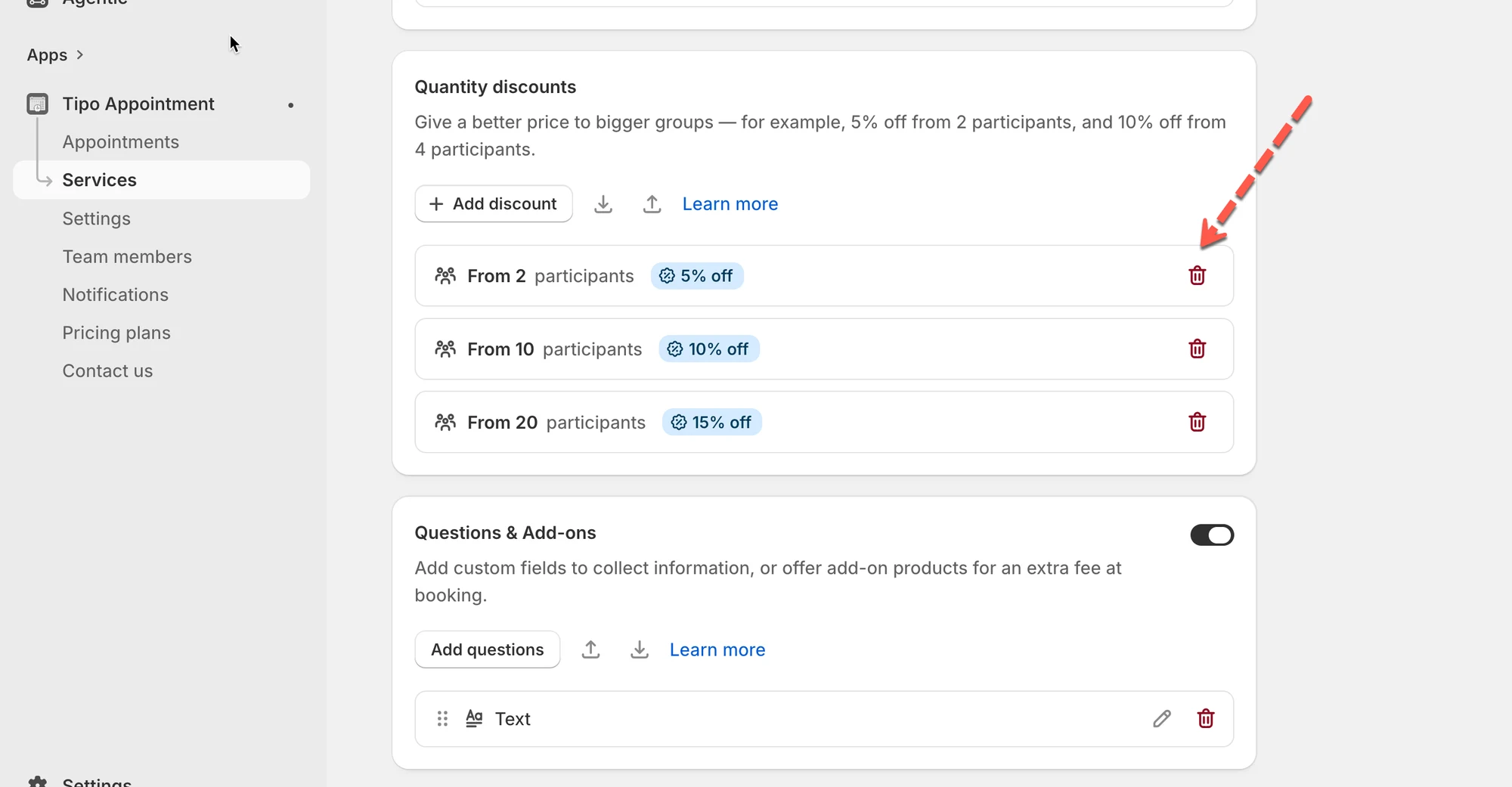
4\. Add more discount levels
You can create multiple discount rules for different group sizes.
For example:
* From **2 participants** → **5% off**
* From **10 participants** → **10% off**
* From **20 participants** → **15% off**
This allows you to offer better prices as the booking size increases.
You can click the **Delete** icon next to a rule if you no longer want to use it.
5. Click **Save**
***
### 🌐 How it appears on your storefront
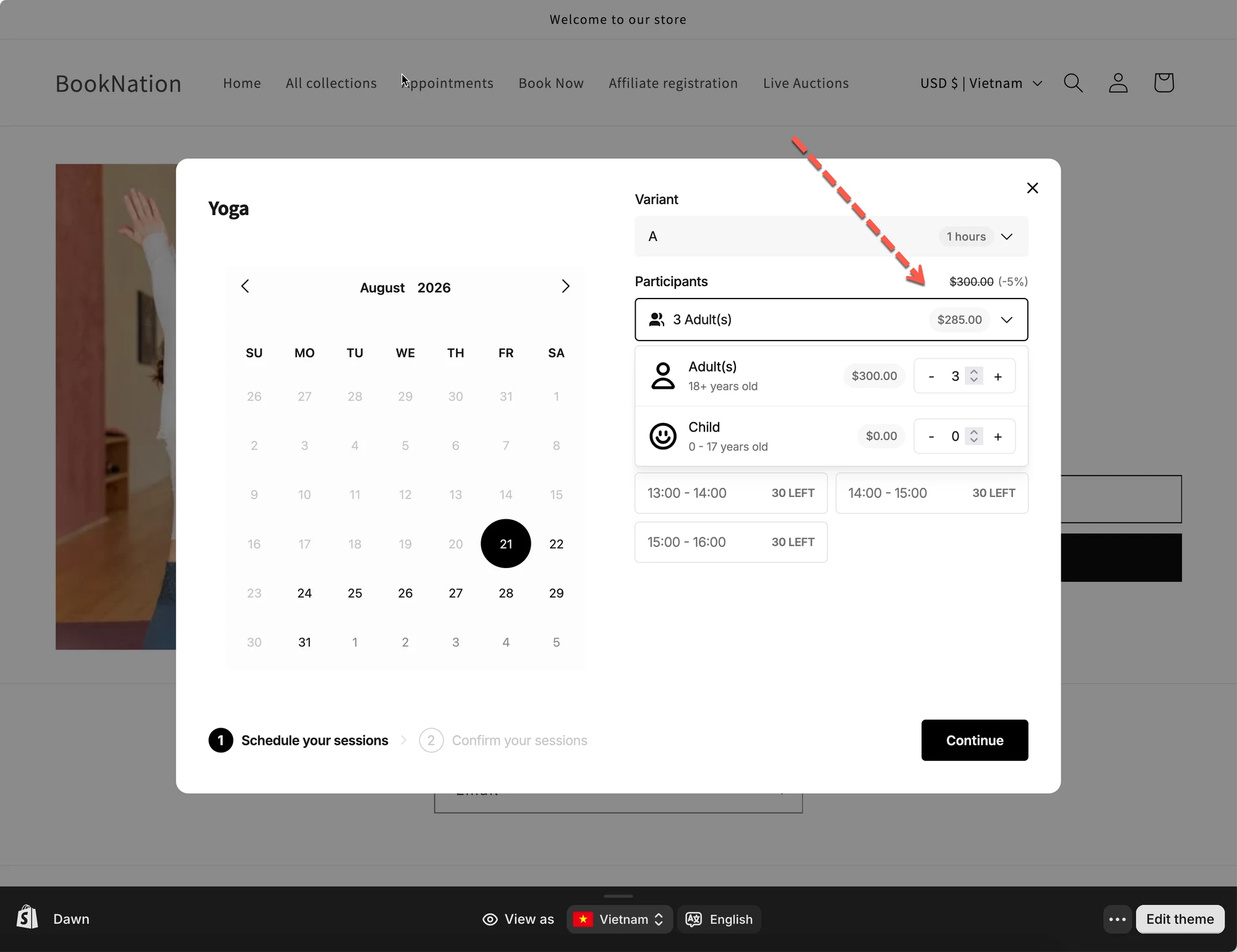
When customers select participants on the booking form, Tipo Appointment automatically checks whether their booking qualifies for a Quantity Discount.
Suppose your service has:
* Adult price: **$100**
* Quantity Discount: **5% off from 2 participants**
A customer selects **3 Adults**.
The original participant price is:
`3 × $100 = $300`
Because the booking has 3 participants, it qualifies for the 5% discount:
`$300 × 5% = $15 discount`
The final participant price is:
`$300 - $15 = $285`
The booking form automatically displays the discounted price to the customer.
***
### 💰 How Quantity Discounts work
Quantity Discounts are based on the total number of participants in the booking.
When the participant quantity meets a configured discount threshold, Tipo Appointment automatically applies the corresponding percentage discount.
Customers do not need to enter a discount code.
The discount is automatically updated when they increase or decrease the number of participants.
If your service uses [**Participant Types**](/tipo-appointment-booking/service-setup/participant-types), all participant types are counted together when determining the booking quantity.
For example:
* 2 Adults
* 1 Child
Total:
`2 + 1 = 3 participants`
If you have a discount starting from 2 participants, this booking qualifies for that discount.
The discount is calculated based on the participant prices, even when different participant types have different prices.
***
### ➕ What about Add-ons?
Quantity Discounts apply to the participant cost only.
Any additional cost from [**Add-ons**](/tipo-appointment-booking/widget-customization/add-custom-fields-and-add-ons#add-a-paid-add-on-extra-price) **is excluded from the discount**.
For example:
* Participant subtotal: $300
* Quantity Discount: 5%
* Discounted participant price: $285
* Add-on: $30
Final booking total:
`$285 + $30 = $315`
The $30 Add-on is not reduced by the **Quantity Discount**.
***
### 📥 Import and Export discounts
You can also import or export your Quantity Discount settings using the icons next to the **Add discount** button.
#### Export discounts
Click the **Export** icon to export your current Quantity Discount configuration.
This can be useful for keeping a backup or reusing your discount settings.
#### Import discounts
Click the **Import** icon to import Quantity Discount settings.
After importing, review the rules to make sure the participant quantities and discount percentages are correct for your service.
***
**🙋 Still need support?**
If you still need help, please feel free to contact us at . We’ll be happy to assist you further.