# Team Portal Guide (For Staff)
Welcome! Your team portal lets you check your schedule, manage your own appointments, and set your availability — all in one place, without needing access to the store's admin.
## **🔗 How to Log In**
Your manager will send you a portal login link.
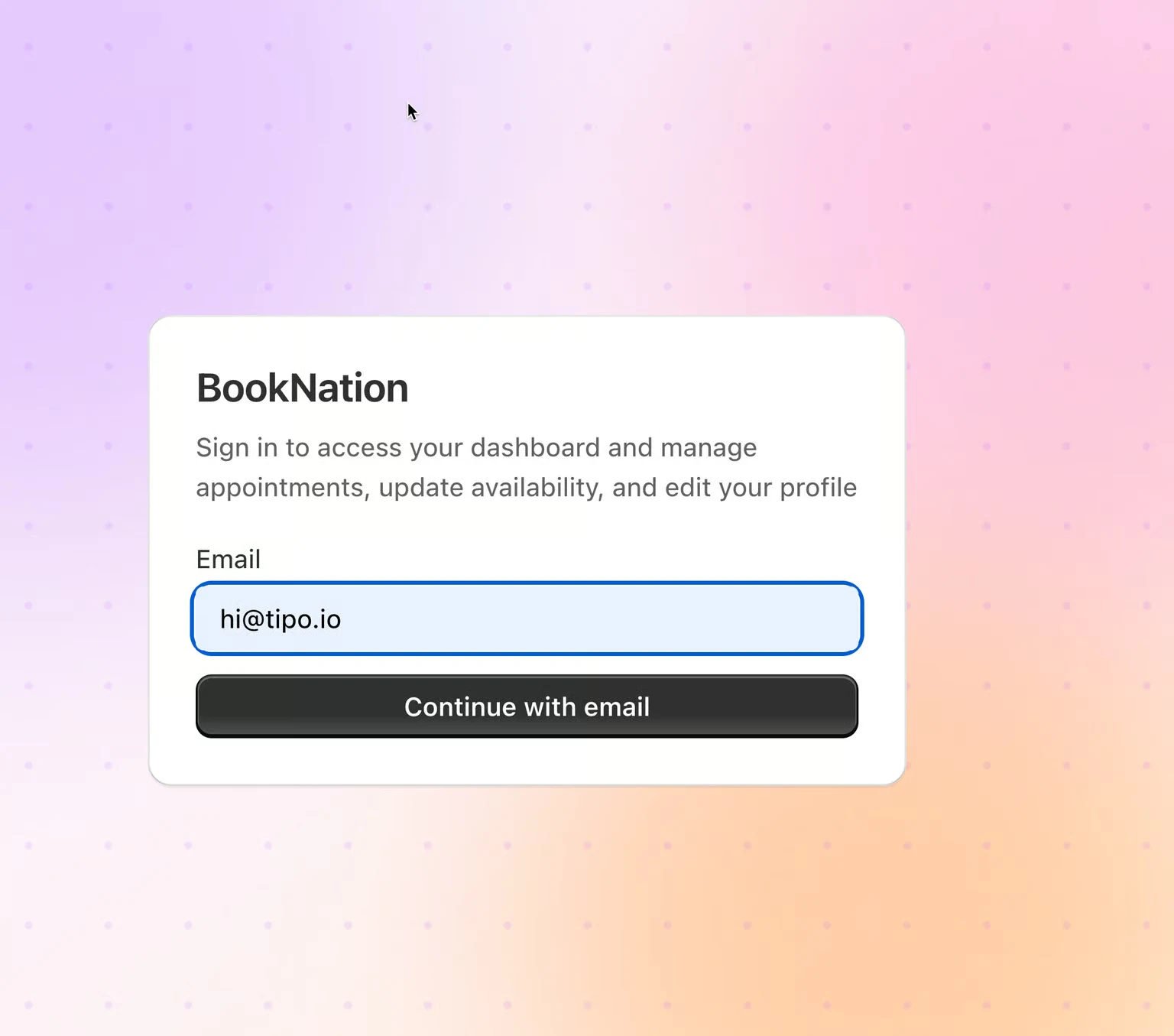
Open the link and enter your email address.
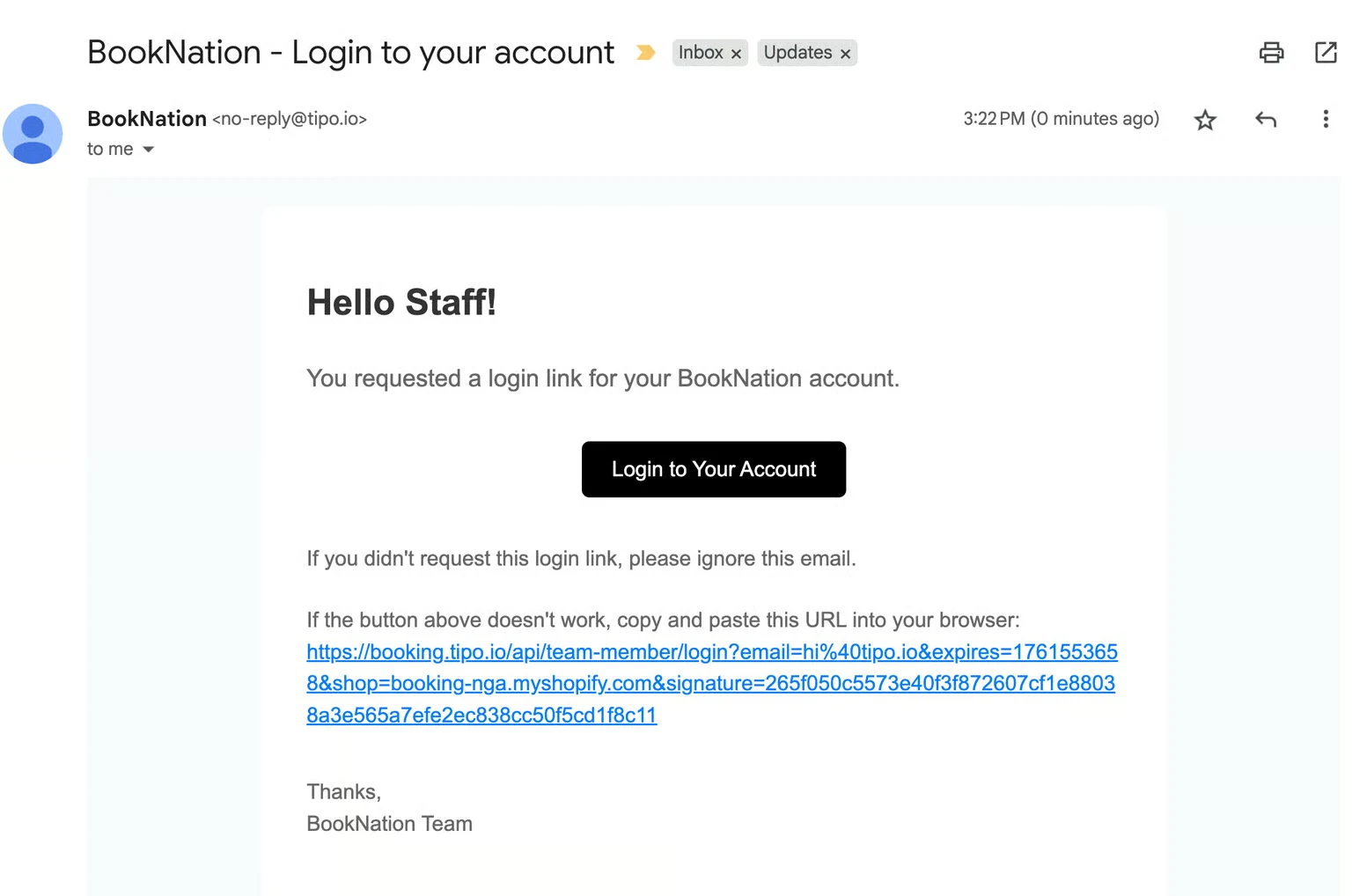
Check your inbox — a login link will be sent to that email.
Click the link in the email to access your dashboard.
> **📌 Note:** No password needed — each login is done by email link. If you didn't get the email, check your spam folder, or ask your manager to confirm the correct email is on file.
## **🗓️ What You'll See After Logging In**
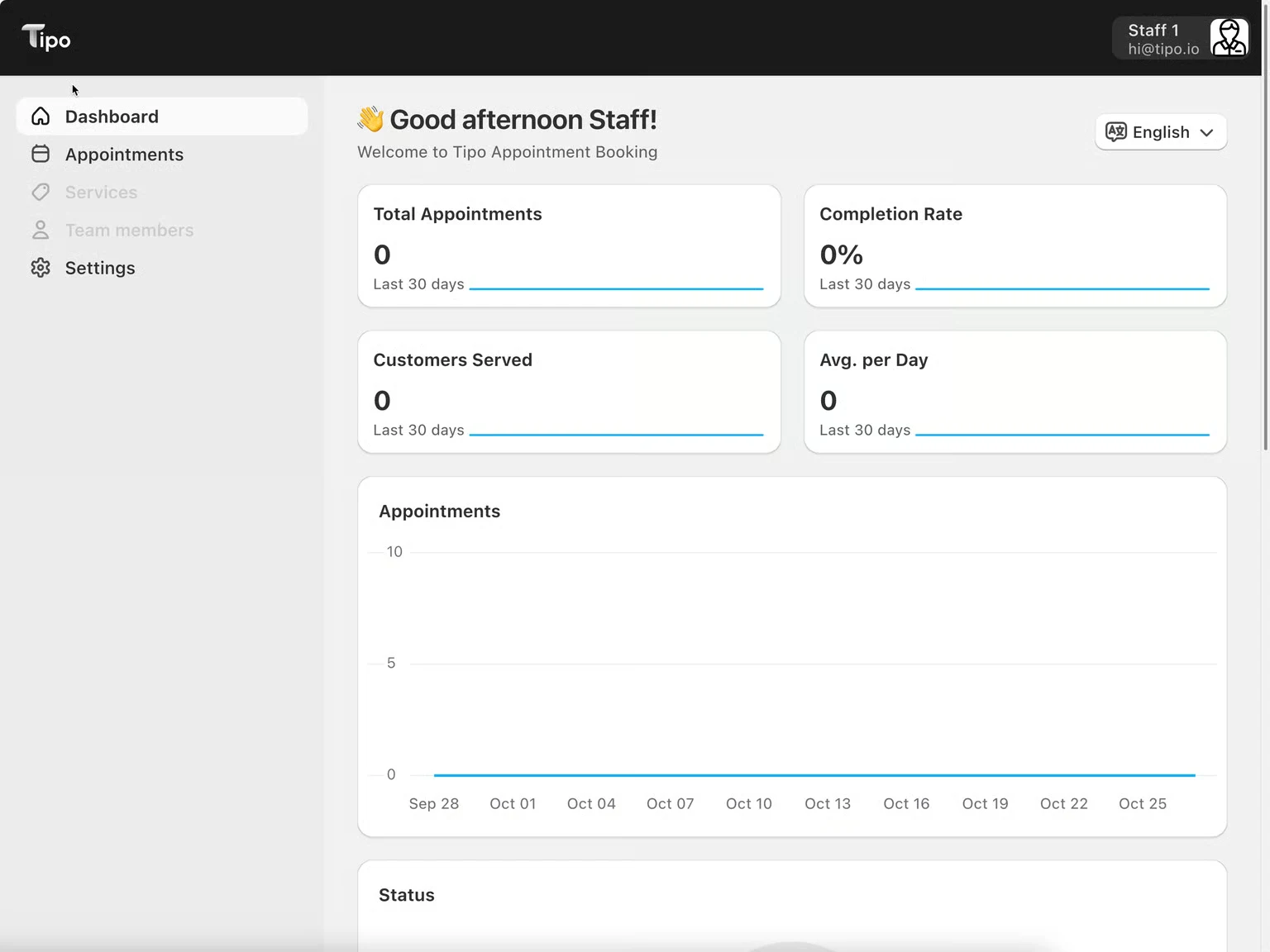
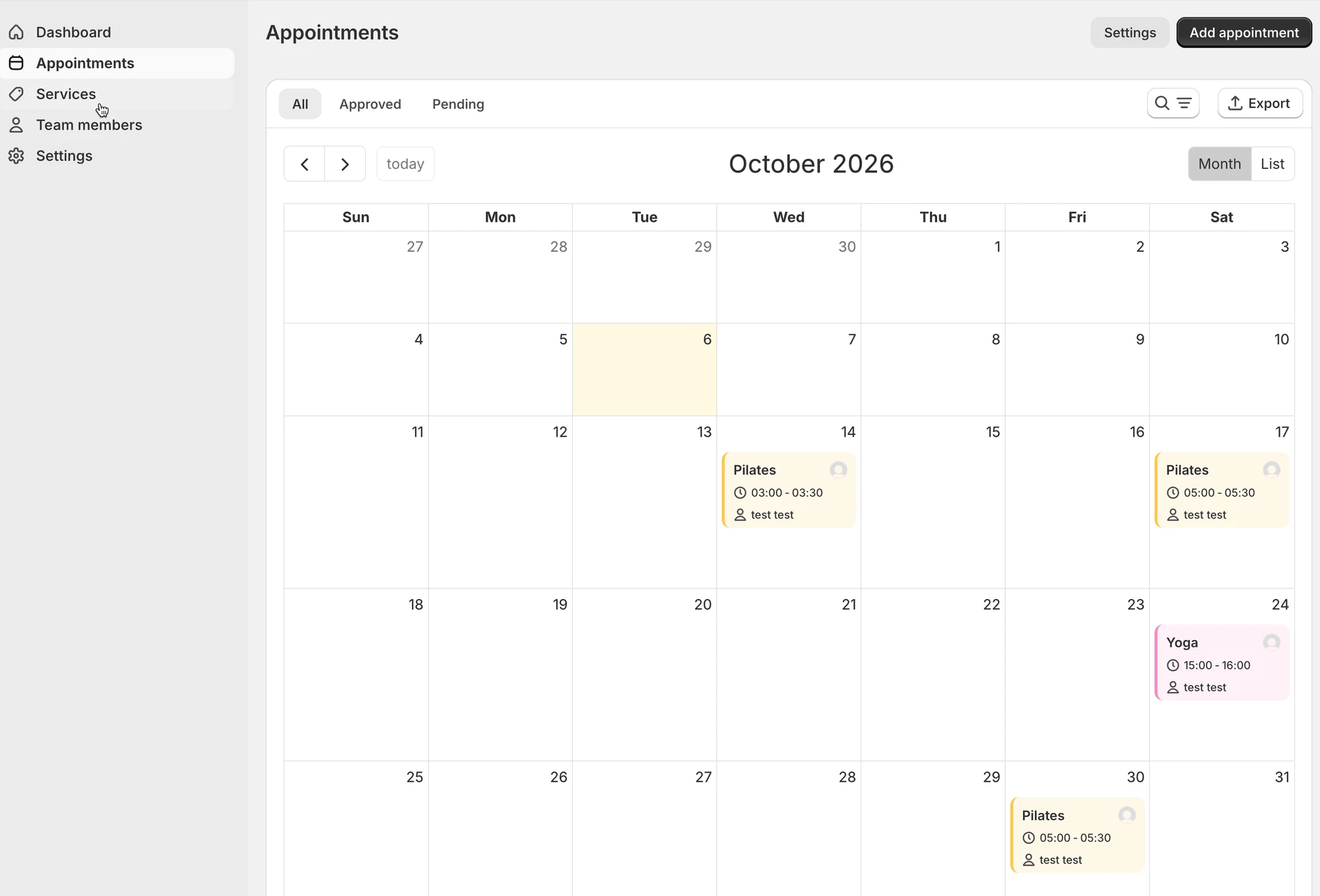
Your dashboard greets you by name and gives you a quick overview:
| Section | Shows |
| ------------------------- | -------------------------------------------- |
| **Total Appointments** | Count over the last 30 days |
| **Completion Rate** | % of your appointments completed |
| **Customers Served** | Unique customers over the last 30 days |
| **Avg. per Day** | Average appointments per day |
| **Appointments chart** | Trend over time |
| **Status** | Breakdown — Approved, Pending, and more |
| **Upcoming appointments** | Your next bookings, with a **View all** link |
**Sidebar menu:** Dashboard, Appointments, Services, Team members, Settings.
> **📌 Note:** Which menu items you see depends on the permissions your manager has granted you. If **Services** or **Team members** doesn't appear for you, that's expected — not every team member gets access to those.
## **✅ Managing Your Appointments**
From your calendar, open any appointment to:
Action
What It Does
Approve
Confirm a pending booking
Reschedule
Move it to a different date/time
Cancel
Cancel the booking
Manually create
Create a new appointment for customers without booking on online store
> **⚠️ Note:** These actions are only available for appointments **where you're the assigned staff member**. If an action is missing, your manager may not have granted that permission — ask them to check.
***
## **⏰ Setting Your Availability**
Your availability controls which time slots customers can book with you — so keep it up to date.
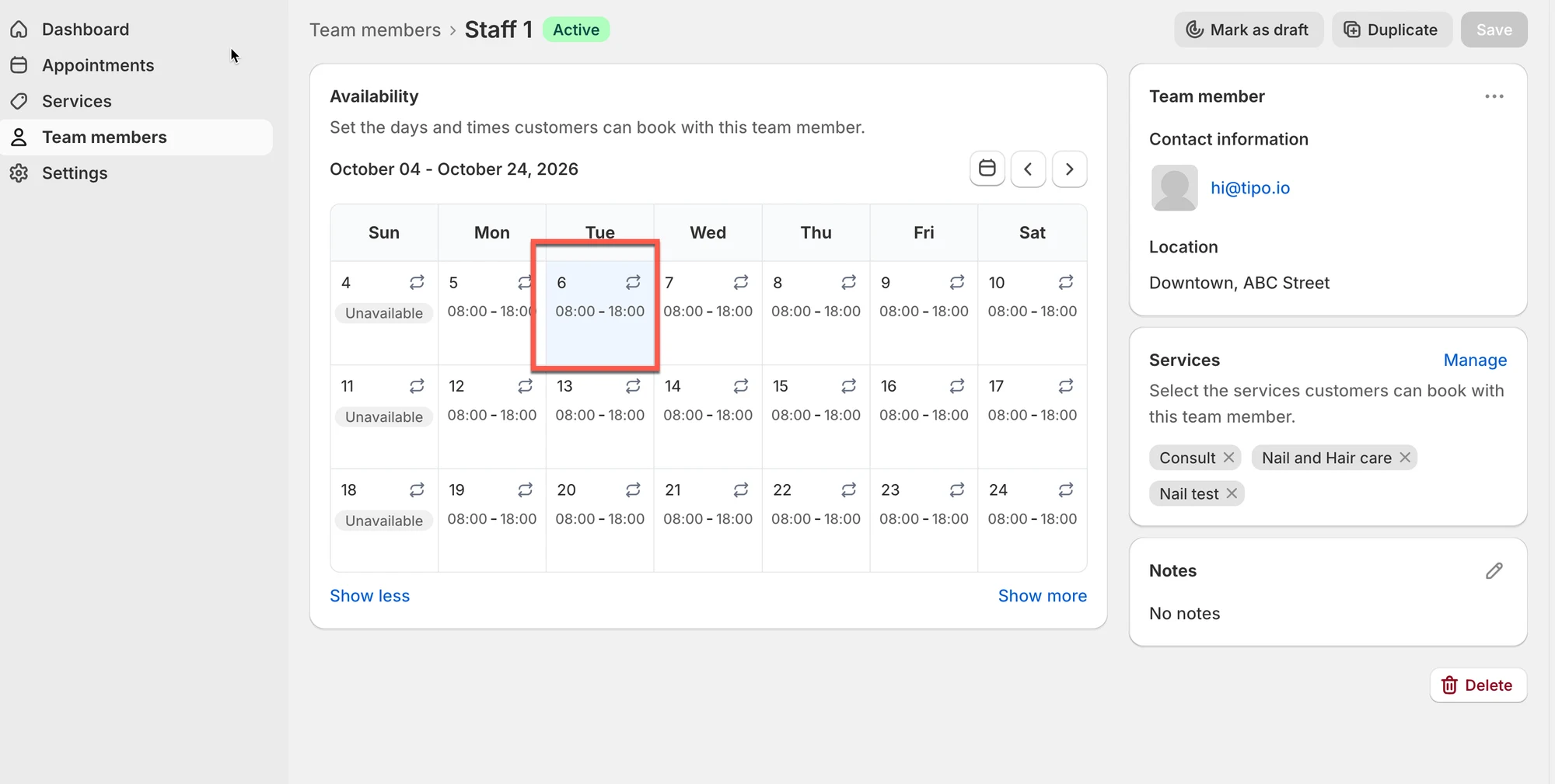
Open your **Availability** section in the portal
Click the date or day you want to set hours for.
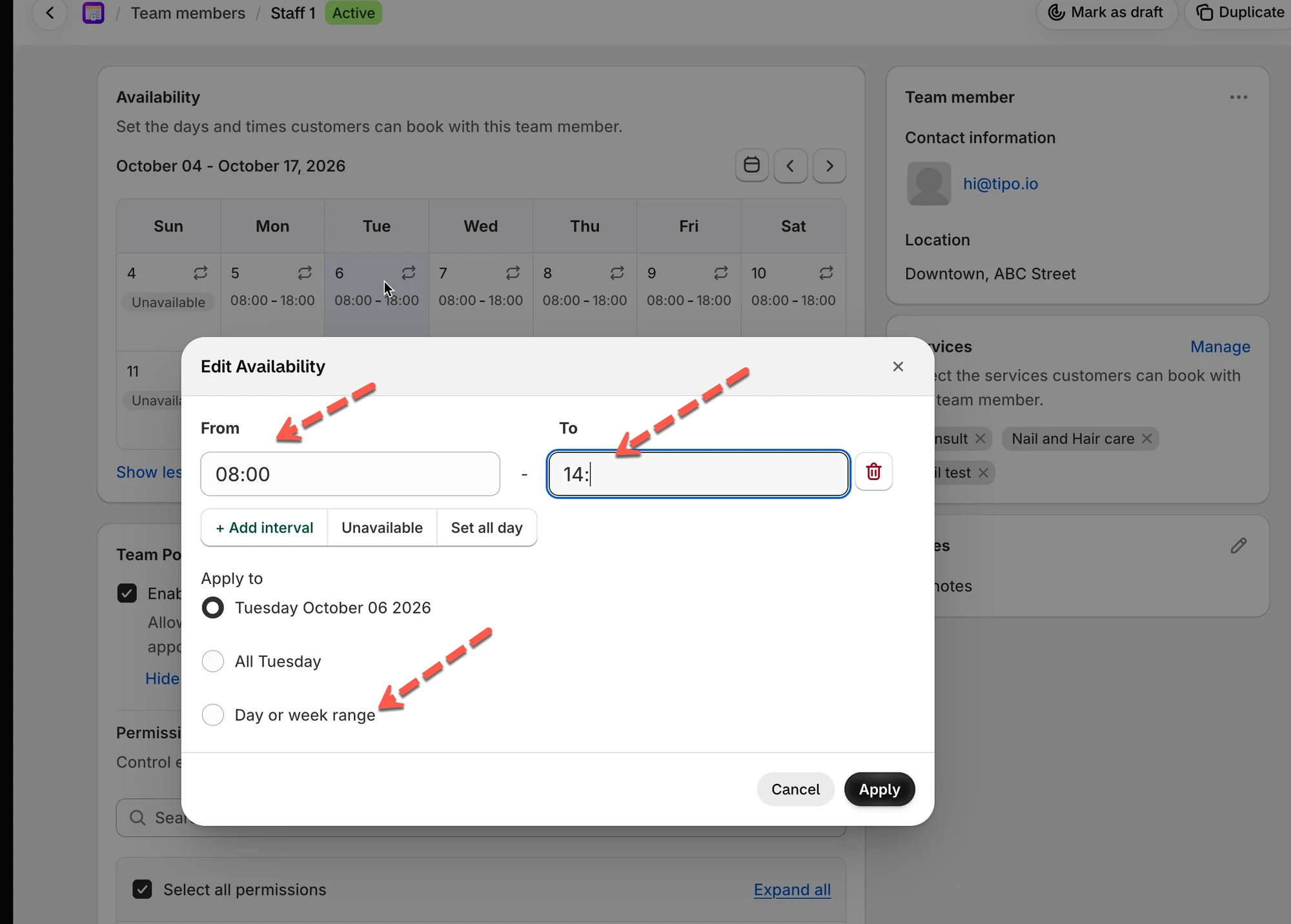
Enter your **Start time** and **End time**
Choose how to apply it
Apply to
Use When
Specific date
Only one date should use these hours (e.g. just Nov 3)
All Mondays
Every Monday should follow the same schedule
Day/week range
The same schedule applies across several days or weeks
Click save
> **💡 Example:** If you set `08:00–18:00` for a 1-hour service, customers will see hourly slots — `08:00–09:00`, `09:00–10:00`, and so on, with the last slot starting at `17:00`.
> **📌 Note:** You can only set availability for services your manager has assigned to you. If a service you provide isn't listed, ask your manager to assign it.
#### ▶️ Tutorial video
***
## 📂 Services
If your manager has granted access, **Services** works the same way it does for admins — you can view, create, and edit services normally, not just look at them.
You Can
How
View the list
Name, status, capacity, duration
Create a new service
Click New service, same as an admin would
Edit an existing service
Open the service and update its details
## ⚙️ Settings
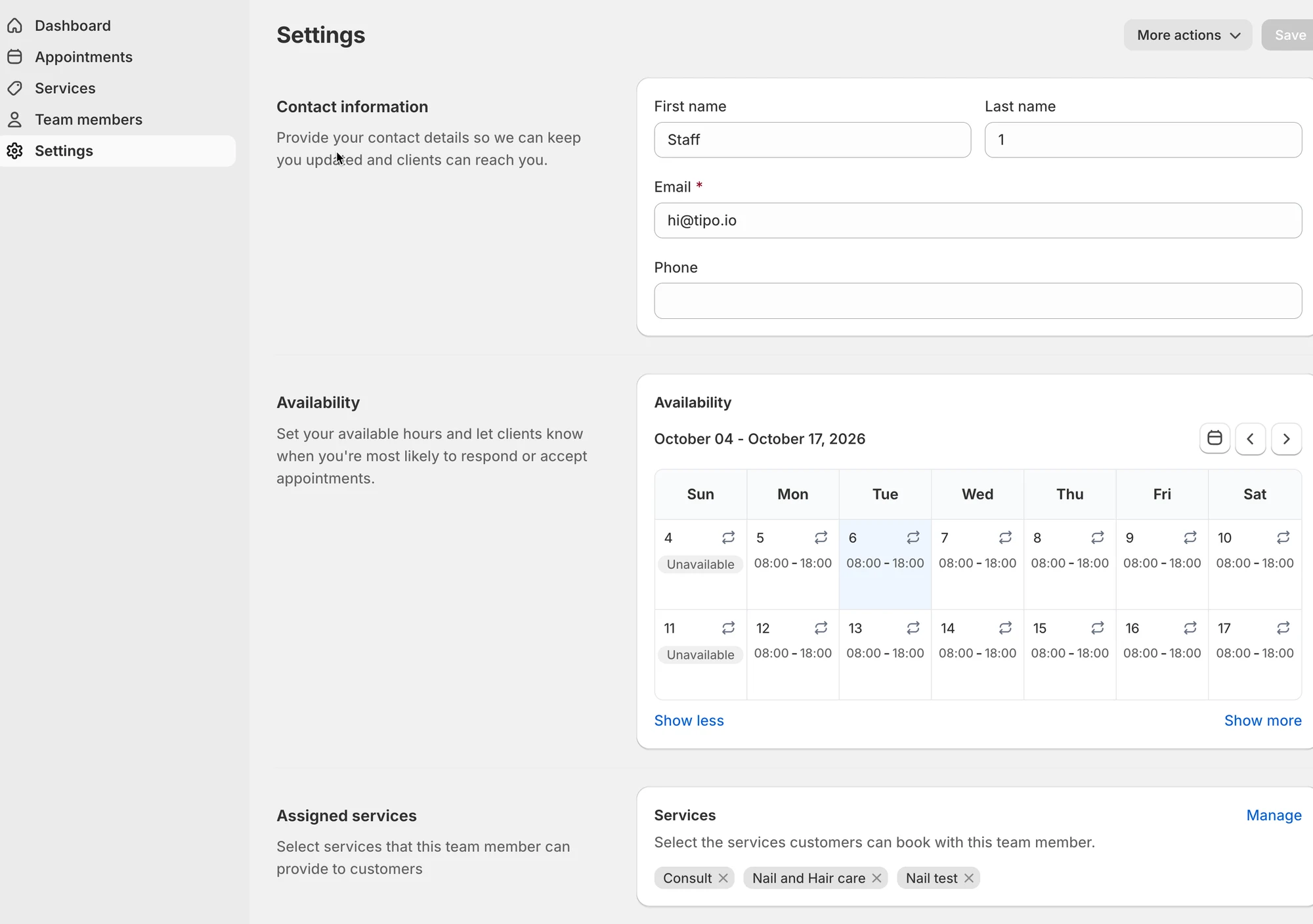
### **Contact Information**
* **First name / Last name** — how you appear on the schedule
* **Email** — where your login link and notifications are sent
* **Phone** *(optional)*
Keep this accurate — it's how customers and your manager identify your bookings.
### **Availability**
Covered in detail above — your working hours calendar.
### **Assigned Services**
Shows which services customers can book with you specifically.
> **⚠️ Note:** This list is managed by your manager, not editable here. If a service is missing and you do provide it, ask your manager to assign it to you.