# View detail of map products
This guide explains how to view **mapped products** in Tipo app, so you can confirm which Source product is linked to which Destination product, and quickly troubleshoot sync issues (wrong match, duplicates, missing updates).
### 📍 Where to find “Mapped products”
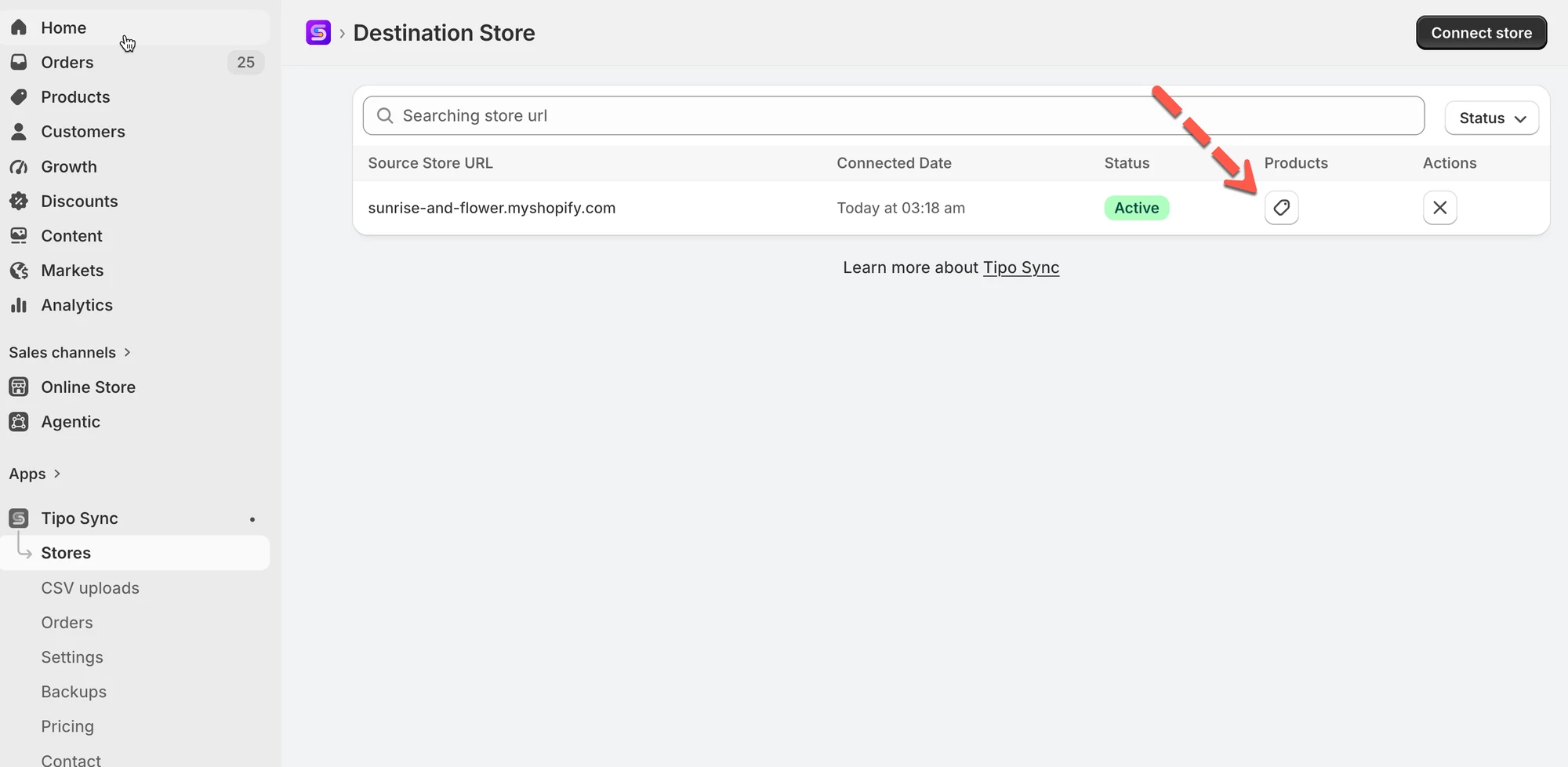
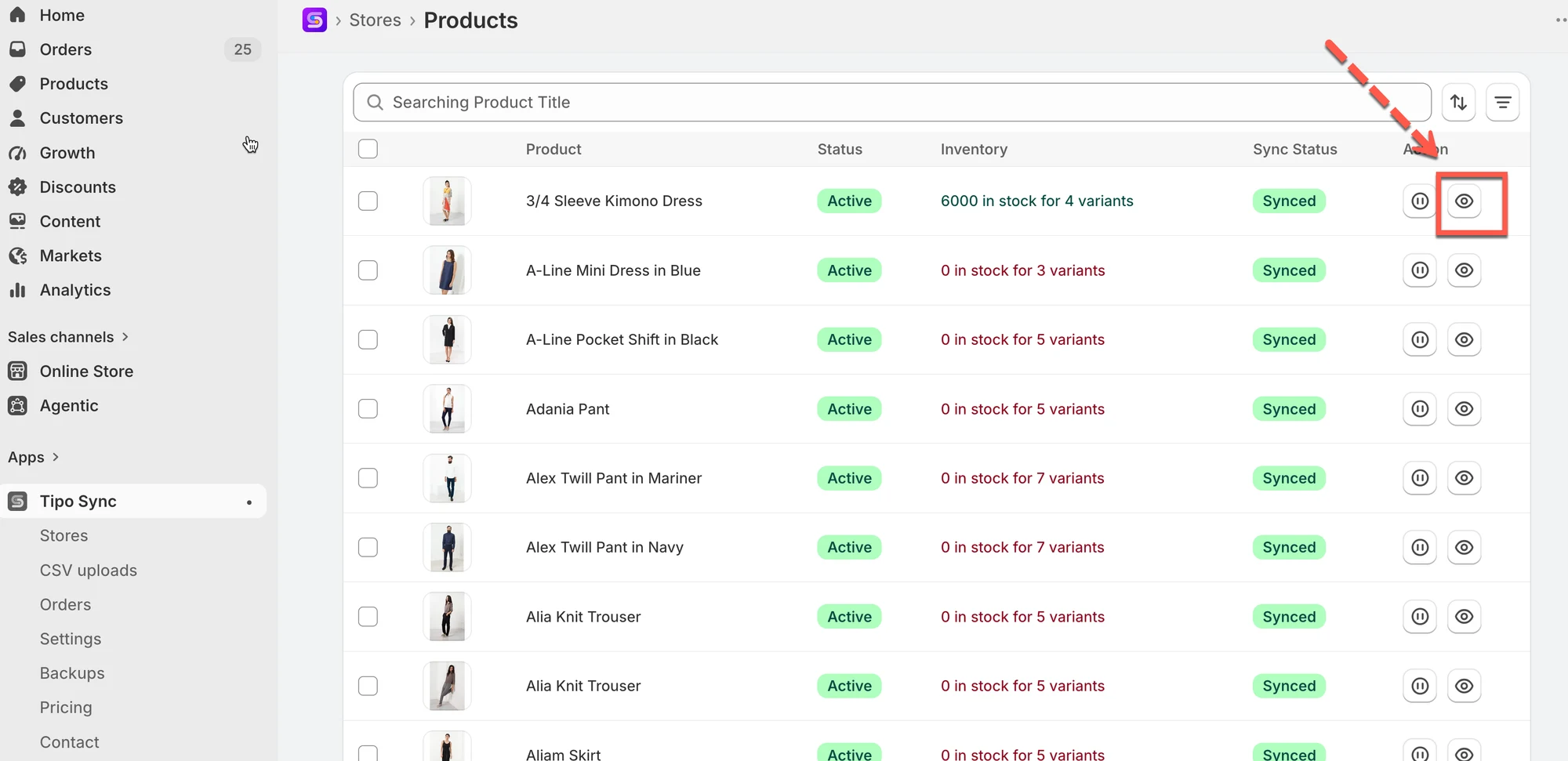
Go to the **Destinations** store, open the app > click **Stores** > click **Products** to see the synced product list of the connection
Click the eye icon to view the sync detail of the product
This screenshot is unavailable in the original documentation.
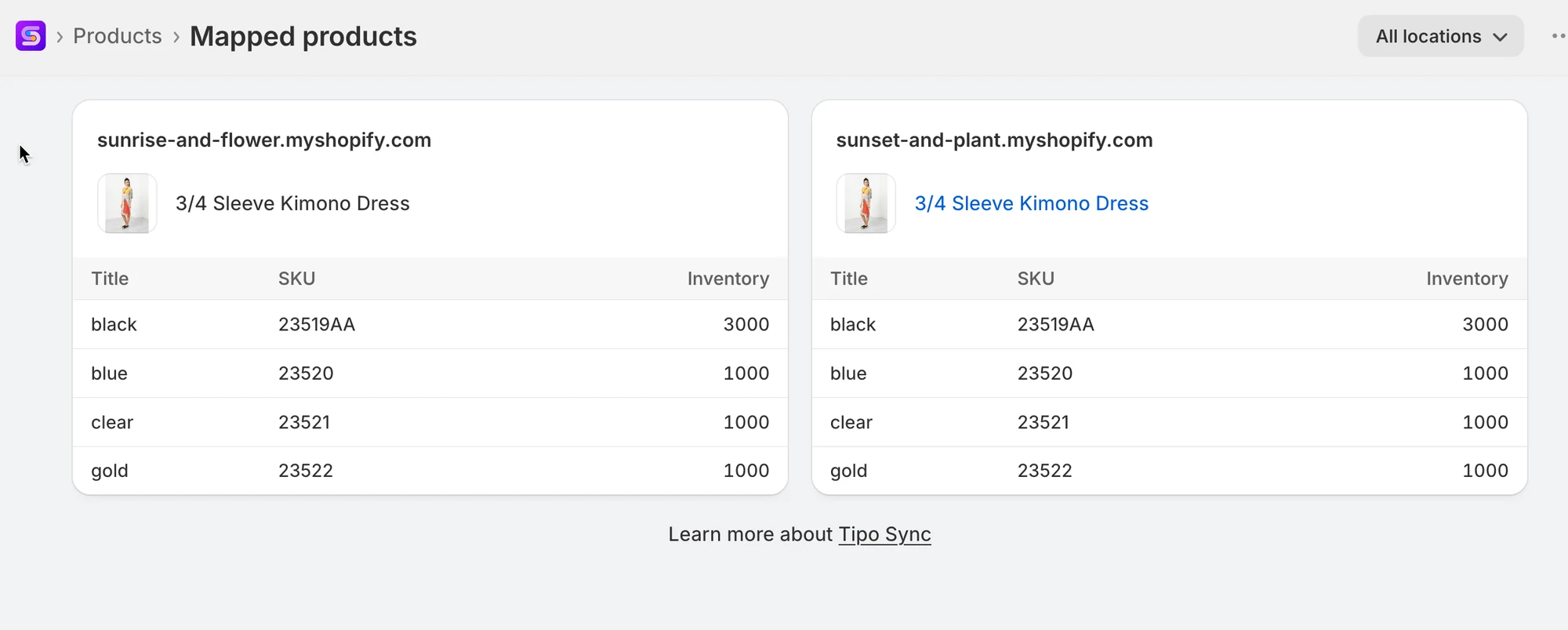
In the mapped products list, you can verify:
* Which Source product is linked to which Destination product
* Mapping status (mapped / not mapped / error)
* 🔎 Search specific products to confirm they are linked correctly
***
**🙋 Still need support?**
If you still need help, please feel free to contact us at . We’ll be happy to assist you further.