# Select products to sync
The app lets you control which products are synchronized between your stores. You can sync **all products**, or only products that match specific **tags**, or exclude products based on tags.
Before connecting, check and select the product information you want to sync [here. ](/product-syncs/select-which-product-information-to-sync)
***
### ⚙️ **In Source store**
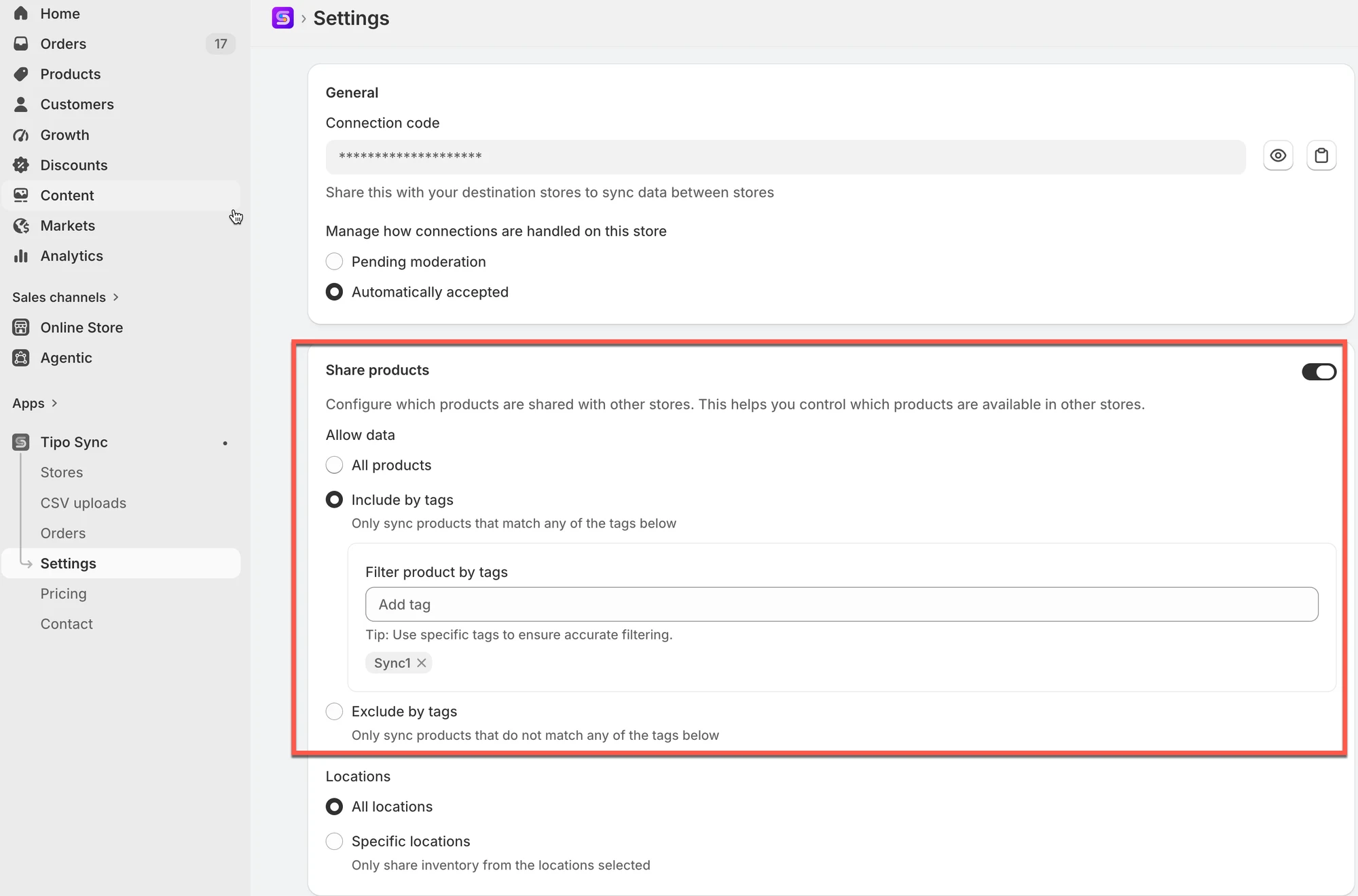
1 . In **Source store**, open the app > click **Settings**
2\. In **Share products** part, toggle it on
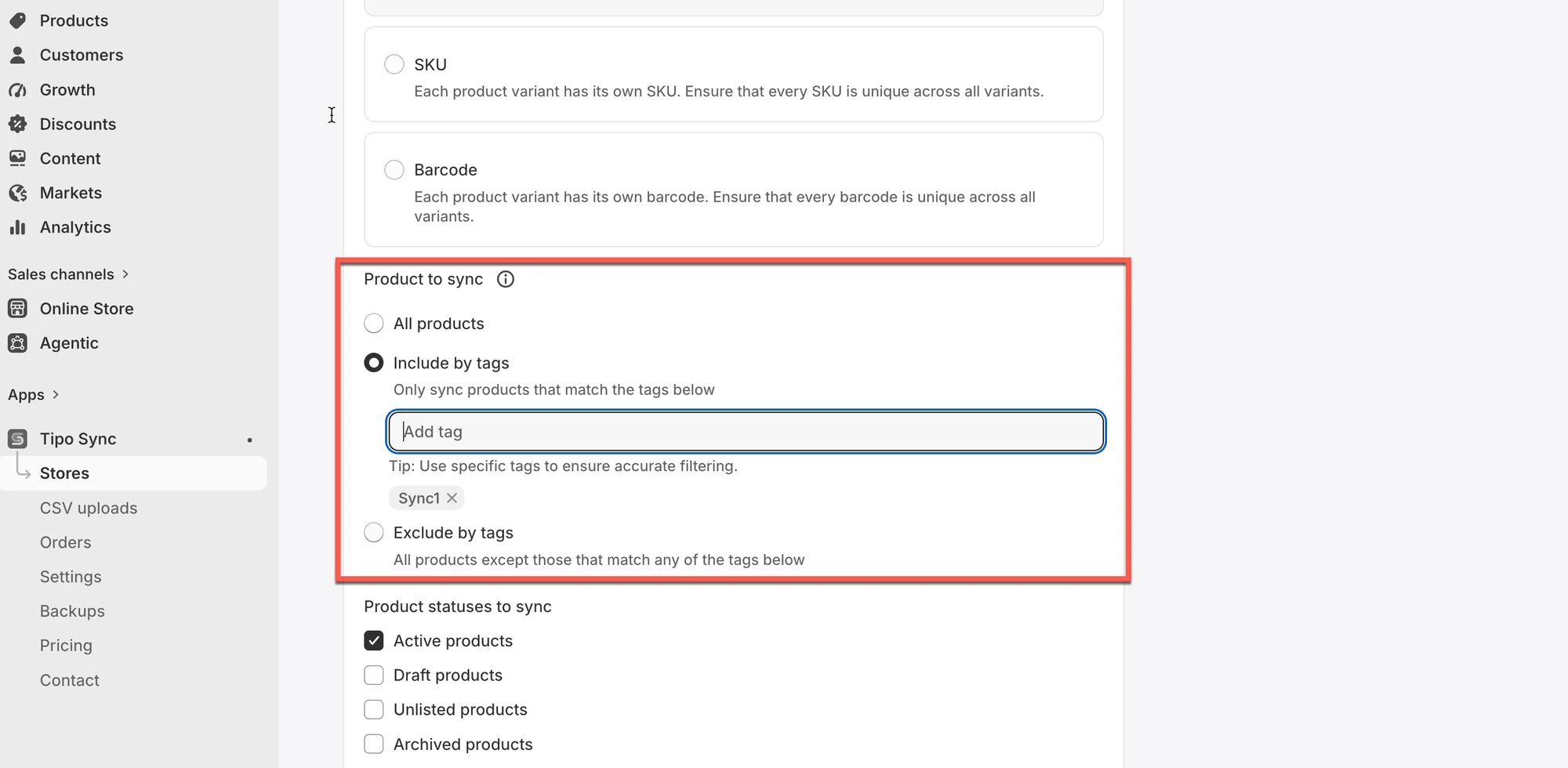
3\. In **Product to sync** field, select one of the options
* **All products**: All products in the Source store will be shared with connected Destination stores.
* **Include by tags:** Only products that contain at least one of the specified tags will be shared.
* **Exclude by tags**: All products will be shared except products that contain any of the specified tags.
4\. Click **Save** to update the change
> **Tip:** Use specific tags to organize the products you want to share.
For example, enter:
```
Sync1
```
Only products tagged `Sync1` will be shared.
***
### ⚙️ **In Destinations store**
#### **New connection:**
Before connecting, check and select the product information you want to sync [here. ](/product-syncs/select-which-product-information-to-sync)
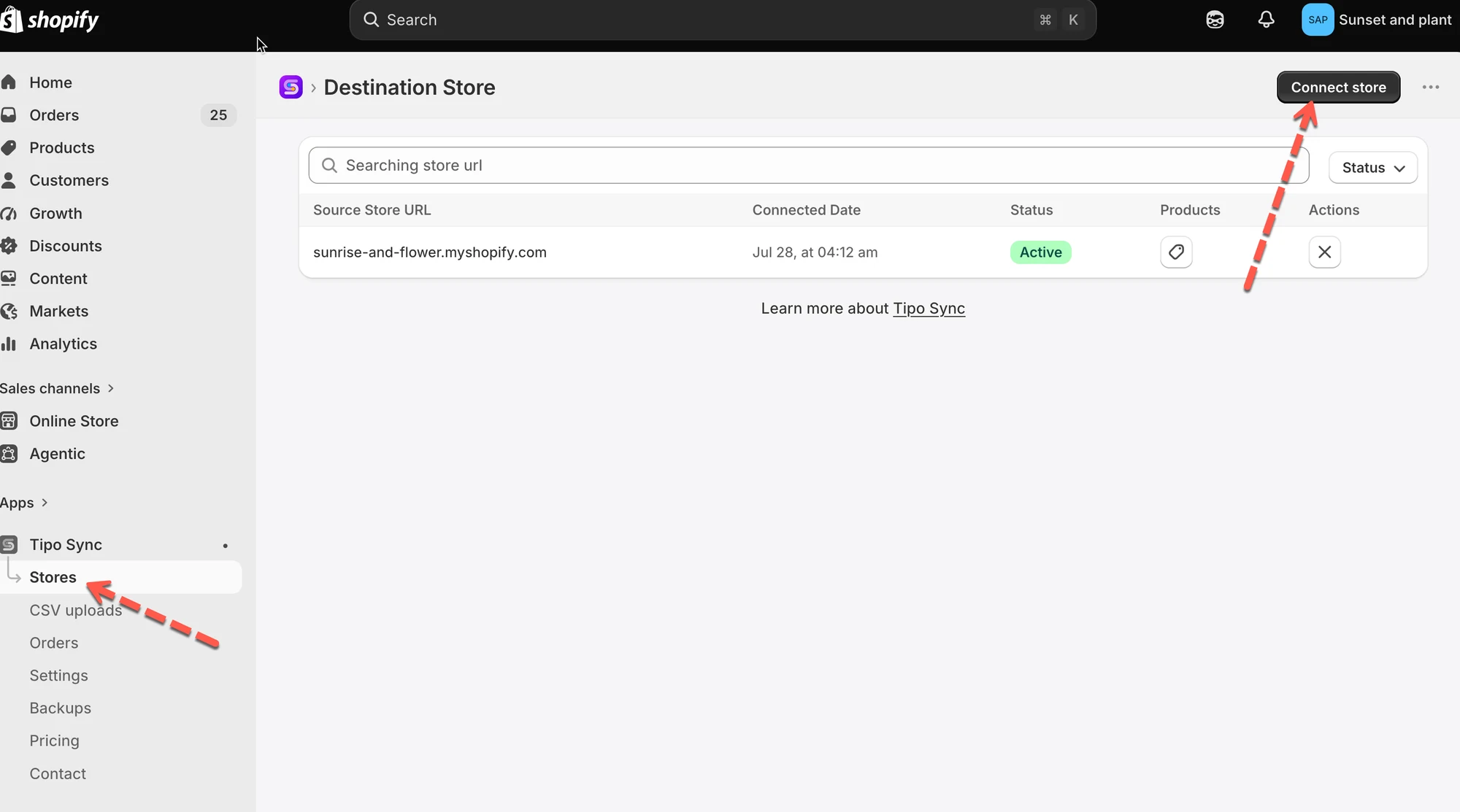
1. Open the app in **Destination** store > click **Stores** > click **Connect store** button
2. Add the **Connection code** of the Source store you want to connect
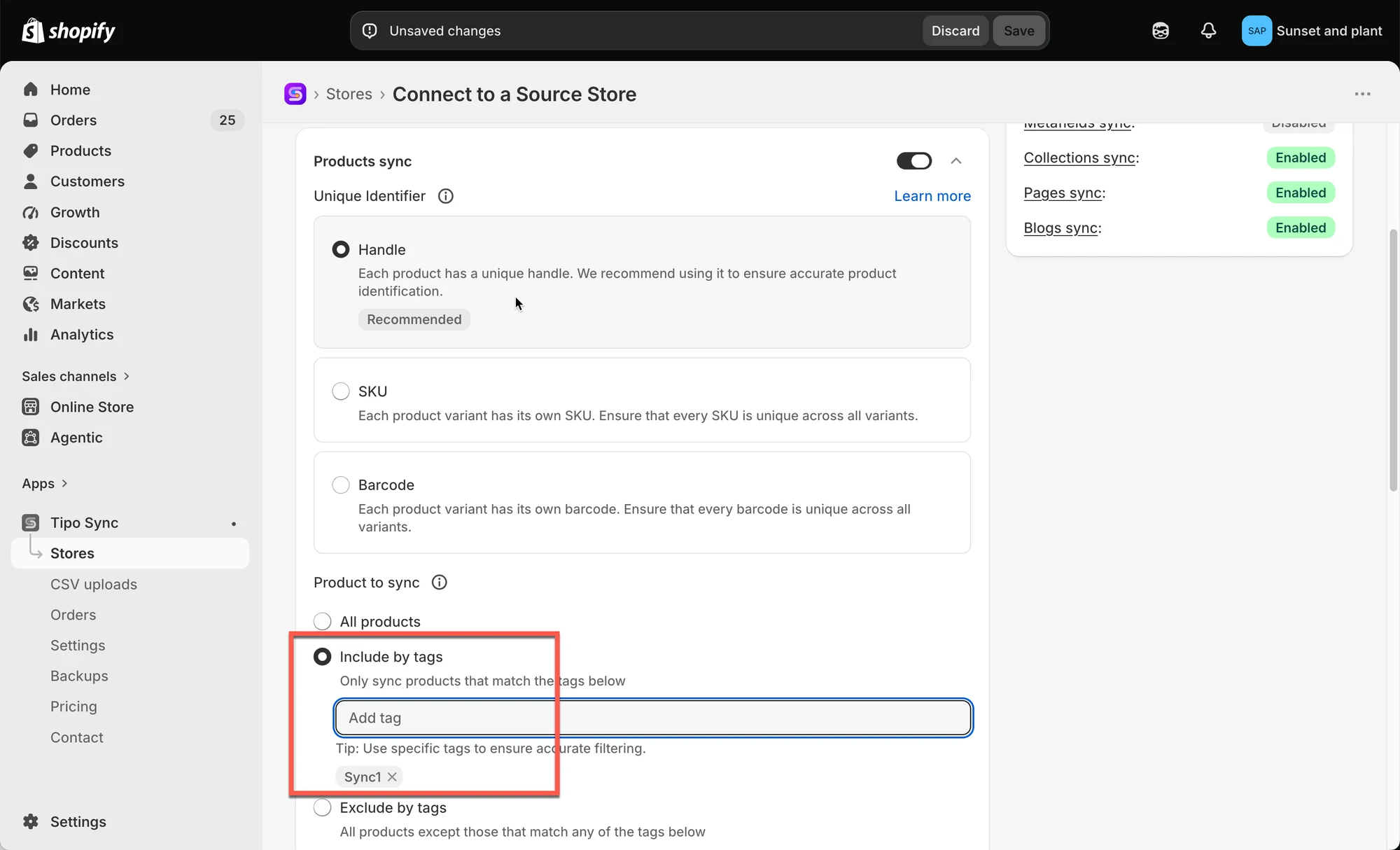
3. Turn on **Products sync** option
4. In **Product to sync** field, select one of the options
* **All products**: All products in the Source store will be shared with connected Destination stores.
* **Include by tags:** Only products that contain at least one of the specified tags will be shared.
* **Exclude by tags**: All products will be shared except products that contain any of the specified tags.
5. Click **Save** to update the change
***
#### **For an running connection:**
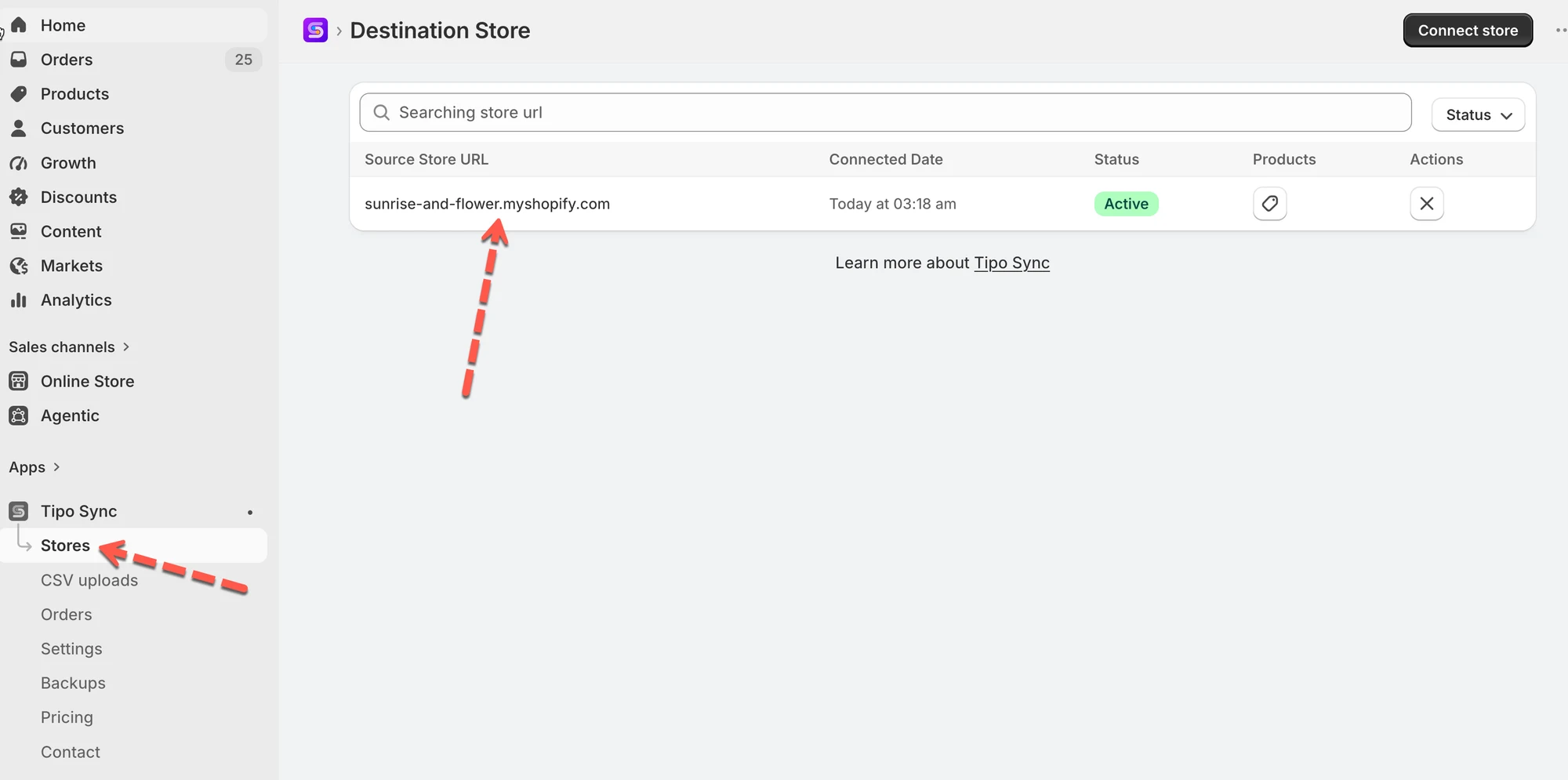
1\. Go to the **Destinations** store, open the app **Dashboard** > click on the store URL of the source store to open the connection detail
2\. In **Product to sync** field, select one of the options
* **All products**: All products in the Source store will be shared with connected Destination stores.
* **Include by tags:** Only products that contain at least one of the specified tags will be shared.
* **Exclude by tags**: All products will be shared except products that contain any of the specified tags.
3\. Select an option to sync products. For example: select **All products that match any of the tags below** > add the product you want
4\. Click **Save** to update the change
***
### ✅ Recommended first-time workflow
If you’re setting up syncing for the first time:
1. Choose **Specific products**
2. Select 1–5 test products
3. Run sync
4. Confirm results in Destination
5. Then expand the list (or switch to “All products”) when you’re confident
***
### 🧪 **Example**
Let’s say you want to sync only your **pet-related** items.\
You can enter tags like:
`pet_food, pet_accessory, pet_toy`
⇒ Now, only products with one of these tags will sync to your destination store.
If you choose “Sync all products except those that match the tags below” and enter:
`sale, clearance`
⇒ Then any product tagged as *sale* or *clearance* will be **excluded** from syncing.
***
### Important Note: Use Distinct and Descriptive Tags
To ensure accurate filtering and prevent unexpected matches:
✅ Use **specific tags** that describe exactly what you want to sync, for example:
```
fish_only, pet_fish, fish_food
```
🚫 Avoid **general tags** like:
```
fish, food
```
General or overlapping tags can cause unrelated products to sync unintentionally.
For example, a “cat food” product might sync if you only used the tag “food.”
Using clear, distinct tags helps your filters work exactly as expected.
***
### 🔁 What happens during sync
**Goal:** Sync only products with the tag `SYNC`
1. In the **Source store**, add the tag **SYNC** to 12 products
2. In Tipo Sync, select: **Sync only products that match these tags**
3. Enter tag: `SYNC`
4. Run sync
✅ **Result after first sync:**
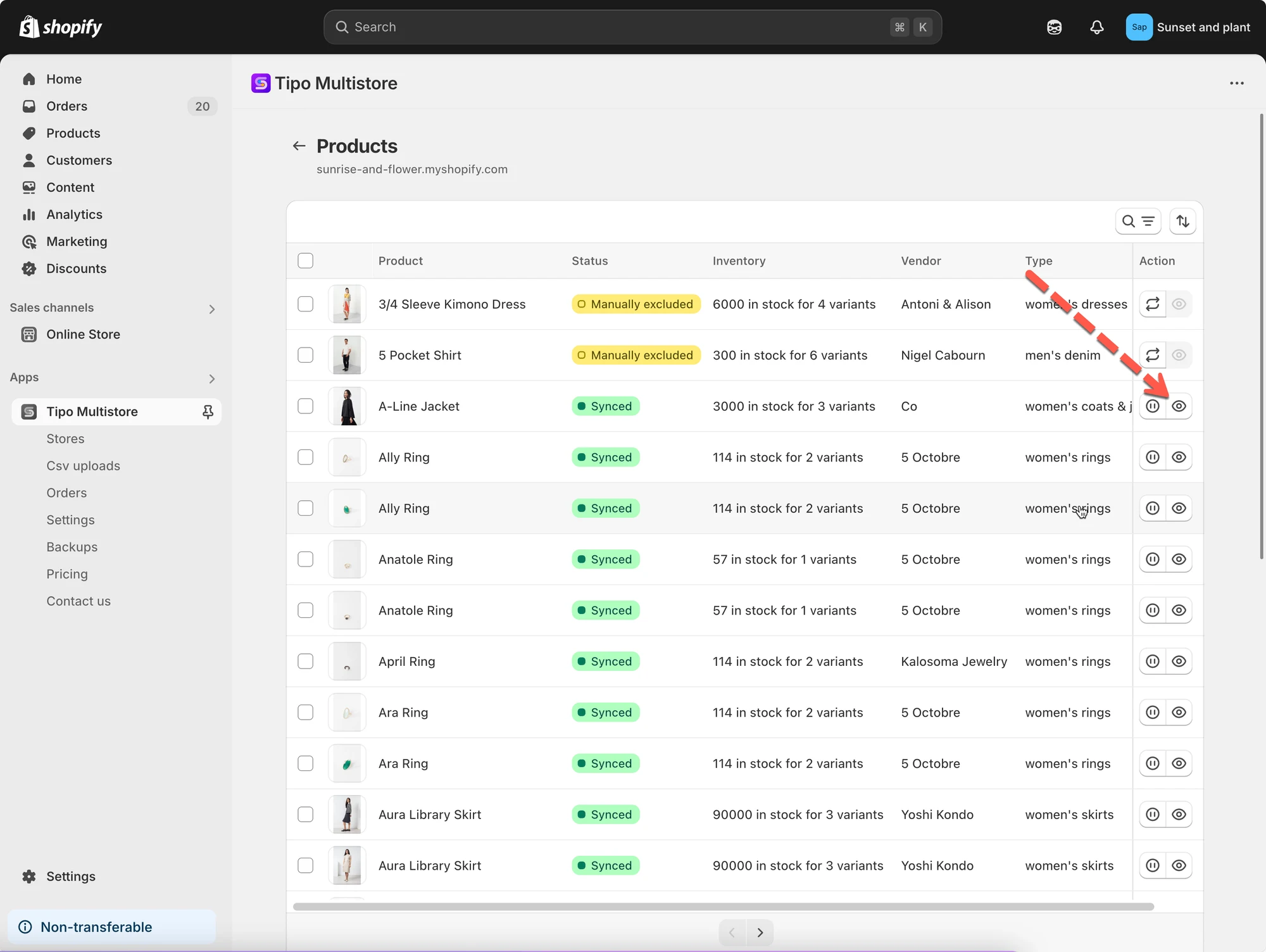
* Tipo Sync imports those **12 products** into the Destination store.
✅ **Result after future changes:**
* If you update any of those `SYNC` products in the Source store, the Destination store product with the **same handle** will be updated (based on enabled sync fields).
If I added tag “SYNC” to a new product, it is created and synced to Destinations store too.
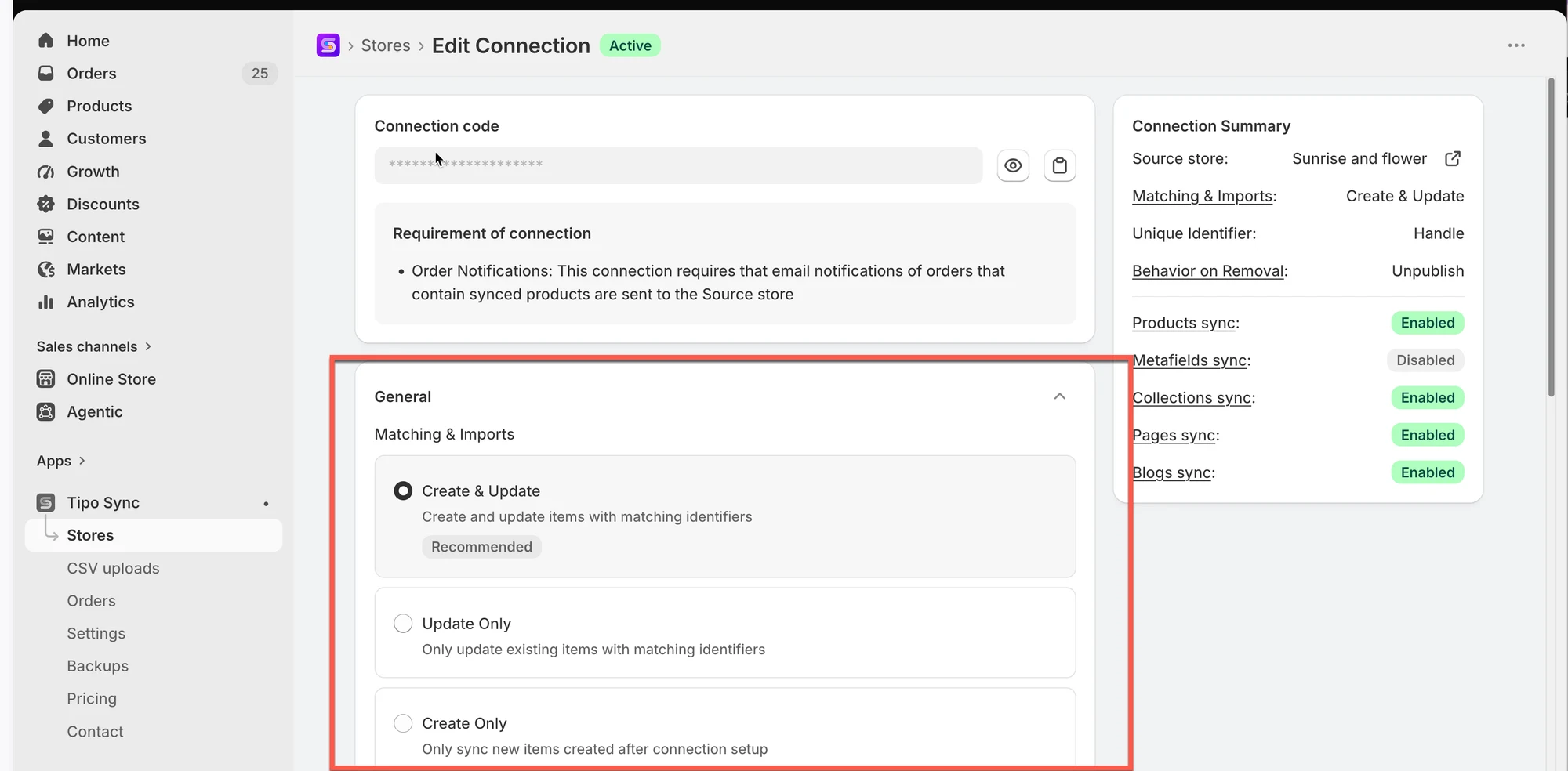
Note: the products are synced based on the **Matching & Imports** setting too.
***
### ▶️ Tutorial video
***
**🙋 Still need support?**
If you still need help, please feel free to contact us at . We’ll be happy to assist you further.