# Set up connection status
When a Destination store sends a connection request, the Source store decides whether to accept it automatically or review it first. This guide explains each option and how to set it up.
### 🔎 Connection status overview
There are **two connection modes** in Tipo Sync:
#### ✅ Auto-accept
The Source store will automatically accept connection requests from Destination stores.
Use this when:
* you control both stores
* you want the fastest setup
* you don’t need manual review
#### 🛡️ Moderation (Manual approval)
The Source store will review and approve each connection request.
Use this when:
* multiple teams manage different stores
* you only want approved Destination stores to connect
* you need more control
***
### ⚙️ How to set up connection status (in the Source store)
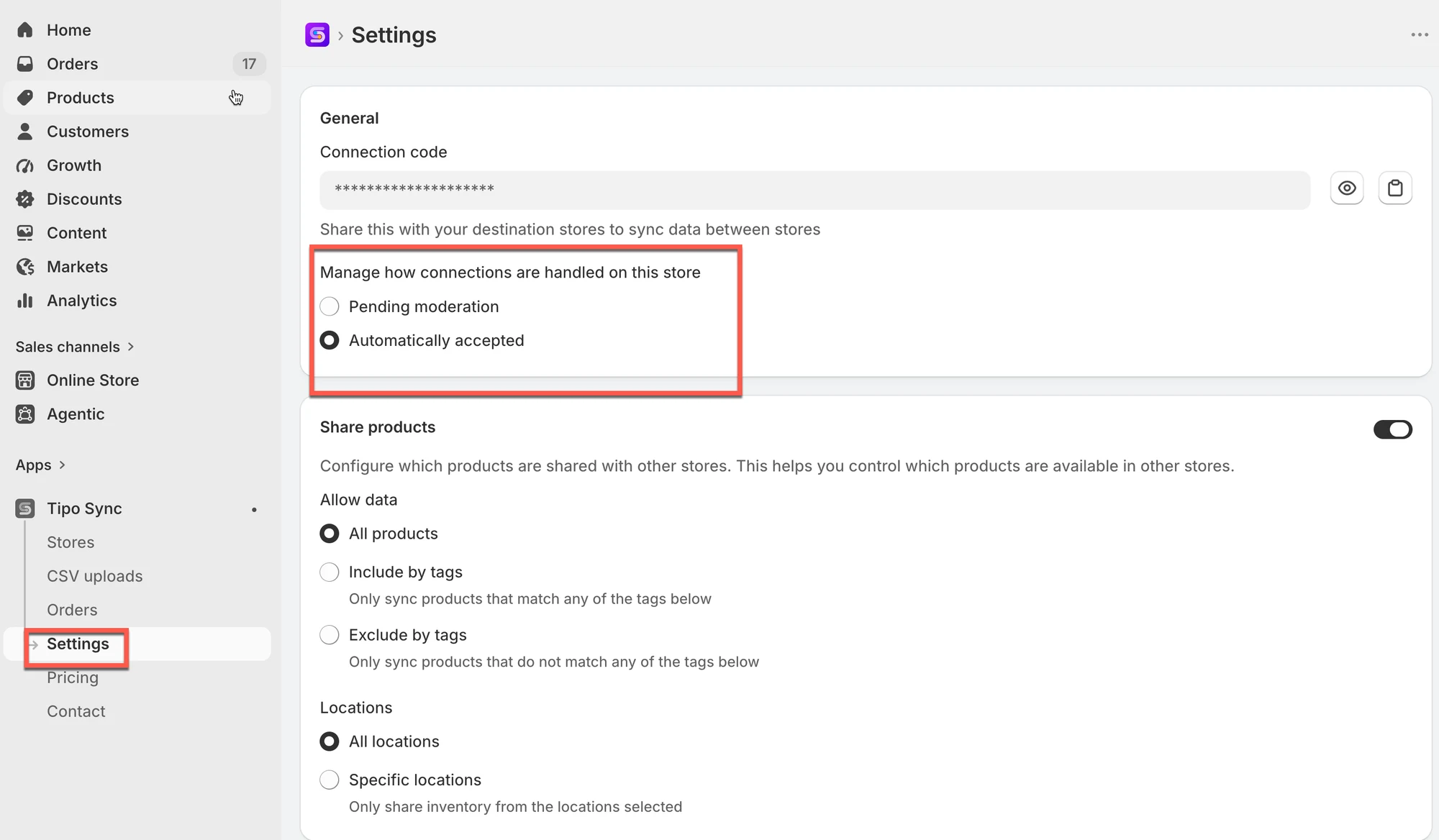
1. Open the **Source** store > open the I**nventory Sync, Multi store TP** app
2. Click app **Settings**
3. In the **Connections** part on the right side, select the status of the connect
Choose one option:
* ✅ **Auto-accept**
* 🛡️ **Moderation**
4. Click **Save** to update the changes
***
### ✅ What happens after you change this setting?
#### If you choose ✅ Auto-accept
* New connection requests are approved automatically
* Your Destination store can start syncing faster
#### If you choose 🛡️ Moderation
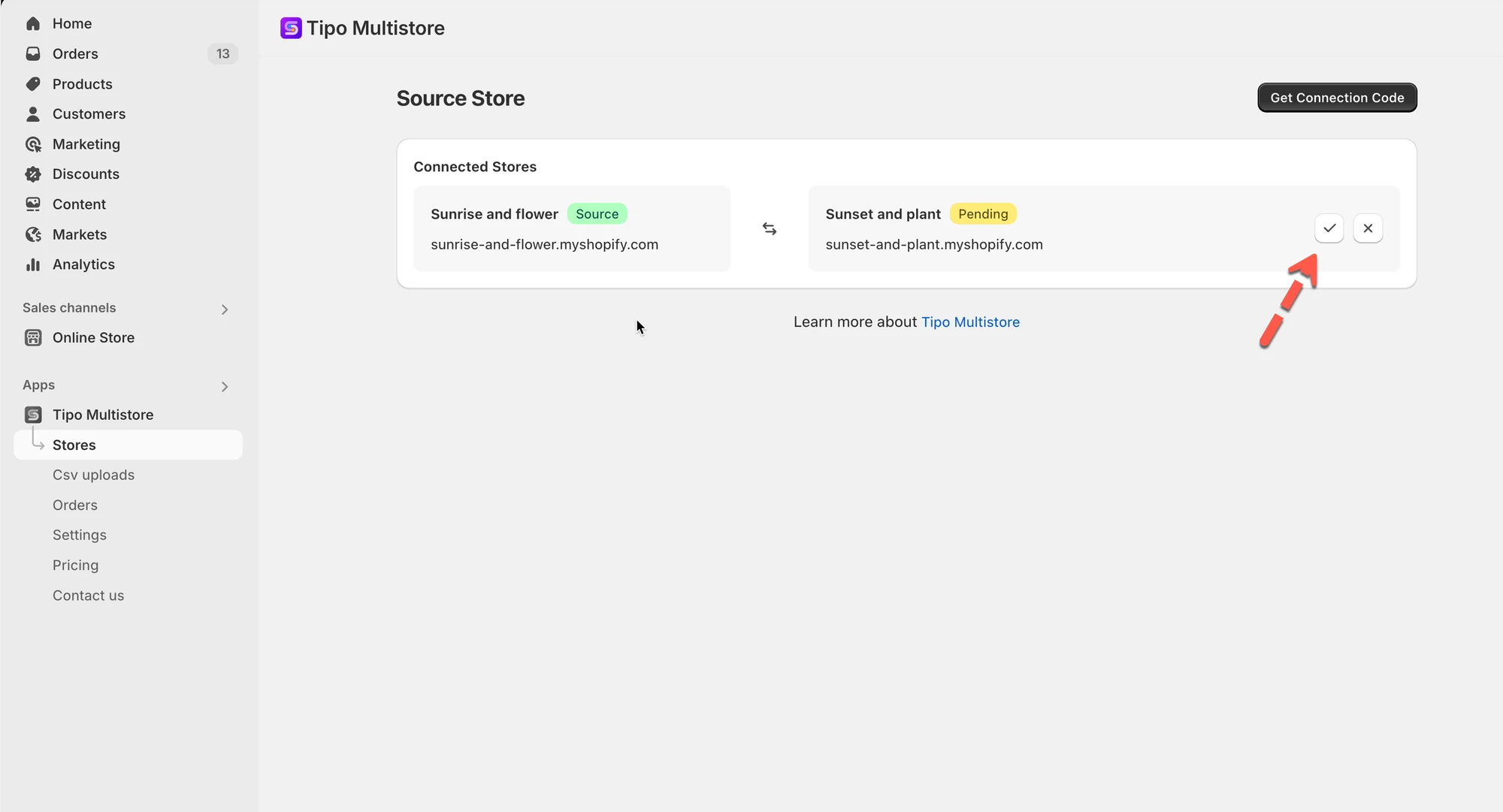
* New connection requests stay in “pending”
* You must approve them in the Source store before syncing starts
This screenshot is unavailable in the original documentation.
***
**🙋 Still need support?**
If you still need help, please feel free to contact us at . We’ll be happy to assist you further.