# Map lokasjoner for lagersynkronisering
Denne veiledningen viser hvordan du mapper Shopify-lokasjoner mellom Source store og Destination store slik at lagersynkroniseringen fungerer riktig.
For å sikre at lagerantallene dine alltid er nøyaktige, tilordnes nettbestillinger og salg i fysiske butikker til [lokasjoner](https://help.shopify.com/en/manual/locations).
### ✅ Hvorfor lokasjonsmapping er nødvendig
Shopify sporer lagerbeholdning per **lokasjon** (lager, fysisk butikk, utsendelsessenter).\
For å synkronisere lagerbeholdning nøyaktig må Tipo Sync vite:
Hvilken **Source-lokasjon** som skal synkroniseres med hvilken **Destination-lokasjon**.
Uten mapping:
* kan det hende at lagerbeholdningen ikke synkroniseres
* kan lagerbeholdningen synkroniseres til feil lokasjon
* kan beholdningen se feil ut i Destination store
### 🛠️ **Trinn 1: Bestem hvilke lokasjoner som skal synkroniseres for Source store**
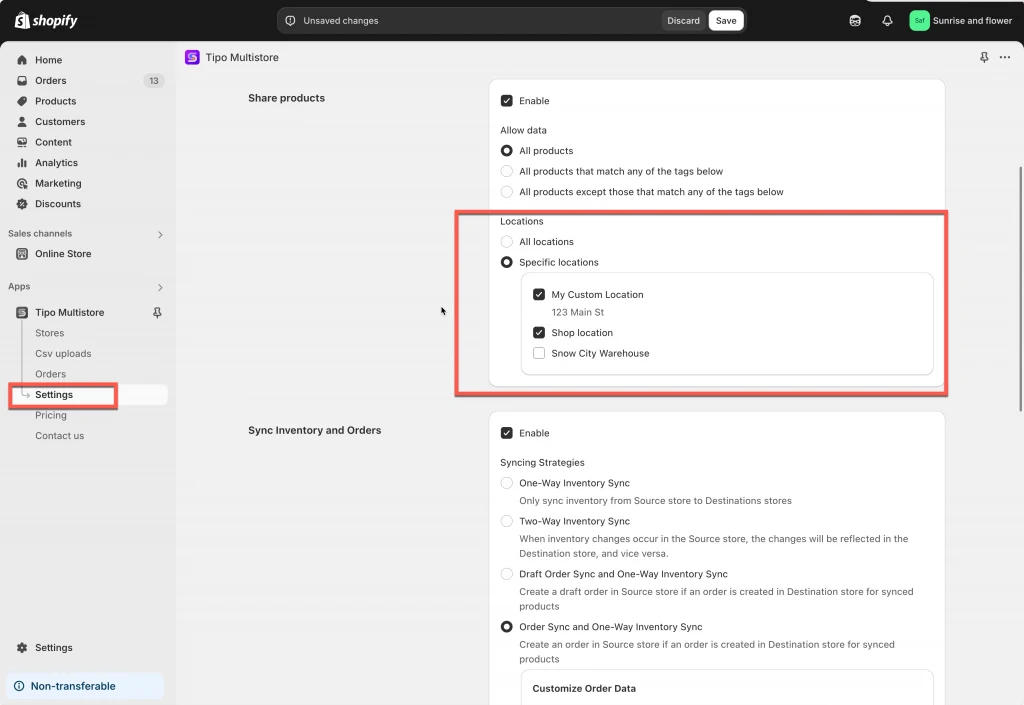
1\. Åpne appen i **Source**-butikken > klikk **Settings**
2\. Rull ned til **Locations**-delen og velg ett av de 2 alternativene nedenfor:
* **All locations**: produkter som er tilgjengelige på alle lokasjoner i butikken din, synkroniseres med Destination store
* **Specific locations**: bare produktene på de valgte lokasjonene oppdateres når det skjer endringer i Destination store
3\. Klikk **Save**
***
### 🛠️ Trinn 2: Map lokasjoner når du kobler sammen 2 butikker
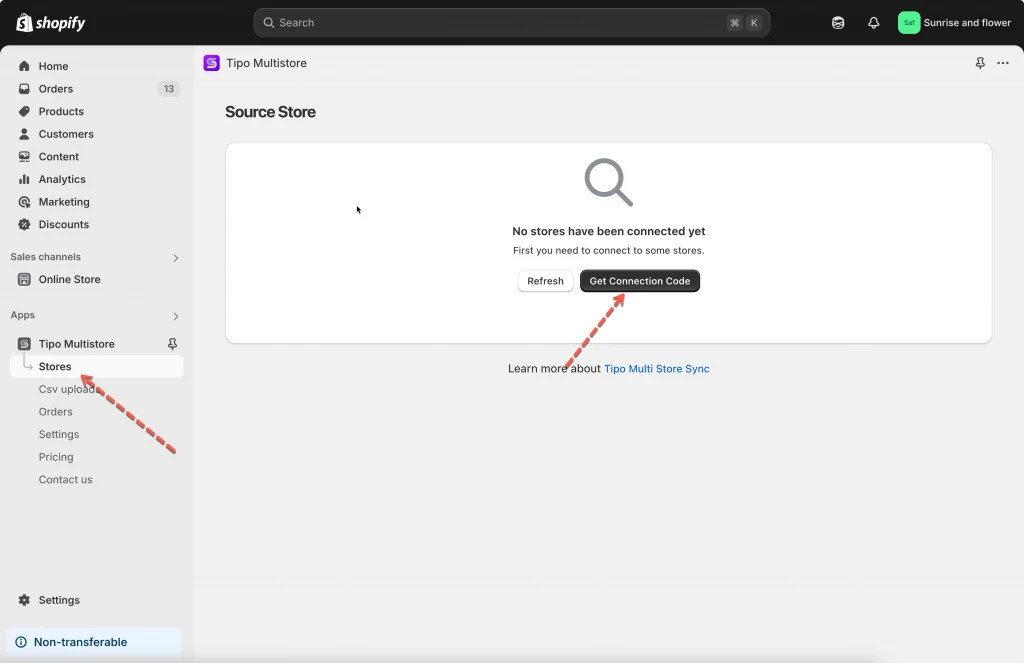
1\. Åpne appen i Source store > klikk **Stores** > klikk på knappen **Get connect code** > kopier tilkoblingskoden i popup-vinduet
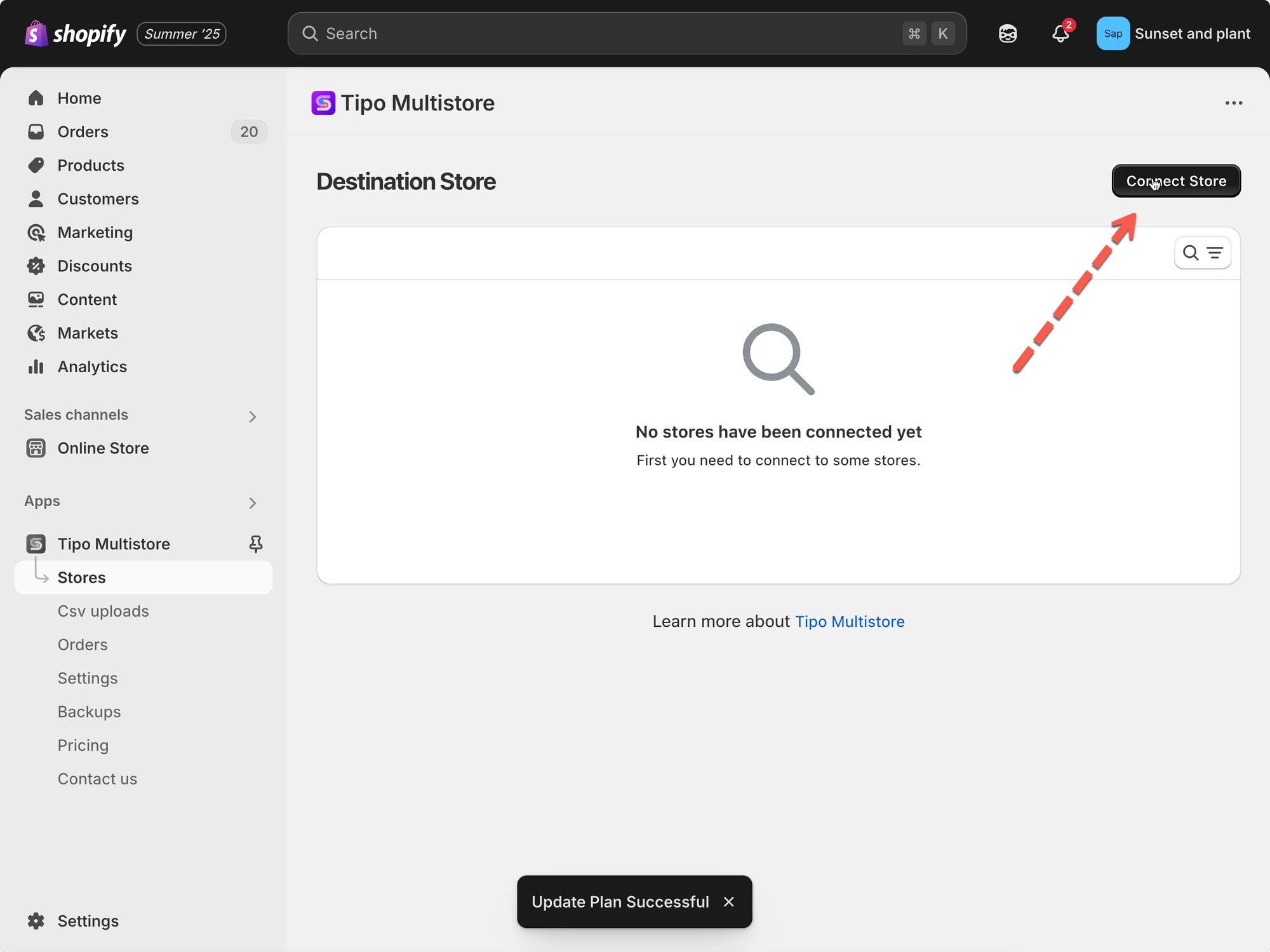
2\. Gå til **Destination**-butikken, åpne Tipo Multi-store-appen > klikk **Stores** > klikk på knappen **Connect** **Store**
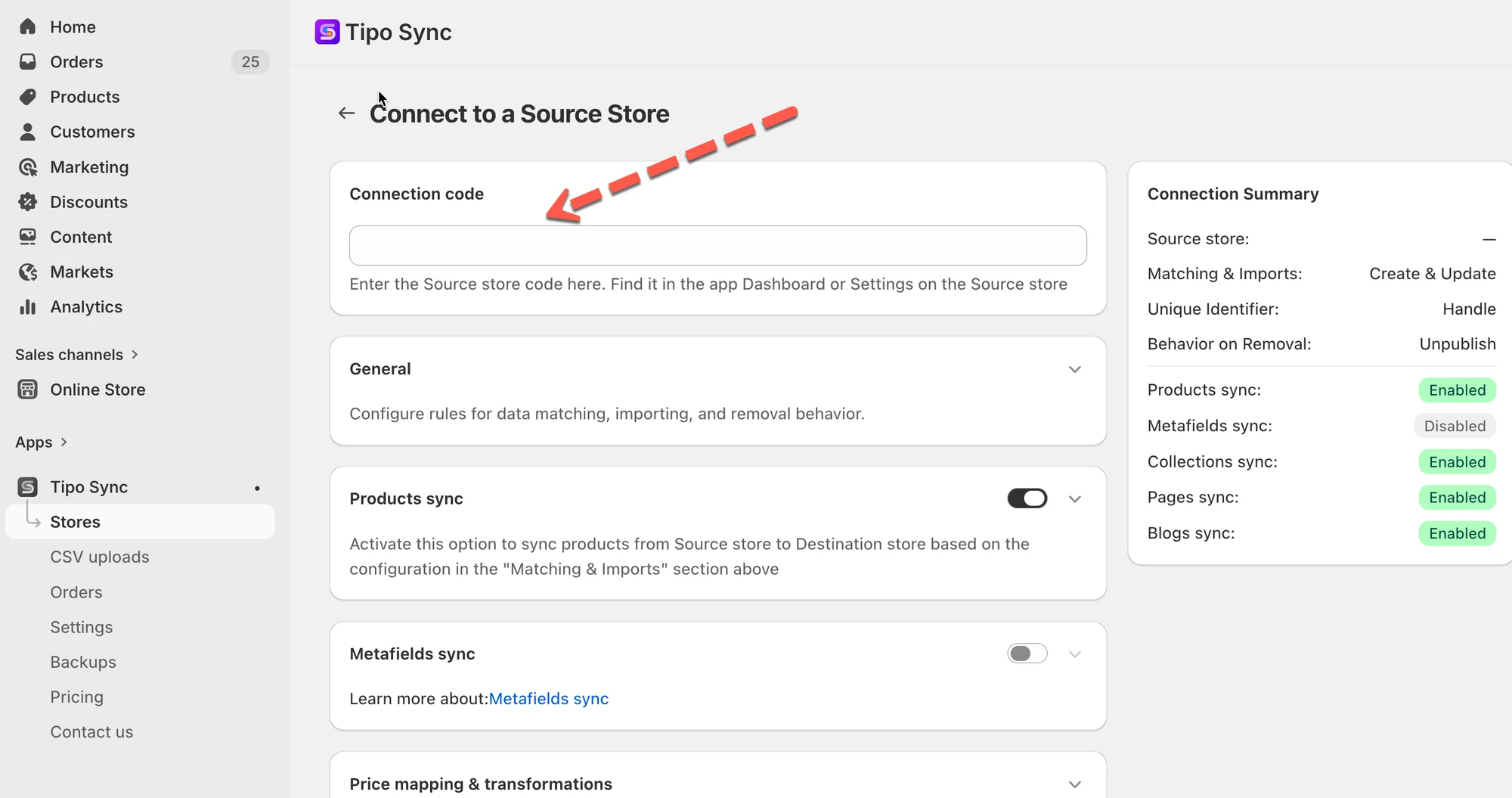
3\. Skriv inn tilkoblingsnøkkelen (hent nøkkelen fra appens Dashboard i Source store)
4. Velg produktene du vil synkronisere, og fullfør innstillingene i tilkoblingsdetaljene
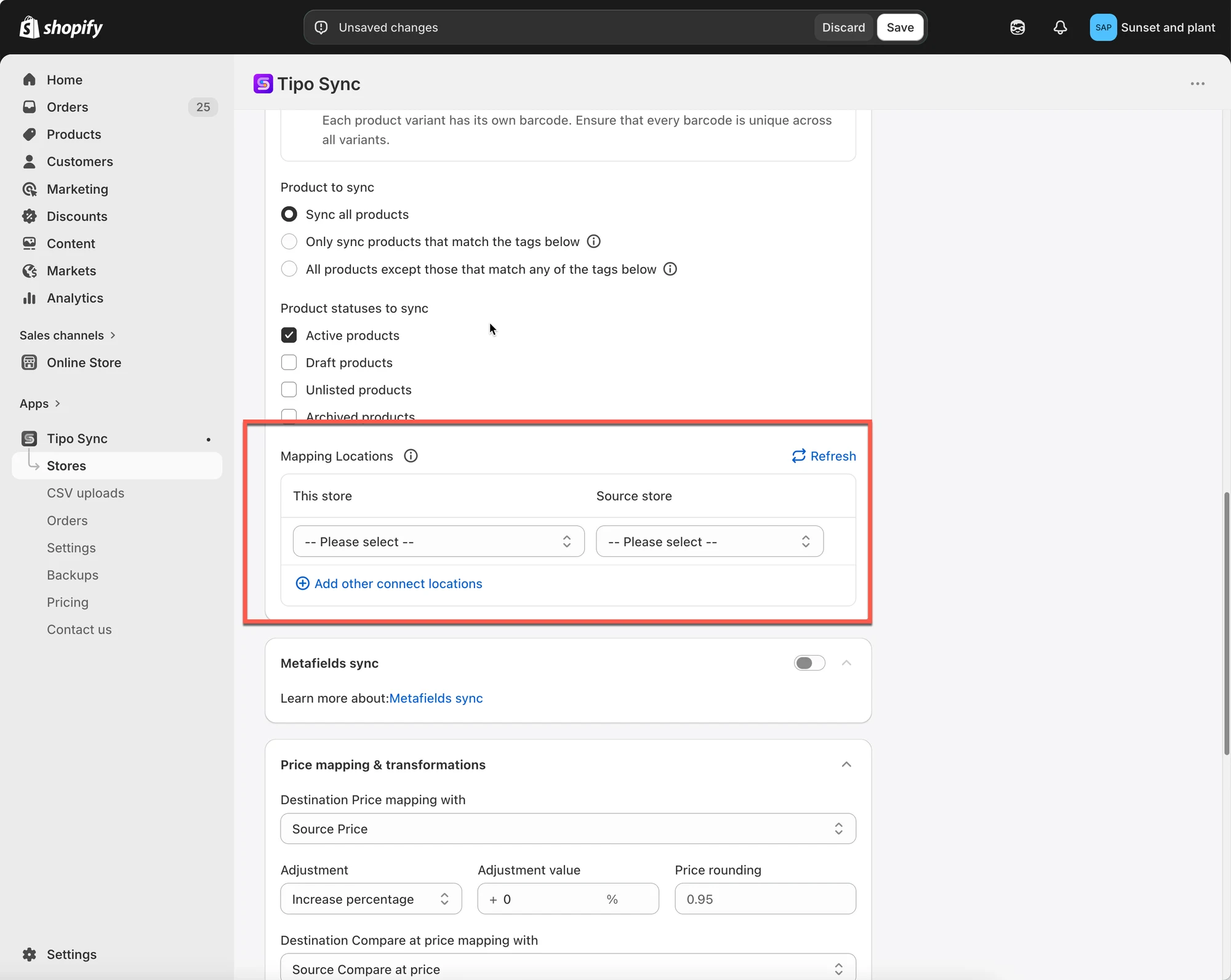
5. Rull ned til delen Mapping **locations** og velg lokasjoner som skal mappes mellom butikkene
På mapping-skjermen ser du:
* Lokasjoner i Source store (til venstre)
* Lokasjoner i Destination store (til høyre)
**Merk**: Appen vår synkroniserer for øyeblikket bare 1 lokasjon fra Source store med 1 lokasjon fra Destination store. Det er ikke mulig å mappe én lokasjon fra Source store til 2 lokasjoner i Destination store
5. Klikk **Save**
Synkroniseringen kjøres umiddelbart. Det kan ta litt tid før den er fullført.
***
### ✅ Hva skjer etter mapping
Når mappingen er lagret, vil appen
* Oppdatere lagerbeholdning bare på lokasjonene du har mappet i tilkoblingen
* Ignorere lokasjoner som ikke er mappet
> **Viktig: Én-til-én-mapping**
>
> Hver lokasjon kan bare mappes til én tilsvarende lokasjon.
✅ Støttet:
| Source store | Destination store |
| ------------ | ----------------- |
| Warehouse A | Warehouse A |
❌ Ikke støttet:
| Source store | Destination store |
| ------------ | ----------------- |
| Warehouse A | Warehouse A |
| Warehouse A | Warehouse B |
Én enkelt Source-lokasjon kan ikke synkronisere lagerbeholdning til flere Destination-lokasjoner.
### **🧪** Eksempel
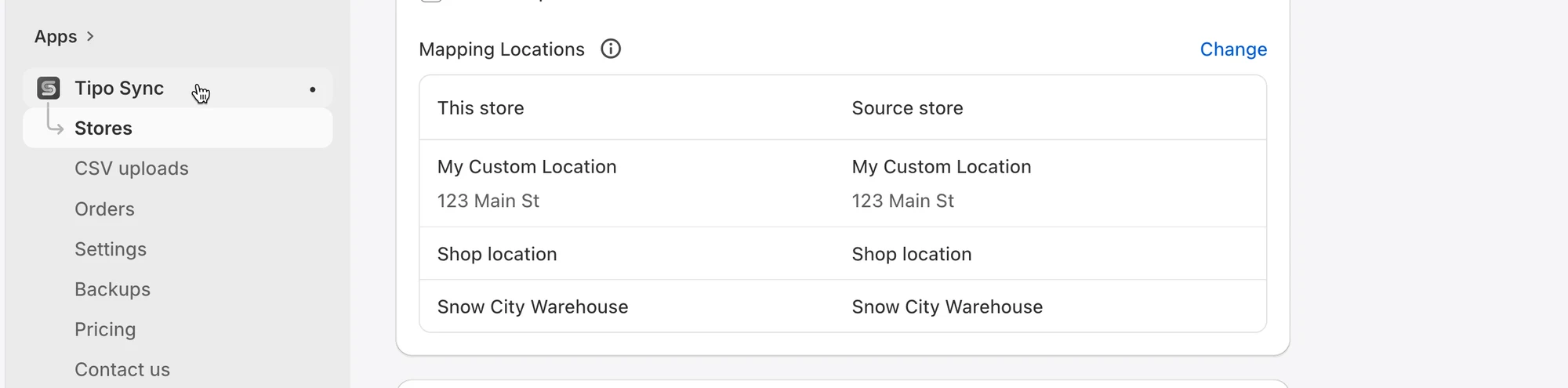
Anta at begge butikkene har følgende lokasjoner:
| Source Store | Destination Store |
| ------------------ | ------------------ |
| My Custom Location | My Custom Location |
| Shop location | Shop location |
Og at mappingen er konfigurert slik:
| Destination Store | Source Store |
| ------------------ | ------------------ |
| My Custom Location | My Custom Location |
| Shop location | Shop location |
#### Eksempel 1: Enveis lagersynkronisering
Synkroniseringsretning: Source Store → Destination Store
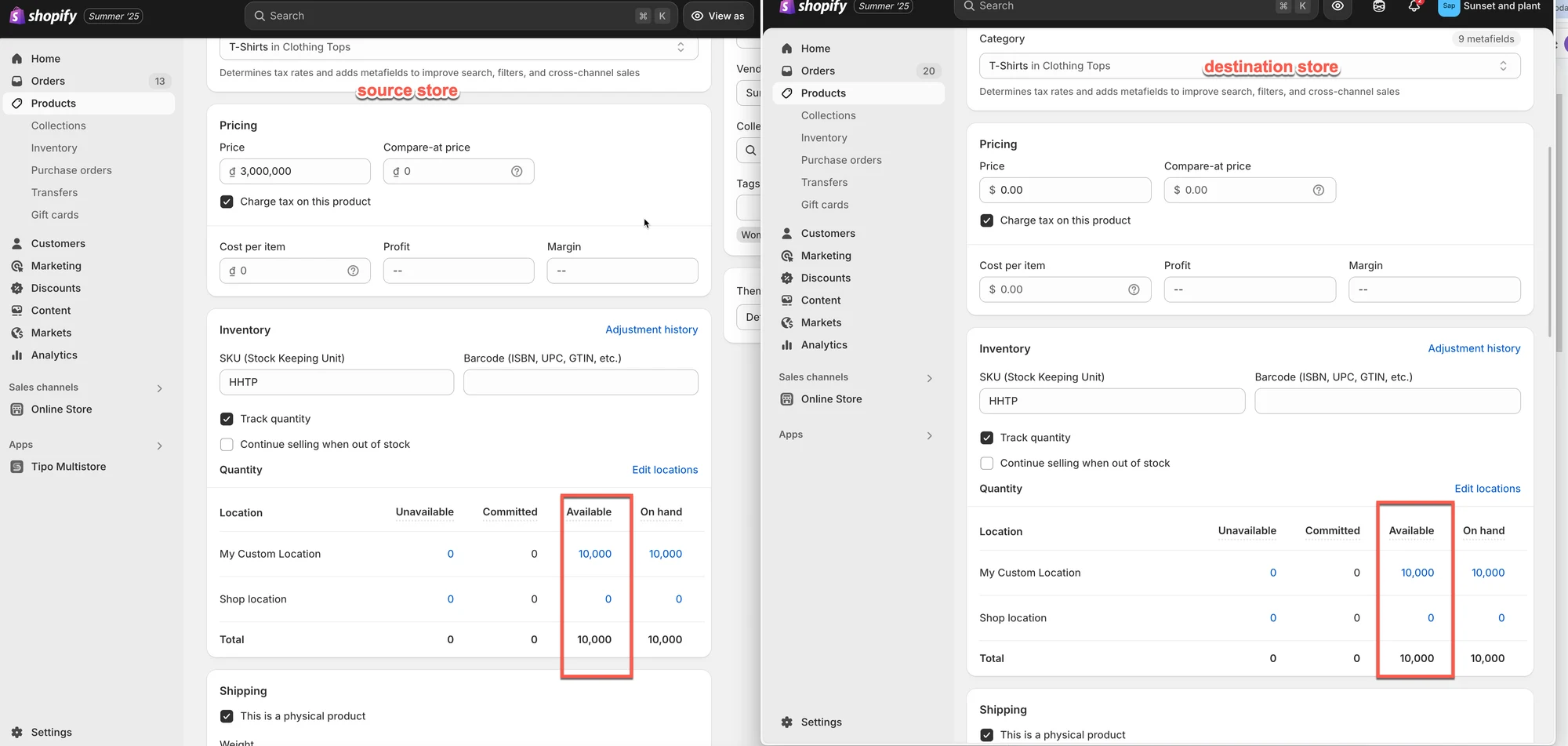
Før synkronisering
**Source Store**
| Location | Available |
| ------------------ | --------- |
| My Custom Location | 10,000 |
| Shop location | 0 |
**Destination Store**
| Location | Available |
| ------------------ | --------- |
| My Custom Location | 5 |
| Shop location | 100 |
Etter synkronisering
**Destination Store**
| Location | Available |
| ------------------ | --------- |
| My Custom Location | 10,000 |
| Shop location | 0 |
Fordi lagerbeholdningen synkroniseres fra Source Store til Destination Store, oppdateres beholdningen i Destination slik at den samsvarer med de mappede Source-lokasjonene.
***
#### Eksempel 2: Toveis lagersynkronisering
Synkroniseringsretning: Source Store ↔ Destination Store
Anta at lokasjonene er mappet slik:
| Destination Store | Source Store |
| ------------------ | ------------------ |
| My Custom Location | My Custom Location |
| Shop location | Shop location |
**Scenario A: Salg i Source Store**
Før salget:
| Location | Source Store | Destination Store |
| ------------------ | ------------ | ----------------- |
| My Custom Location | 10,000 | 10,000 |
En kunde kjøper 1 vare i Source Store.
Etter at Shopify har oppdatert lagerbeholdningen:
| Location | Source Store |
| ------------------ | ------------ |
| My Custom Location | 9,999 |
Tipo Sync oppdaterer deretter den mappede lokasjonen i Destination Store:
| Location | Destination Store |
| ------------------ | ----------------- |
| My Custom Location | 9,999 |
Resultat: Begge butikkene forblir synkronisert.
***
**Scenario B: Salg i Destination Store**
Før salget:
| Location | Source Store | Destination Store |
| ------------------ | ------------ | ----------------- |
| My Custom Location | 10,000 | 10,000 |
En kunde kjøper 1 vare i Destination Store.
Etter at Shopify har oppdatert lagerbeholdningen:
| Location | Destination Store |
| ------------------ | ----------------- |
| My Custom Location | 9,999 |
Tipo Sync oppdaterer deretter den mappede lokasjonen i Source Store:
| Location | Source Store |
| ------------------ | ------------ |
| My Custom Location | 9,999 |
Resultat: Begge butikkene forblir synkronisert.
***
#### Eksempel 3: Lokasjoner som ikke er mappet, ignoreres
Anta at bare **My Custom Location** er mappet.
| Destination Store | Source Store |
| ------------------ | ------------------ |
| My Custom Location | My Custom Location |
**Shop location** er ikke mappet.
#### Source Store
| Location | Available |
| ------------------ | --------- |
| My Custom Location | 10,000 |
| Shop location | 500 |
#### Destination Store
| Location | Available |
| ------------------ | --------- |
| My Custom Location | 10,000 |
| Shop location | 100 |
Etter lagersynkronisering:
| Location | Result |
| ------------------ | ---------- |
| My Custom Location | Synced |
| Shop location | Not synced |
Lagerbeholdningen på **Shop location** forblir uendret fordi den ikke er inkludert i lokasjonsmappingen.
***
### ▶️ En veiledningsvideo
***
**🙋 Trenger du fortsatt hjelp?**
Hvis du fortsatt trenger hjelp, er du velkommen til å kontakte oss på . Vi hjelper deg gjerne videre.