# Google Sheet 연동

예약을 Google Sheets로 내보내 예약을 추적하고, 보고서를 만들고, 팀과 데이터를 공유하세요.

### 🔌 Tipo를 Google Sheets에 연결

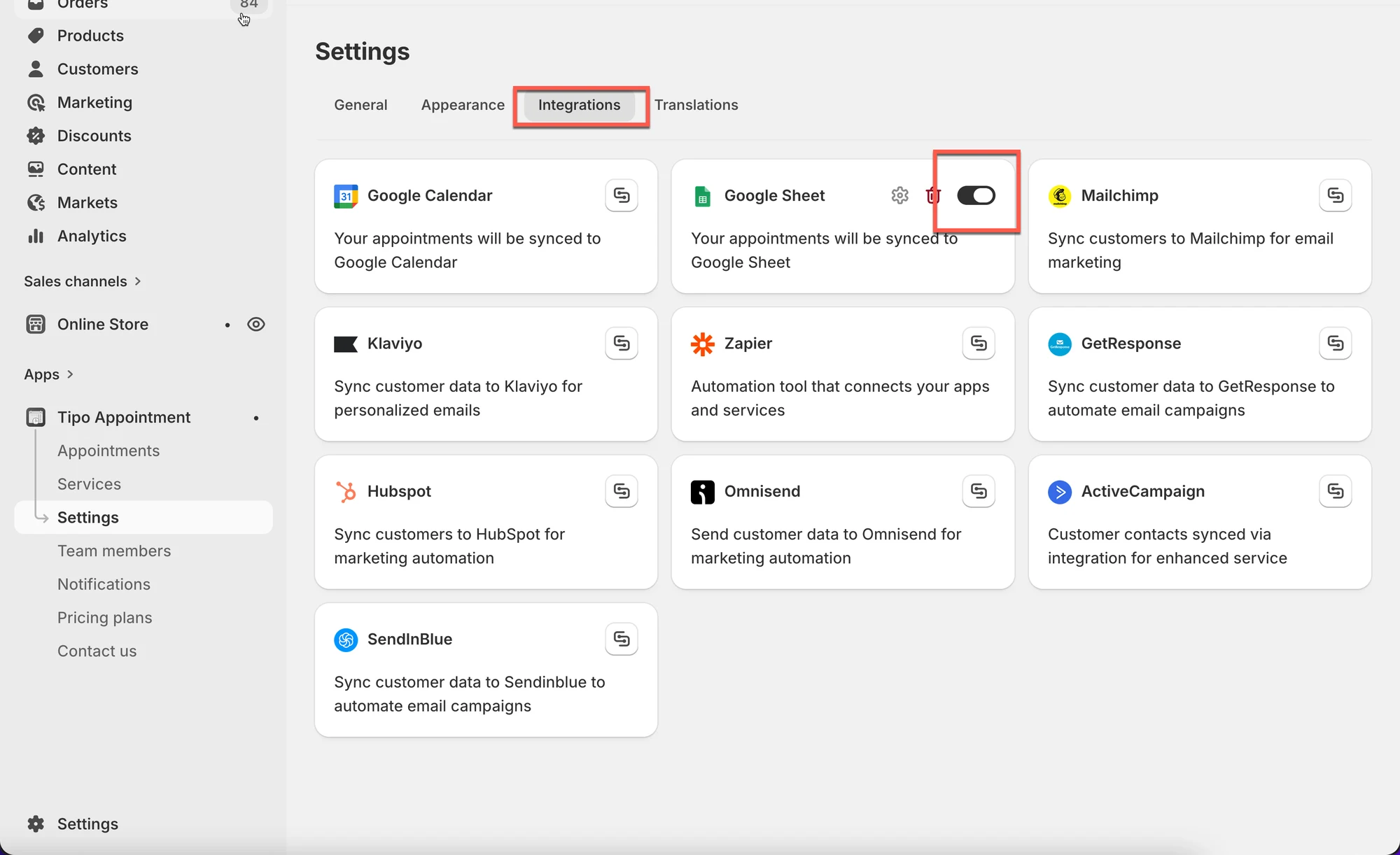
1\. 앱을 열고 **Settings** > **Integrations**를 클릭한 다음 **Google Sheets** 옵션을 찾습니다.

2. **Google Sheets** 옵션을 ON으로 켭니다.

<figure><img src="/media/6d47b21fe4672eaf6e2e.webp" alt="" loading="lazy" decoding="async"><figcaption></figcaption></figure>

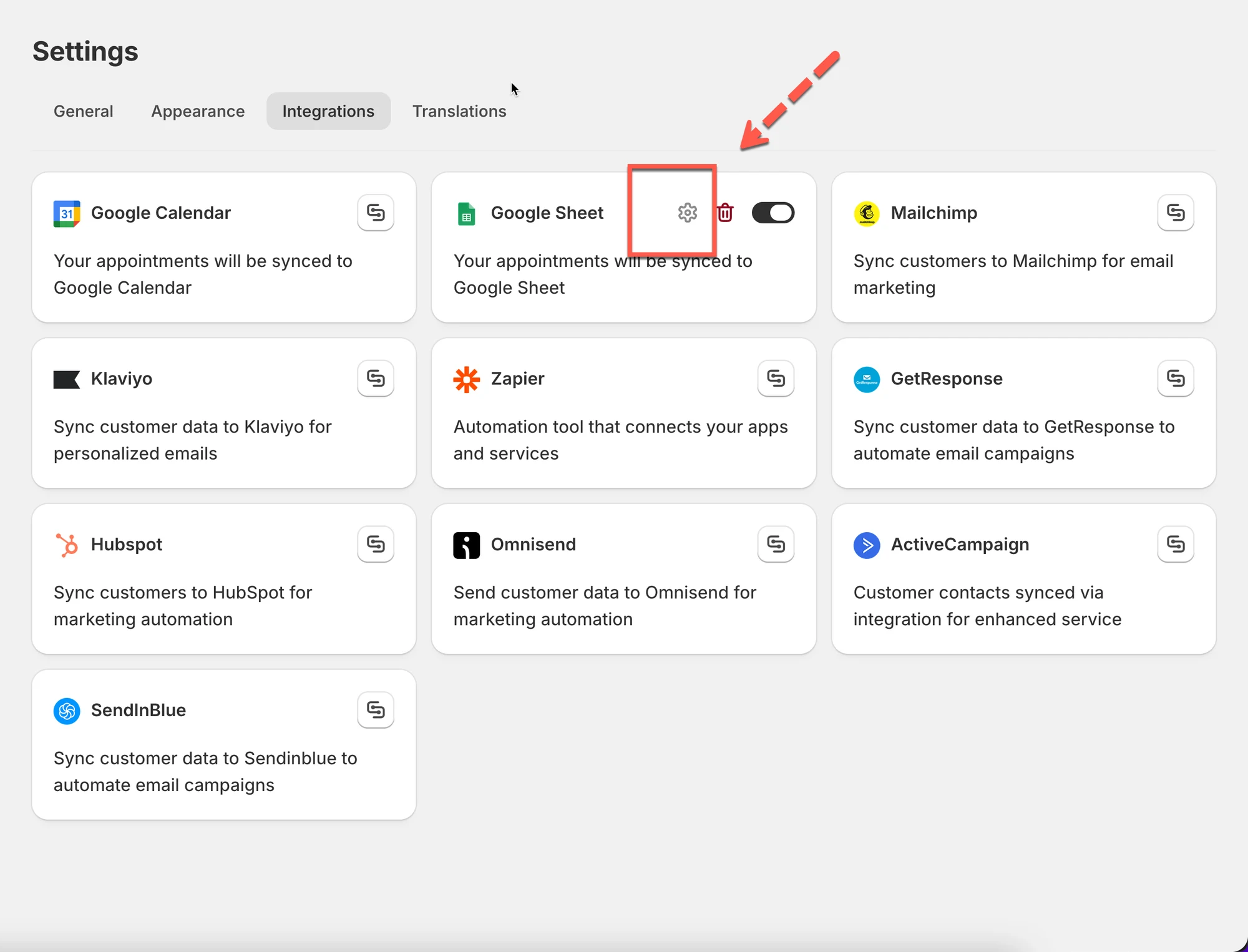
3. 톱니바퀴 아이콘을 클릭하여 설정합니다.

<figure><img src="/media/975ef4383de2d103f7bc.webp" alt="" loading="lazy" decoding="async"><figcaption></figcaption></figure>

3. Google 계정에 로그인합니다.&#x20;
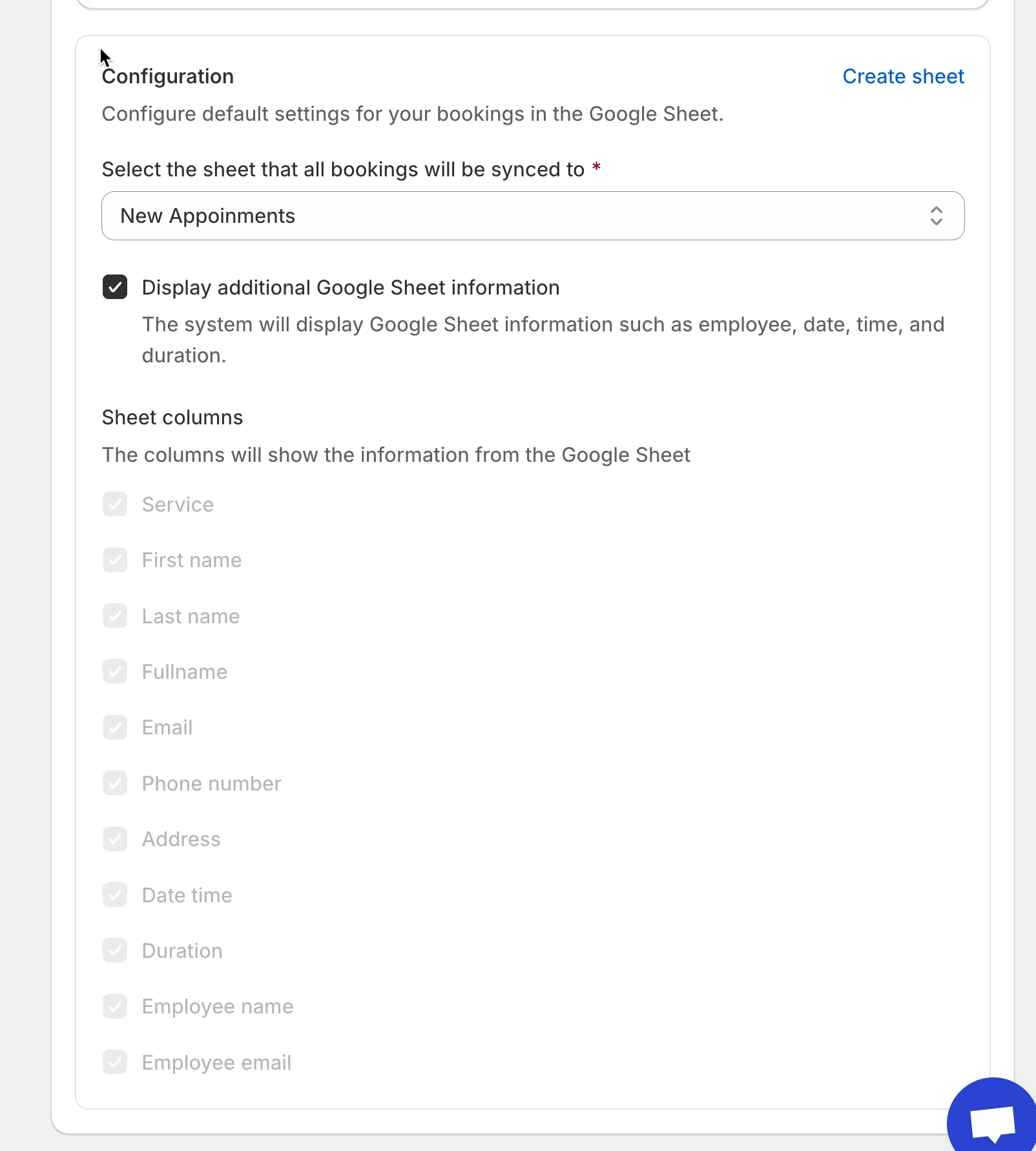
4. 계정에서 사용 가능한 **sheet**를 선택하거나 **Create sheet**를 클릭하여 새 목록을 생성합니다.

<figure><img src="/media/93b8e69c88b004e8fca8.webp" alt="" loading="lazy" decoding="async"><figcaption></figcaption></figure>

5. **Show appointment booking information (service, employee, date time, duration, …)** 체크박스를 선택합니다 (선택 사항).
6. **Save**를 클릭합니다.

***

### ✅ **작동 방식**

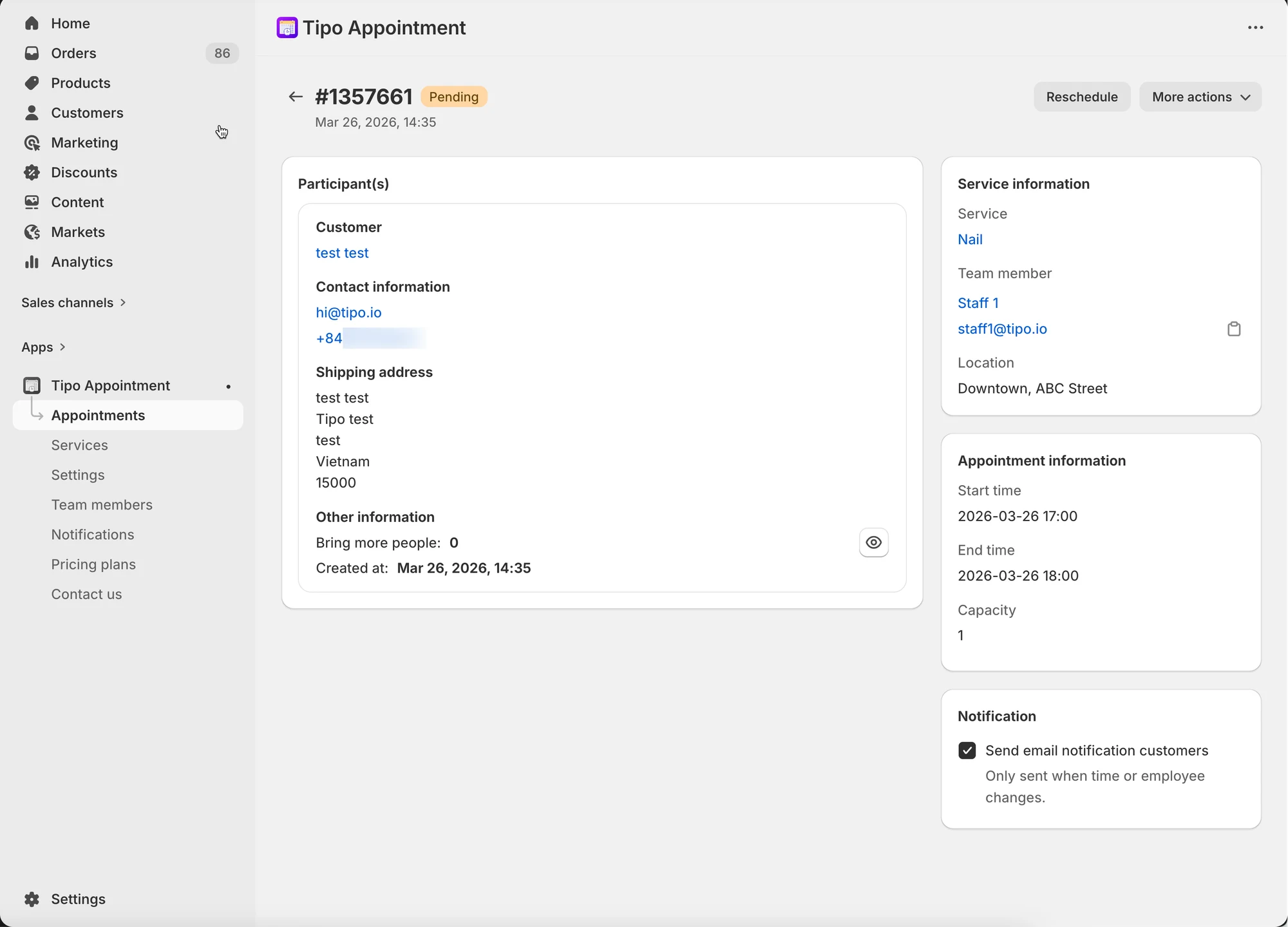
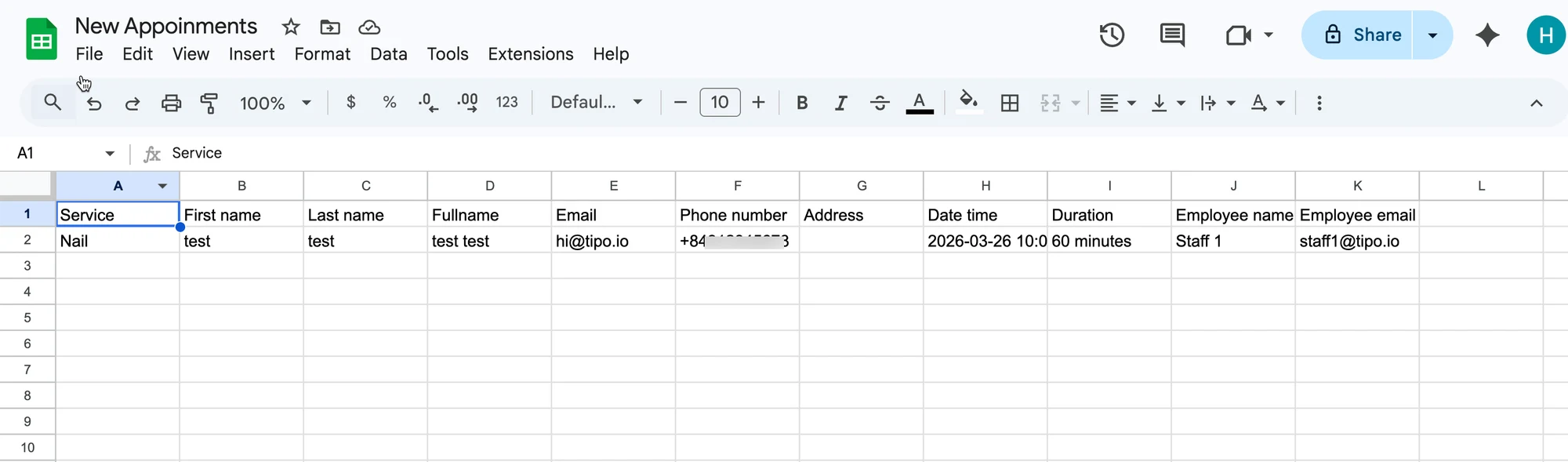
앱에서 예약이 완료되면 데이터가 Google Sheet에서 선택한 표에 자동으로 추가됩니다.

앱의 예약:&#x20;

<figure><img src="/media/53f03f63551ac150ec95.webp" alt="" loading="lazy" decoding="async"><figcaption></figcaption></figure>

데이터가 Google Sheets의 선택한 시트에 추가됩니다.

<figure><img src="/media/45abc953be644a1b6258.webp" alt="" loading="lazy" decoding="async"><figcaption></figcaption></figure>

<figure><span class="missing-media" role="note">이 스크린샷은 원본 문서에서 제공되지 않습니다.</span><figcaption></figcaption></figure>

***

**🙋 아직 도움이 필요하신가요?**

여전히 도움이 필요하시면 언제든지 <hi@tipo.io>로 문의해 주세요. 기꺼이 도와드리겠습니다.