# Why isn’t my sync running?
If the sync isn’t working as expected, here are some common reasons and how to fix them:
### ⏱️ 1. Check the Sync Time
After the Source and Destination stores are connected, the app starts the initial sync automatically.
The sync time may take a few minutes depending on:
* The amount of data
* Number of products/variants
* Shopify processing time
#### How product sync works
After the initial connection:
* Product create/update events are grouped and synced every **30 minutes**
* All products updated during that period will sync together
> Please wait about 30 minutes after making changes in the Source store before checking the Destination store.
#### Inventory sync
Inventory is synced in real time.
You do not need to wait for the 30-minute sync cycle to update inventory quantities.
***
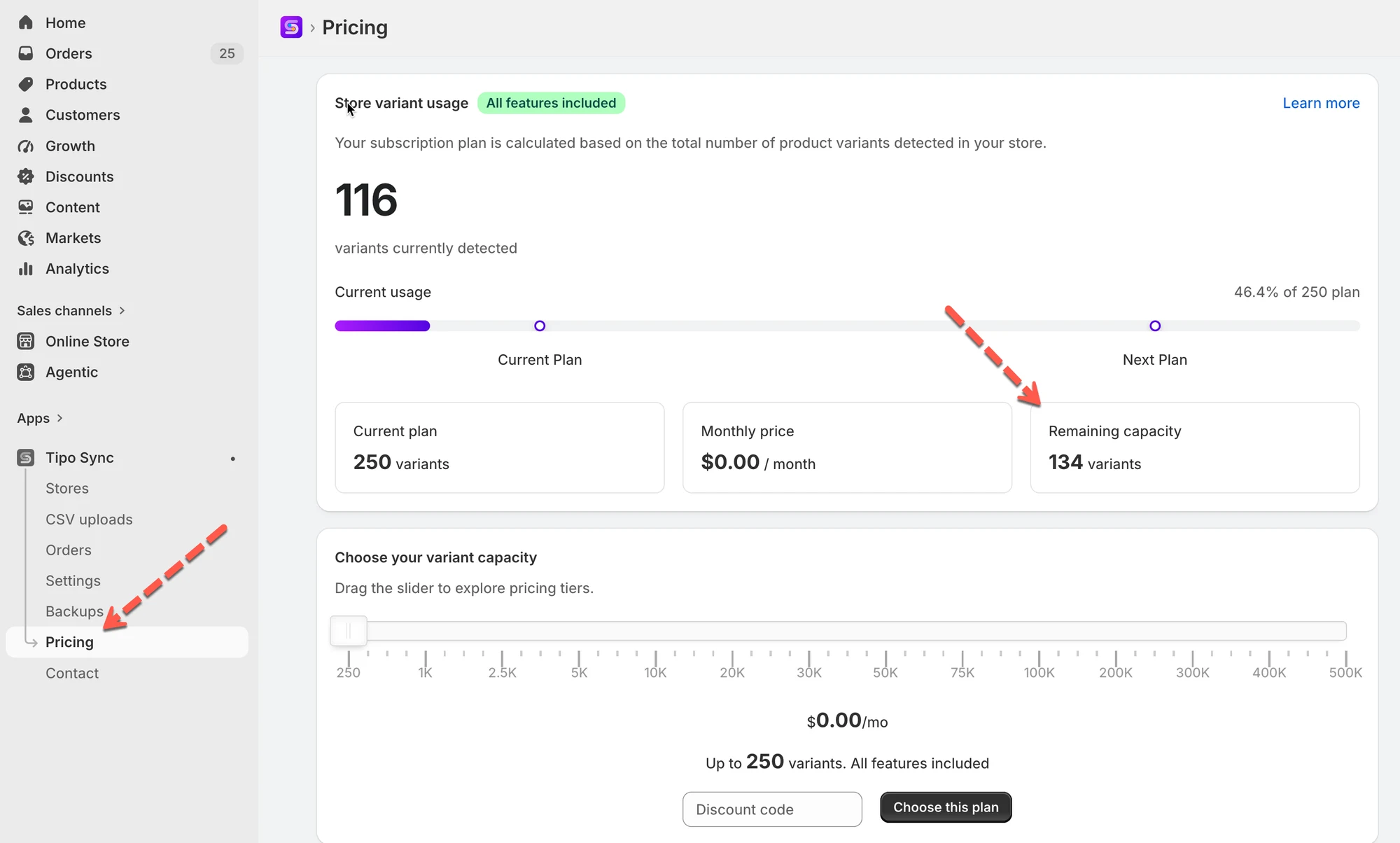
### 💳 2. You Reached Your Plan’s Variant Limit
Syncing will stop when the Destination store reaches the allowed variant limit for the current plan.
Example
* Current plan allows: 500 variants
* Store currently has: 5100 variants
* Result → New products cannot sync
Know more about the Pricing plan of the app [here](/faqs/why-isnt-my-sync-running).
How to solve:
* Either upgrade your plan to support more variants, or
* Remove unnecessary products from the Destination store.
***
### 🏷️ 3. The Product Does Not Match Sync Conditions
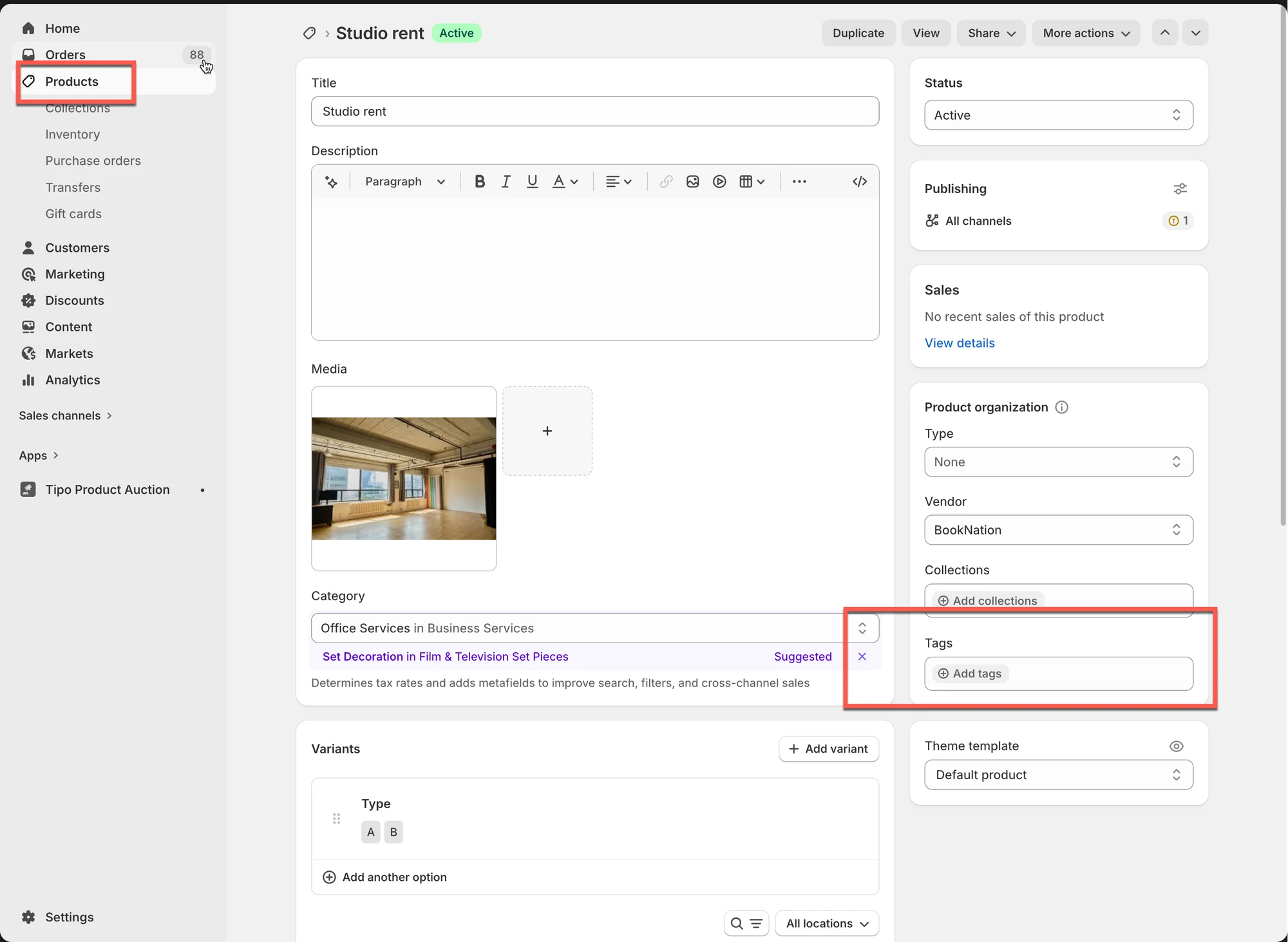
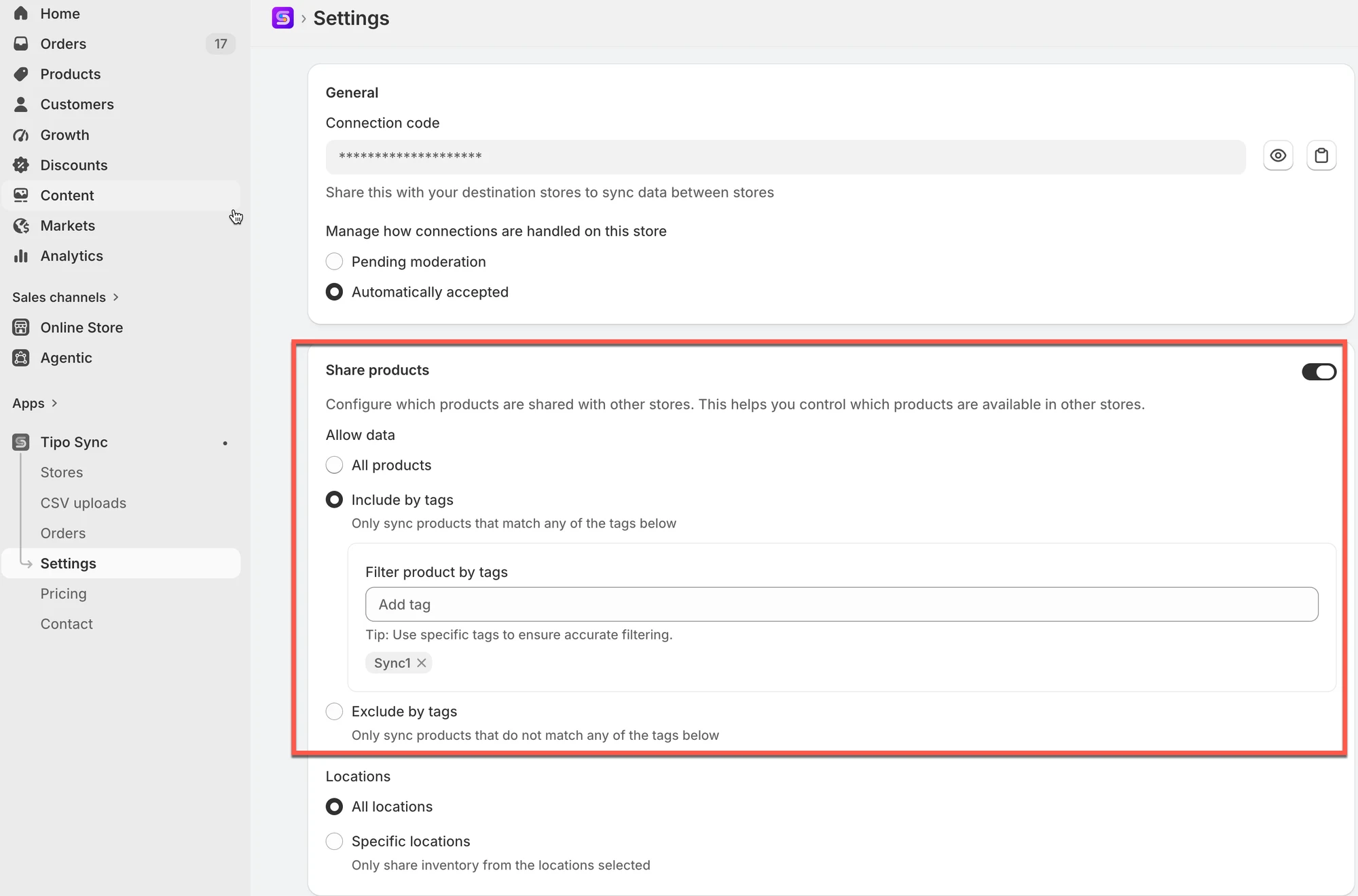
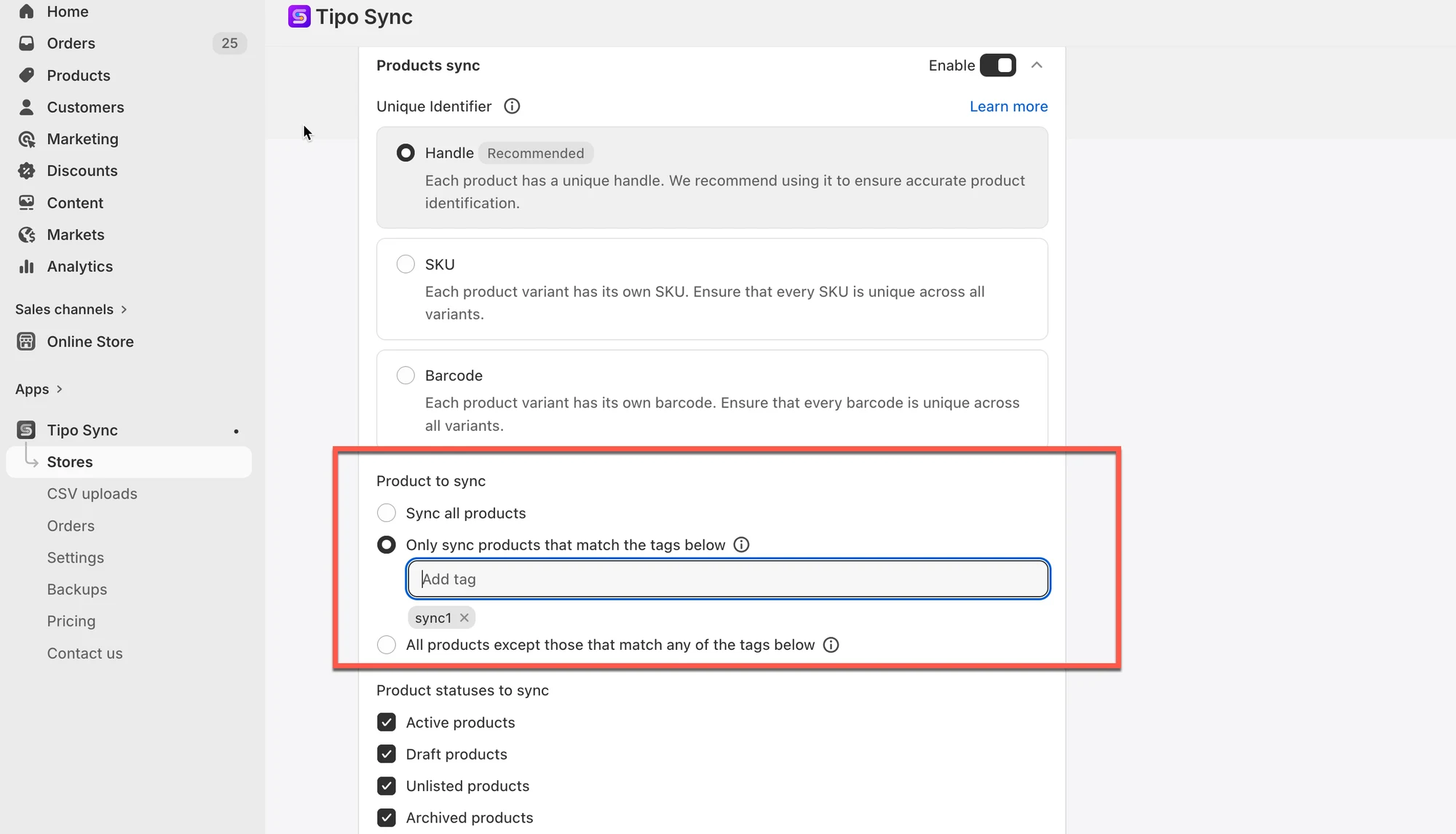
When setting up sync rules, you may have chosen to sync only products with a specific tag. If a product **doesn’t have that tag**, it won’t be synced.
How to check:
* In Source store, please go to the app settings > **Share products** > see the option you select.
* In destination store:
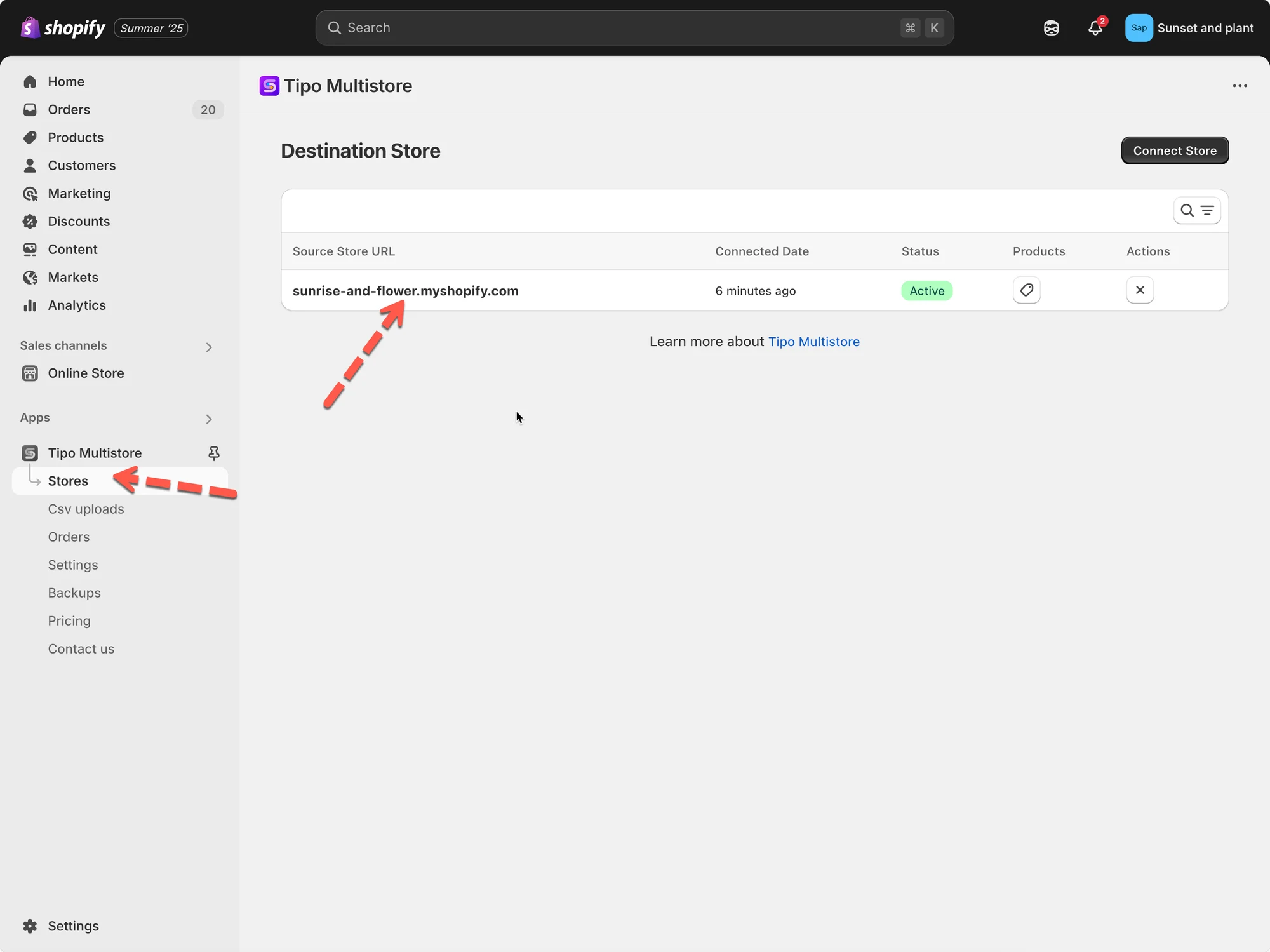
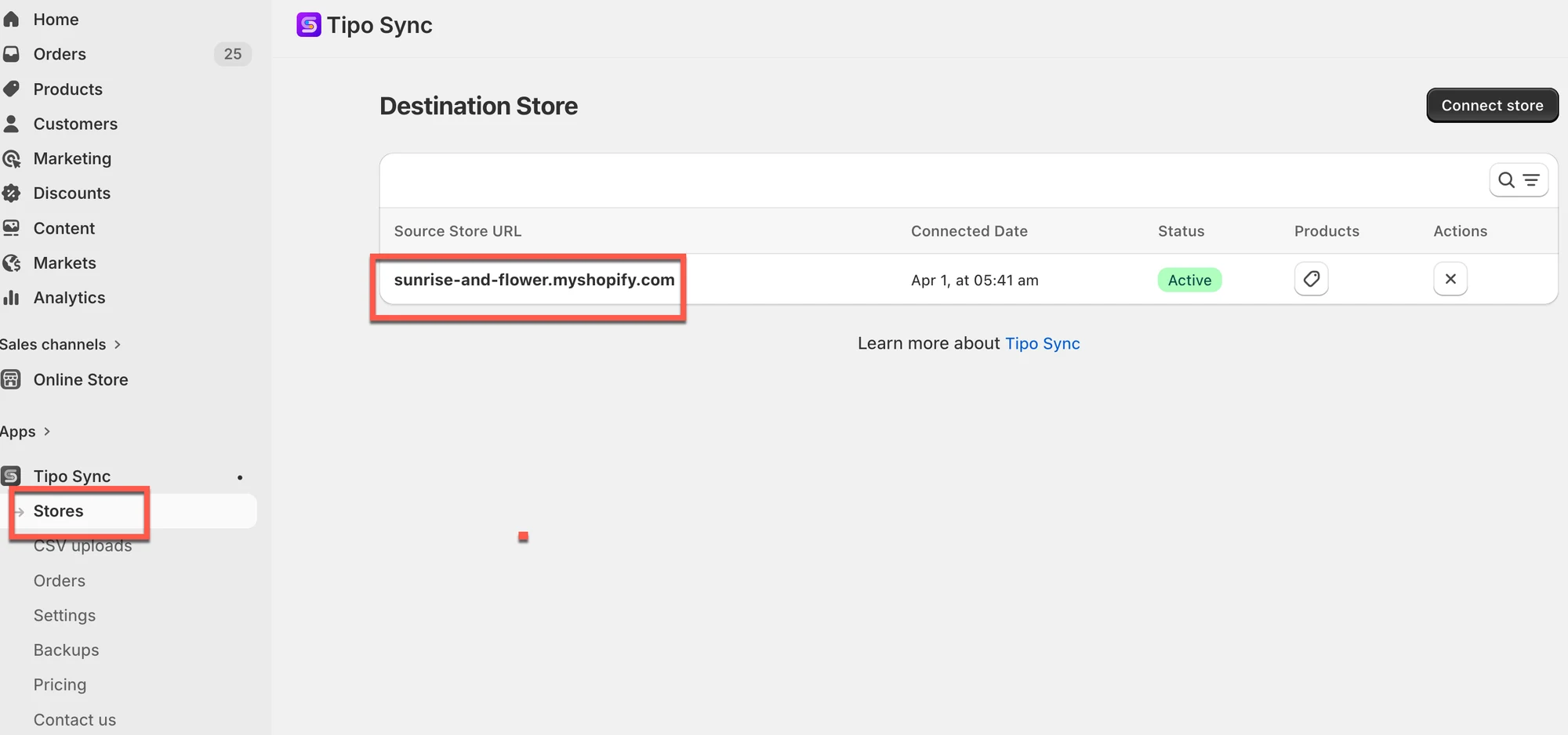
Go to the **Destinations** store, open the app **Dashboard** > click on the store URL of the source store to open the connection detail
* For **Products sync** part, check the selected option:
### ⚙️ 4. Sync Mode Configuration Prevents Syncing
The selected sync mode controls how items are created or updated.
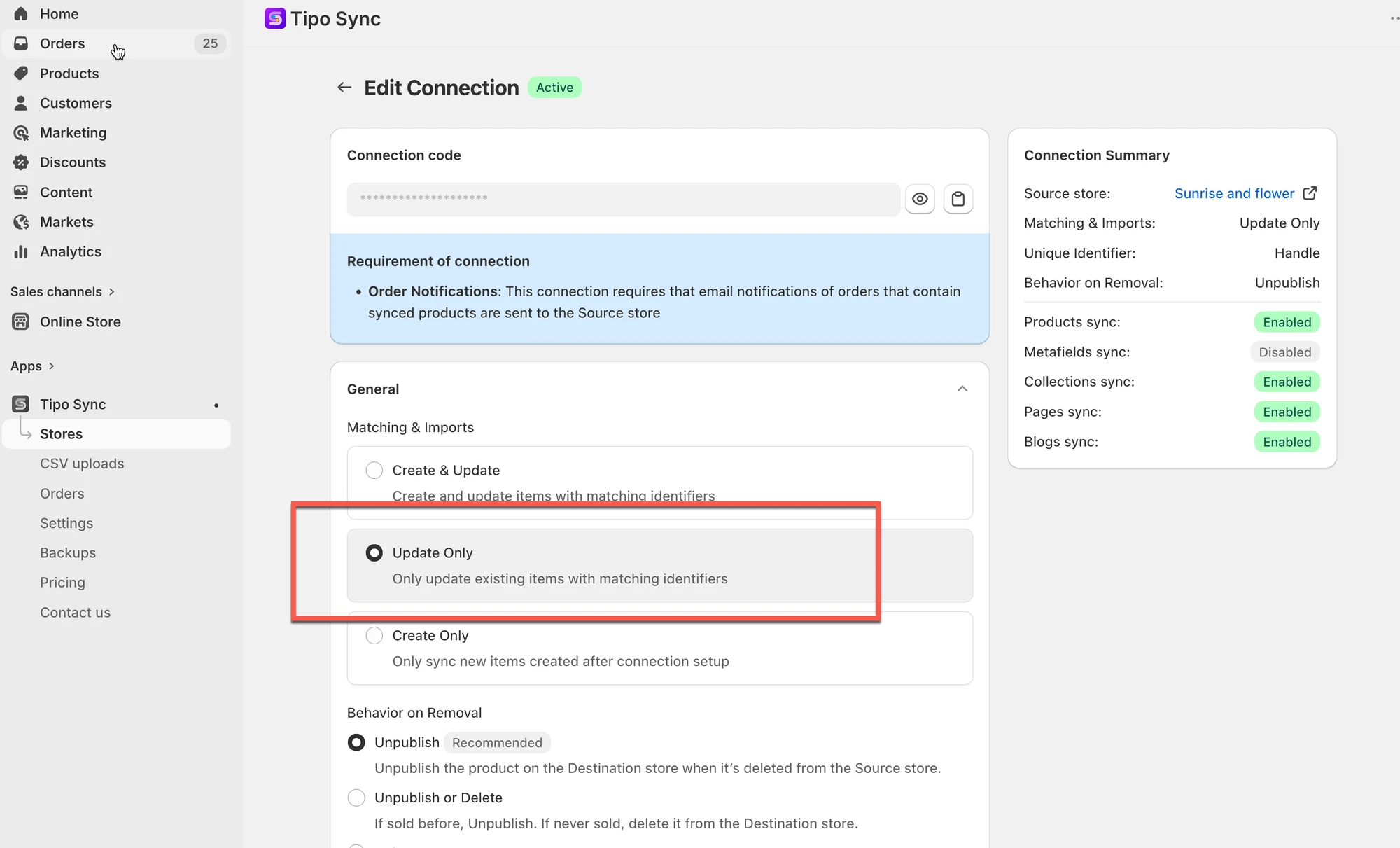
In Destination store, go to the app > click on connection ID > **Matching & Imports** setting
#### Update Only
When **Update Only** is enabled:
* The app only updates products that already exist in both stores
* New products will NOT be created automatically
#### Example
* Product exists in Source store
* Product does NOT exist in Destination store
* Result → Product will not sync
In this case, you need to manually add the product to the Destination store first.
If you want the app to automatically create missing products, switch to option "**Create and Update**"
***
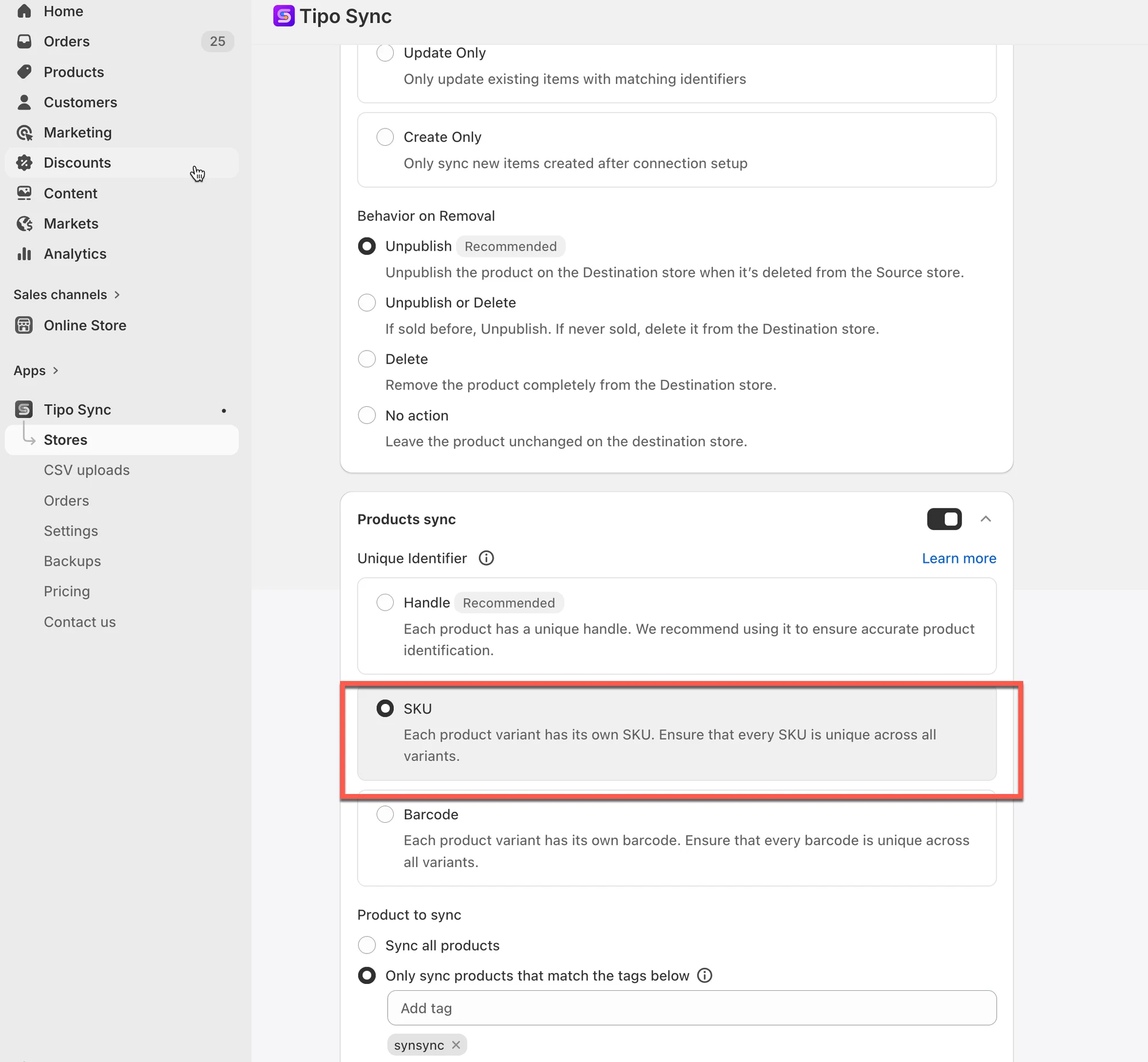
### 🔑 5. Missing Product Identifier
The app uses identifiers to match products between stores.
Common identifiers:
* SKU
* Barcode
* Handle
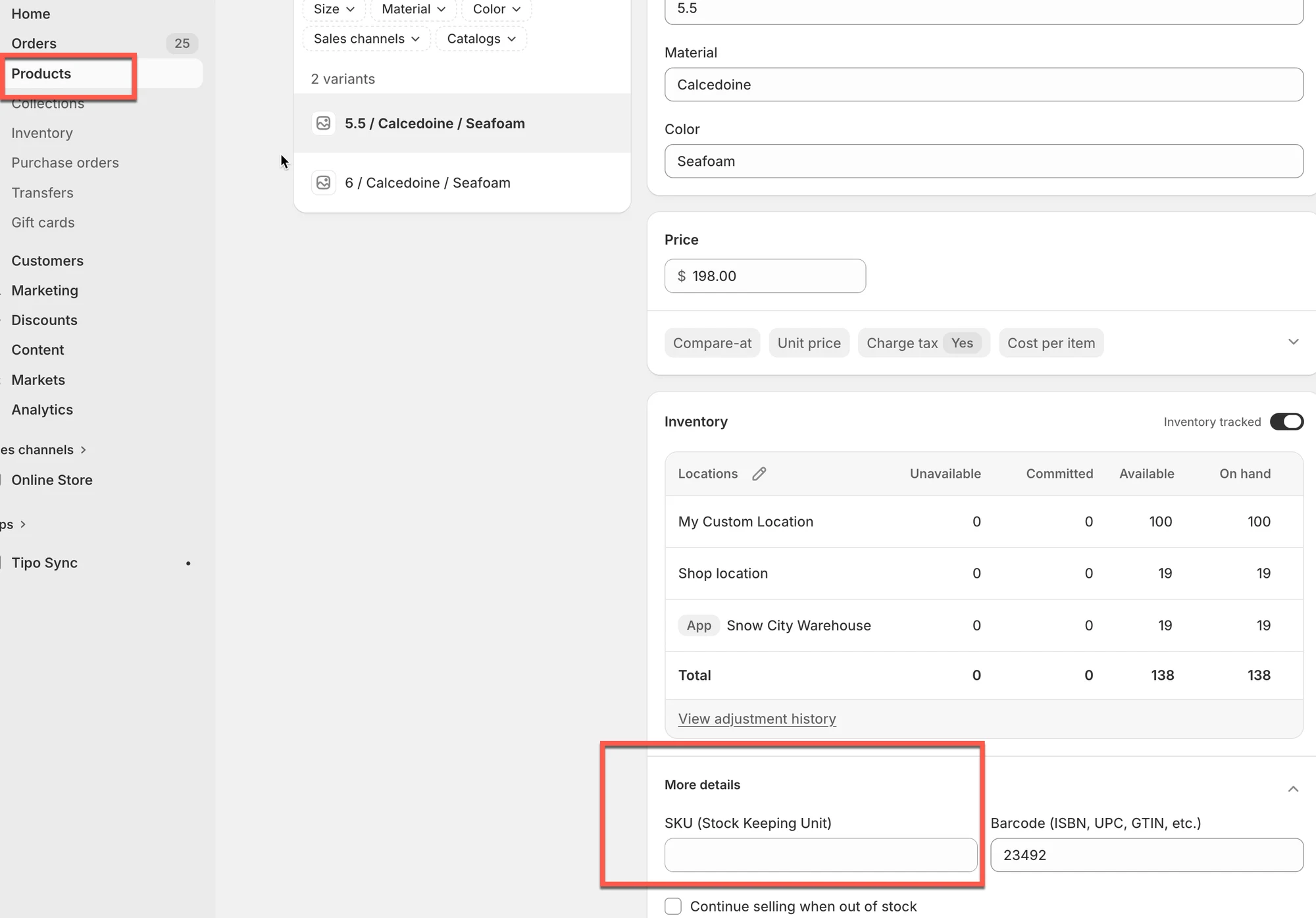
If the identifier is empty or invalid, the product cannot sync correctly.
Example
* Sync identifier = SKU
* Product SKU is empty
* Result → Product will not sync
> Important: All synced products should contain valid identifiers.
***
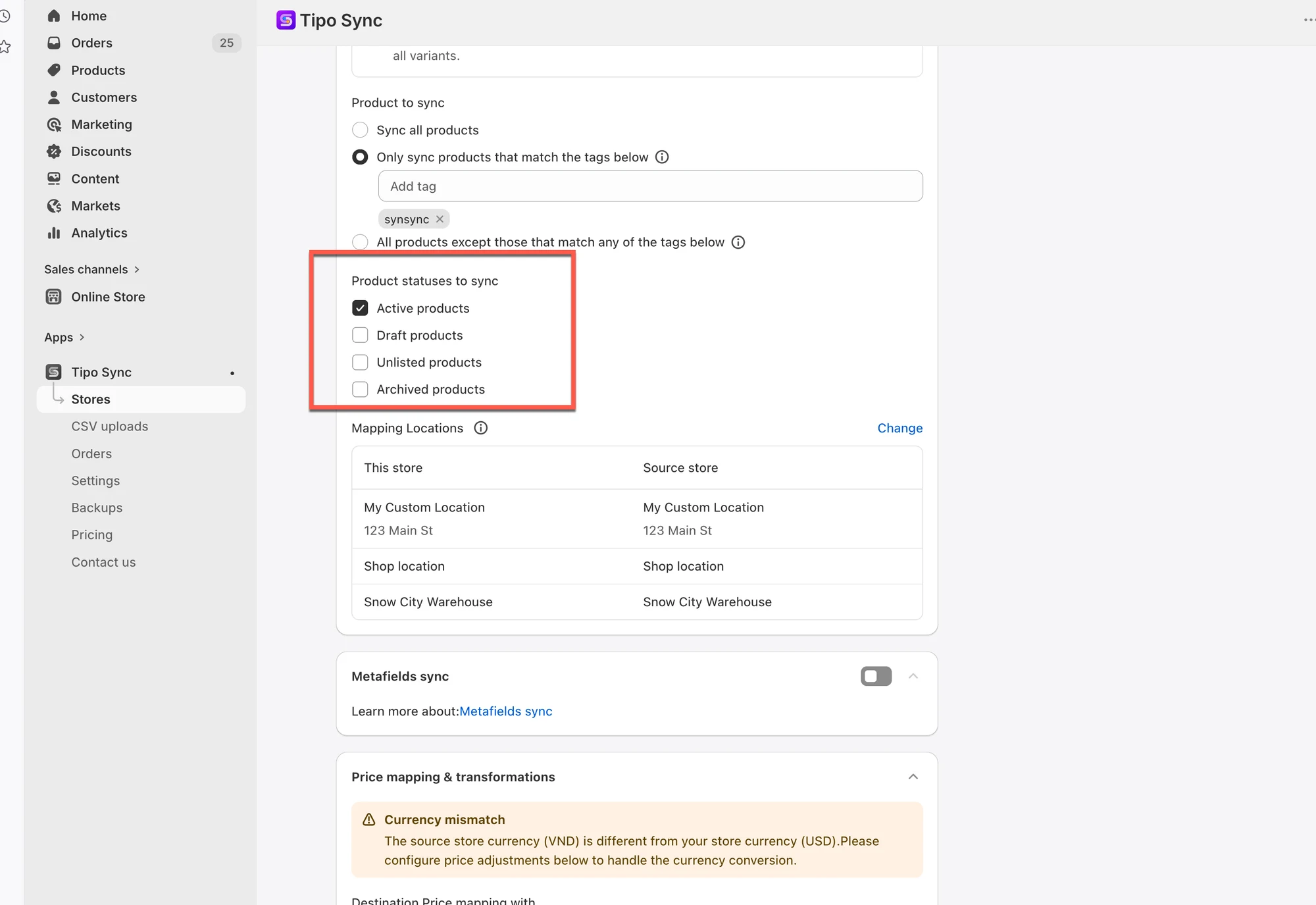
### 📦 6. Product Status Is Not Included
Your sync settings may only allow specific product statuses.
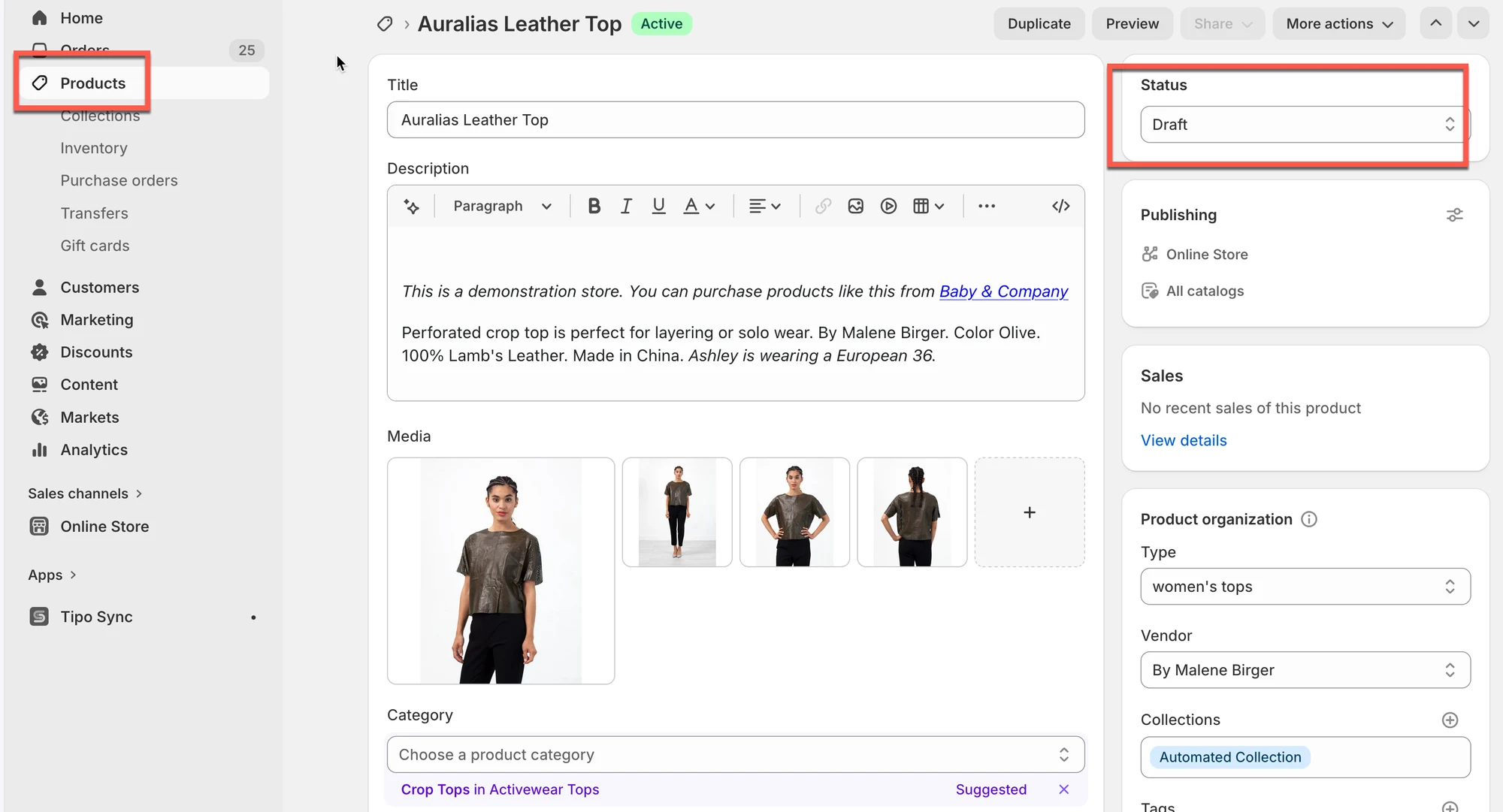
### Example
Sync settings:
* Only sync **Active** products
Product status:
* Draft
Result:
* Product will not sync
***
If the sync still doesn’t work for you, please contact us at [hi@tipo.io](mailto:hi@tipo.io) and let us know the information below:
* Store URLs
* Collaborator code of each store
* The products that are not synced
**🙋 Still need support?**
If you still need help, please feel free to contact us at . We’ll be happy to assist you further.