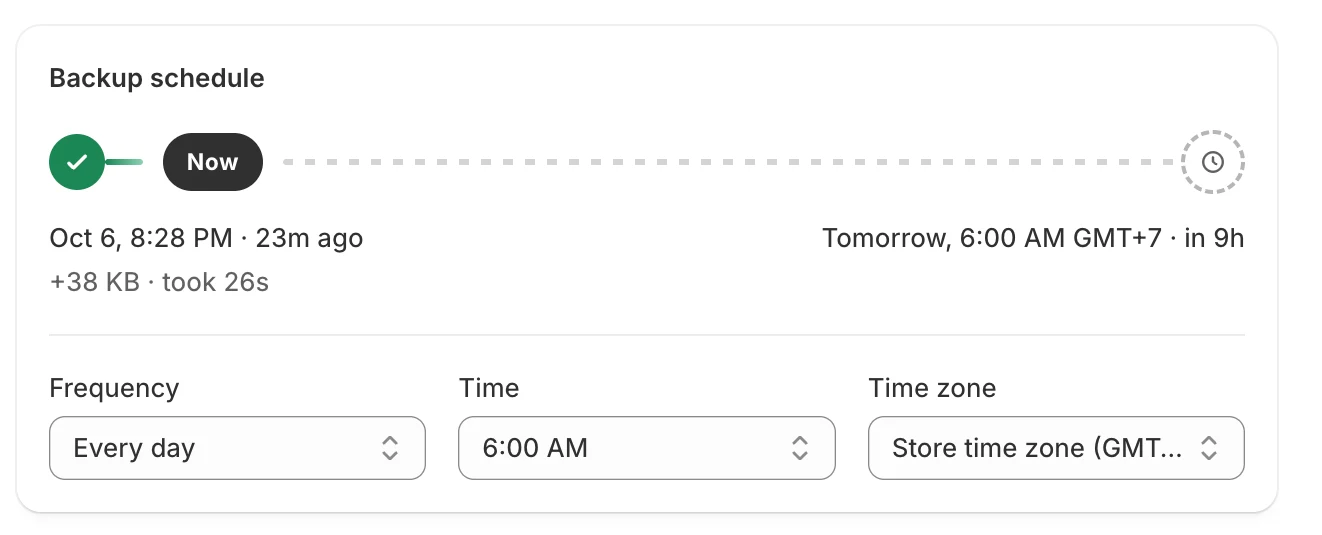
In the Shopify admin sidebar, click **Backup & Restore Tipo**, then **Settings**.
Find the **Backup schedule** card at the top of the page.
Pick a value in **Frequency**, **Time** or **Time zone**.
Check the timeline to see when the next backup will run.
Click **Save** in the save bar.
| Option | What it does | Choices |
| ------------- | ----------------------------------------- | ------------------------------------------------------------------------------------------------------------------------------------------ |
| **Frequency** | How often automatic backups run. | **Every day** or **Every week**. The default is **Every day**. **Every 6 hours** and **Every 12 hours** are listed but greyed out. |
| **Time** | The time of day the schedule starts from. | **12:00 AM**, **2:00 AM**, **3:00 AM**, **6:00 AM**, **12:00 PM**, **9:00 PM**. Use the time shown in Settings if you have not changed it. |
| **Time zone** | Which clock **Time** uses. | **Store time zone** (shown with its short name, for example "Store time zone (GMT+7)") or **UTC**. The default is your store time zone. |
### Fastest frequency
Automatic backups run at most once a day while the app is free for your store. **Every 6 hours** and **Every 12 hours** appear in the list but are greyed out and can't be selected. If you need more frequent backups, [contact us](/backup-and-restore-tipo/help/contact-support). See [Usage and limits](/backup-and-restore-tipo/pricing/plans/usage-and-limits).
### Time zone
With **Store time zone**, the schedule follows the time zone of your store in Shopify. If you change that time zone in the Shopify admin, backups follow it without you saving again. If the store time zone is not known, the app uses UTC.
## Examples
The app starts from today's date at the time you choose, then adds the frequency until the result is in the future.
| Frequency | Time | Backups run at |
| ------------- | ------- | -------------- |
| **Every day** | 3:00 AM | 3 AM every day |
:::note
**Every week** has no weekday picker. Backups run at the time you choose. The first run is today if that time is still ahead, otherwise 7 days later. After that it repeats every 7 days.
:::
## When a scheduled backup does not run
* **A restore is running.** The backup waits and runs shortly after the restore ends, so it does not copy a half-restored store.
* **The previous backup is still running.** The new run is skipped. If the Backup alert rule is on, you get an email. See [Alert rules](/backup-and-restore-tipo/settings/settings/alert-rules).
* **Your store is far over its limit.** When your store goes far over its storage or product limit, automatic backups pause. You can still back up manually and restore. A backup that has already started still finishes. See [Usage and limits](/backup-and-restore-tipo/pricing/plans/usage-and-limits).
:::caution
Settings has no switch to turn automatic backups off. To leave data out of backups, use [Choose what to back up](/backup-and-restore-tipo/settings/settings/what-we-back-up).
:::
## Next steps
* [Back up now](/backup-and-restore-tipo/backups/backups/back-up-now)
* [Choose what to back up](/backup-and-restore-tipo/settings/settings/what-we-back-up)
* [Email notifications](/backup-and-restore-tipo/settings/settings/notifications)
* [Usage and limits](/backup-and-restore-tipo/pricing/plans/usage-and-limits)