# Set up the app

Choose what to protect, when backups run and who gets emails with the three-step Get started wizard.

The first time you open **Backup & Restore Tipo**, a short wizard called **Get started** helps you choose what to back up, how much order history to include, when backups run and who receives emails. Under the title it says **Protect your store in 3 short steps**. A step tracker shows the name of each step and which one you are on. Select **Continue** at the top of the page on each step until you reach **Review & start**.

| Step | Name                                      | What you decide                                                   |
| ---- | ----------------------------------------- | ----------------------------------------------------------------- |
| 1    | [What to protect](#what-to-protect)       | Which data types to protect and how much order history to include |
| 2    | [Schedule & alerts](#schedule-and-alerts) | When backups run and who gets emails                              |
| 3    | [Review & start](#review-and-start)       | Check your choices and start your first backup                    |


:::note

There is no plan to choose: the app is currently free for stores that install it during this period. See [Pricing](/backup-and-restore-tipo/pricing/plans).

:::


## When the wizard appears

The wizard opens automatically on a new install. You don't need to find it in the menu.

* Your progress is saved. If you close the app and come back, the wizard resumes where you left off.
* Until you finish it, **Home** shows the wizard instead of the dashboard.
* You can't skip ahead. **Continue** saves the step and moves on. To go back, select **Back**, or select the name of a finished step (it shows a check mark) in the step tracker.

You can change every choice later in [Settings](/backup-and-restore-tipo/settings/settings), except the order history choice, which you set only once.

## What to protect

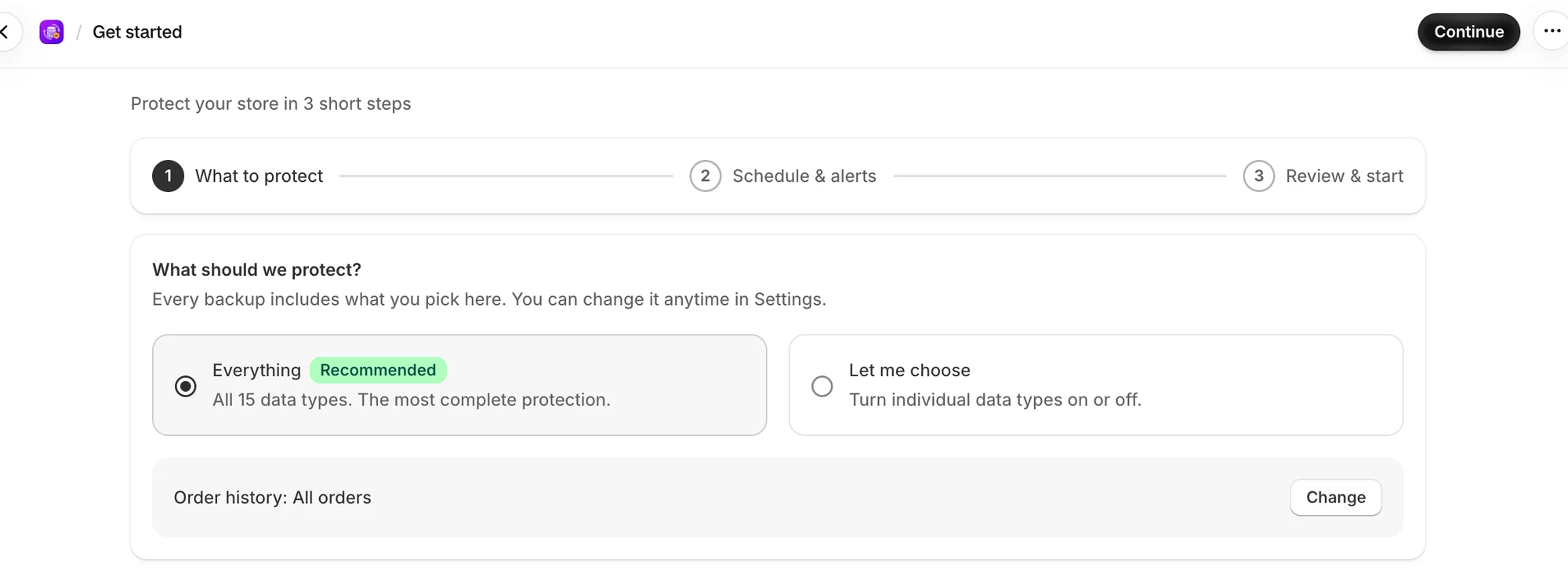
The first step asks **What should we protect?** It says **Every backup includes what you pick here. You can change it anytime in Settings.**

<figure><img src="/media/3e90d8fb9f033c255062.webp" alt="Get started, What to protect step, with the Everything and Let me choose options" loading="lazy" decoding="async"><figcaption><p>Keep Everything selected, or choose Let me choose to turn data types on or off.</p></figcaption></figure>

Pick one of two options:

| Option                           | What it does                                                                     |
| -------------------------------- | -------------------------------------------------------------------------------- |
| **Everything** (**Recommended**) | Backs up all 15 data types. **All 15 data types. The most complete protection.** |
| **Let me choose**                | Shows every data type as a tile, in groups, so you can turn each one on or off.  |

If you choose **Let me choose**, the data types appear in four groups:

| Group                  | Data types                                                                                    |
| ---------------------- | --------------------------------------------------------------------------------------------- |
| **Catalog**            | Products & variants, Collections, Metafield definitions, Metaobjects, Locations and Inventory |
| **Online store**       | Themes, Pages, Blogs & articles, Menus, Files, Policies                                       |
| **Customers & orders** | Customers, Orders                                                                             |
| **Store settings**     | Saved searches, Shipping zones                                                                |

* Select a tile to turn that data type on or off.
* Each group has a checkbox next to its name and a count such as **3 of 5 selected**. Tick the group checkbox to turn on every data type in the group. Untick it to turn them all off.
* Some tiles carry a **Backup only** badge: Saved searches, Locations and Inventory, Policies, Shipping zones and Orders. As the note at the bottom says: **Saved and exportable, but Shopify doesn't let apps write it back.**


:::caution

**Continue** stays disabled if every data type is off. Keep at least one data type on.

:::


### Order history

While **Orders** is on, this step also asks **How much order history?**

* With **Everything** selected, a line reads **Order history: All orders**. Select **Change** to pick something else.
* With **Let me choose**, the question appears under the **Customers & orders** group.

| Option                      | What it does                                                                                                                                              |
| --------------------------- | --------------------------------------------------------------------------------------------------------------------------------------------------------- |
| **All orders**              | Backs up every order. It can show how many orders your store has and when it opened, for example **1,240 orders since your store opened on Mar 2, 2021.** |
| **Only orders from a date** | **A smaller, faster first backup.** Pick a **Start date**. Orders created on or after that day are backed up.                                             |

The start date must be before today. Otherwise you see **Pick a start date before today.** and **Continue** stays disabled.


:::caution

**More history means a longer first backup and more storage. You can set this only once.** After you select **Continue**, the step shows your choice with **Your order history choice is saved and can't be changed.**

:::


Select **Continue**. Your data types and order history choice are saved straight away. If saving fails, a **Couldn't save your choices** message appears with the reason. Fix it and select **Continue** again.

If you see **Couldn't load your settings**, select **Try again**.

## Schedule and alerts

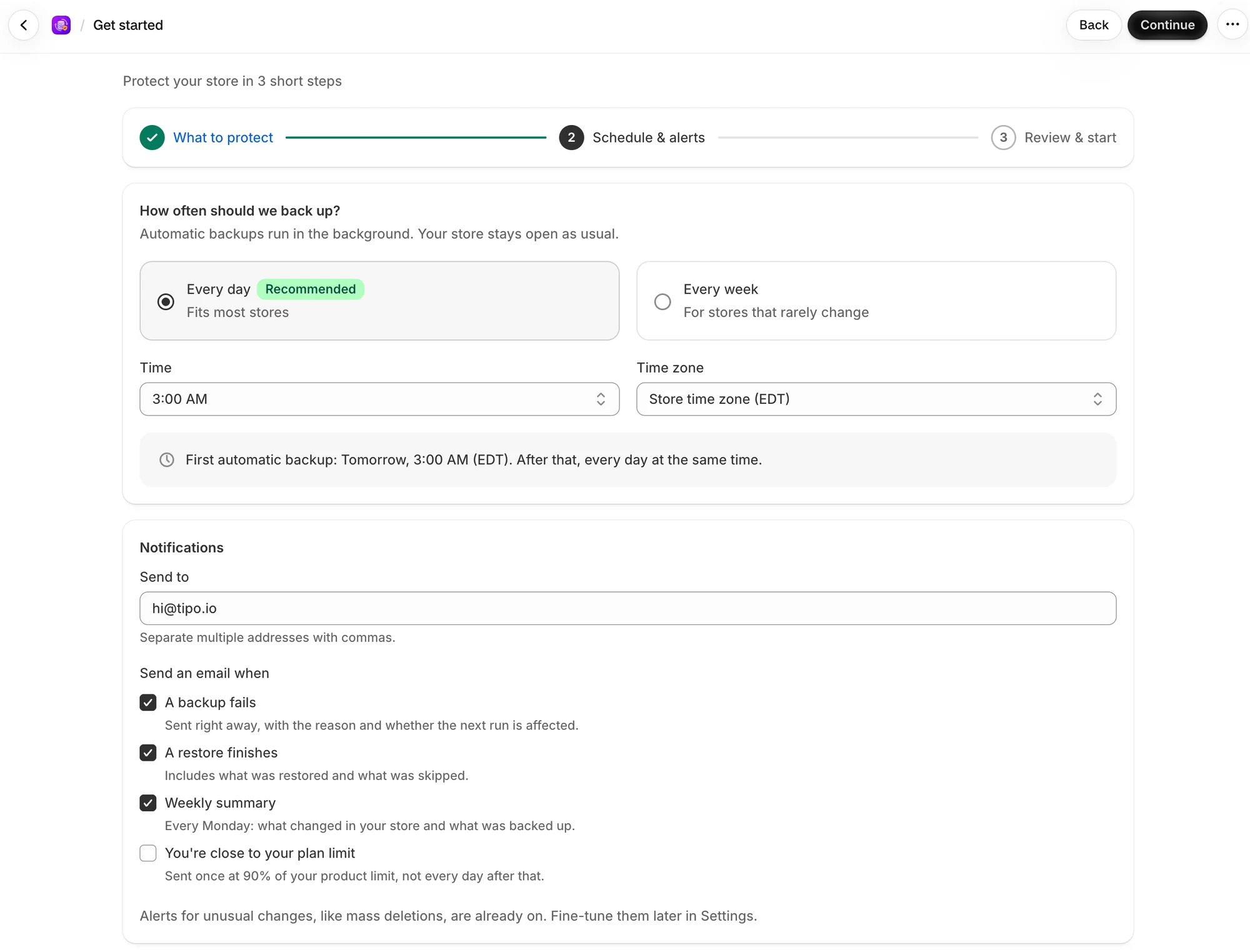
<figure><img src="/media/c302aaaa4cb7cdbd8ccf.webp" alt="Get started, Schedule &#x26; alerts step, with the frequency options, Time and Time zone, the first automatic backup line and the Notifications card" loading="lazy" decoding="async"><figcaption><p>This step sets the schedule and the email address for alerts.</p></figcaption></figure>

### How often should we back up?

**Automatic backups run in the background. Your store stays open as usual.** Pick a frequency:

| Option                          | Description                   |
| ------------------------------- | ----------------------------- |
| **Every day** (**Recommended**) | Fits most stores              |
| **Every week**                  | For stores that rarely change |

Then set:

| Option        | Choices                                                | What it does                                                        |
| ------------- | ------------------------------------------------------ | ------------------------------------------------------------------- |
| **Time**      | 12:00 AM, 2:00 AM, 3:00 AM, 6:00 AM, 12:00 PM, 9:00 PM | When the backup runs. The wizard shows the default time.            |
| **Time zone** | Store time zone, or UTC                                | Which clock the **Time** uses. The default is your store time zone. |

A line under the options tells you when the first automatic backup runs, for example **First automatic backup: tomorrow at 3:00 AM (EST). After that, every day at the same time.**

Automatic backups run at most once a day, so the wizard offers only these two options. See [Usage and limits](/backup-and-restore-tipo/pricing/plans/usage-and-limits).

### Notifications

* **Send to** is the email address for app emails. Separate several addresses with commas. If you haven't saved an address yet, the field starts with your store's email.
* **Send an email when** has four choices:

| Option                              | What it does                                                           | Default |
| ----------------------------------- | ---------------------------------------------------------------------- | ------- |
| **A backup fails**                  | Sent right away, with the reason and whether the next run is affected. | On      |
| **A restore finishes**              | Includes what was restored and what was skipped.                       | On      |
| **Weekly summary**                  | Every Monday: what changed in your store and what was backed up.       | On      |
| **You're close to your plan limit** | Sent once at 90% of your product limit, not every day after that.      | Off     |

Below the choices: **Alerts for unusual changes, like mass deletions, are already on. Fine-tune them later in Settings.** See [Alert rules](/backup-and-restore-tipo/settings/settings/alert-rules).

Select **Continue** to save. If you see **Couldn't save your settings**, read the message, fix the problem and select **Continue** again. You stay on this step until it saves. Select **Back** to return to the previous step.

## Review and start

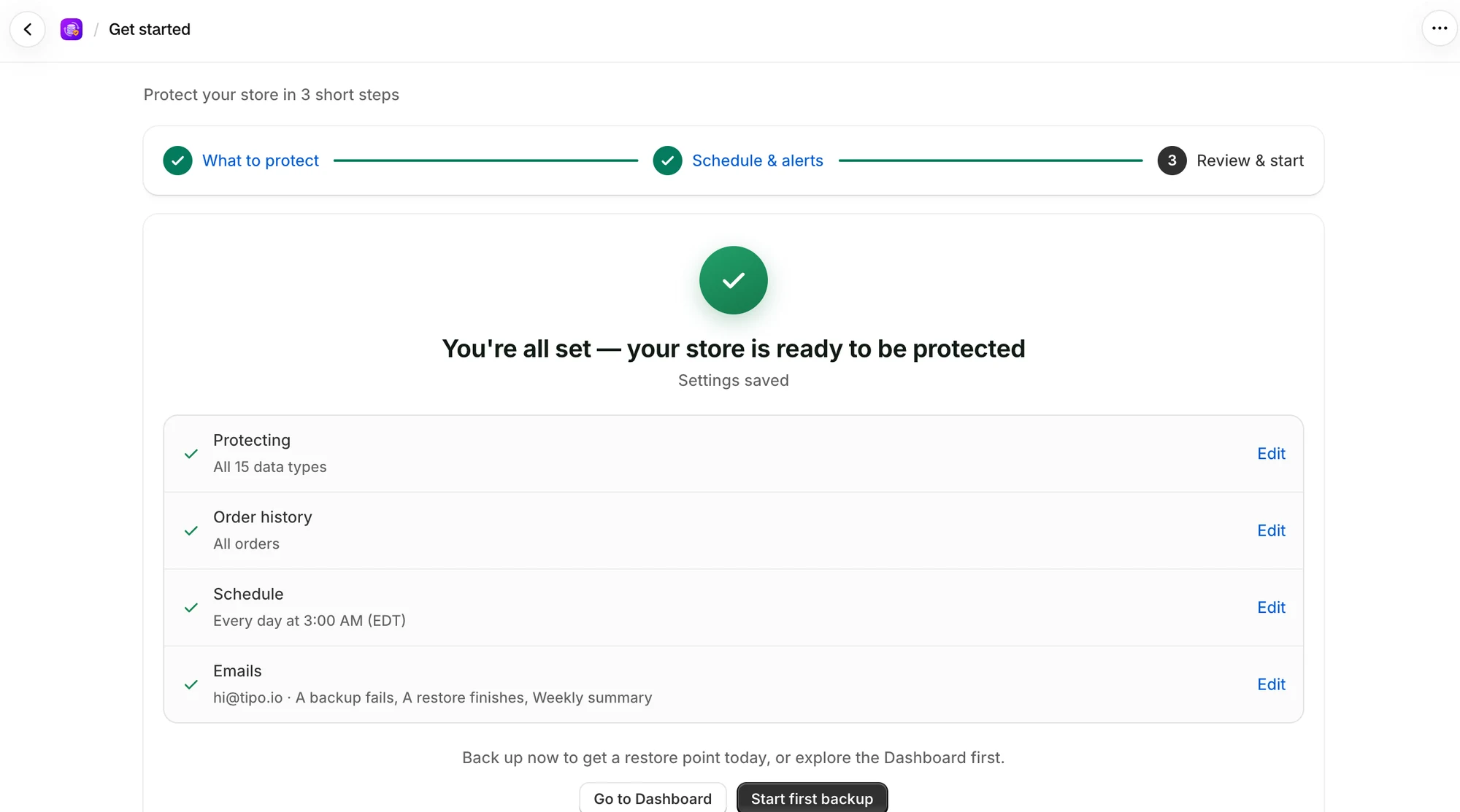
<figure><img src="/media/a4544a19c92bec072fe9.webp" alt="The Review &#x26; start step with the Settings saved note, a summary of each choice with Edit links, and the Go to Dashboard and Start first backup buttons" loading="lazy" decoding="async"><figcaption><p>The last step sums up your choices and offers to run your first backup right away.</p></figcaption></figure>

The last step says **You're all set — your store is ready to be protected** and **Settings saved**. Everything is already saved at this point. The step lists your choices, each with an **Edit** link that takes you back to that step:

| Row               | Example                                                                    |
| ----------------- | -------------------------------------------------------------------------- |
| **Protecting**    | **All 15 data types**, or **12 of 15 data types**                          |
| **Order history** | **All orders**, **Orders from Mar 2, 2025** or **Orders aren't backed up** |
| **Schedule**      | **Every day at 3:00 AM (EST)**                                             |
| **Emails**        | The address and the emails you turned on, or **No email alerts**           |

**Back up now to get a restore point today, or explore the Dashboard first.** Choose one of two buttons:

| Button                 | What it does                                                             |
| ---------------------- | ------------------------------------------------------------------------ |
| **Start first backup** | Starts your first backup and opens **Home**, where you can watch it run. |
| **Go to Dashboard**    | Opens **Home** without starting a backup.                                |

Nothing happens until you select a button.

### If the backup doesn't start

A red message appears on the screen and you stay where you are. You can start a backup from **Home** instead.

| Message                                                                                   | What to do                                                           |
| ----------------------------------------------------------------------------------------- | -------------------------------------------------------------------- |
| A backup is already in progress for this store.                                           | Wait for it to finish.                                               |
| A restore is in progress for this store. Wait until it finishes before starting a backup. | Wait for the restore to finish.                                      |
| No backup resources are enabled for this store.                                           | Go to **Settings** and tick at least one data type.                  |
| Choose how much order history to back up before starting a backup.                        | Select **Edit** next to **Order history** and make a choice.         |
| Could not start the backup. You can start one from the Home page.                         | Select **Go to Dashboard**, then select **Back up now** on **Home**. |

## Change it later

* Data types: [Choose what to back up](/backup-and-restore-tipo/settings/settings/what-we-back-up)
* Schedule: [Backup schedule](/backup-and-restore-tipo/settings/settings/backup-schedule)
* Emails: [Email notifications](/backup-and-restore-tipo/settings/settings/notifications)

## Next steps

* [Quickstart: your first backup](/backup-and-restore-tipo/getting-started/quickstart)
* [Check your protection status](/backup-and-restore-tipo/home/home/protection-status)
* [Finish setting up (setup guide)](/backup-and-restore-tipo/home/home/setup-guide)