# Browse metafield definitions

Find metafield definitions by owner type and compare definition, validation, options and access.

Metafield definitions have an extra page that groups them by what they apply to, such as products or customers. Use it to find a definition and compare it with your live store.

## Open the owner type page

<div class="guide-steps">

<div class="guide-step">


### Select Metafield definitions

In your Shopify admin, open **Backup & Restore Tipo**. On **Home**, in the **Store data** card, select **Metafield definitions**.

</div>

<div class="guide-step">


### Pick an owner type

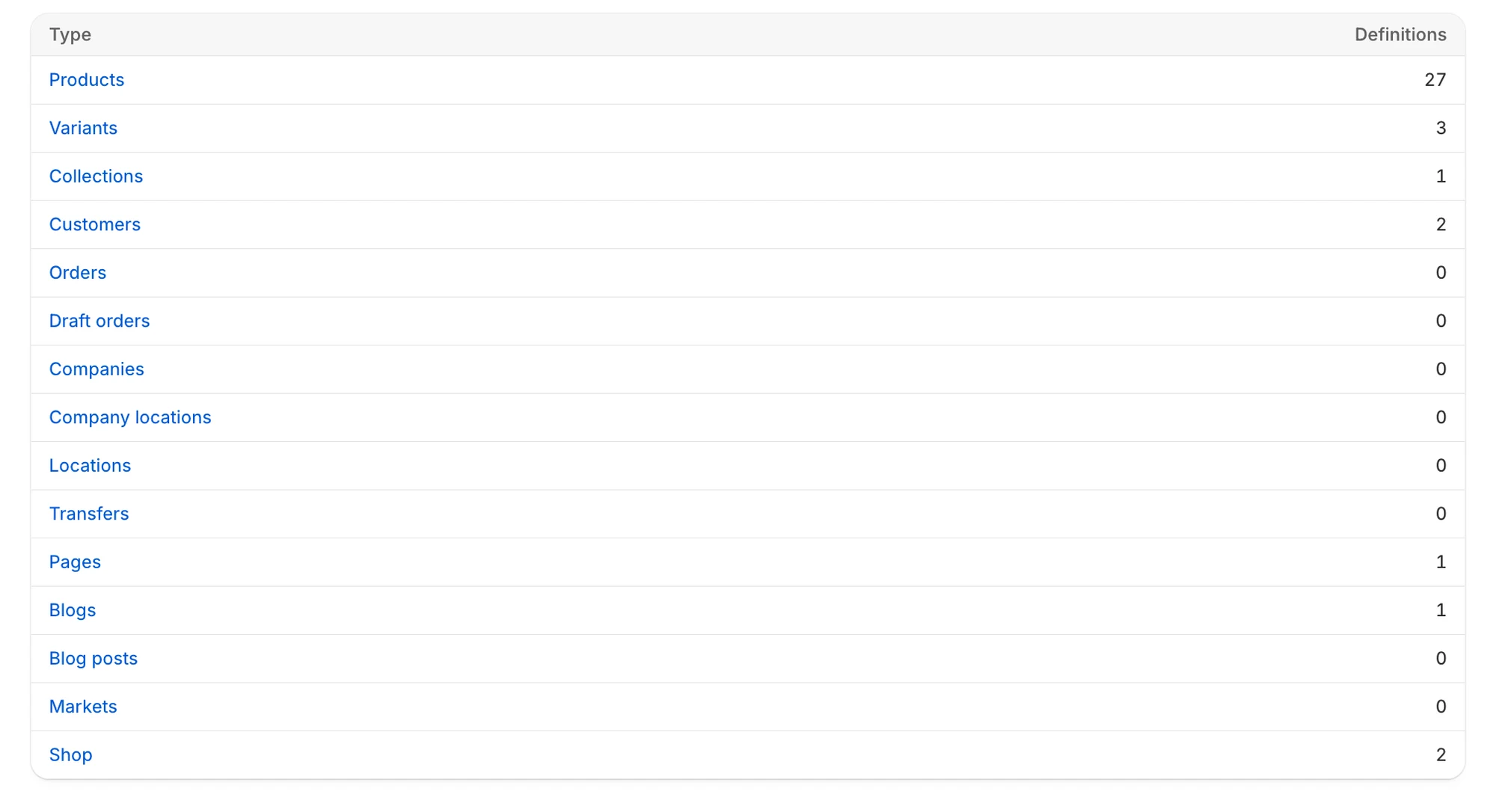
The page shows a table with **Type** and **Definitions** columns. Select the type you want.
</div>

</div>

<figure><img src="/media/543911f21c17db1991ea.webp" alt="Table of metafield definition owner types with a count for each" loading="lazy" decoding="async"><figcaption><p>Each owner type shows how many definitions the backup holds.</p></figcaption></figure>

The 15 owner types are: Products, Variants, Collections, Customers, Orders, Draft orders, Companies, Company locations, Locations, Transfers, Pages, Blogs, Blog posts, Markets and Shop. Definitions deleted from your store are not counted here, but they still appear in the list for the type.

If the table does not load, you see **Couldn't load metafield definition types**.

## Use the list for a type

The list for an owner type works like any other list. You can search, sort and see **Deleted** badges. It has no **Last edited** column. Select **Metafield definitions** in the breadcrumb to go back to the owner types. See [Find a backed-up item](/backup-and-restore-tipo/browse-and-compare/browse/find-an-item). You can also tick definitions and restore them, as described in [Restore selected items from a list](/backup-and-restore-tipo/restore/restore/restore-selected-items).

## Compare a definition

Select a definition to open its comparison page. The breadcrumb at the top takes you back to the list for its owner type. Use **Backup version** to pick which backup to compare. Highlighted rows show what differs. See [Compare an item with your live store](/backup-and-restore-tipo/browse-and-compare/browse/compare-with-live-store) for how the columns work.

| Section                | What it shows                                                                                                                                                          |
| ---------------------- | ---------------------------------------------------------------------------------------------------------------------------------------------------------------------- |
| **Definition**         | Name, namespace and key, what it applies to, type, description, whether it holds a single value or a list, and capabilities such as use in smart collection conditions |
| **Validation**         | The validation rules set on the definition and their status                                                                                                            |
| **Options**            | Choices defined for the field                                                                                                                                          |
| **Access permissions** | Whether the Admin API, Customer account API and Storefront API can read it                                                                                             |


:::note

Category assignments (the product categories a definition is limited to) are not shown on this page, because restore does not bring them back. If you need them to match a backup, set them in Shopify admin.

:::


## Restore a definition

Select **Restore** at the top of the page to restore that definition to the selected backup version. See [Restore a single item](/backup-and-restore-tipo/restore/restore/restore-a-single-item).


:::note

Standard definitions that Shopify provides cannot be changed, and a change to a definition's type can conflict with existing values. See [How restore works](/backup-and-restore-tipo/reference/how-it-works/how-restore-works) for what is restored and what is reported.

:::


## Next steps

* [Find a backed-up item](/backup-and-restore-tipo/browse-and-compare/browse/find-an-item)
* [Restore a single item](/backup-and-restore-tipo/restore/restore/restore-a-single-item)
* [Restore selected items from a list](/backup-and-restore-tipo/restore/restore/restore-selected-items)
